Stream PC games to your Oculus Quest using Virtual Desktop

The Oculus Quest is a fantastic new way to play your favorite VR games. It's also a great way to play all your favorite PC games, with a little bit of setup. By using an app called Virtual Desktop, you can easily mirror your desktop to your Quest.
Products used in this guide- Streaming to VR: Virtual Desktop ($20 at Oculus)
- On-the-go VR: Oculus Quest ($399 at Oculus)
Note: By following our guide, you can create a gigantic digital display to enjoy all your favorite games on. Do note, Virtual Desktop does not support crossplay between versions, so you have to make sure you purchase the app through the Oculus Quest store, and not the regular Oculus Rift store (which will direct you to the desktop version only).
How to stream PC games to your QuestFirst, you will need to purchase Virtual Desktop for your Oculus Quest. Make sure you buy this from the Quest store, and not the Rift store. Virtual Desktop does not support cross-play, so the Rift website will only get you the desktop version.

Next, download and install the Virtual Desktop Streamer on your desktop on the Virtual Desktop website.
<
- At this point, make sure both your PC and your Quest are connected on the same Wi-Fi.
- Open Virtual Desktop on your Quest, and it will provide you with your Oculus username (if you didn't already have it handy).
Open Virtual Desktop Streamer on your Desktop and it will prompt you for your Oculus username.
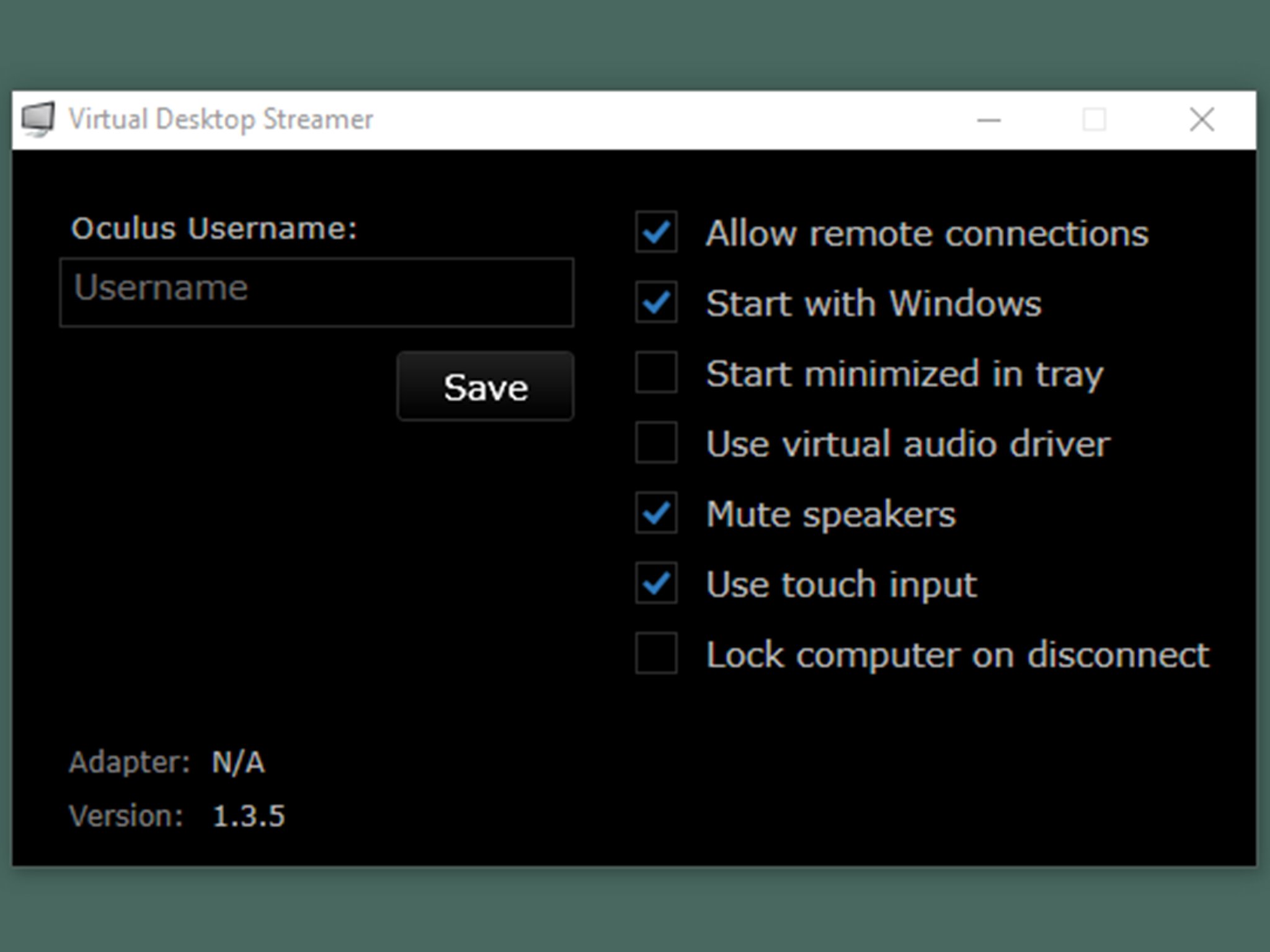
Once you have Virtual Desktop Streamer running, your desktop will show up in the Virtual Desktop app on your Quest. Voila! You can now use your Quest as a humongous desktop screen.
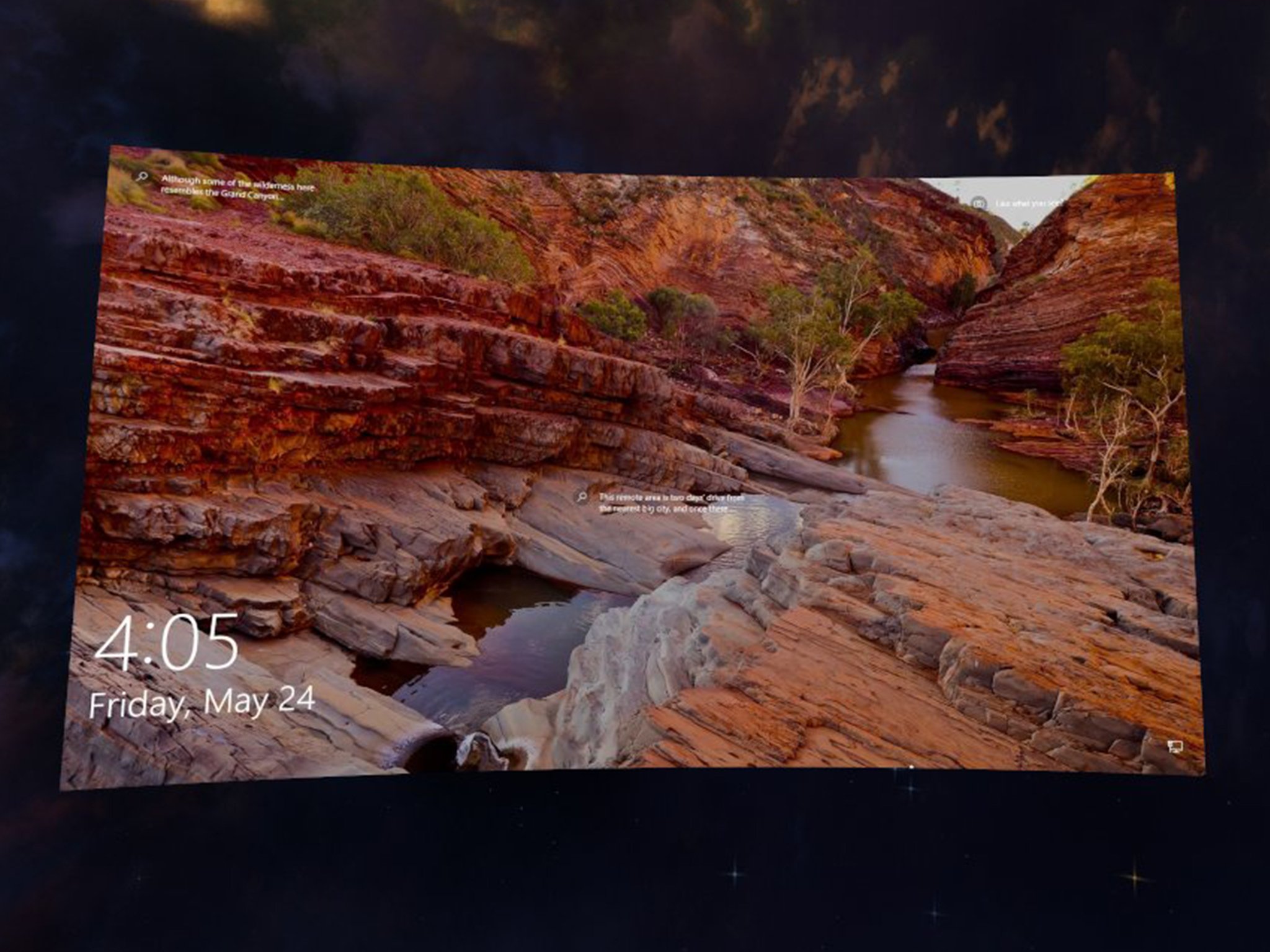
If you've followed these steps, you will be able to enjoy all your favorite PC games through your Quest. With the Quest's high-resolution display, you can essentially use it as a giant monitor. Since Virtual Desktop works off of your local wifi, there is little to no lag, making it perfect for gaming.
Our top equipment picksWhile there are other streaming apps, such as Bigscreen, we recommend using Virtual Desktop specifically for gaming. With almost no lag, it's perfect for gaming, while an app like Bigscreen may not run as smoothly.
PC StreamingVirtual Desktop
PC Gaming in VR
Virtual Desktop is a great way to extend the use of your Quest to regular PC gaming. It essentially puts a virtual theater at your fingertips.
On-the-go VROculus Quest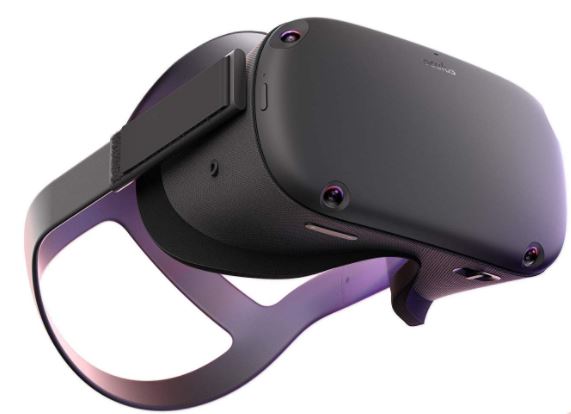
$399 on Oculus $399 at Walmart
Experience VR just about anywhere
The Oculus Quest is the newest all-in-one VR device to take your gaming on the go. It requires no PC and no cables, so you are completely untethered! This is the first truly standalone VR gaming experience.
Additional EquipmentIf you're going to be using your Quest as a PC display, you may be interested in the following suggestions. These recommendations can further improve your VR experience, and help you care for your headset.
Compact headphonesMPOW Foldable Headphones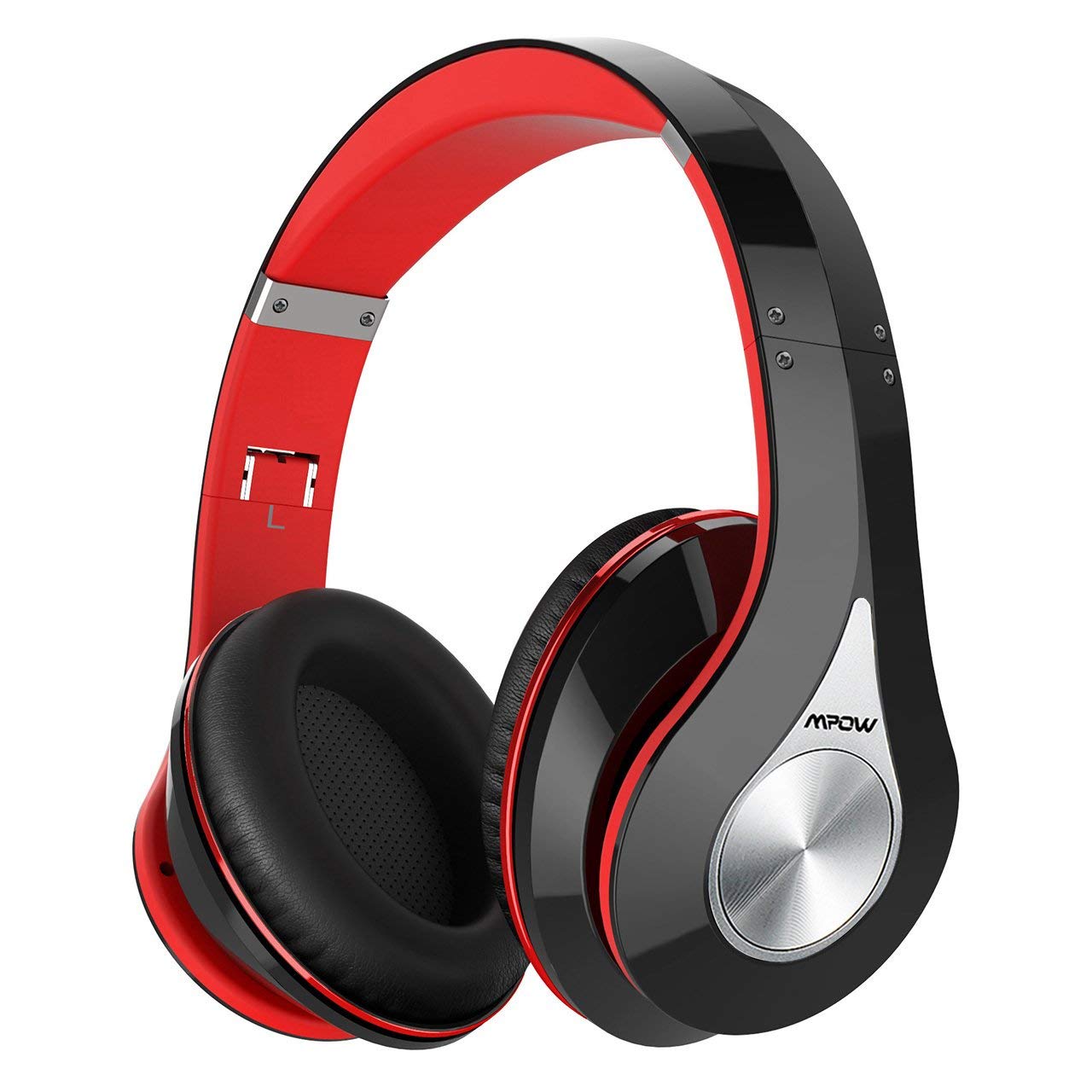
These over-the-ear headphones will enhance your VR experience by delivering hi-fi sound quality. Connects by auxiliary cable or Bluetooth.
Easy cleaningCare Touch Lens Cleaning Wipes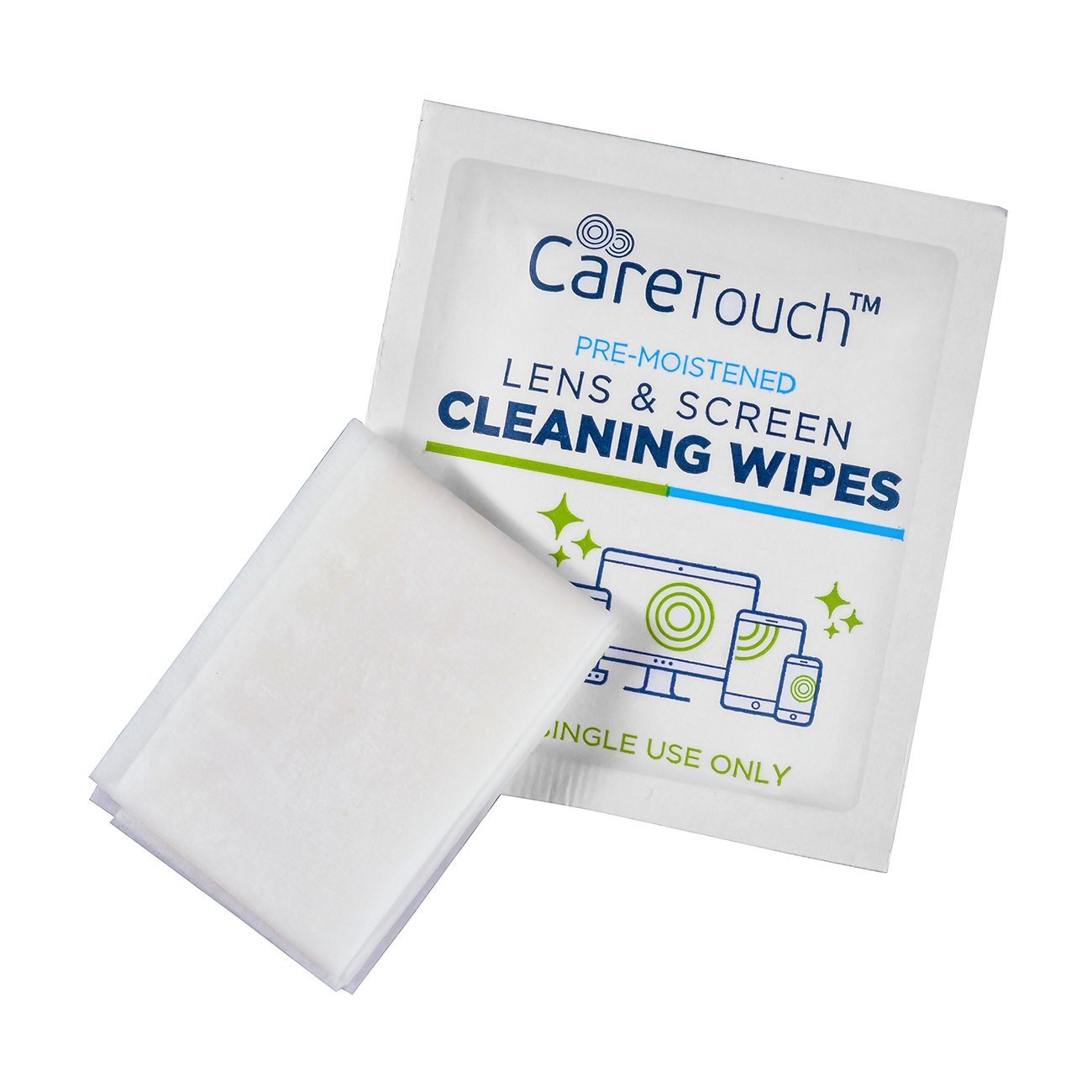
To keep your headset and lenses clean from dust and debris, use these pre-moistened wipes. These will insure your headset stays clean, even with multiple users.
Durable and spaciousOculus Quest Travel Case
This case will store your Quest along with the controllers, and still have plenty of room for other accessories. The rigid case structure will protect your device when you're on the go.