Pokémon HOME: How to buy a premium subscription on Android

Poki(C)mon collectors rejoice because Poki(C)mon HOME is finally here. You may be wondering how to upgrade your membership to a premium subscription because the free version doesn't really offer much. You can upgrade on any device that has Poki(C)mon HOME installed, but we'll focus on Android mobile devices here. To start storing up to 6000 Poki(C)mon and transfer from your 3DS, you'll upgrade your membership through the Poki(C)mon HOME app. If you've already downloaded and set up your app and just wish to upgrade your plan, you can skip to step 11 below.
Products used in this guide- Transfer, trade, and store: Poki(C)mon HOME (Free at Google Play)
- Download the Poki(C)mon HOME app from Google Play.
- Launch the app.
- Select your language.
- Select your region.
- Enter your date of birth (this cannot be changed).
- Choose to link your Nintendo account or use a temporary Guest account.
Sign-in to your Nintendo account if you already have one.


- Choose a username for Poki(C)mon HOME.
- Choose an icon for Poki(C)mon HOME.
Select a starter Poki(C)mon.


- From the homescreen, select the hamburger menu at the bottom.
Tap on Options.


- Under where it says Basic Plan, select Check Plan.
Choose which plan you want to purchase.

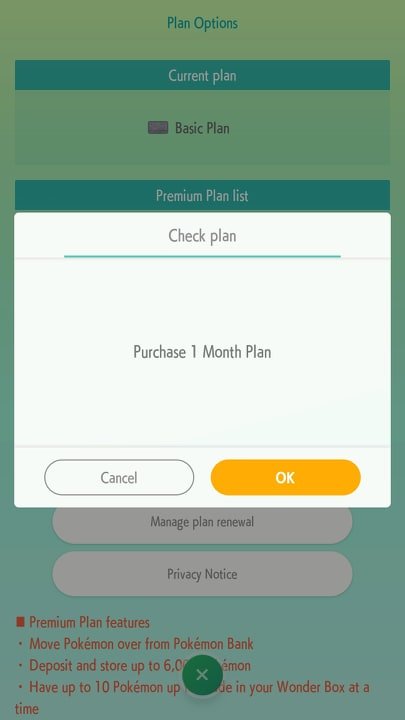
- Confirm by tapping OK.
Select which payment method you wish to use attached to your Google Play account, or enter a new method of payment.


Upgrade your membership today
Poki(C)mon HOME allows players to manage their Poki(C)mon collection with free and premium memberships easily, but the free option is woefully inadequate for most people. Store up to 6000 Poki(C)mon and trade from the Poki(C)mon Bank on 3DS by upgrading to a premium membership plan.