Asus ProArt PA32UCDMR 32-inch 4K professional OLED monitor review: Precision, speed, and flexibility
Professional displays have always been regarded as tools for a specific task and nothing more. They are precise, accurate, and usually built to a rugged standard suitable for long-term use. However, they are often expensive. When you consider the basics - resolution, size, and speed - their bang-for-the-buck is low.
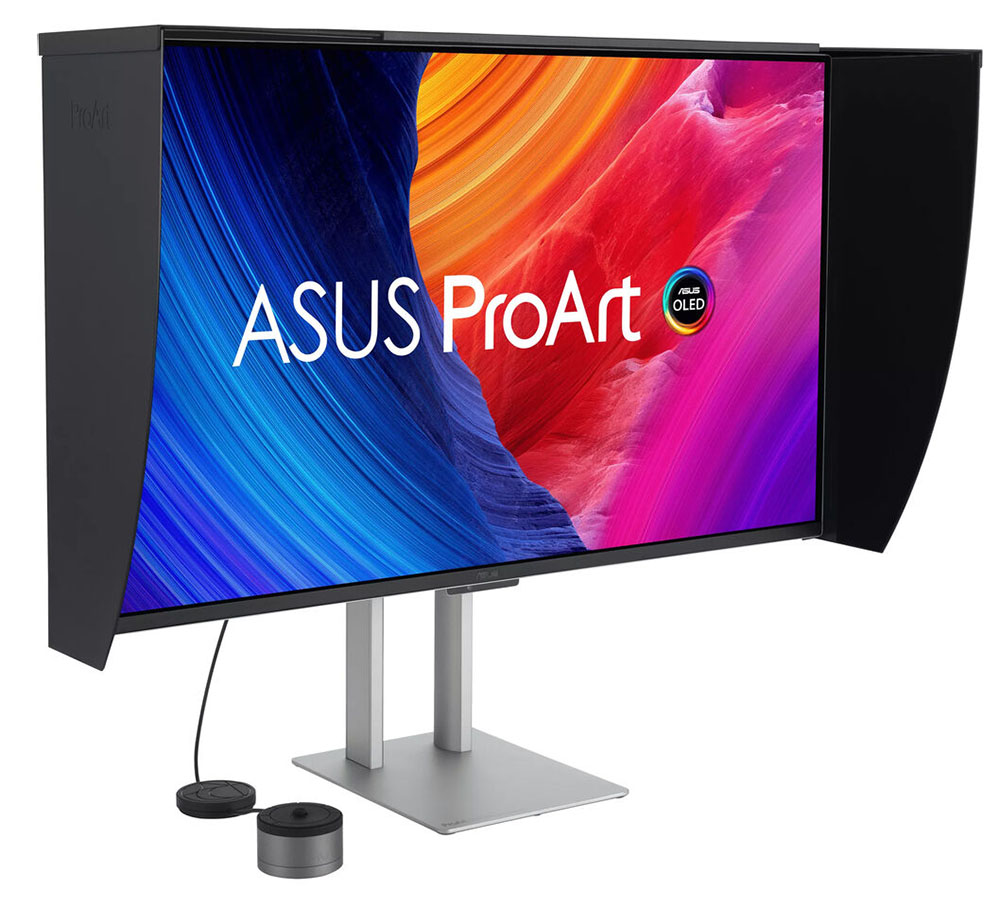
But that has changed of late in my experience. You'll still pay a premium for a professional monitor, but you'll get more than you used to. Many screens now have fast refresh, Adaptive-Sync, and features that make them suitable for gaming, entertainment, and daily productivity. One could say that they are a luxury category, and that's where Asus' new ProArt PA32UCDMR comes into focus. It's a 32-inch Quantum Dot 4K OLED with 240 Hz, Adaptive-Sync, HDR10, HLG, and Dolby Vision. It also comes with a calibrator/controller combo and an all-metal chassis that features a slim and elegant design.
The PA32UCDMR's price, as I write this, is around $1,900, so it still qualifies as expensive. But you can pay much more for a pro screen that doesn't have fast refresh or Adaptive-Sync. Let's take a look.
Asus ProArt PA32UCDMR SpecsPanel Type / Backlight | Quantum Dot Organic Light Emitting Diode (QD-OLED) |
Screen Size / Aspect Ratio | 32 inches / 16:9 |
Max Resolution and Refresh Rate | 3840x2160 @ 240 Hz |
FreeSync and G-Sync Compatible | |
Native Color Depth and Gamut | 10-bit / DCI-P3+ |
HDR10, HLG, DisplayHDR 400, Dolby Vision | |
Response Time (GTG) | 0.01ms |
Brightness (mfr) | 250 nits - full field |
1,000 nits - 3% window | |
Contrast | Unmeasurable |
Speakers | 2x 3w |
Video Inputs | 1x DisplayPort 1.4 w/DSC |
2x HDMI 2.1, 2x Thunderbolt 4 | |
Headphone | None |
USB 3.2 | 1x Type C, 1x Type A |
Power Consumption | 52.8w, brightness @ 200 nits |
Panel Dimensions WxHxD w/base | 28.2 x 18.3-23.5 x 9 inches (716 x 465-597 x 229mm) |
Panel Thickness | 1.7 inches (43mm) |
Bezel Width | Top: 0.28 inch (7mm) |
Sides: 0.39inch (10mm) | |
Bottom: 0.63 inch (16mm) | |
Weight | 20.28 pounds (9.2kg) |
Warranty | 3 years (can be extended to 5 years with online registration) |
The PA32UCDMR is an upgrade from last year's PA32UCDM. It has the same specs but adds a calibrator. It isn't the built-in kind where a little sensor flips up from the bezel. Rather, Asus created a small puck that integrates the colorimeter and an OSD controller. Control is via Asus' DisplayWidget Center and ProArt Calibration apps, which are free downloads. You can also use Calman or ColourSpace software. The puck is called CaliContrO, which is clever, but hereafter, I'm calling it The Puck. The good part is that the monitor generates its own test patterns and stores the calibrations in the firmware. You'll need a PC connection to make it all work.
Pro features continue with a complete list of color modes that correspond to every standard in current use. The gamut choices range from sRGB to BT.2020, with everything in between, including Adobe RGB. You can bank on the accuracy of these modes right out of the box, according to my test results, which you can see in detail on pages four and five. HDR support is nearly complete with HDR10, Hybrid Log Gamma, and Dolby Vision. Only HDR10+ is absent. HDR10 includes multiple PQ curves and the choice of P3 or 2020 gamuts.
The panel tech is Quantum Dot OLED, meaning a wide color gamut that covers over 104% of DCI-P3. The PA32UCDMR is rated for VESA DisplayHDR 400, which I verified in testing. You can expect HDR peaks of around 1,000 nits for a 3% window pattern. I measured over 420 nits from a 25% window. You also get variable brightness for both SDR and HDR.
For game content creators or well-heeled gamers, the PA32UCDMR offers 4K resolution and a 240 Hz max refresh rate. You also get Adaptive-Sync, which works on both AMD and Nvidia platforms. My response and lag tests showed this to be one of the quickest 4K OLEDs you can buy. Those results are on page two.
Physical features, beyond the gorgeous all-metal chassis and slim styling, include plenty of video inputs. You get two HDMI 2.1 ports, a DisplayPort 1.4 with Display Stream Compression (DSC), and a Thunderbolt 4 port. A second Thunderbolt serves as an output for daisy-chaining. The main USB-C port supports 96 watts for charging, while additional USB-C and USB-A ports deliver up to 15 watts. You also get internal speakers, three watts apiece.
The PA32UCDMR handily meets the requirements for professionals and users who just want a really nice monitor. At $1,900, it isn't a bargain, but it is less expensive than many other pro monitors that aren't as capable.
Assembly and AccessoriesThe PA32UCDMR ships in a large clamshell box with cardboard forms protecting the contents. The panel, base and upright are separate and go together without tools. Also included is a rigid light-blocking hood made from hard plastic and lined with light-absorbing material. It attaches magnetically to the panel and can easily be removed when you wish. The Puck comes in its own little box with a simple set of instructions. It connects to your PC or laptop. I noted that it would control the OSD when hooked up to one of the monitor's USB-C ports. For calibration, though, it needs to have that PC in the chain. The cable bundle includes IEC power, two USB-C ports, DisplayPort, and HDMI. You also get a nice microfiber cleaning cloth.
Product 360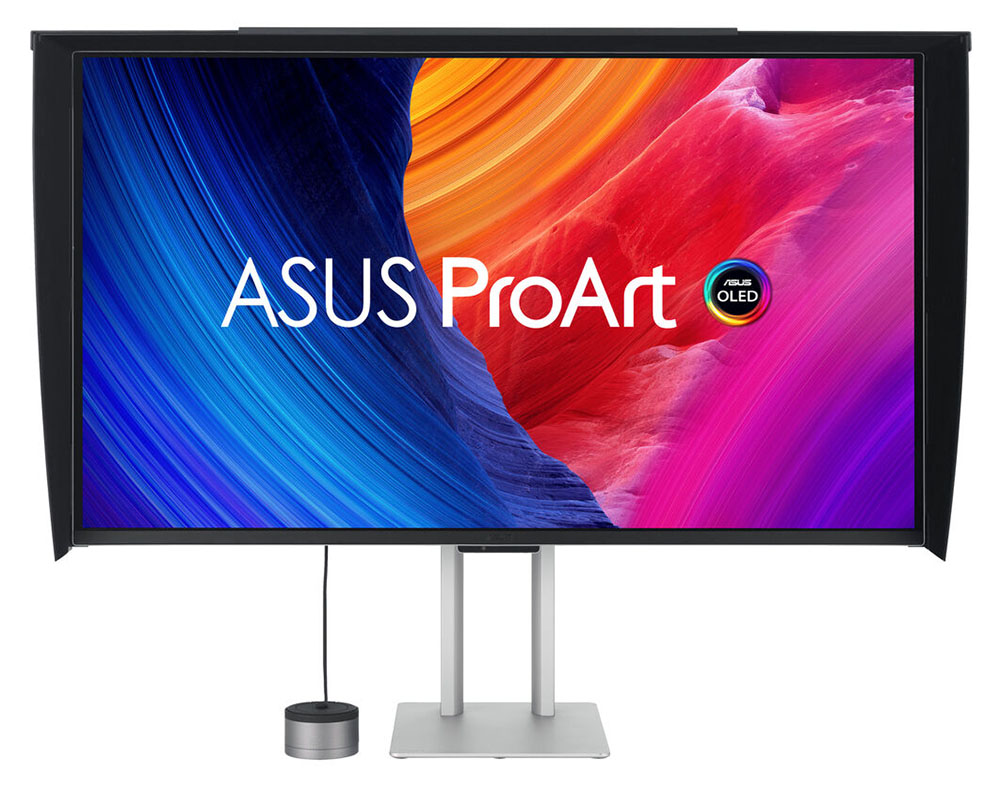 Asus
Asus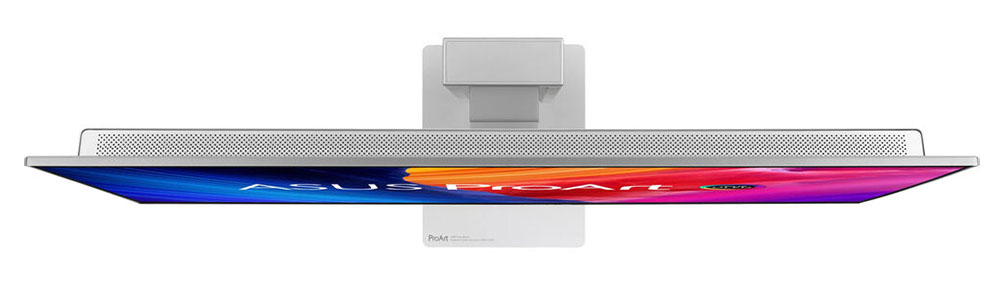 Asus
Asus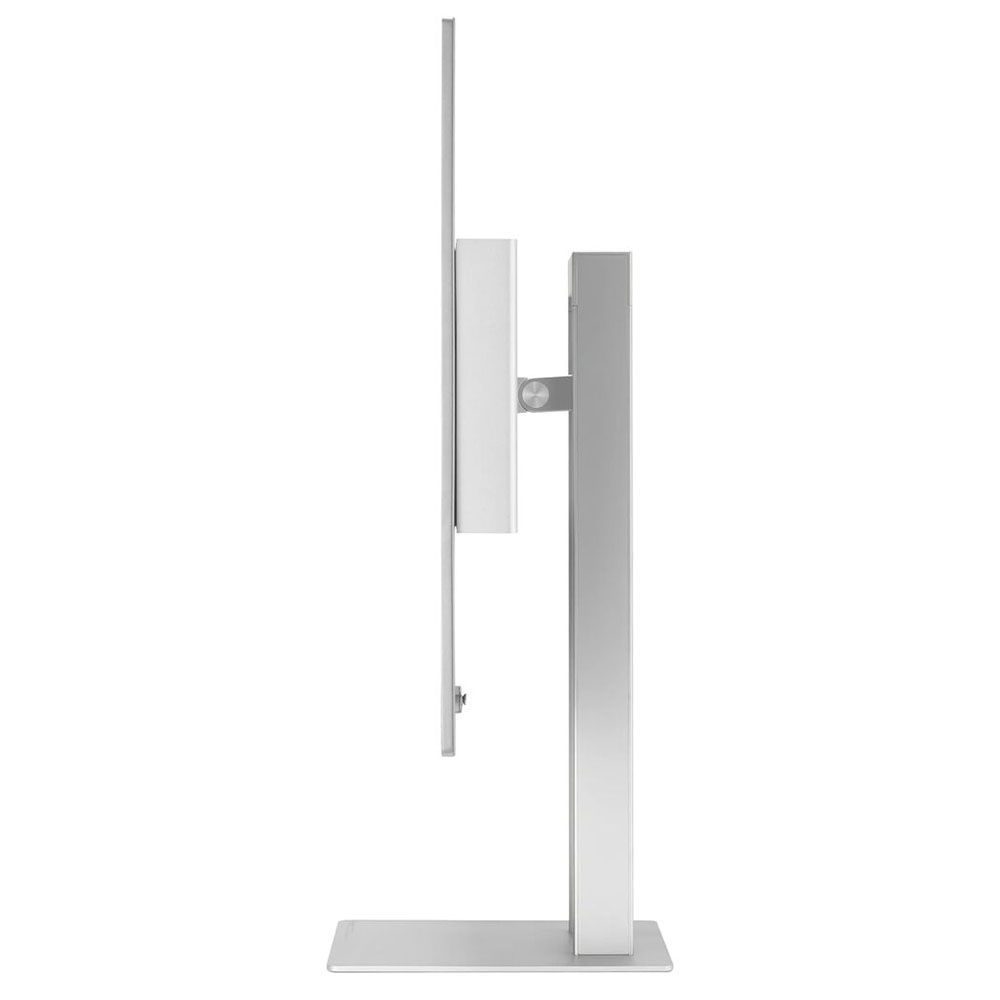 Asus
Asus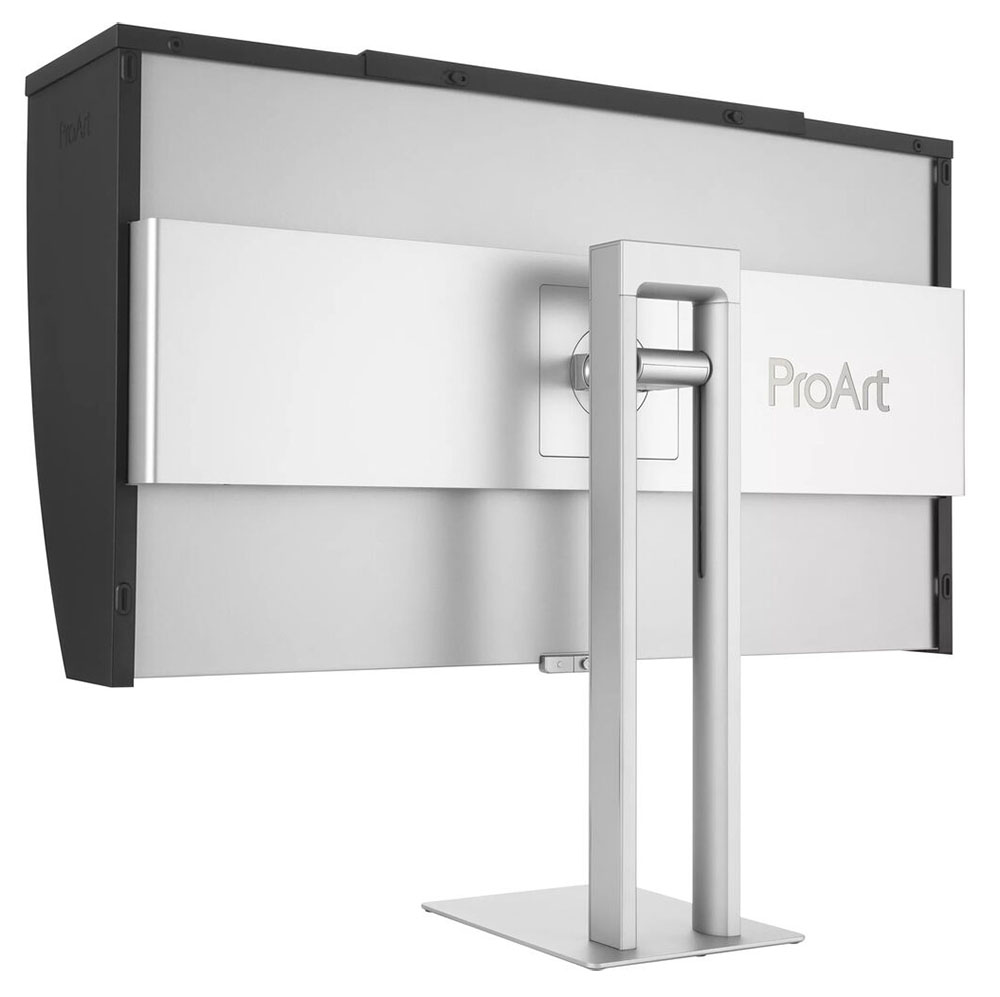 Asus
Asus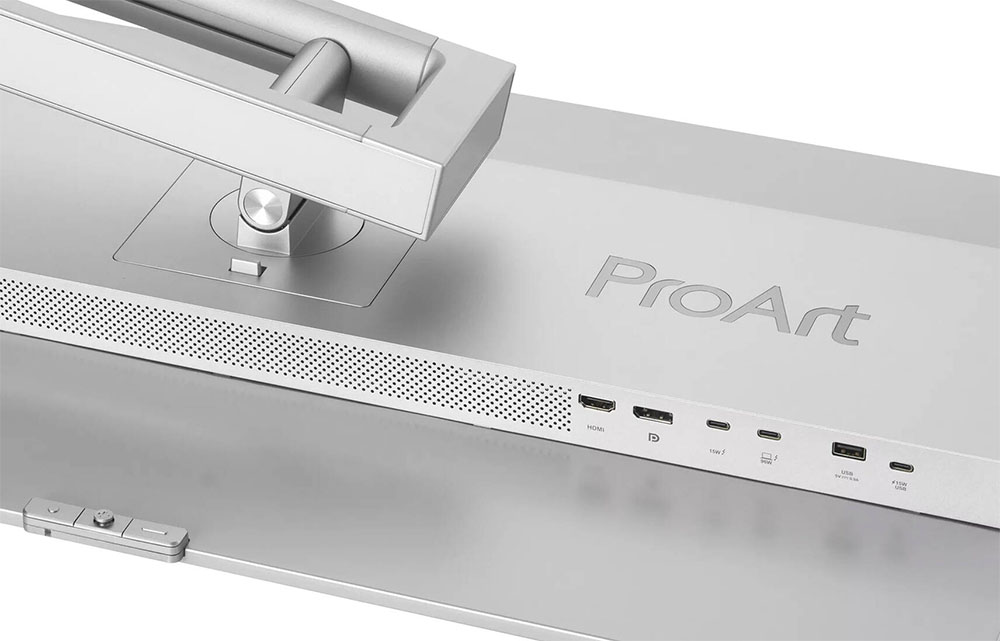 Asus
AsusThe PA32UCDMR's styling is what I'd call executive". Though it would be massive overkill for someone just reading email and browsing the web, it's one of those objects that makes your office or workspace look better. The silver parts you see in the photos are all aluminum with a smooth matte finish. That means the panel can be super slim, and it is indeed thinner than any other 32-inch OLED or LCD I've reviewed at just 1.7 inches. There is a flush bezel that disappears when the power's off and only creates a thin frame of 7-16 millimeters. The screen is glossy, but a coating prevents reflections from washing out the image. If you want the best possible picture quality, a magnetic hood is available, made of rigid plastic and lined with light-absorbing material.
The stand is a twin-spire design with quality ergonomics. It has a small but stable base, which keeps the PA32UCDMR's footprint efficient. Movements are firm and smooth and include a 5/20-degree tilt, a 90-degree portrait mode, and a 5.2-inch height range. There is no swivel. To control the OSD, reach behind the small protrusion at the center to find a tiny joystick and two buttons. One is a power toggle, while the other cancels whatever menu is currently active.
The input panel is up and under the right side of the component bulge in the back. It includes two HDMI 2.1 ports, a DisplayPort 1.4 with DSC, and a Thunderbolt 4 port. A second Thunderbolt port serves as an output for daisy-chaining a second monitor to the PC or Mac with a single cable. Two USB ports, one C and one A, provide support for peripherals. There is no headphone jack.
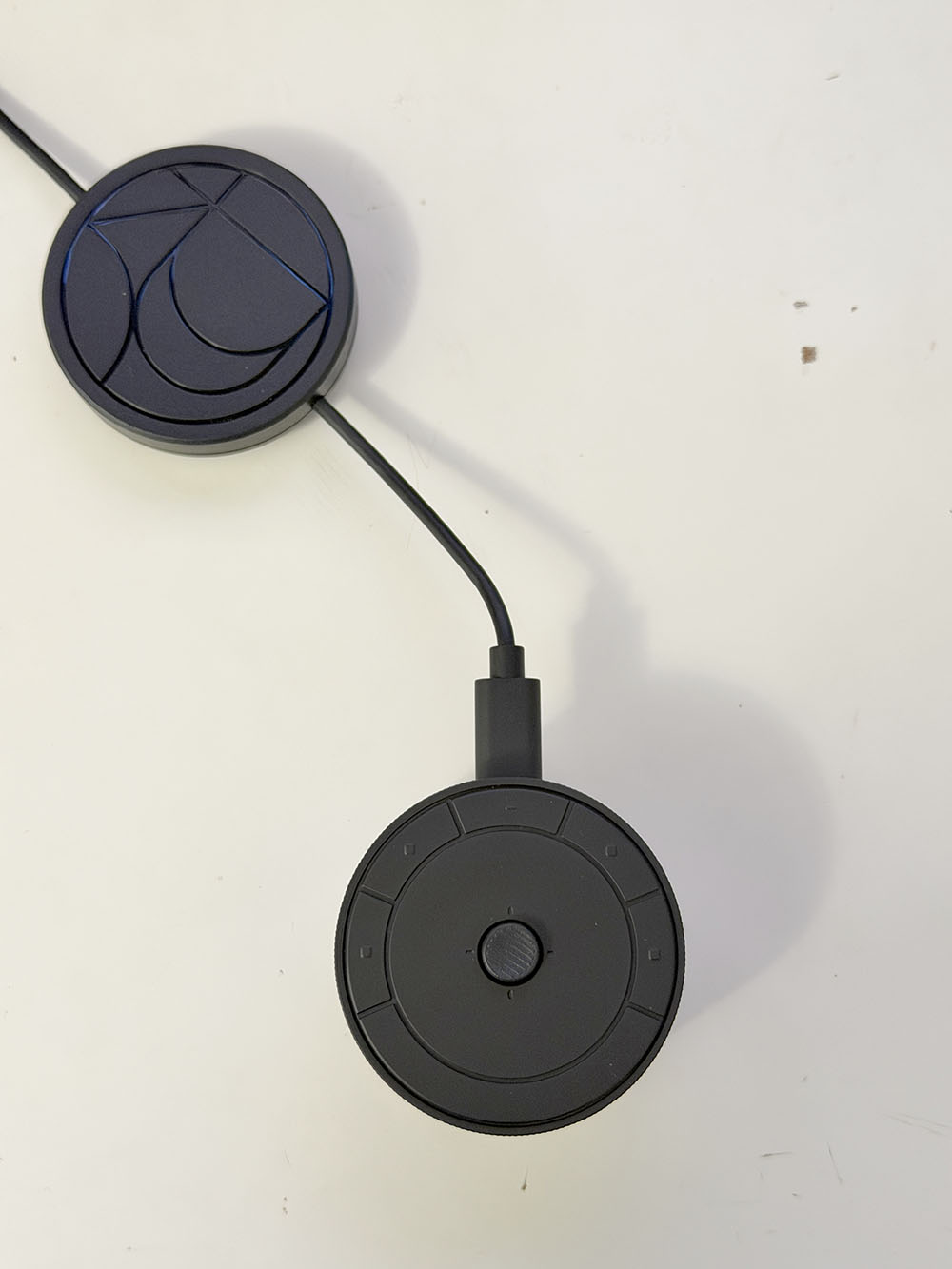
The calibrator, called CaliContrO, is a small puck with a cover for the lens. A weight slides along the cable so you can hang it from the top edge of the panel. At the top are a joystick and four touch-sensitive buttons. You can also slide your finger around the joystick, like the click wheel on an old iPod. These functions must be programmed in the DisplayWidget Center app. I'll talk more about the calibration process in a moment.
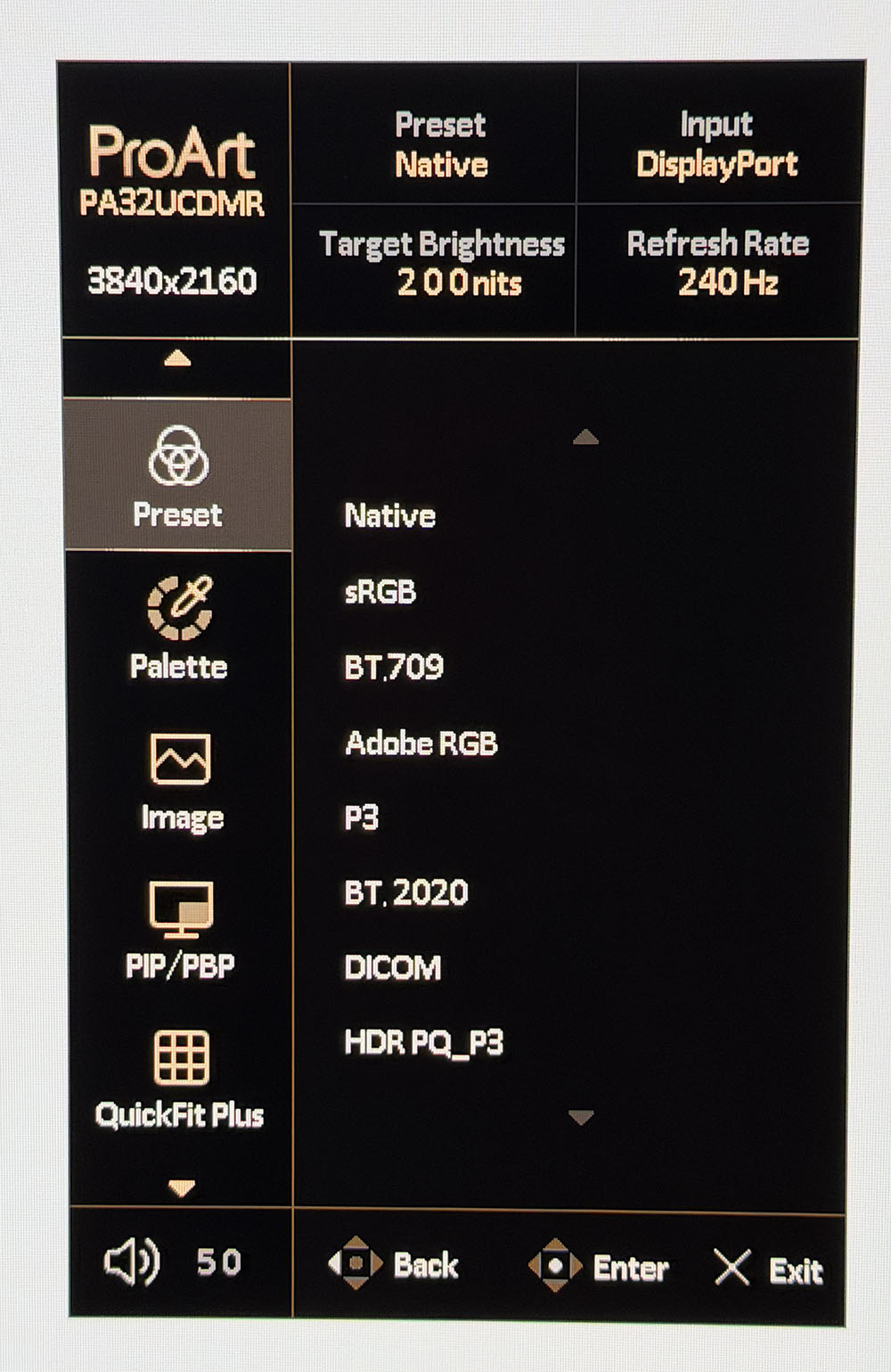
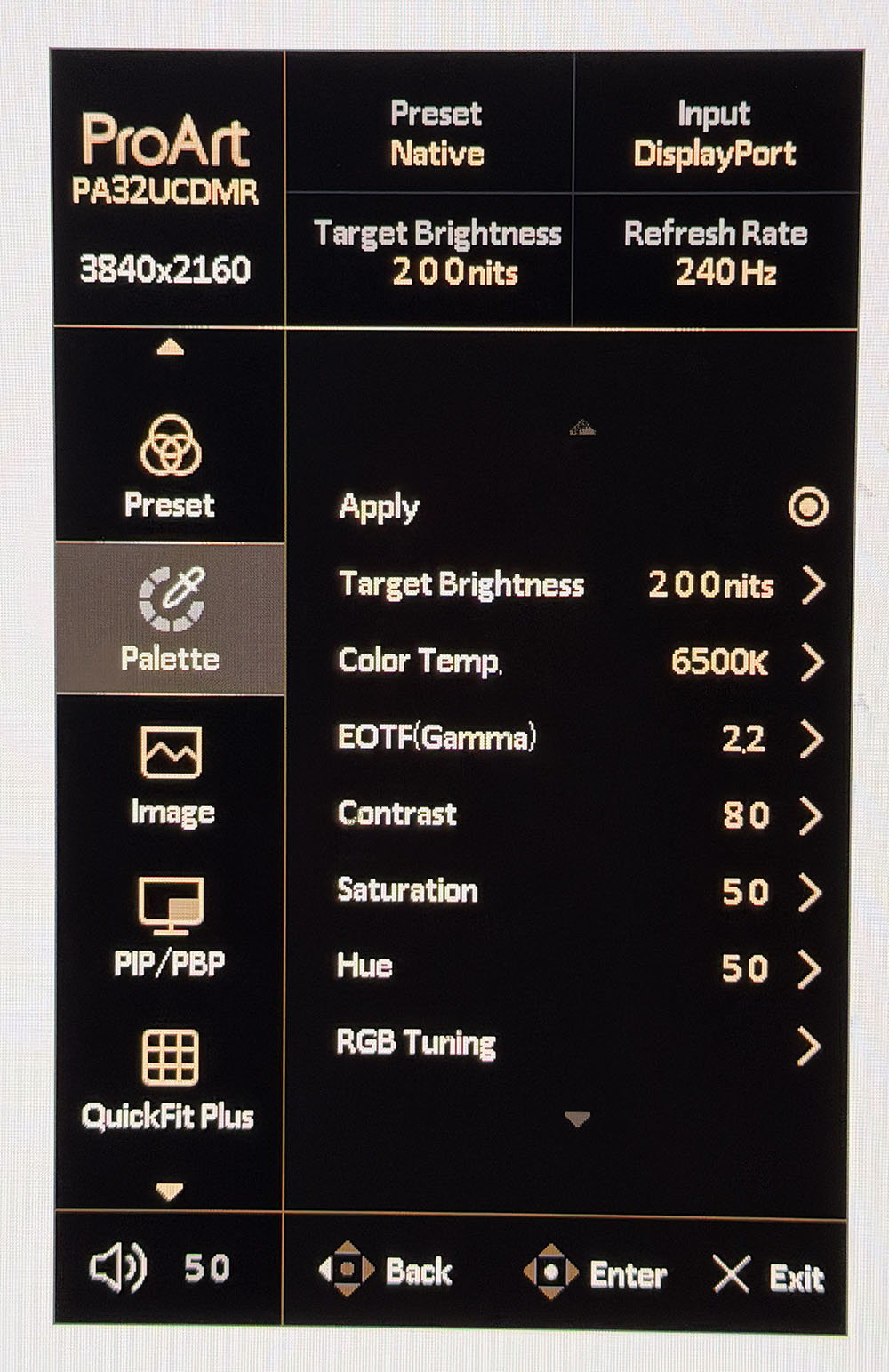
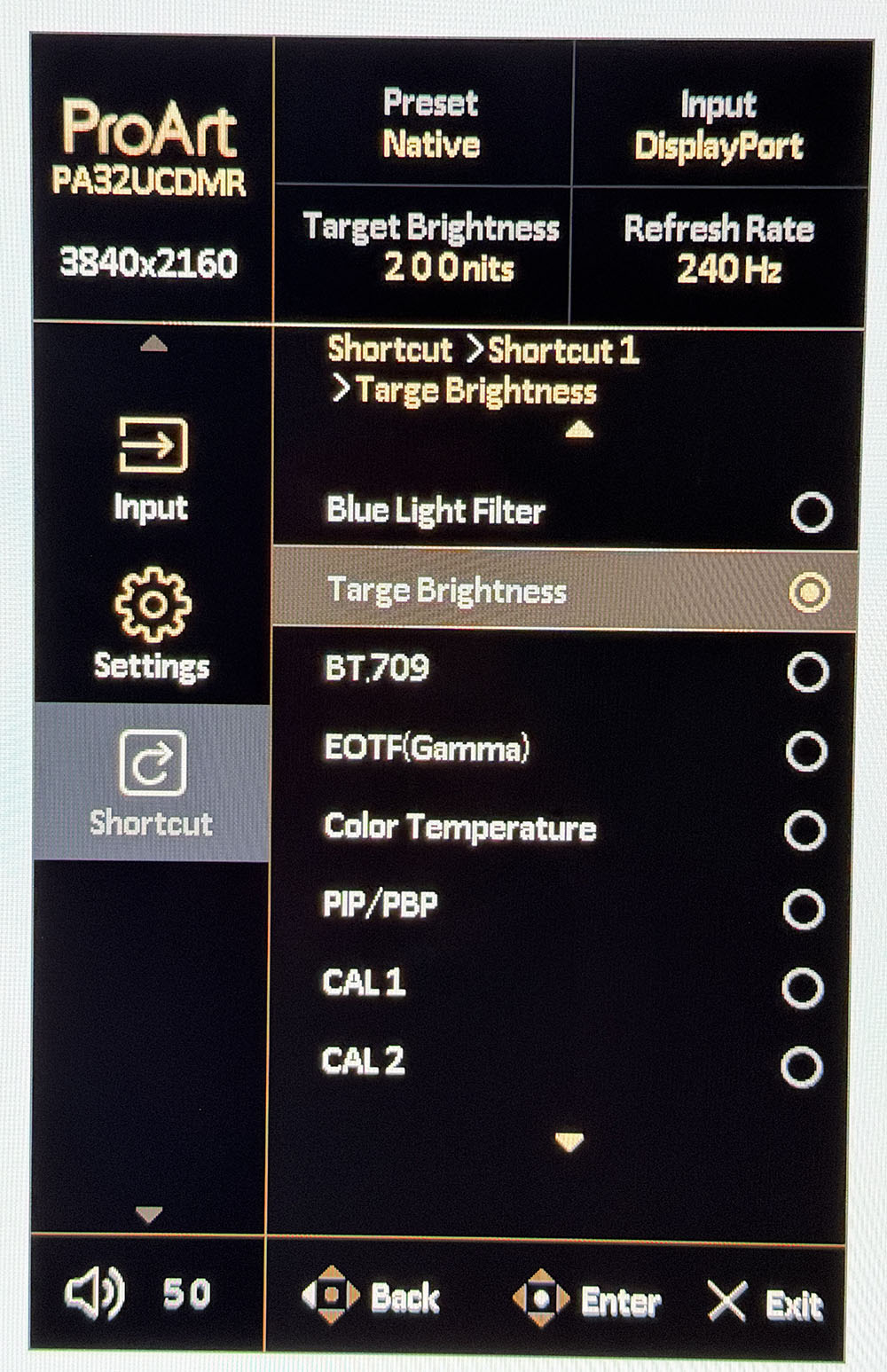
OSD FeaturesThe OSD is Asus ProArt standard, with a small, efficient menu that sits vertically in the lower-right corner of the screen, well away from test patterns. It appears when you press the joystick on the PA32UCDMR or on The Puck.
 Tom's Hardware
 Tom's Hardware
 Tom's Hardware
 Tom's Hardware
 Tom's Hardware
 Tom's Hardware
 Tom's Hardware
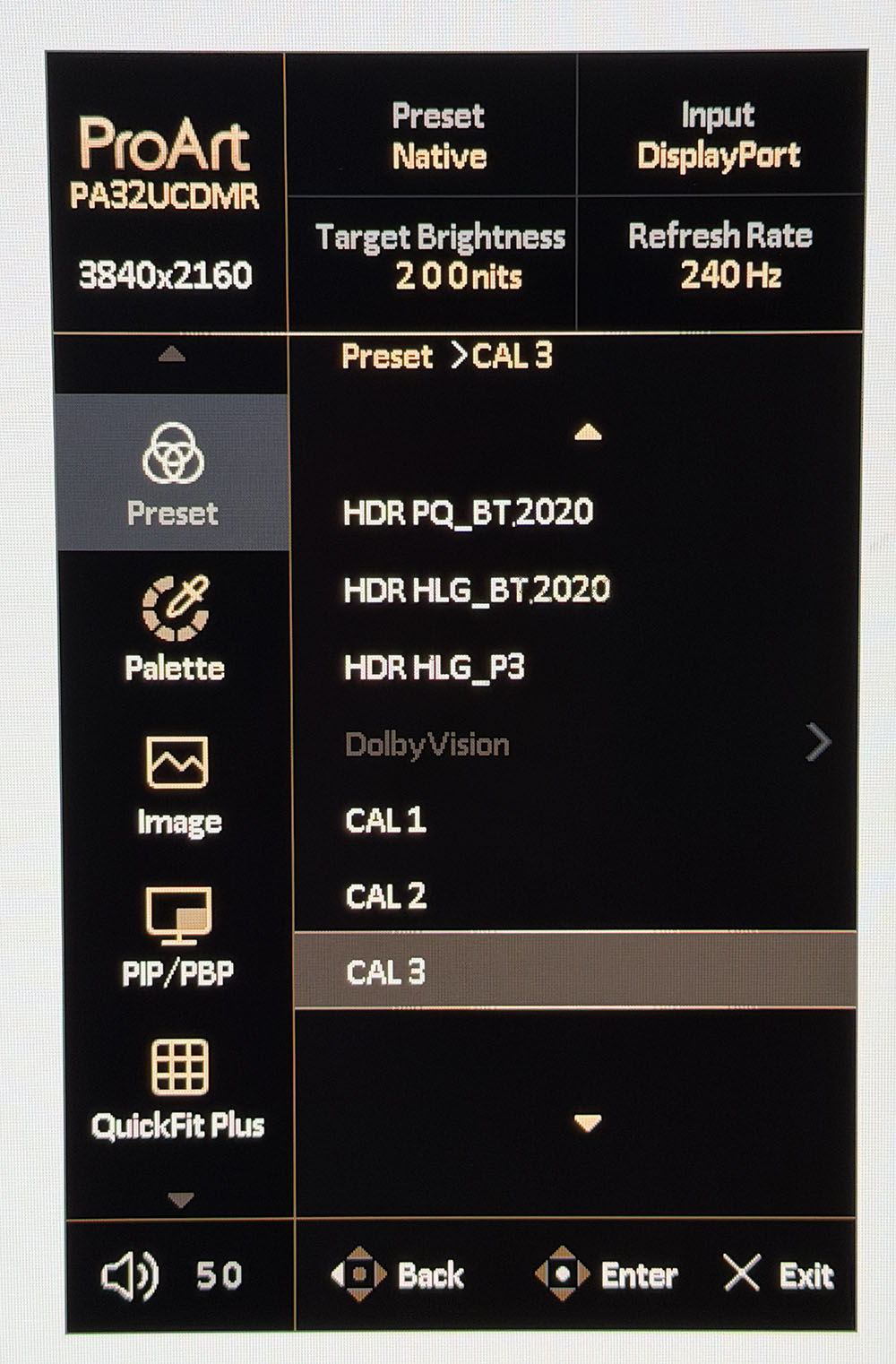
The PA32UCDMR is centered on its preset modes, which cover every standard currently in use. Native uses the monitor's full color gamut, covering around 104% of DCI-P3. You also get sRGB, BT.709, Adobe RGB, P3 display and cinema, BT.2020, DICOM for medical equipment and multiple flavors of HDR10 and HLG. And there's Dolby Vision, which is still a rarity on computer monitors. Three memory slots accommodate custom calibrations created by the ProArt Calibration app. Each preset can be tweaked in the OSD for gamma, color temp, and other parameters.
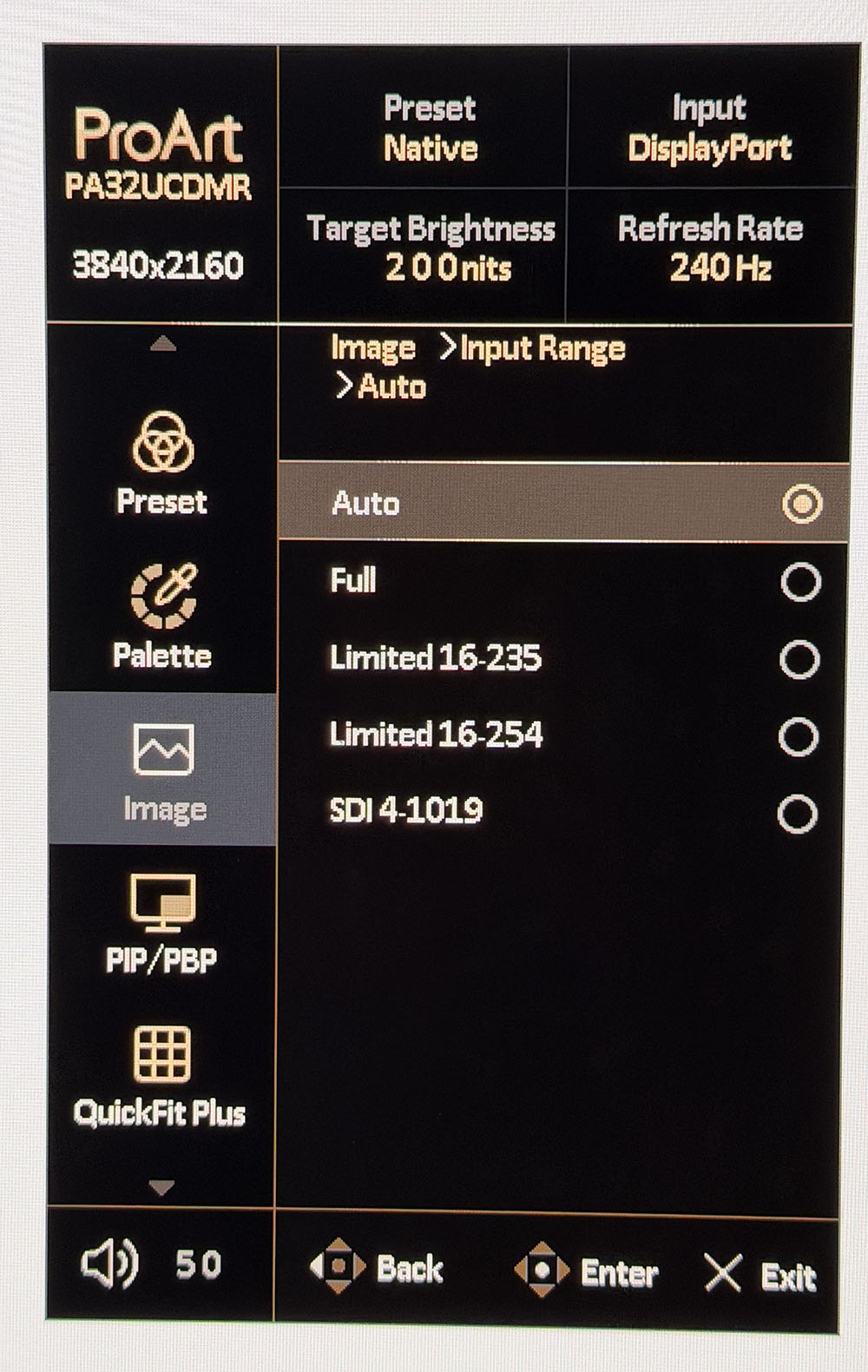
Signal range is an important setting when mastering different content types. Auto works in most cases, but you can specify the thresholds if you wish. Included here is SDI 4-1019, which is a 10-bit standard for commercial video applications. It maps image data from level 4 to 1019 while reserving 0-3 and 1020-1023 for audio and time codes.
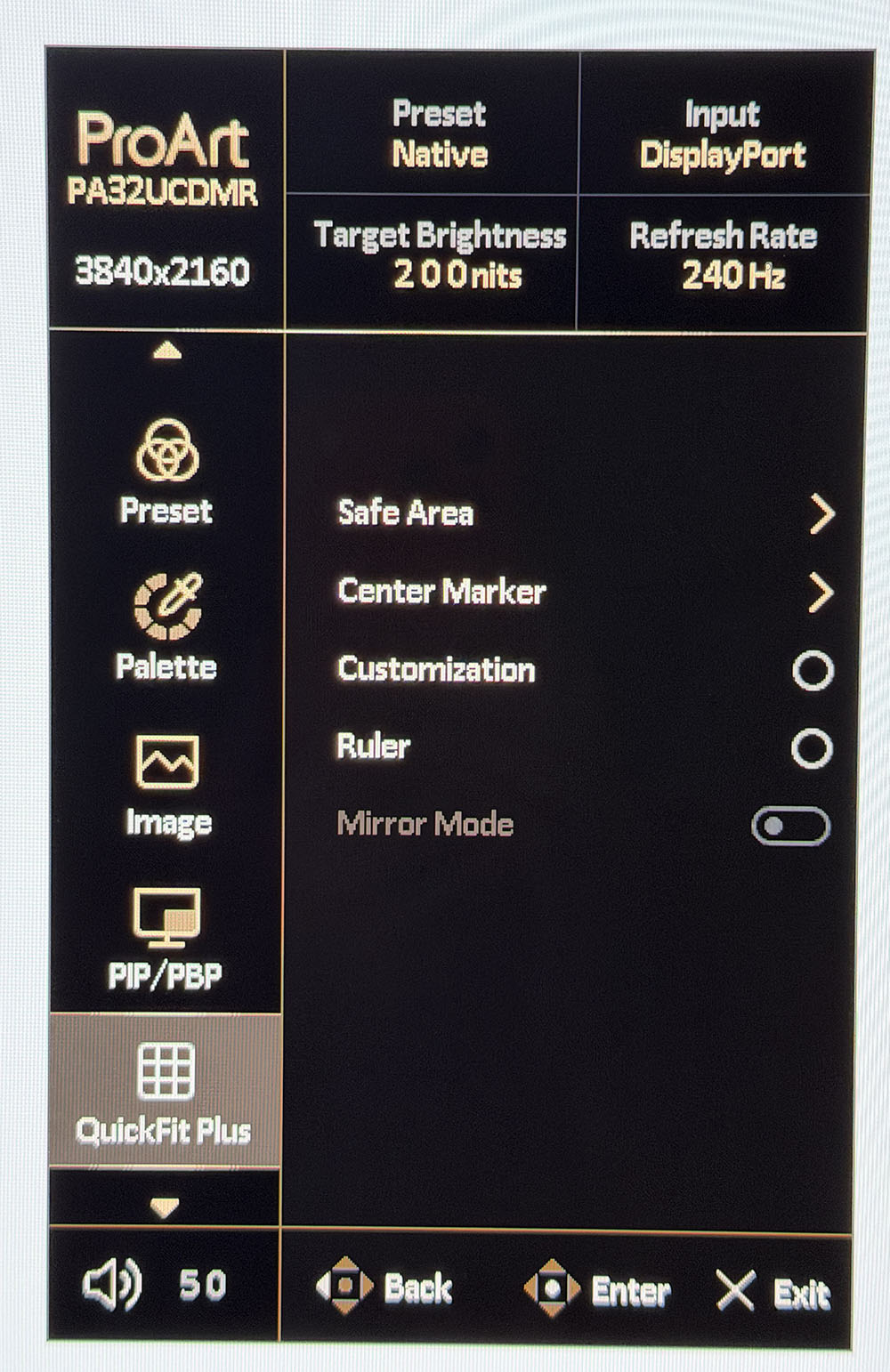
The PA32UCDMR has Asus' QuickFit feature, which puts markers and frames on the screen to aid in composition. You can specify different aspect ratios and display rulers for help with scaling.
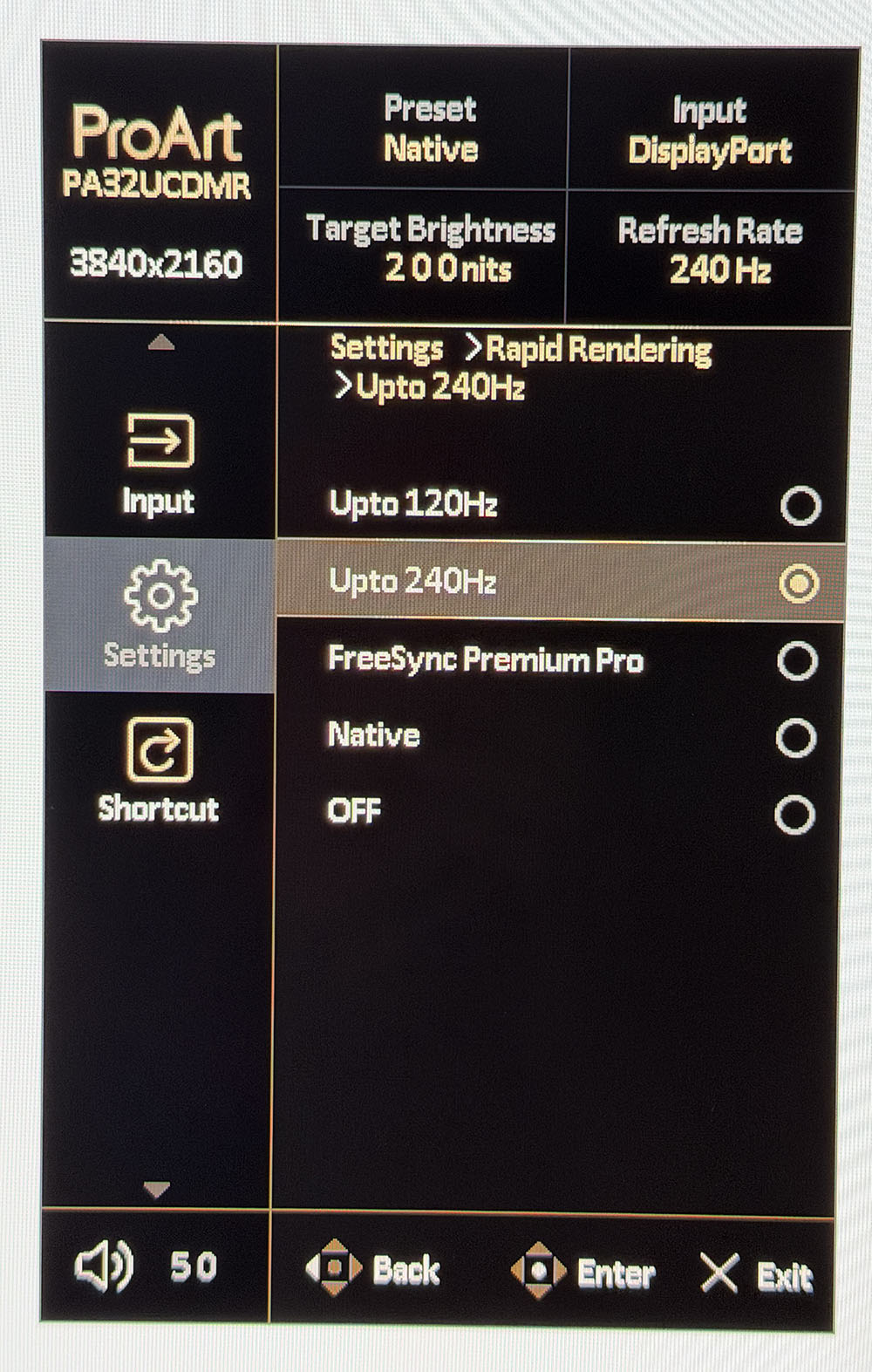
Rapid Rendering is an important sub-menu because it's where you control the PA32UCDMR's Adaptive-Sync. It's turned off by default, so to enable G-Sync or FreeSync, select one of the four options. FreeSync Premium Pro only works up to 120 Hz. For the full 240 Hz, choose either Native or Upto 240 Hz. Once enabled, it worked for me without issue.
Finally, two of the quick menu options can be programmed for quick access to different functions like brightness or specific preset modes.
Asus ProArt PA32UCDMR Setup And Hands-onThe PA32UCDMR's calibration procedure is a little different than what I've encountered from ProArt monitors with a built-in sensor. There is no calibration menu in the OSD. Instead, you must install DisplayWidget Center and ProArt Calibration on your PC or Mac. The Puck is then plugged into the computer, where it is controlled from the desktop.
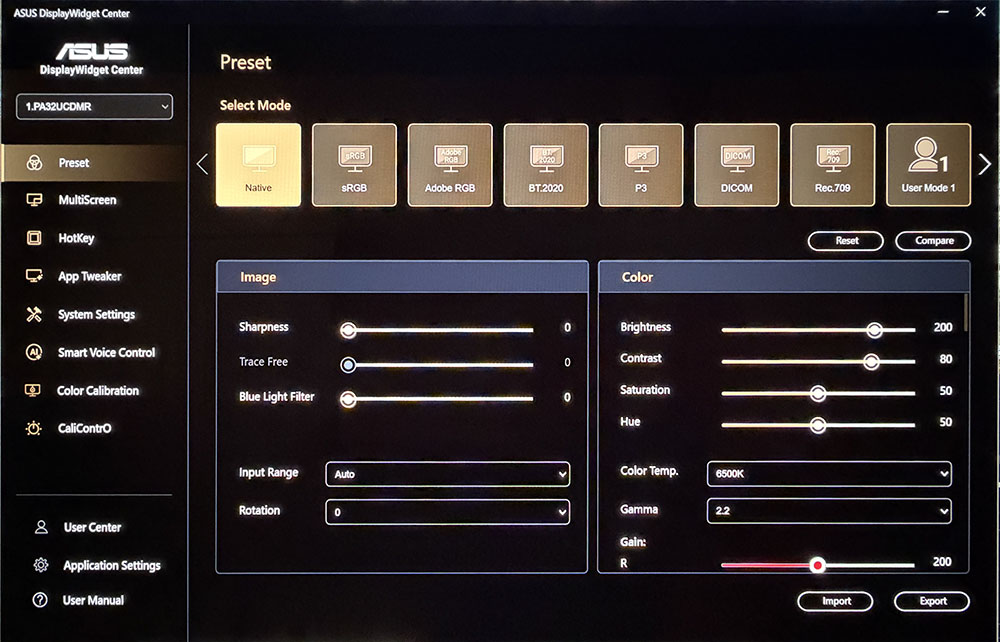
DisplayWidget Center fully mimics the OSD, so you can control everything from a Windows or Mac desktop. ProArt is a plugin that manages calibration and stores the results in the PA32UCDMR's internal firmware. You can also use your own meters with Calman or ColourSpace if you wish. Calibrations can be scheduled to run while you're away.
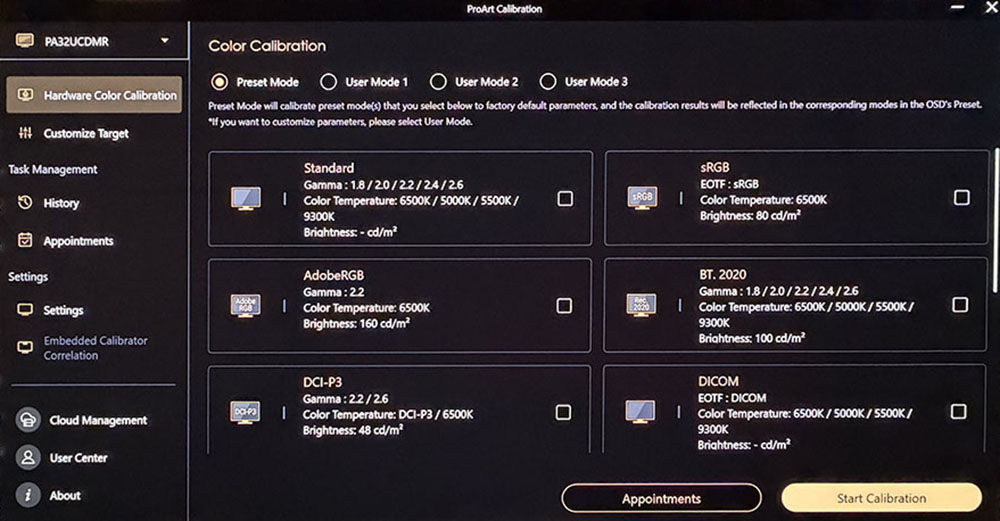
Any preset mode can be calibrated, or you can create up to three custom configurations with any combination of gamut, gamma, and color temp you wish. You can also calibrate the HDR modes with equal flexibility and precision. I noted that with the light hood in place, there was no place to run The Puck's wire to hang it on the screen. Other Asus hoods I've seen include a little doggy door for the meter, but this one is completely solid. Fortunately, it's easy to remove just the top piece when you need to.
For my purposes, I found the presets to be spot-on for color and grayscale and slightly off for gamma. You'll see those results on pages four and five. In the HDR10 mode, there are three Perceptual Quantization (PQ) options, Clip, Basic and Optimized. Clip is the closest to standard.
The preset modes can be tweaked in the OSD, but their default settings are accurate to industry standards. Here is a quick reference that shows their default parameters.
Mode | Gamut | Color Temp | Gamma |
sRGB | sRGB | D65 | 2.2 power |
BT.709 | BT.709 | D65 | 2.4 power |
Adobe RGB | Adobe RGB | D65 | 2.2 power |
P3 | P3 | D63 or D65 | 2.2 or 2.6 power |
BT.2020 (SDR) | P3 | D65 | 2.4 power |
With imaging squared away, I turned to game setup. There aren't any options like strobing or overdrive, but I did have to turn on Adaptive-Sync as it was off by default. That's done in the Rapid Rendering menu where you get four options. To get AS at 240 Hz, select either Native or Upto 240 Hz. The other two top out at 120 Hz. For my GeForce RTX 4090-based PC, G-Sync worked perfectly at all frame rates. When I set a game like Doom Eternal to max detail, I see around 220 FPS in 4K resolution.
Gameplay for me generated no notes. I couldn't find anything negative about the PA32UCDMR's abilities as a frag-worthy tool. It's one of the fastest OLEDs I've experienced with perfectly smooth motion and instant control response. Run-and-gun maneuvers were easy and intuitive. Aiming was always precise with most shots landing on target and minimal wasted ammo. Color and contrast, especially for HDR titles, was exemplary. Though I don't expect a lot of users to shop the PA32UCDMR as a gaming display, it competes with the best I've seen.
For everyday productivity, the PA32UCDMR is complete overkill but on the other hand, it's a really nice monitor with a gorgeous image. Does it matter that I wouldn't use all its features just to play games, edit Word documents or prepare graphics in Photoshop? Not a bit when it's so enjoyable to use, and so beautiful to look at. I likened it to a piece of high-end furniture. Yes, you can make a nice desk from a door and two filing cabinets (ask me how I know), but a sexy piece of glass supported by slim metal legs is way cooler. If you have that desk, the PA32UCDMR is the perfect complement.
The image is as stunning as any premium OLED I've experienced. Color is vibrant and saturated. I used the PA32UCDMR in its Native mode for most SDR applications. sRGB was handy for photo work and just a couple of clicks away. HDR looked even more impressive. And it was nice to have Dolby Vision available. There's plenty of content on Netflix and Disney+ that looks better on the PA32UCDMR than anything outside a premium television.
Takeaway: I found no negatives during daily use of the PA32UCDMR. Whether creating content, text or graphics, or watching a TV show or playing a game, it brought pleasure to all activities. It is completely qualified for professional applications like video post-production or photography. Though a $1,900 monitor might seem indulgent, it is true that you never regret buying the best. For every use I can think of, the PA32UCDMR has few, if any, equals.
MORE: Best Gaming Monitors
MORE: How We Test PC Monitors
MORE: How to Buy a PC Monitor
I don't test many professional monitors, so you won't see comparison charts in this review. Rather, I've simply laid out my test results with comments.
Pixel Response and Input LagClick here to read up on our pixel response and input lag testing procedures.
Response Time Full black to white transition - 0.12ms
Absolute Input Lag Full black to white transition - 14.9ms
That being said, the PA32UCDMR could easily compete with and beat many speedy gaming monitors. Most OLEDs I've tested since acquiring the Nvidia LDAT draw a one-inch square in 0.24ms. This one manages the feat in 0.12ms. Though the human eye won't perceive this difference in gaming content, it can be seen in moving test patterns rendered at perfect resolution. That is, there is no loss of clarity when comparing moving objects to static ones. That makes things like camera pans look better, and you can more precisely aim and fire when you want to.
The PA32UCDMR is also a champ in the input lag test, where it averaged just 14.9ms over 25 mouse clicks. That is a real-world test similar to what you'll see on a monitor equipped with Nvidia's Latency Analyzer. This is also one of the fastest times I've recorded for any OLED at any refresh rate. The current record holders are LG's 27GX790 and Philips' 27M2N8500, which scored 10.0ms at 360 Hz. That the PA32UCDMR is only a tick behind at 240 Hz speaks to its quality and precision. Any competition gamer would consider this monitor an essential tool.
Test Takeaway: The PA32UCDMR is super quick and would serve any pro-gamer well. Its low response time means the fastest motion remains perfectly clear. That includes moving objects and panning backgrounds. If you're a more casual player, it still provides a play advantage thanks to its precise movement and aiming capabilities.
Viewing Angles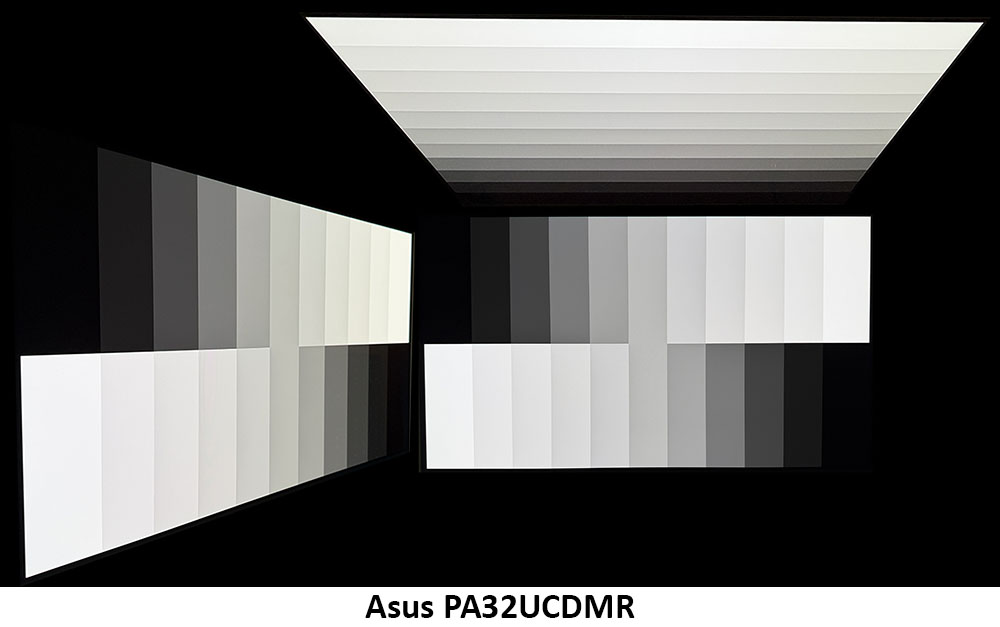
The PA32UCDMR exhibits excellent off-axis image quality, but if you look closely, you can see a slight red tint, which indicates it is a Quantum Dot screen. This is nearly impossible to spot in actual content. The gray step pattern is a torture test here. There is no change in brightness or gamma. The top view is a bit washed out but still reasonably bright and free of heavy color shifts.
Screen UniformityTo learn how we measure screen uniformity, click here.
Screen Uniformity Deviation From Center 0% Black Field - 2.09%
Many pro monitors include uniformity compensation, but the PA32UCDMR doesn't and doesn't need to. 2.09% is about as good as it gets for any flat panel display. There are no visible anomalies in content or in any of the test patterns I observed. This is excellent performance.
MORE: Best Gaming Monitors
MORE: How We Test PC Monitors
MORE: How to Buy a PC Monitor
To read about our monitor tests in-depth, please check out Display Testing Explained: How We Test PC Monitors. We cover brightness and contrast testing on page two.
Maximum Backlight LevelMaximum White Luminance Native Mode - 415.4752 nits
Maximum Black Luminance Native Mode - 0 nit
Maximum Contrast Ratio Native Mode - Unmeasurable
ANSI Contrast Native Mode - Unmeasurable
The PA32UCDMR includes a Constant Brightness toggle in the Settings menu. When turned off, a 25% window pattern measures just over 415 nits. That is typical of the DisplayHDR 400-rated OLEDs I've tested. A 3% window is claimed to be around 1,000 nits. A full field measures 240 nits, so that's the peak you can expect when Constant Brightness is on. For SDR, this is my preferred setting, as it keeps everything more consistent-looking, which is ultimately better for long work sessions. I generally save variable brightness for HDR video and game content.
Test Takeaway: The PA32UCDMR delivers typical OLED numbers in my brightness and contrast tests. It's not super bright, but it is more than bright enough for any indoor environment. Black levels are immeasurable, which is why contrast is too. The image is gorgeous in every respect.
MORE: Best Gaming Monitors
MORE: How We Test PC Monitors
MORE: How to Buy a PC Monitor
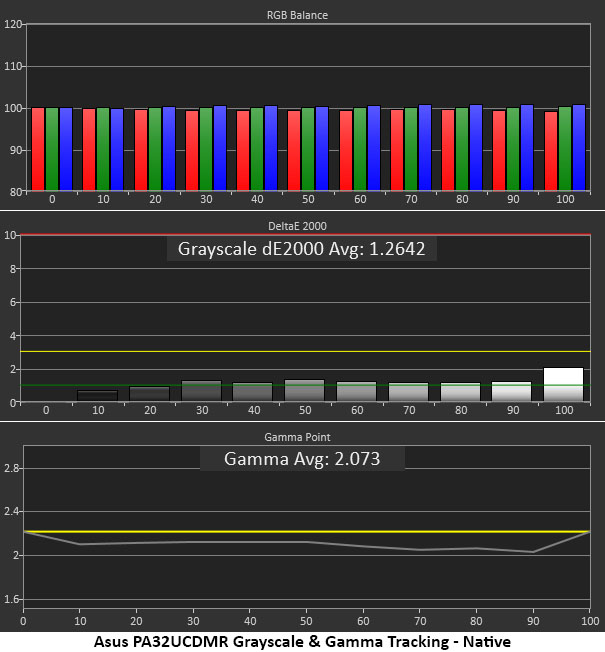
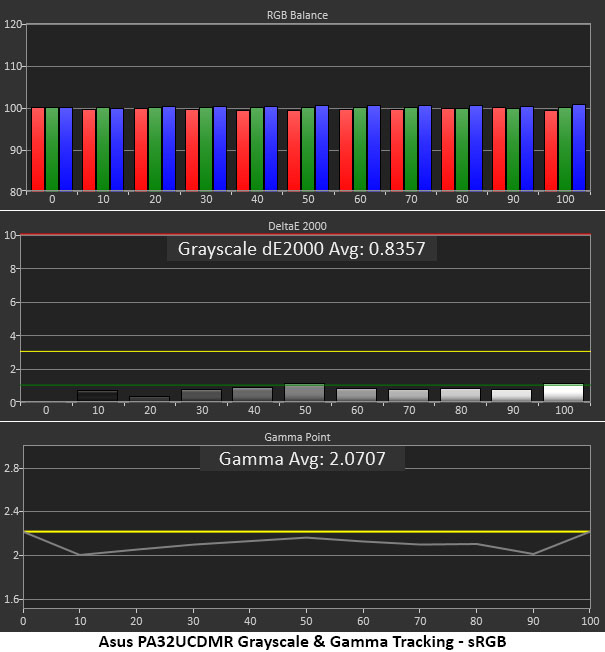
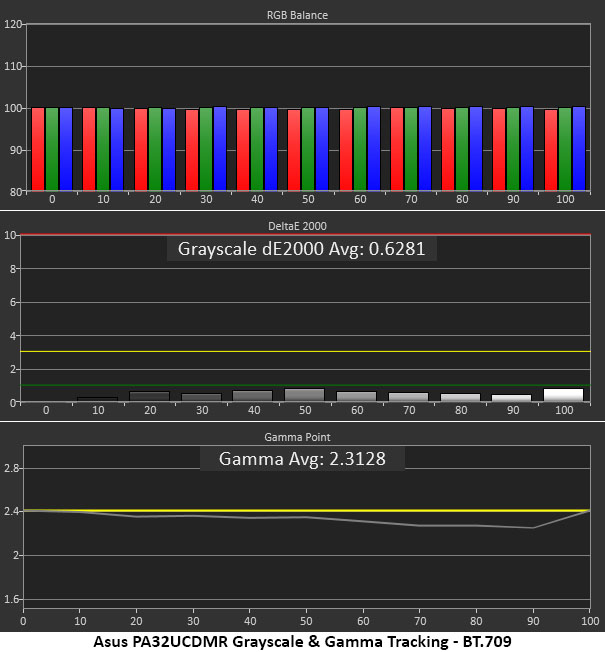
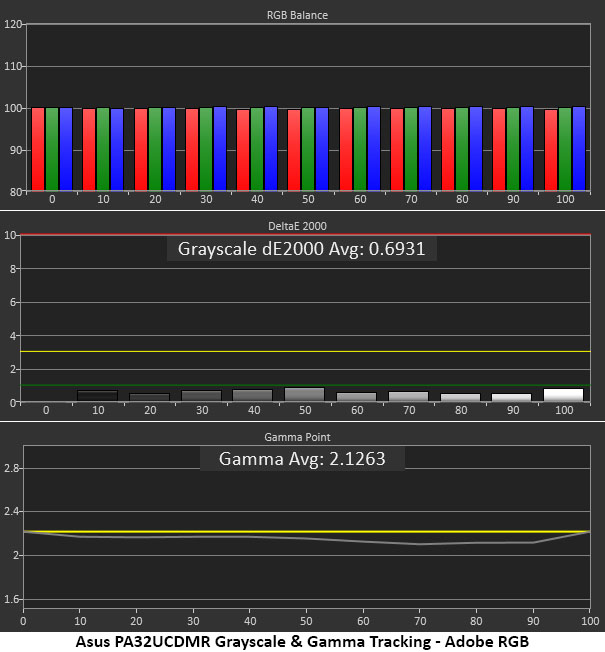
Grayscale and Gamma TrackingTo test the PA32UCDMR's preset modes, I measured each one at its default settings. You can tweak them in the OSD with color temp and gamma presets, or calibrate them using The Puck and the ProArt Calibration app.
Our grayscale and gamma tests use Calman calibration software from Portrait Displays. We describe our grayscale and gamma tests in detail here.
 Portrait Displays Calman
 Portrait Displays Calman
 Portrait Displays Calman
 Portrait Displays Calman
 Portrait Displays Calman
 Portrait Displays Calman
 Portrait Displays Calman
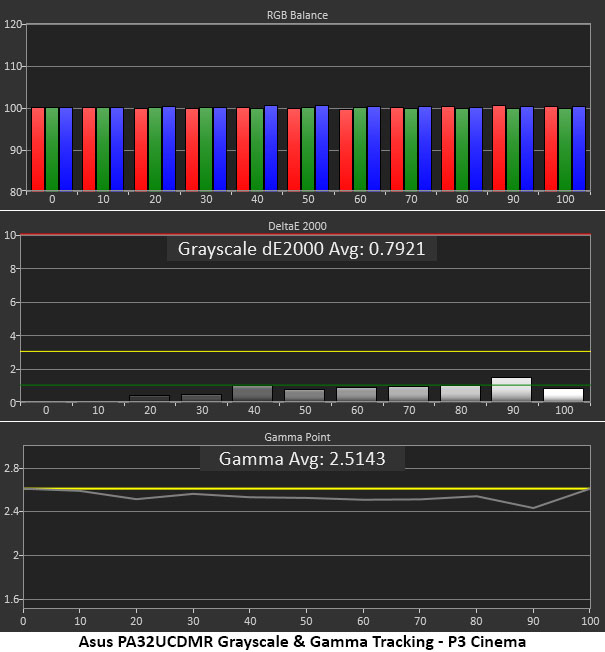
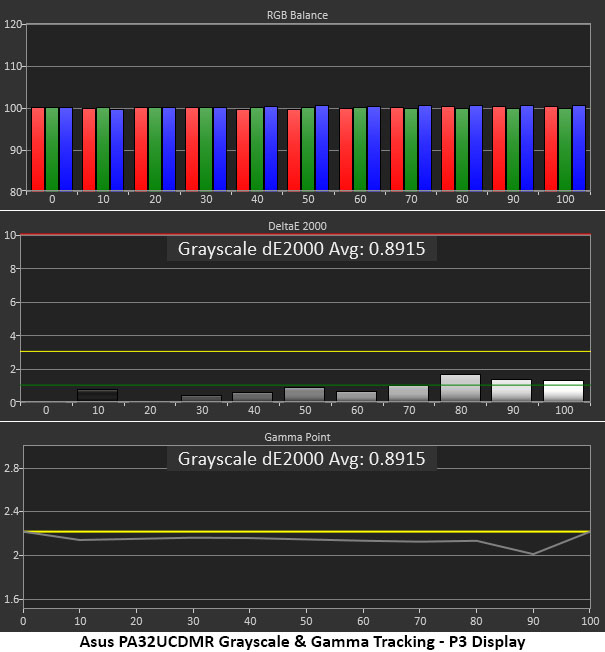
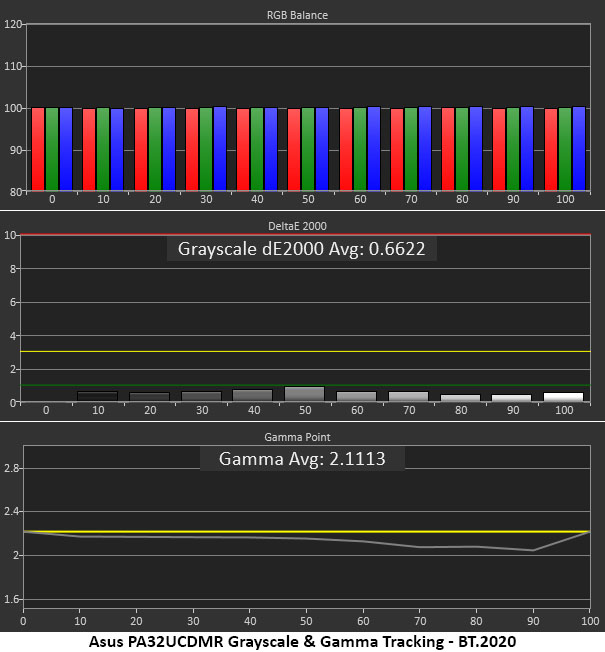
The only variations you'll see in the grayscale tests is gamma tracking. It's referenced at different points depending on mode, either 2.2, 2.4 or 2.6. What I observed consistently is that it runs a tad light. This isn't a big deal for an OLED since contrast is so high. But as a professional screen, the PA32UCDMR should be right on the yellow line. This can easily be tightened up with a calibration using The Puck. I noted that the PA32UCDMR correctly rendered a D63 color temp for P3 Cinema and D65 for P3 Display.
Color Gamut AccuracyOur color gamut and volume testing use Portrait Displays' Calman software. For details on our color gamut testing and volume calculations, click here.
 Portrait Displays Calman
 Portrait Displays Calman
 Portrait Displays Calman
 Portrait Displays Calman
 Portrait Displays Calman
 Portrait Displays Calman
 Portrait Displays Calman
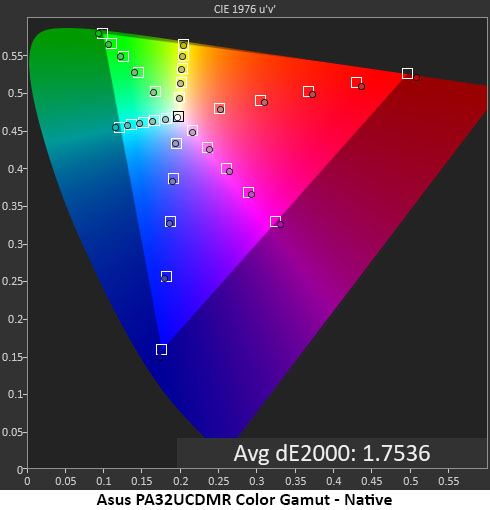
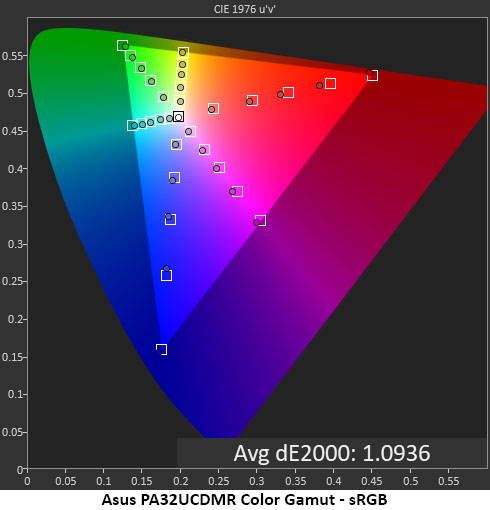
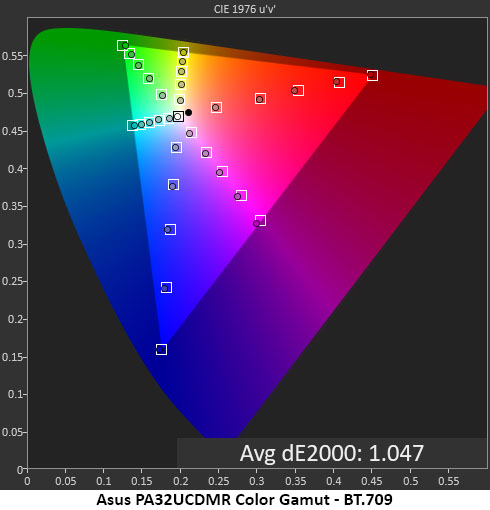
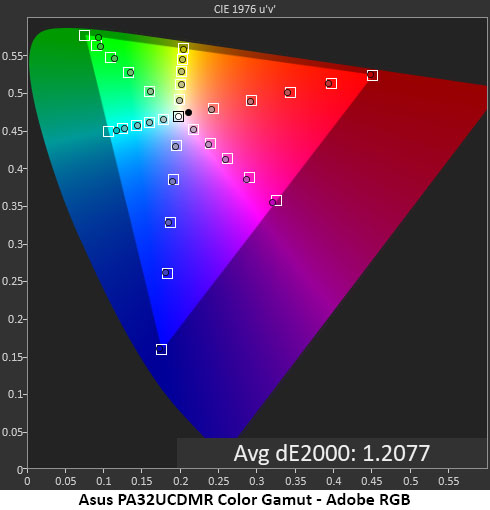
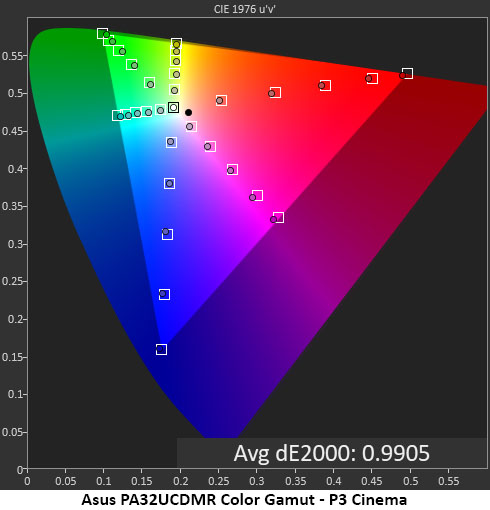
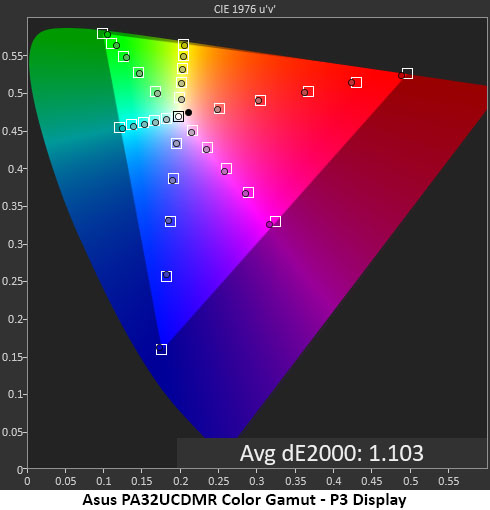
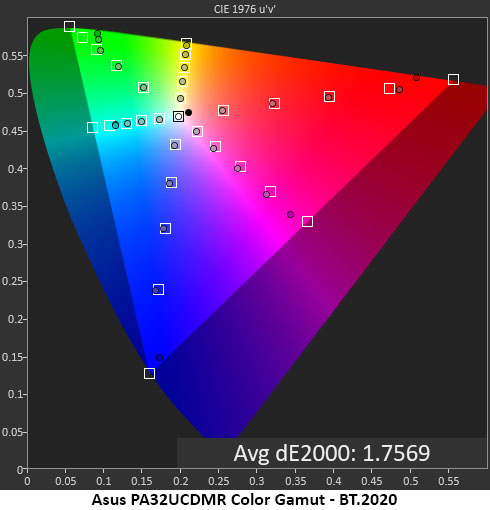
The PA32UCDMR's color gamut results are exemplary. No mode is greater than 2dE for the 32-point average. The highest number is for BT.2020 and that's simply because there isn't quite enough color to cover its large space. Volumes run between 95 and 99% for the most part. 2020 covers just under 75% and Adobe RGB tops out at 91%. That's because there isn't enough green, a typical issue with today's professional displays. If you want full Adobe coverage, you'll need an LCD with a special CCFL backlight that delivers the extra green. OLED hasn't quite gotten there yet.
Grayscale, Gamma and Color Gamut Test SummaryI pulled all the numbers into a table so you can see how each mode performed out of the box. There is no need to calibrate the PA32UCDMR unless you want to get below 1dE for color or tighten up the gamma tracking. This is what I'd expect from an Asus ProArt monitor or any professional screen for that matter.
Grayscale Error | Gamma Range | Gamma Deviation | Gamma Actual | Gamut Error | Gamut Volume | |
Native | 1.26dE | 0.09 | 5.90% | 2.07 | 1.75dE | 104.89% |
sRGB | 0.84dE | 0.16 | 5.90% | 2.07 | 1.09dE | 98.60% |
BT.709 | 0.63dE | 0.15 | 3.75% | 2.31 | 1.05dE | 97.77% |
Adobe RGB | 0.69dE | 0.07 | 3.18% | 2.13 | 1.21dE | 90.73% |
P3 Cinema | 0.79dE | 0.16 | 3.46% | 2.51 | 0.99dE | 94.96% |
P3 Display | 0.89dE | 0.15 | 4.09% | 2.11 | 1.10dE | 94.82% |
BT.2020 | 0.66dE | 0.13 | 4.09% | 2.11 | 1.76dE | 74.83% |
Test Takeaway: I have yet to find an Asus ProArt monitor that didn't perform at the highest level. The PA32UCDMR has visually perfect color out of the box and is ready for any task, be it productivity, entertainment, or color-critical work. Gamma, in general, runs a tad light, but that can be tightened up with The Puck and the ProArt Calibration app.
MORE: Best Gaming Monitors
MORE: How We Test PC Monitors
MORE: How to Buy a PC Monitor
Our HDR benchmarking uses Portrait Displays' Calman software. To learn about our HDR testing, see our breakdown of how we test PC monitors.
The PA32UCDMR is one of the most capable HDR monitors you can buy. It supports multiple PQ curves for HDR10 plus Hybrid Log Gamma and Dolby Vision. The only thing it doesn't have is HDR10+.
HDR Brightness and ContrastHDR White Luminance - 420.0729 nits
HDR Black Level - 0 nit
HDR Sequential Contrast - Unmeasurable
The PA32UCDMR is rated for VESA DisplayHDR 400 and exceeds that rating when measured with a 25% window pattern. Asus claims 1,000 nits for a 3% window, and this result casts no doubt on that. Black levels and contrast cannot be measured. I noted that peak brightness was about the same regardless of which PQ curve was selected. You can expect the same numbers for Dolby Vision content as well. It is possible to engage constant brightness for HDR content, but it looks much better when that's left off.
Grayscale, EOTF and Color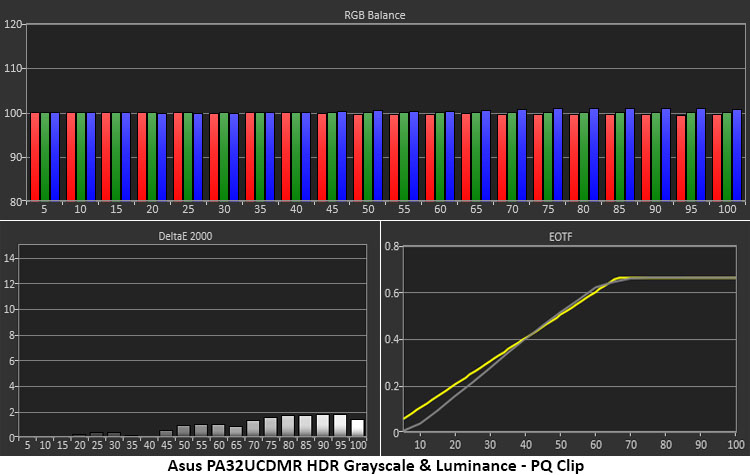 Portrait Displays Calman
 Portrait Displays Calman
The PA32UCDMR's HDR color accuracy is equal to what I found in SDR mode. For this test, I used HDR10 with a BT.2020 gamut and PQ Clip. Grayscale tracking is perfect with all errors below 2dE. The EOTF runs a tad dark from 0 to 40% where it meets the reference line up to the tone-map transition point at 65% brightness. This is correct for the measured black and white thresholds.
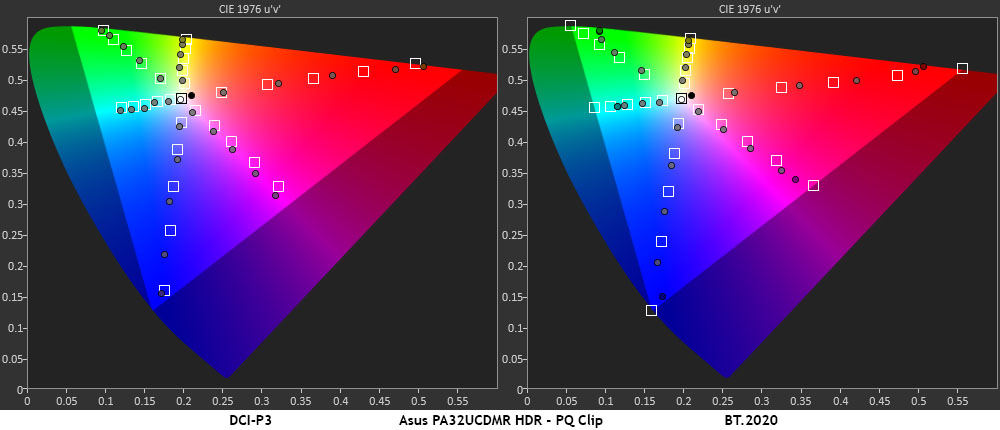
In the color test, there is slight oversaturation throughout the gamut range for both DCI-P3 and BT.2020. This is typical of the HDR monitors I've measured, though the PA32UCDMR isn't quite as over-the-top as some others. I would expect to see this behavior given its professional aspirations. This can be tightened up with a calibration if you wish.
Test Takeaway: The PA32UCDMR is a reference display for HDR content. It will look superior to just about any other OLED outside of a premium TV, or another pro monitor. LCD? Yeah, not even close. This is a great monitor, whether you buy it as a professional tool or simply to enjoy its gorgeous picture and elegant styling.
MORE: Best Gaming Monitors
MORE: How We Test PC Monitors
MORE: How to Buy a PC Monitor
Professional monitors were once very expensive tools that only made sense for working pros who needed a reference display that was also adjustable and built for long-term use. Style and entertainment were non-factors. And you were expected to provide your own color meter and software to keep them tuned. That's all changed in recent times, to the point where you can now buy a premium display that's ready to go out of the box, and can play games with the best, and function as a luxury screen for daily use.
The Asus ProArt PA32UCDMR embodies this trend with a $1,900 32-inch QD-OLED panel that not only delivers accuracy but also includes a colorimeter and the means to keep it in check, with easy-to-use software that's a free download. It also has gaming cred with a 240 Hz refresh rate, 4K resolution, Adaptive-Sync, and some of the quickest response and lowest input lag of any gaming OLED.
(Image credit: Tom's Hardware)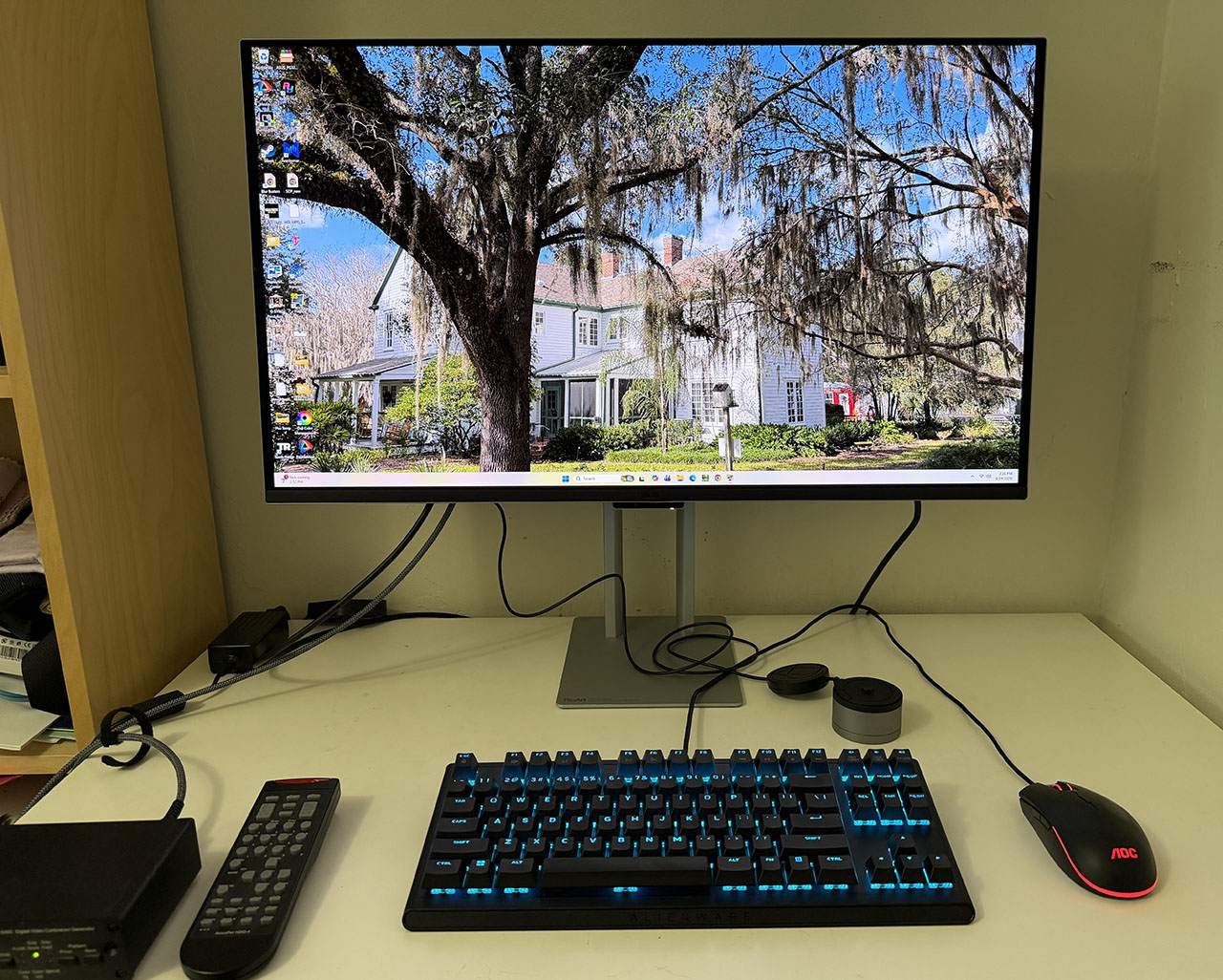
Usually, I would say it's a great pro monitor that performs well in games. But with such elegant styling included in the deal, I cannot dismiss its appeal as a luxury display that would look good in any modern office, media room, or workspace. Yes, it's expensive. But it's not as costly as many pro monitors. It has a gorgeous picture and every capability a user could want for any task or form of entertainment.
The PA32UCDMR isn't just a pro monitor. It's a fully capable display that games brilliantly, gets through workday tasks with ease, offers flexible calibration and looks great doing it. If you need a professional tool, a reference display, or just want a really nice monitor, the Asus ProArt PA32UCDMR is well worth checking out.
MORE: Best Gaming Monitors
MORE: How We Test PC Monitors
MORE: How to Buy a PC Monitor