How to choose a new motherboard without overpaying — scoping out the features you need, and what you might never use as component costs soar
Buying a motherboard today can be a daunting task. There are more options than ever, with more features than ever, making it harder to know what you really need. Prices have also climbed consistently over the last several generations, with flagship motherboards now routinely costing as much as a high-end CPU or graphics card.
Modern motherboards range in price from under $100 for the most basic, to well over $1,000 for flagship/Halo-type boards from the Big 4' (Asus, ASRock, Gigabyte and MSI). But more expensive doesn't always mean a better experience, especially if you're likely not to use the hardware and features you're paying for.
Several factors drive motherboard pricing. From the PCB layer count and copper content at your most basic level, chipset (some, like X870E, have two chips), power delivery, to controllers and premium components, they all increase the Bill of Materials (BOM). So what do you actually gain by spending more? It depends on the board, but outside of more robust power delivery, you tend to get additional, improved, or faster everything. Be it storage with M.2 sockets and SATA ports, USB ports, wired or wireless networking, the audio solution, or PCIe slots and bifurcation. And you can't forget about the aesthetics. In general, the more you spend, the better the specs and the better they look. Some even include integrated screens. But it goes beyond just the hard specifications.
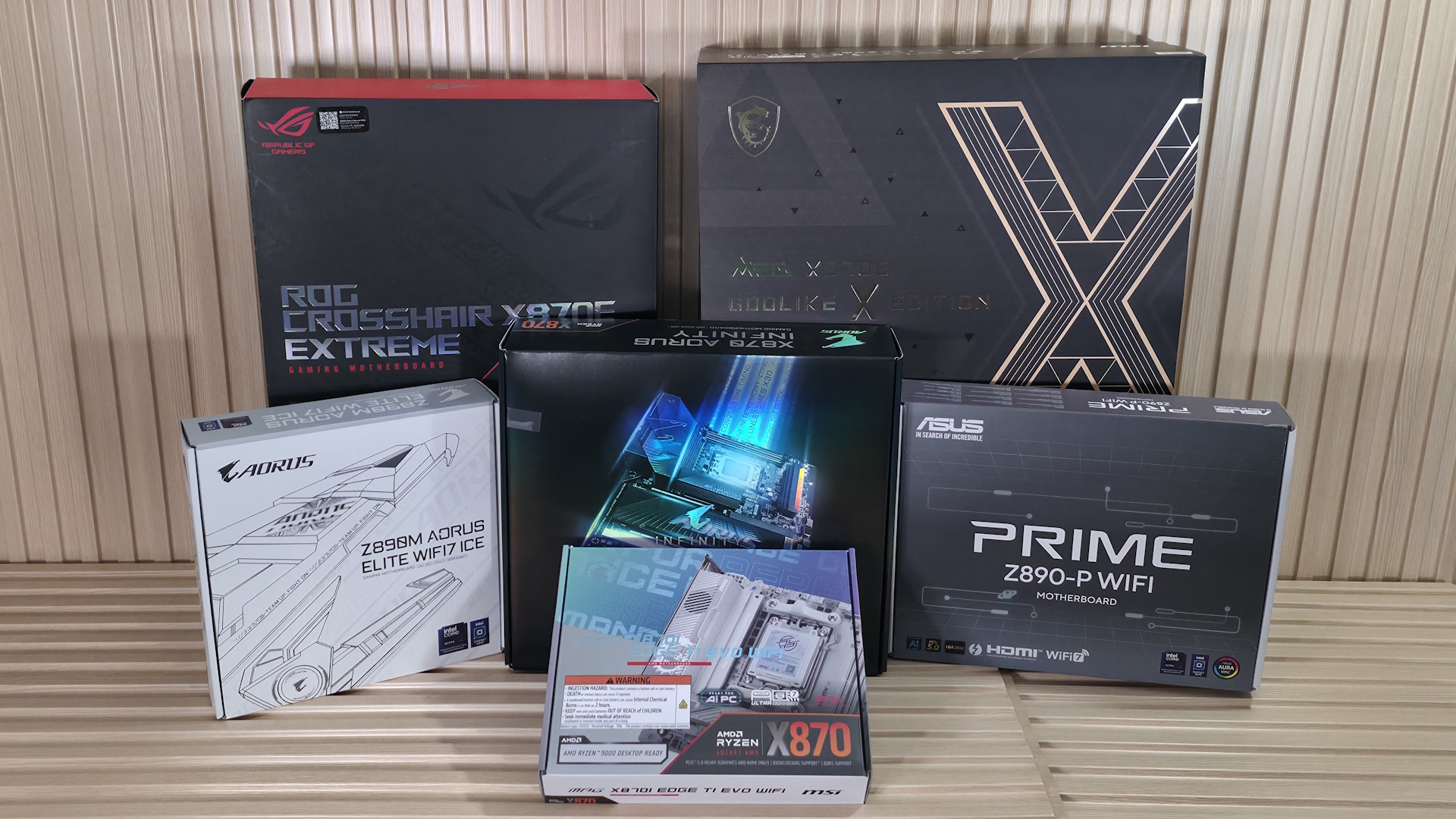
In addition to the hardware, motherboard partners attempt to inject value with DIY-friendly innovations such as toolless M.2 sockets and heatsinks, larger BIOSes with integrated drivers, or even quick-connect Wi-Fi antennas. All things that make building or swapping parts out easier on your PC. They're even including AI" features designed to help with overclocking and other functions like networking, or even local AI work, to make getting the most out of your system easier. And while some of those features can be valuable, their true worth is measured by the individual and whether they can get any use out of it.
The real question you need to ask yourself is what you need (and want) for how you use your PC today and in the near future, as every PC user is different. Whether you use your PC primarily for gaming, work purposes, or breaking overclocking records, needs will vary. The point of this article is to help users navigate through a dizzying array of options, determine what's actually too much versus what you need, and perhaps save money by focusing on the right parts for your usage.
The cost of a motherboardWhat, outside of marketing forces, drives motherboard pricing? First, there's the BOM. Everything you see on the board has a cost. Starting with the PCB itself, it comes in layers like a sandwich, allowing all of the connectivity to reach where it needs to go without electrical interference. Budget boards tend to use fewer PCB layers and less copper, think 6-layer and 1 Oz, while mid-range and higher use 8/10 layers and 2 Oz of copper as selling points. Of course there's validation and engineering costs that go into it, too.
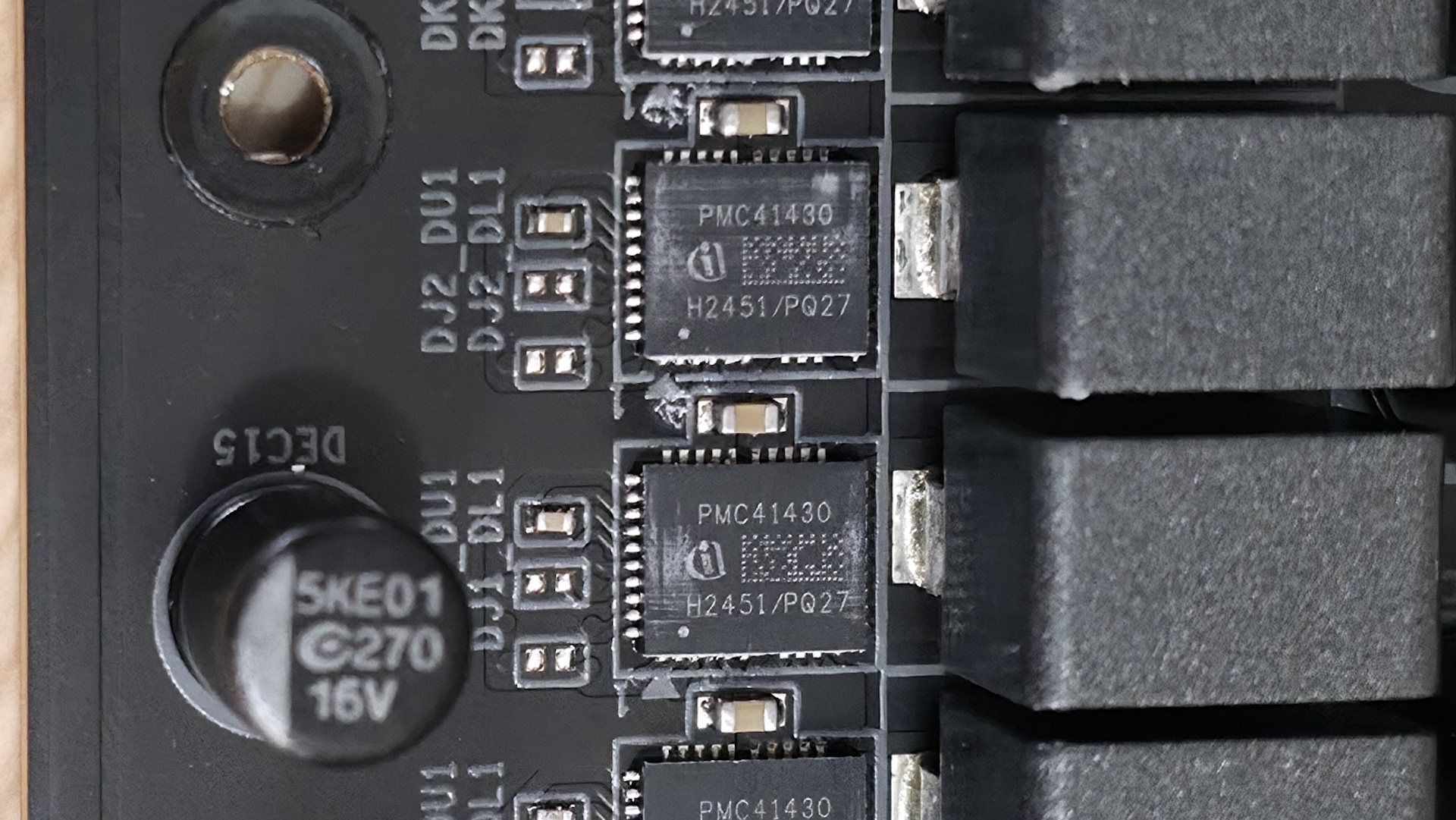
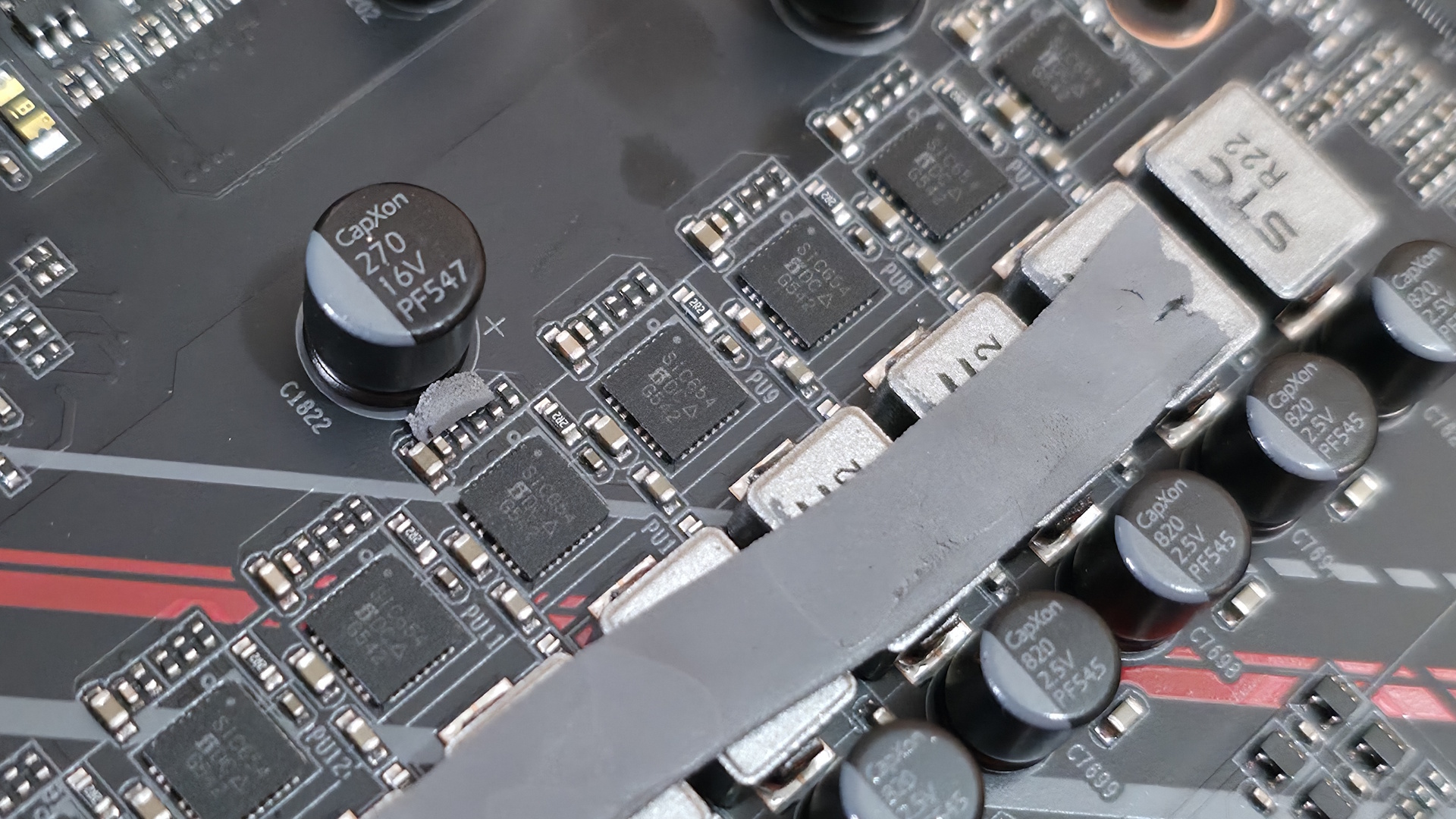
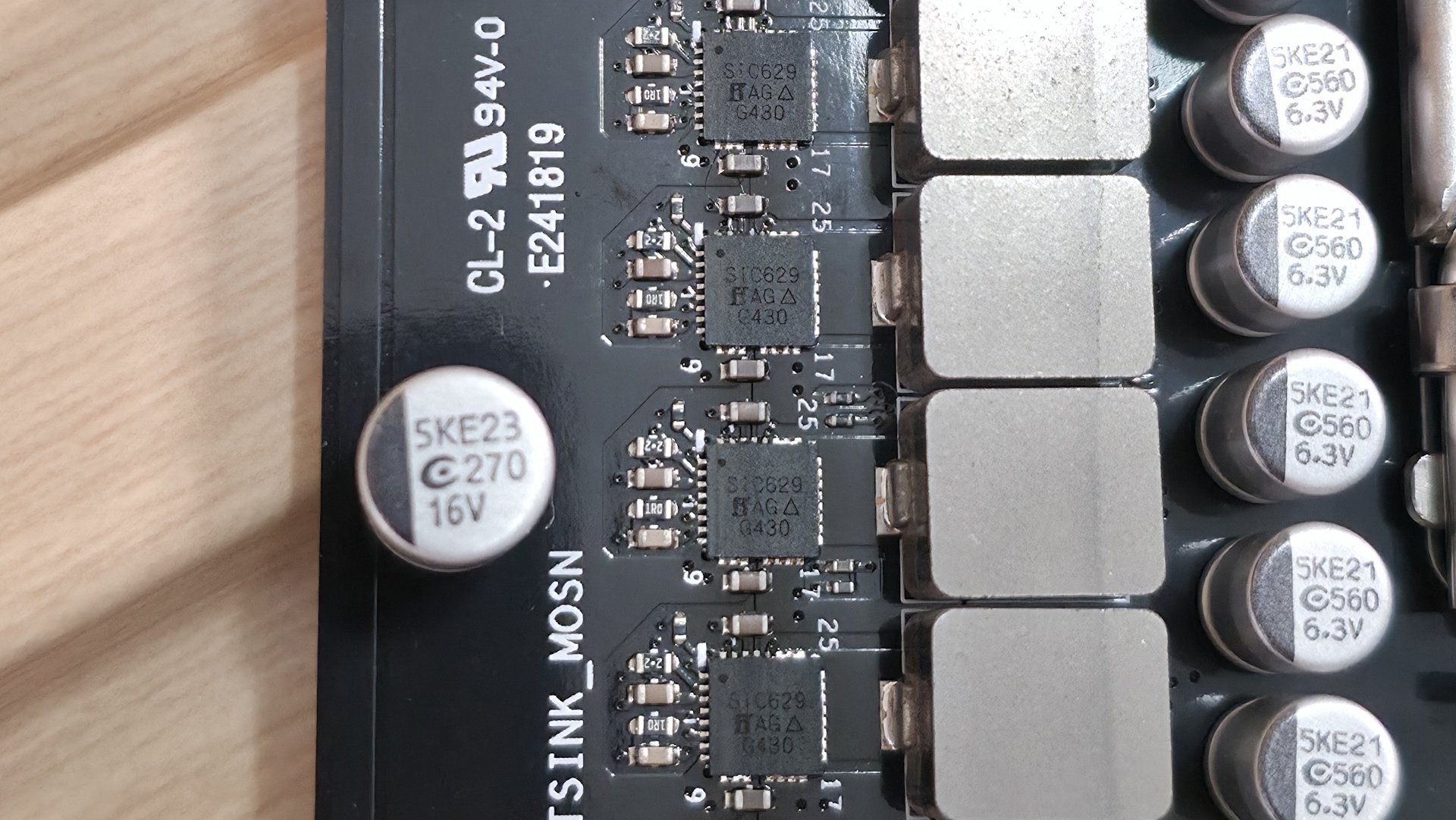
On top of the PCB, you have various bits like the VRMs, which can range from downright anemic and a hindrance to performance, to overkill for anyone except extreme overclockers. Cheap boards tend only to give you the basics: fewer VRM phases and lower-rated MOSFETs (think 50A/60A), chokes, and capacitors. More expensive boards use a higher phase count and higher-rated MOSFETs, around 80A-110A.
 Tom's Hardware
 Tom's Hardware
 Tom's Hardware
 Tom's Hardware
 Tom's Hardware
 Tom's Hardware
 Tom's Hardware
 Tom's Hardware
For example, the popular 80A Intersil ISL99380 MOSFET can be found for around $2.72 apiece (@ 100 qty), while the less capable Vishay SIC623 50/60A is $1.69 per (@ 3,000 qty). Now, these prices are just what we can find online in lower quantities. If you need 100,000 units, prices will drop, and we don't know what price the board partners contracted at. But the point is the difference in cost. The idea that the power bits on a 12-phase board with 50A MOSFETs will cost less than a 24-phase board with high-end 110A SPS MOSFETs should be clear, and we haven't even touched on the chokes and capacitors that make up the VRMs.
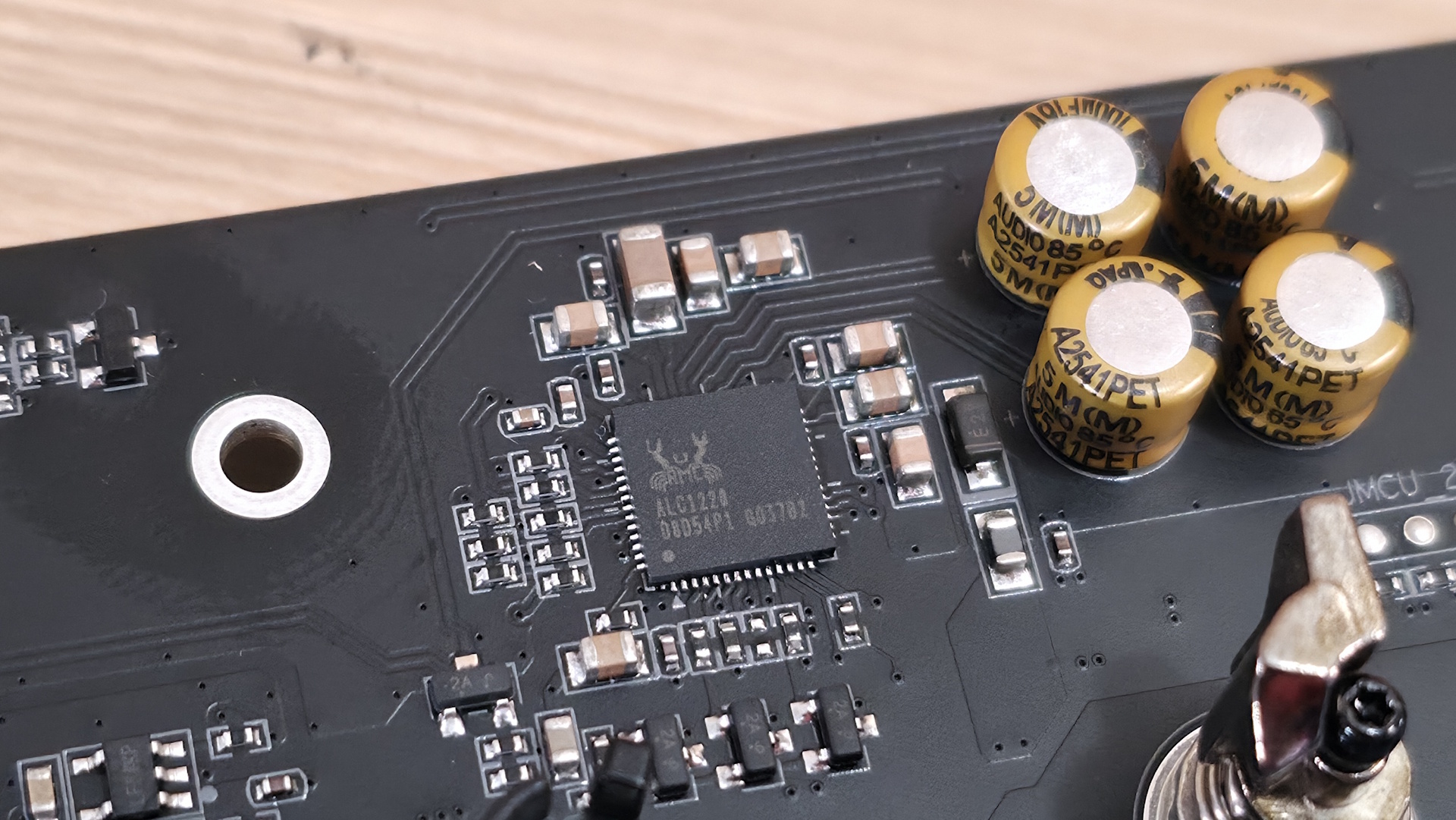
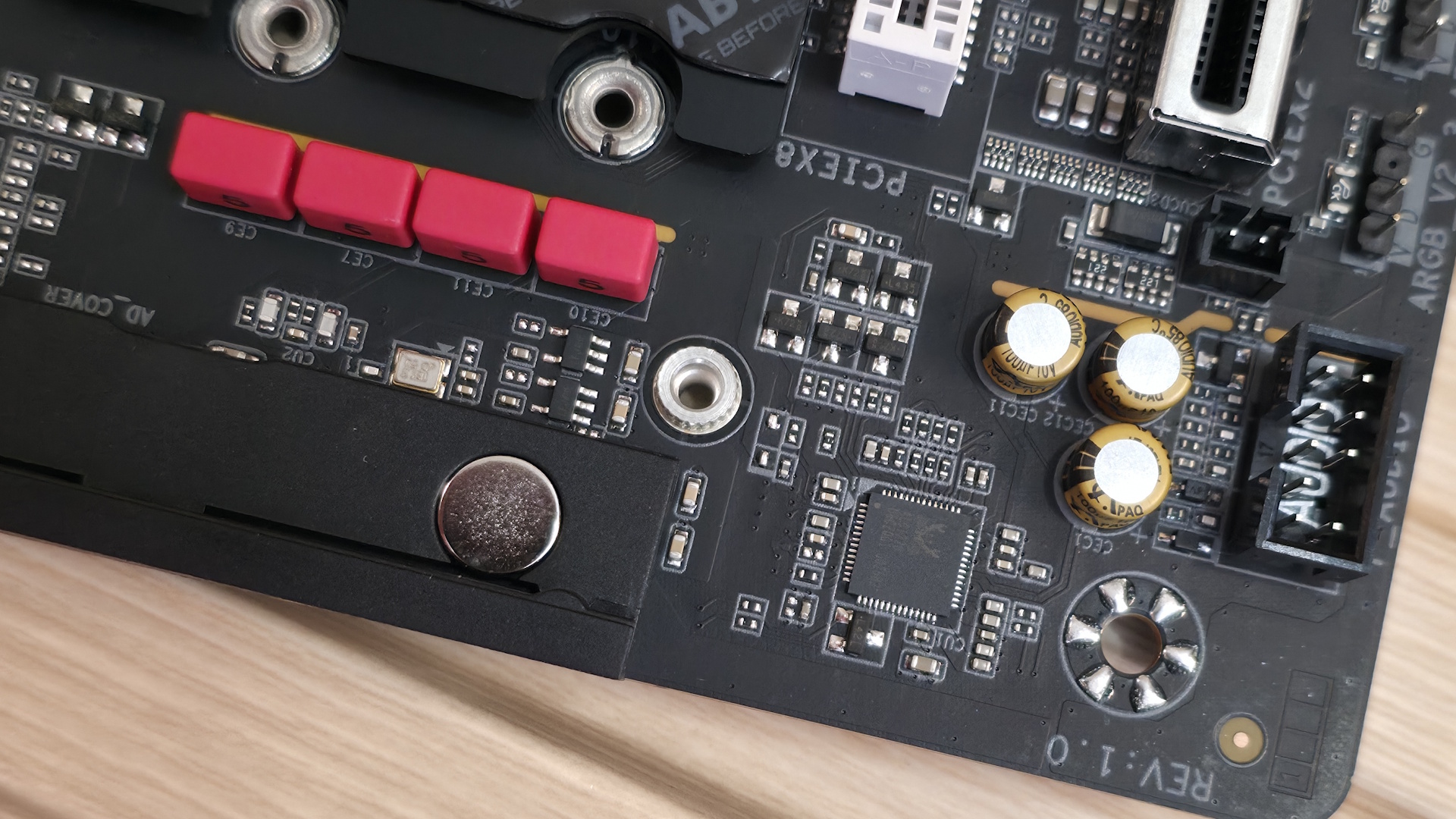
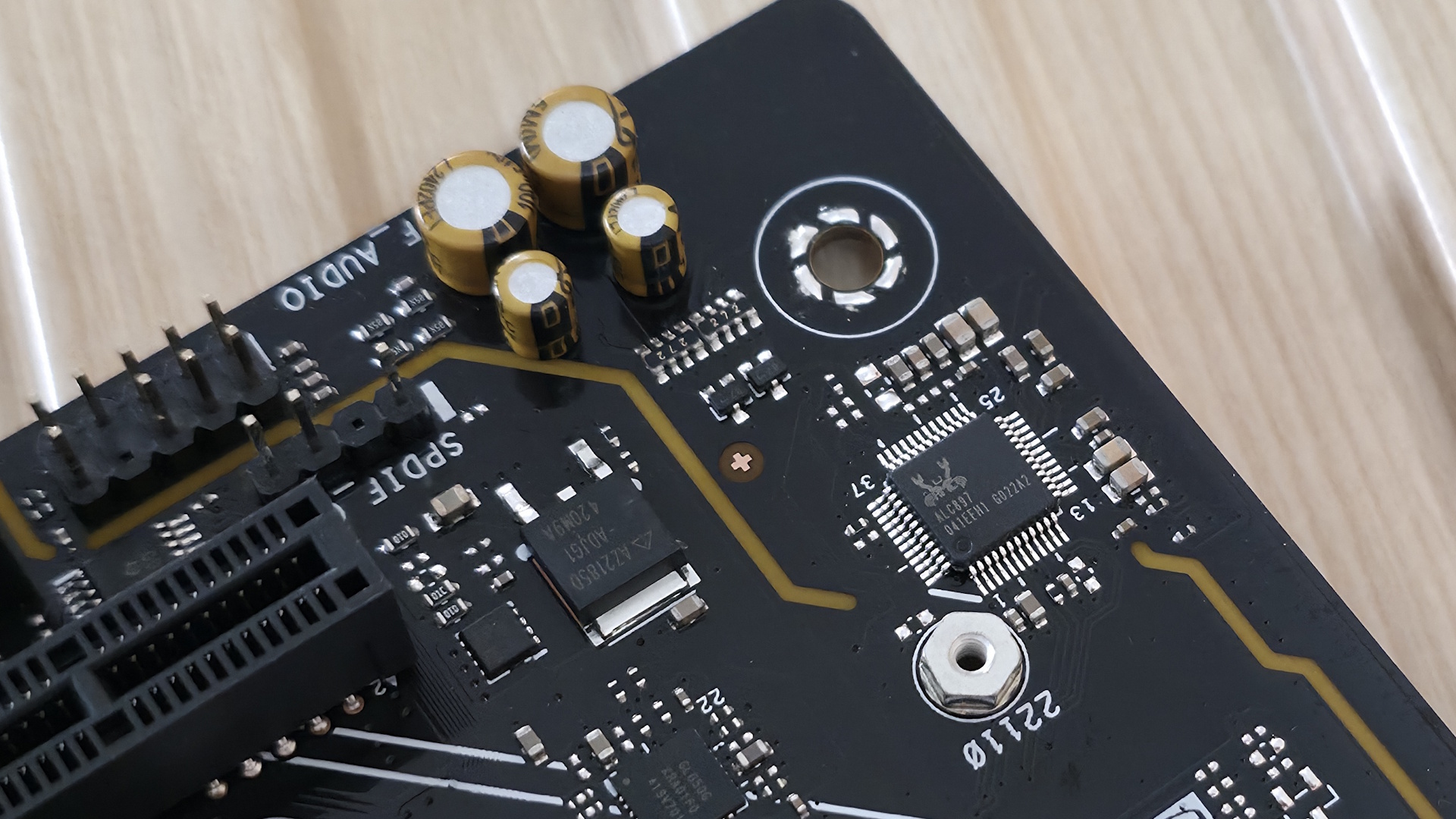
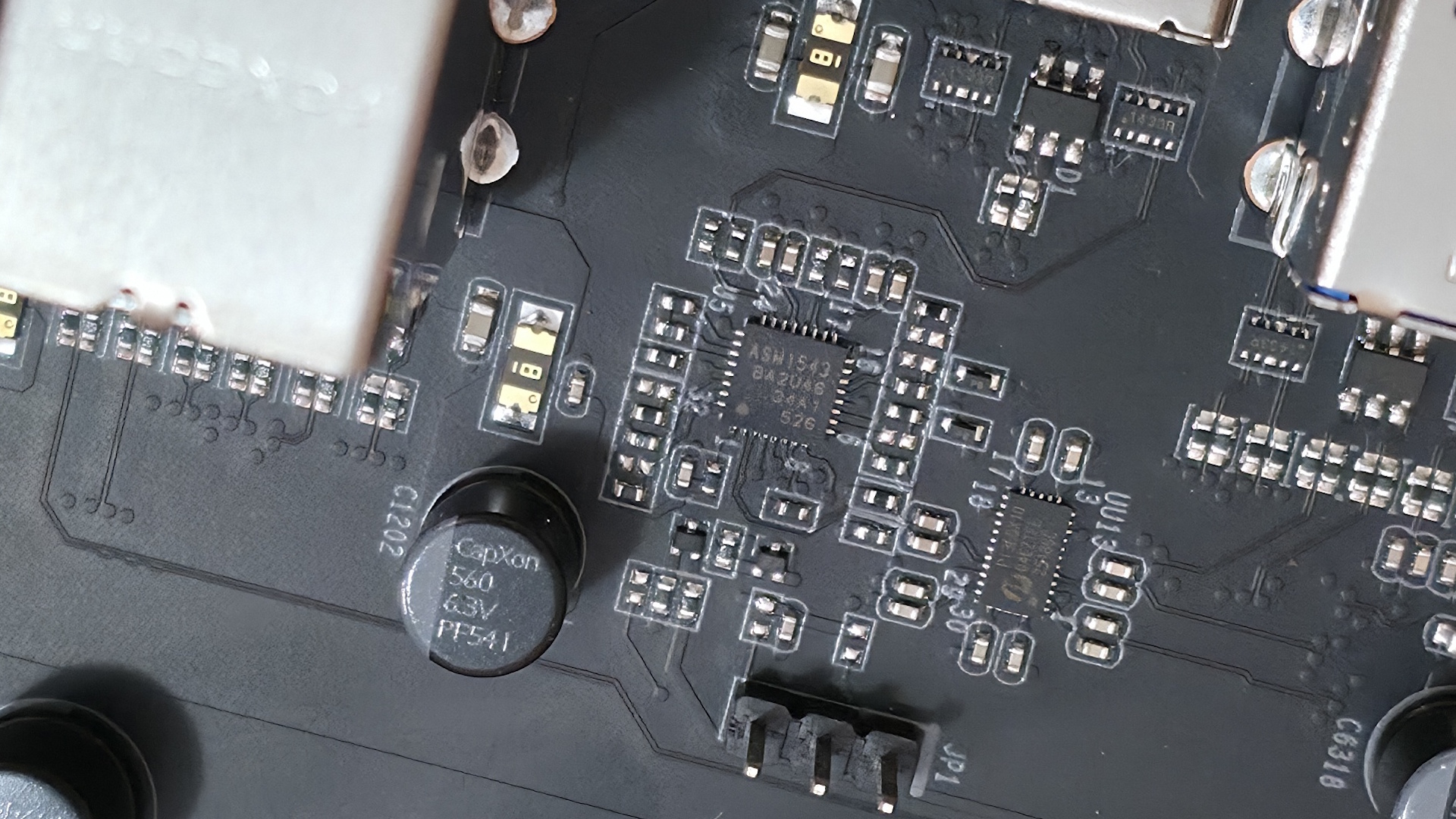
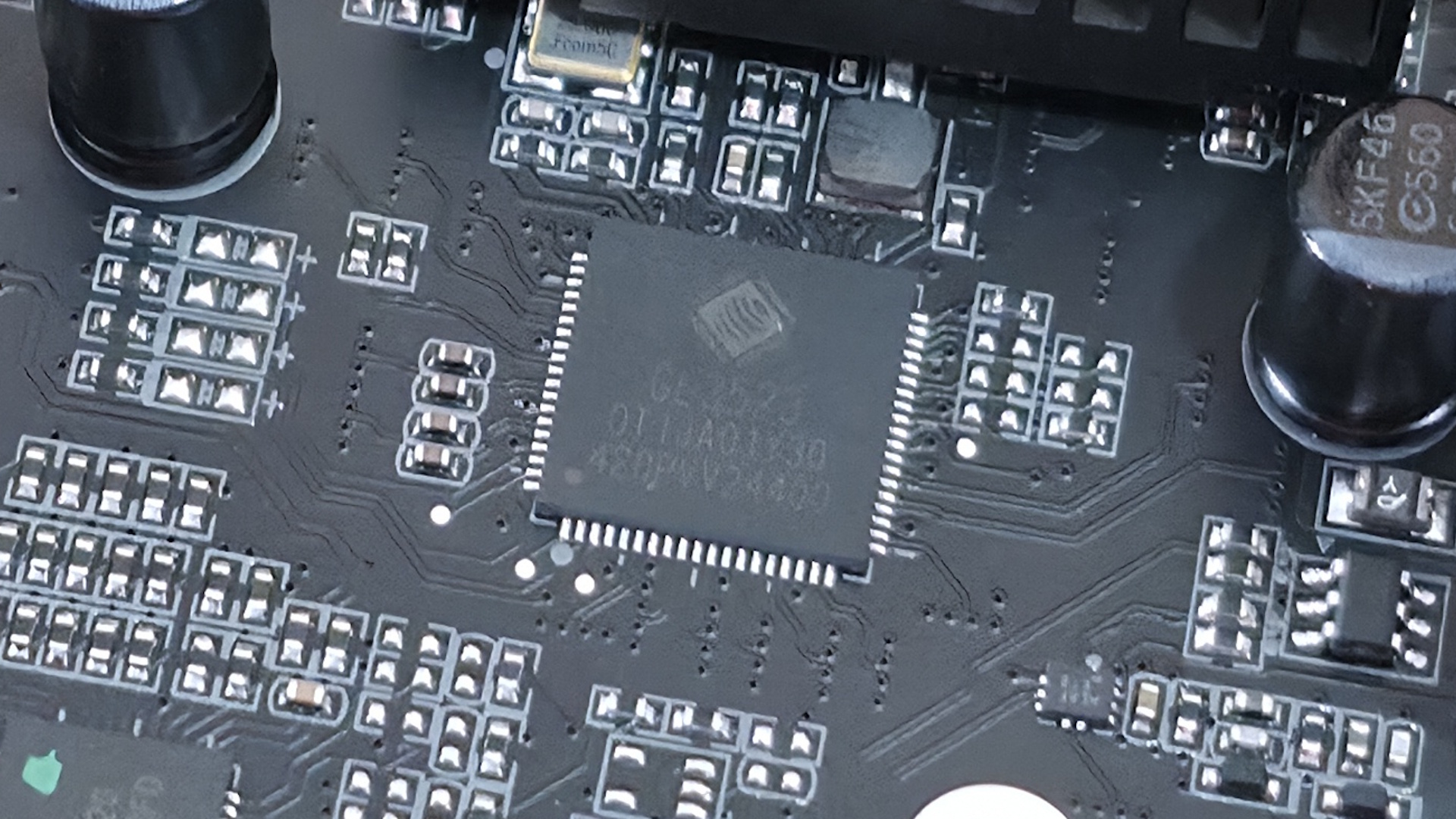
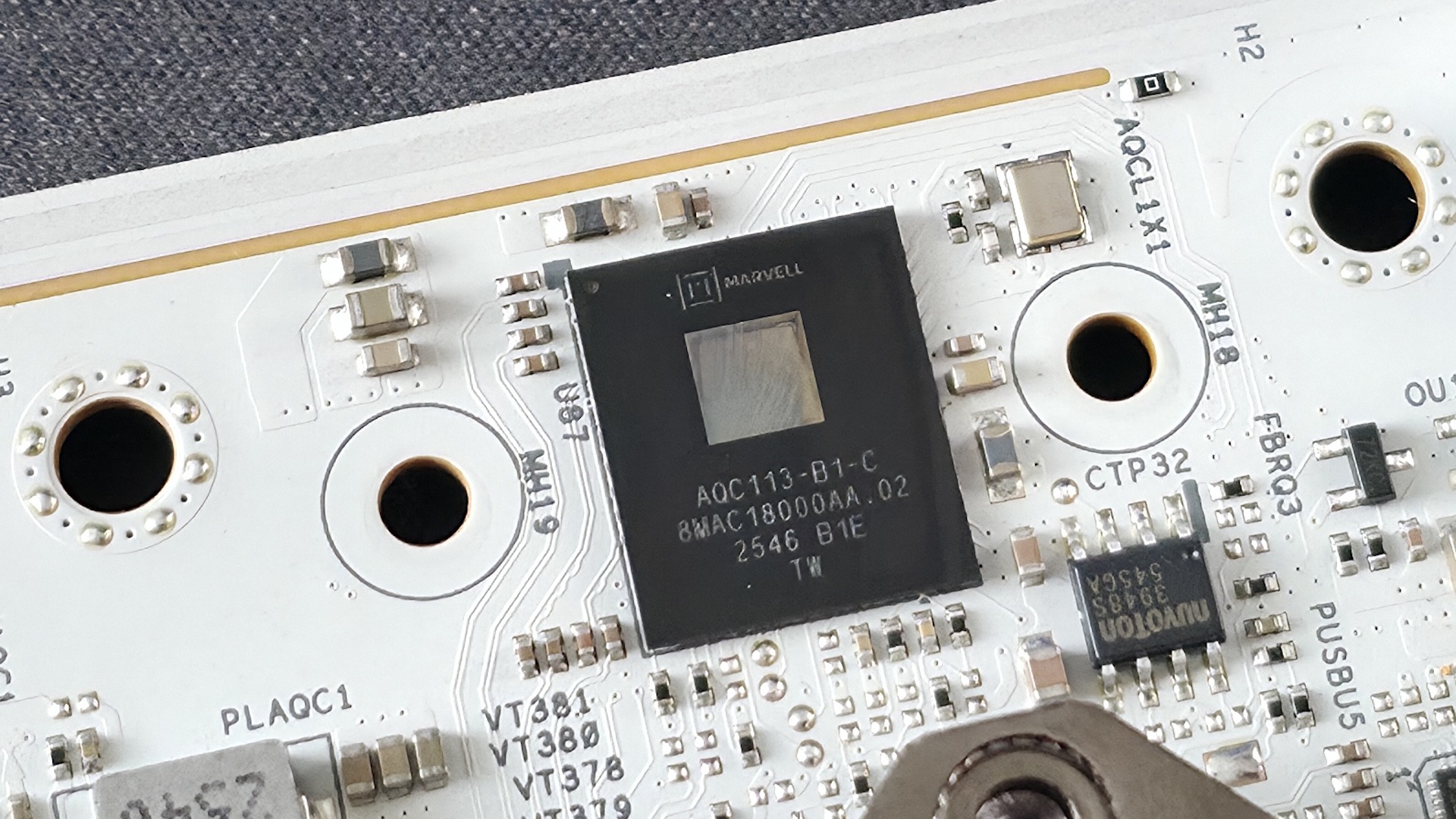
Other onboard items such as network chips, USB controllers/hubs, SATA controllers, audio solutions with DACs and/or amplifiers, PCIe switches, BIOS chips, and more all add up (and that's just the hardware/ICs). For example, a Marvell Aquantia AQC113 is around $27 apiece for 1,000 units, while the 2.5 GbE Realtek RTL8125BG can be found as low as $2 apiece for 30 units. Pricing isn't publicly disclosed for many items to compare; for instance, we can't find pricing for the ASmedia ASM4242 USB4 chip, but you can expect it to fetch a premium over most other supplemental, slower USB controllers. On the other side of the tracks, Intel's JHL8540 Thunderbolt 4 chip costs a bit over $13 apiece for 2,000 units.
 Tom's Hardware
 Tom's Hardware
 Tom's Hardware
 Tom's Hardware
 Tom's Hardware
 Tom's Hardware
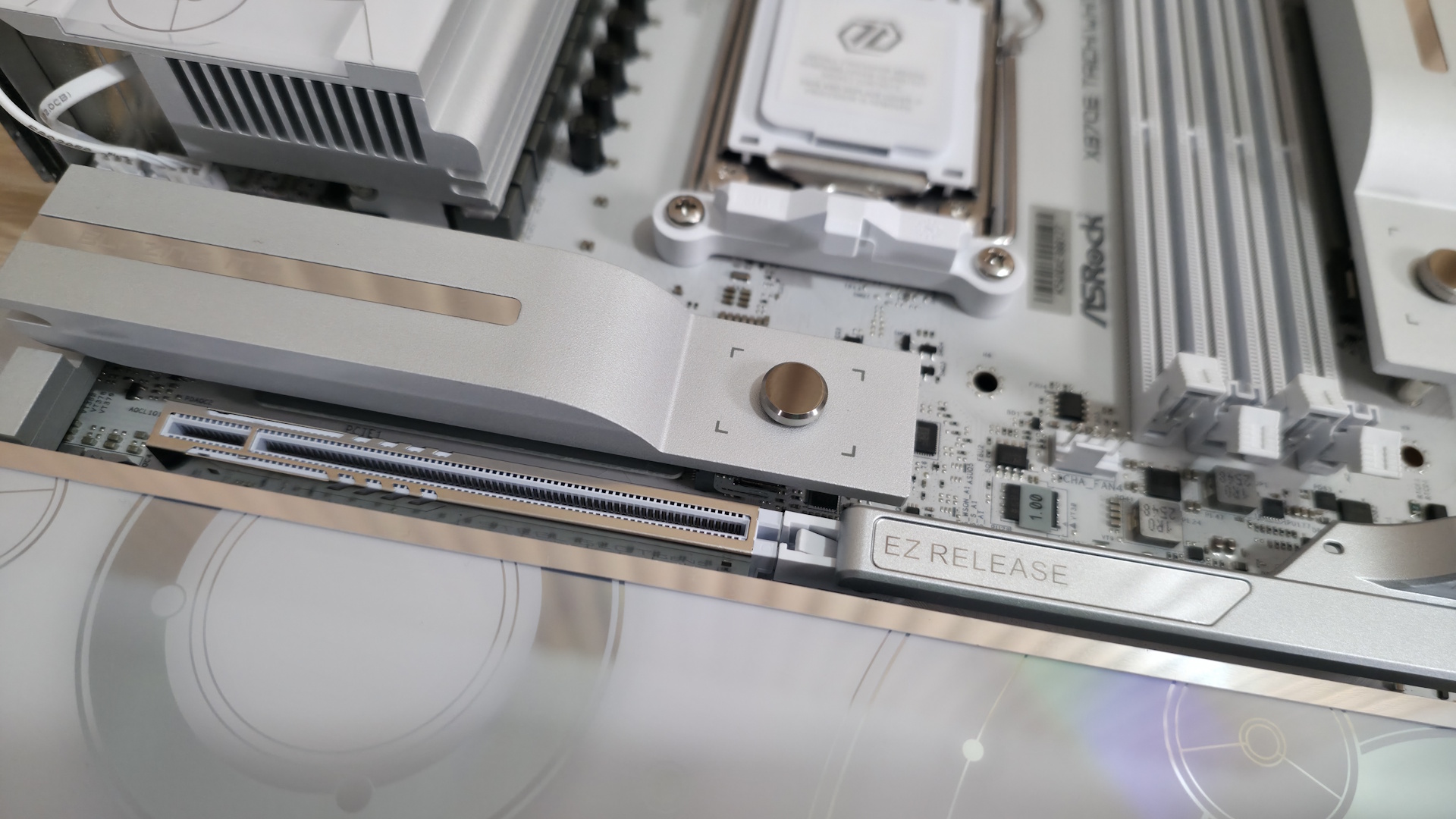
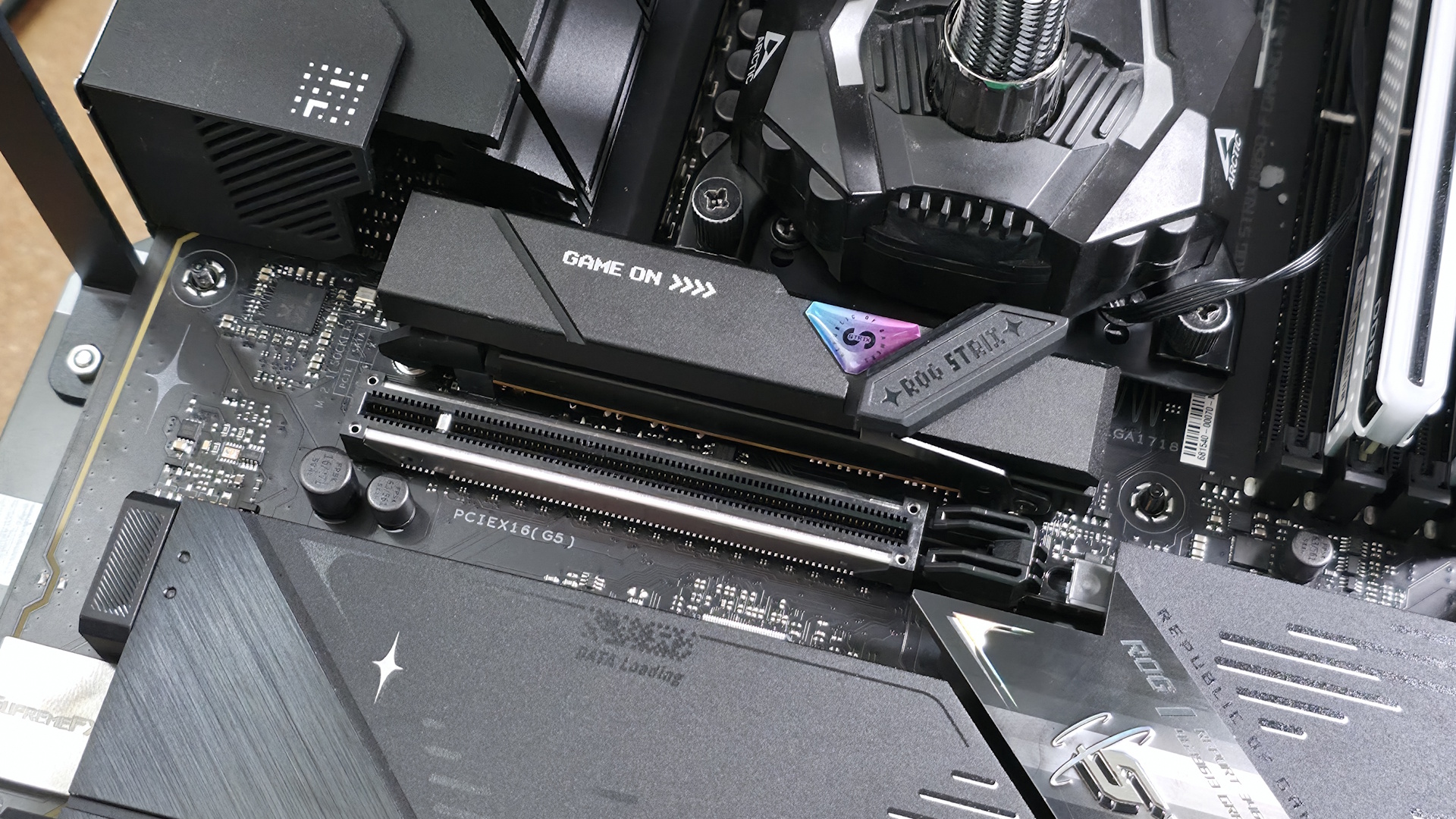
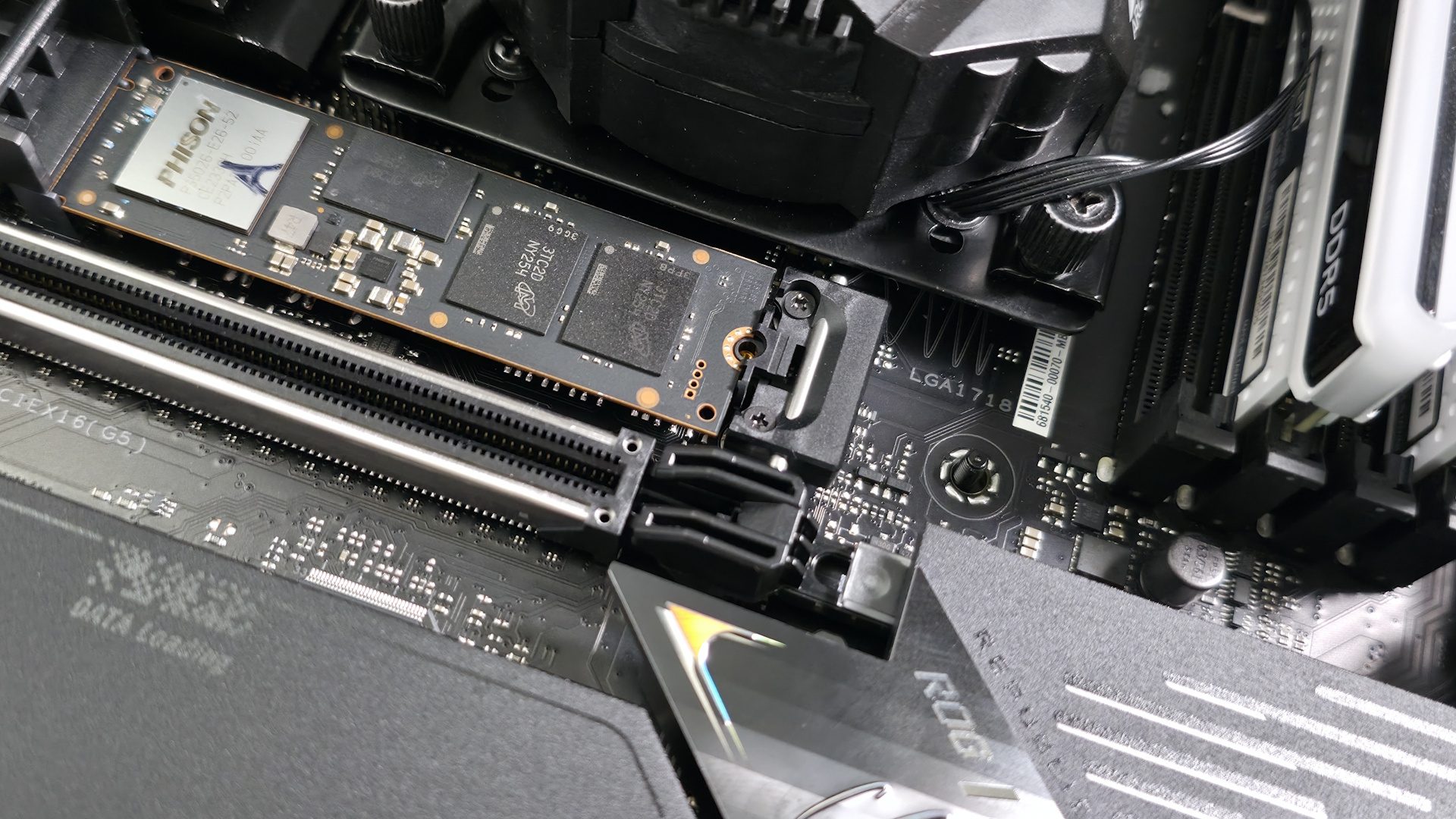
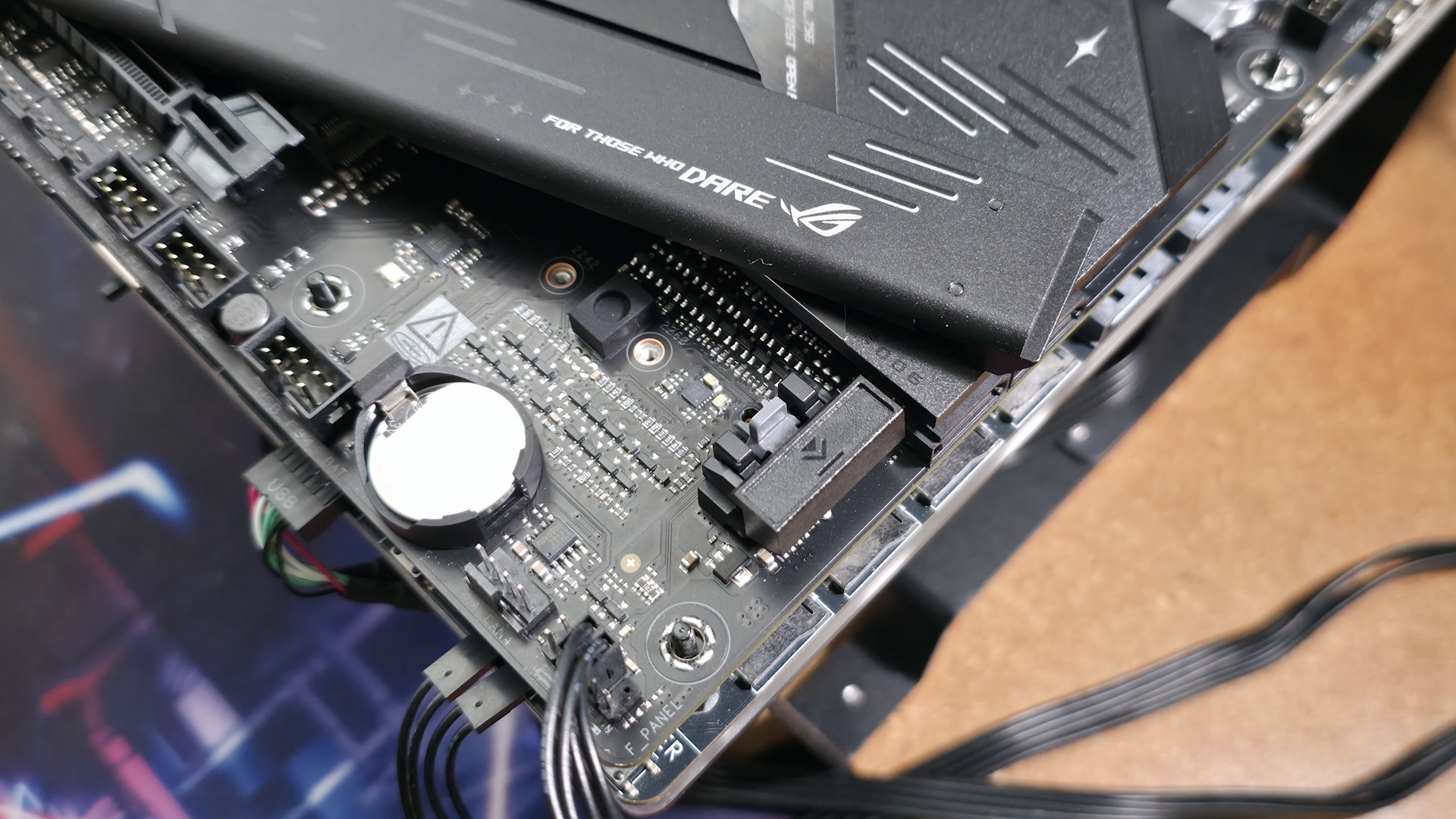
DIY-friendly features such as toolless M.2 sockets and PCIe latches likely also cost more than the basic M.2 socket with screws and PCIe slots without those features, but that's something more tangible, even if it's only used for installation and upgrade purposes, and likely not a significant part of the BOM cost.
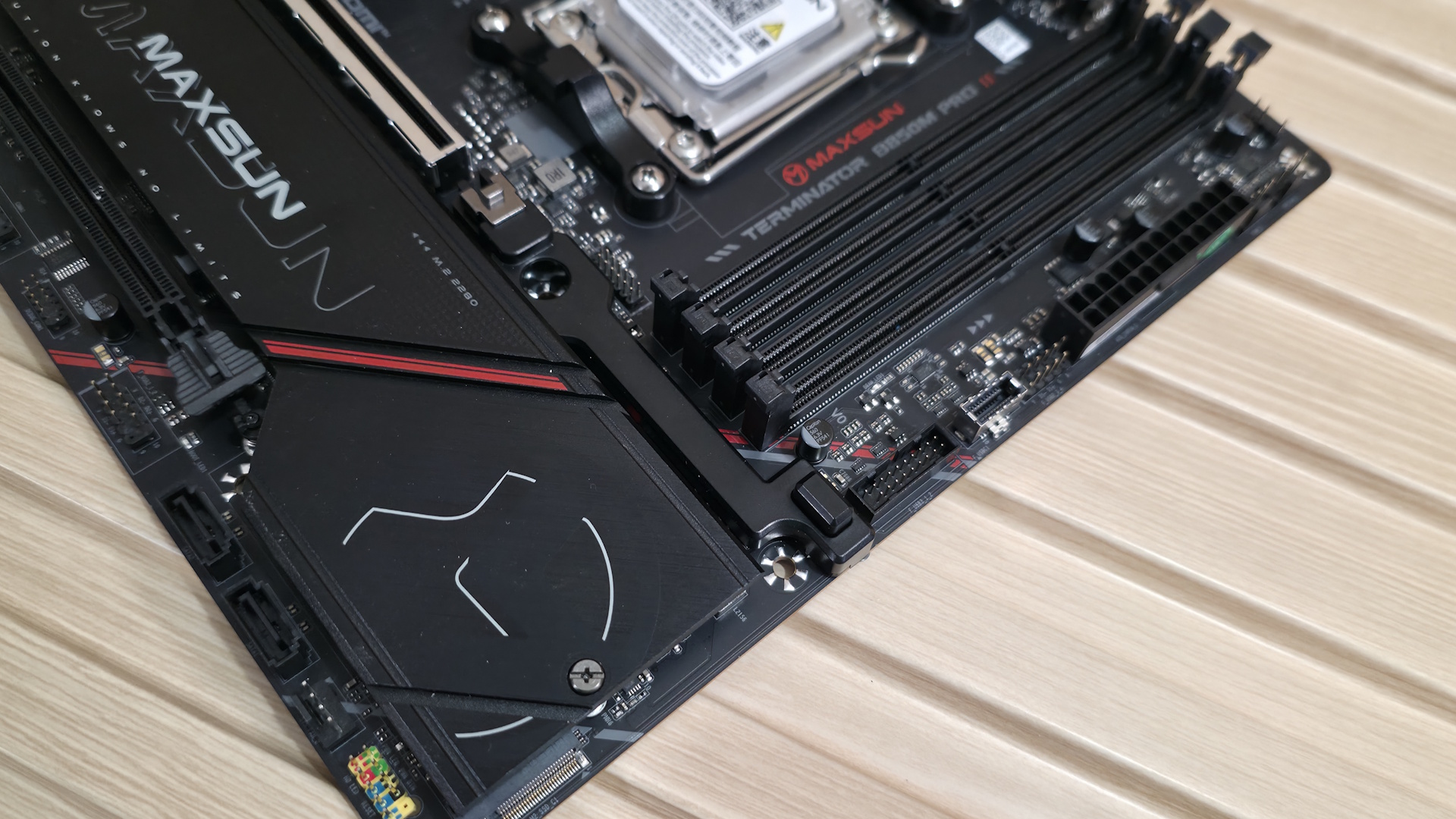
You also can't forget the appearance. From basic boards with minimal heatsinks and no RGBs to massive decorative heatsinks and shrouds, RGB lighting, and integrated screens, it all adds up. And of course, you have to factor in R&D to get these boards and all of their features created and to market in the first place. Just remember that not every additional dollar translates into something you'll notice in everyday use.
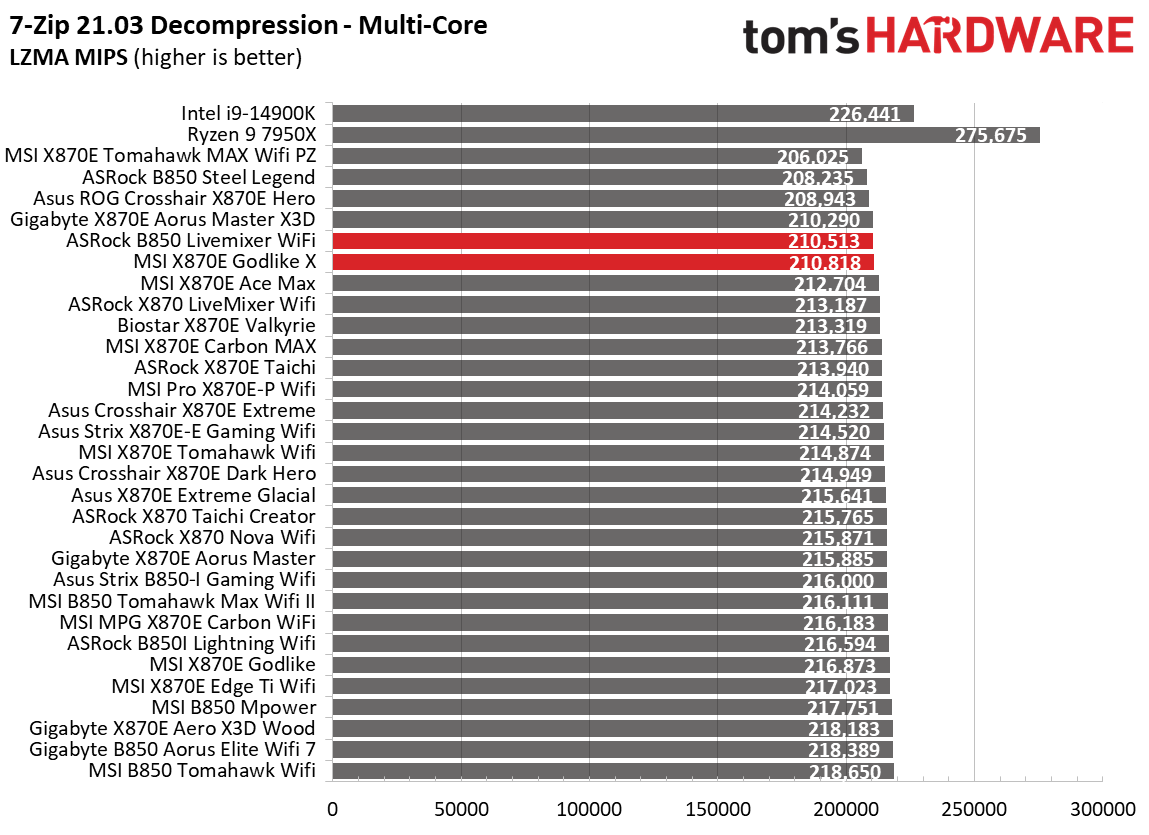
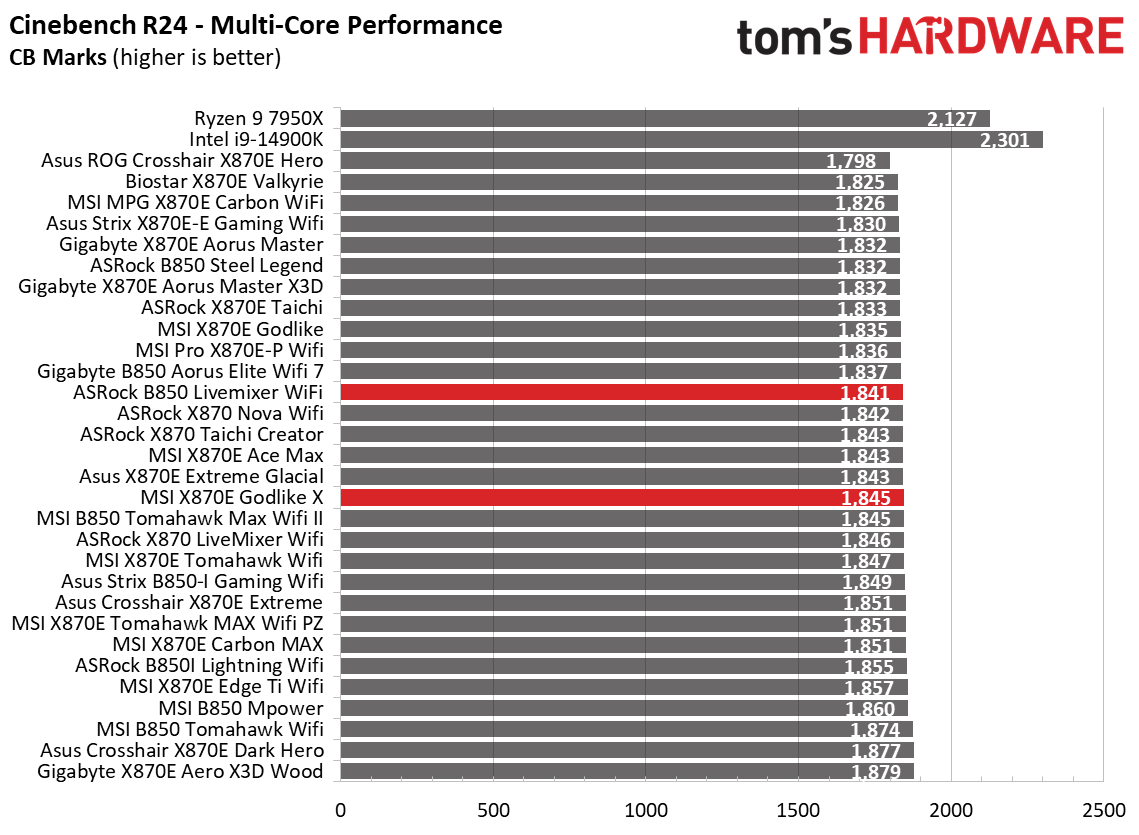
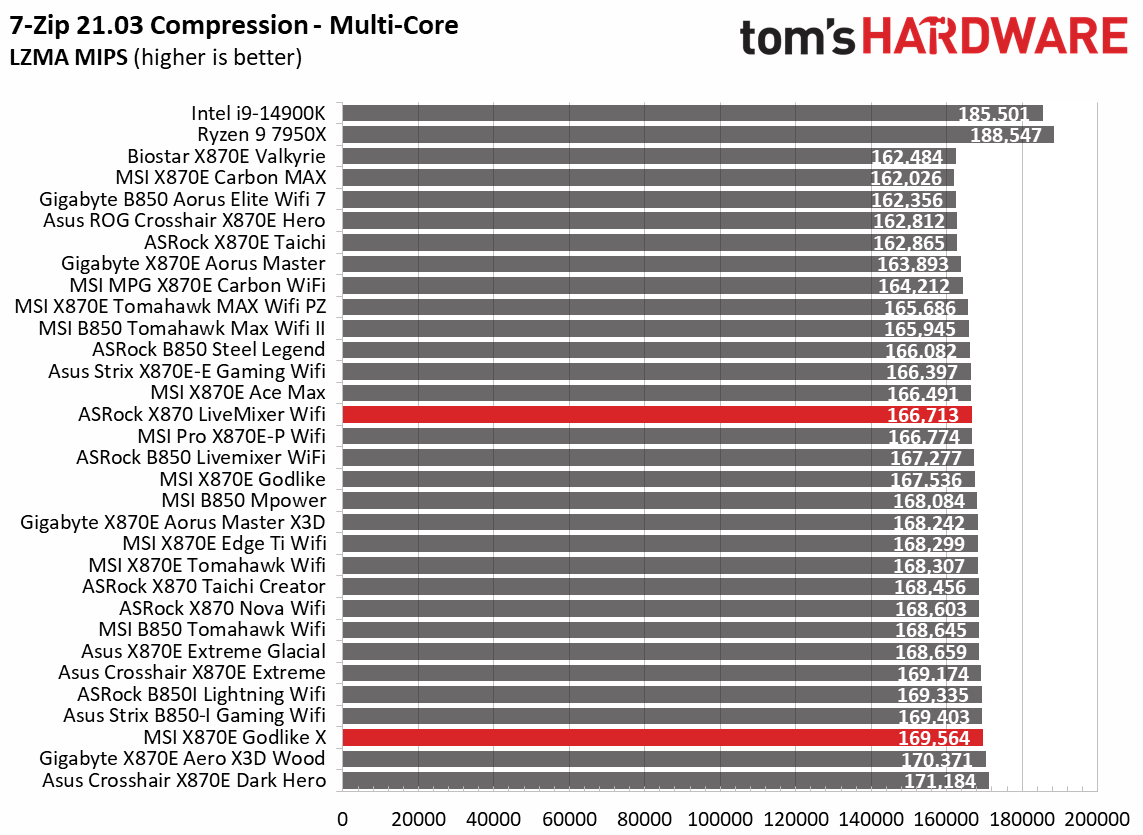
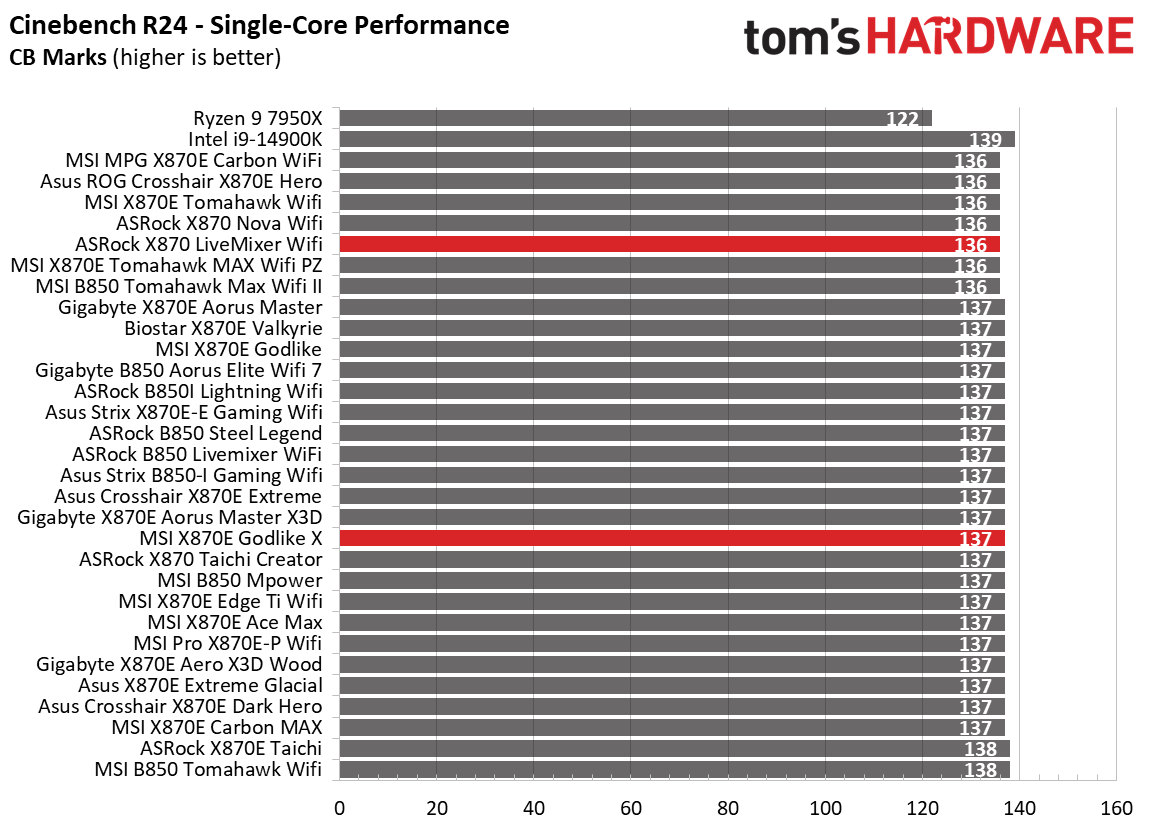
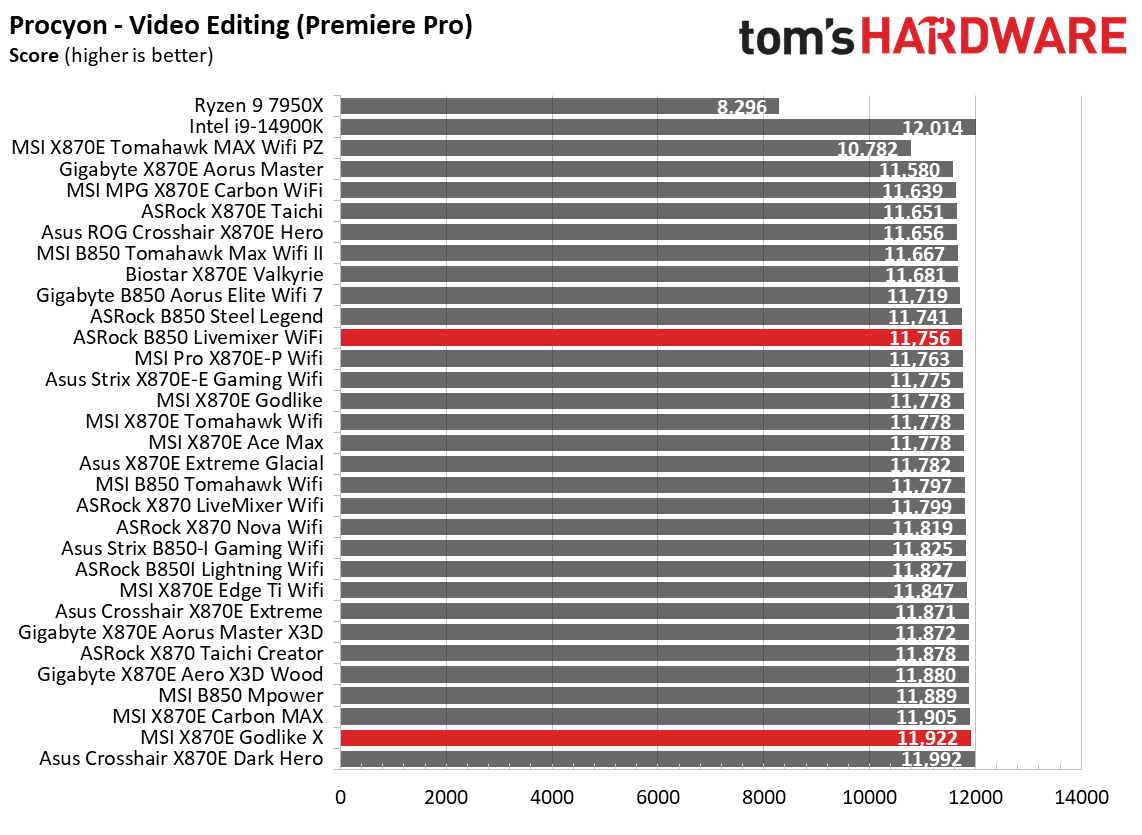
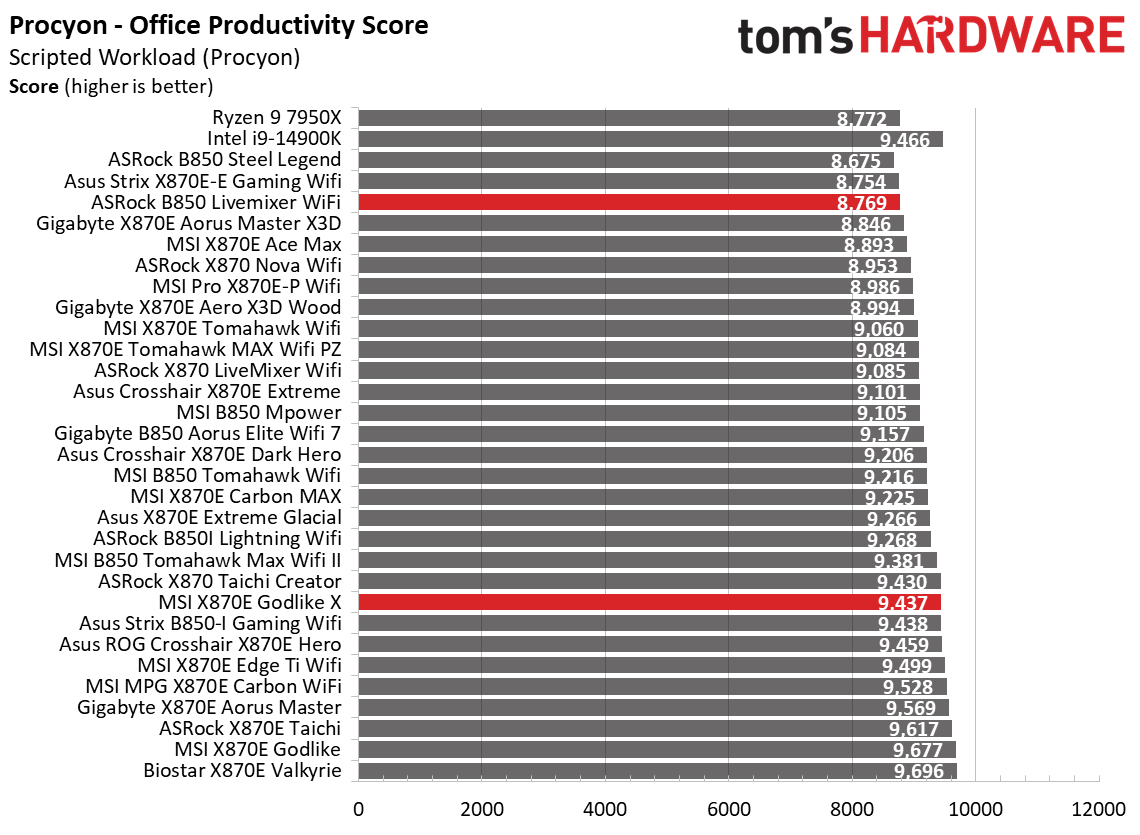
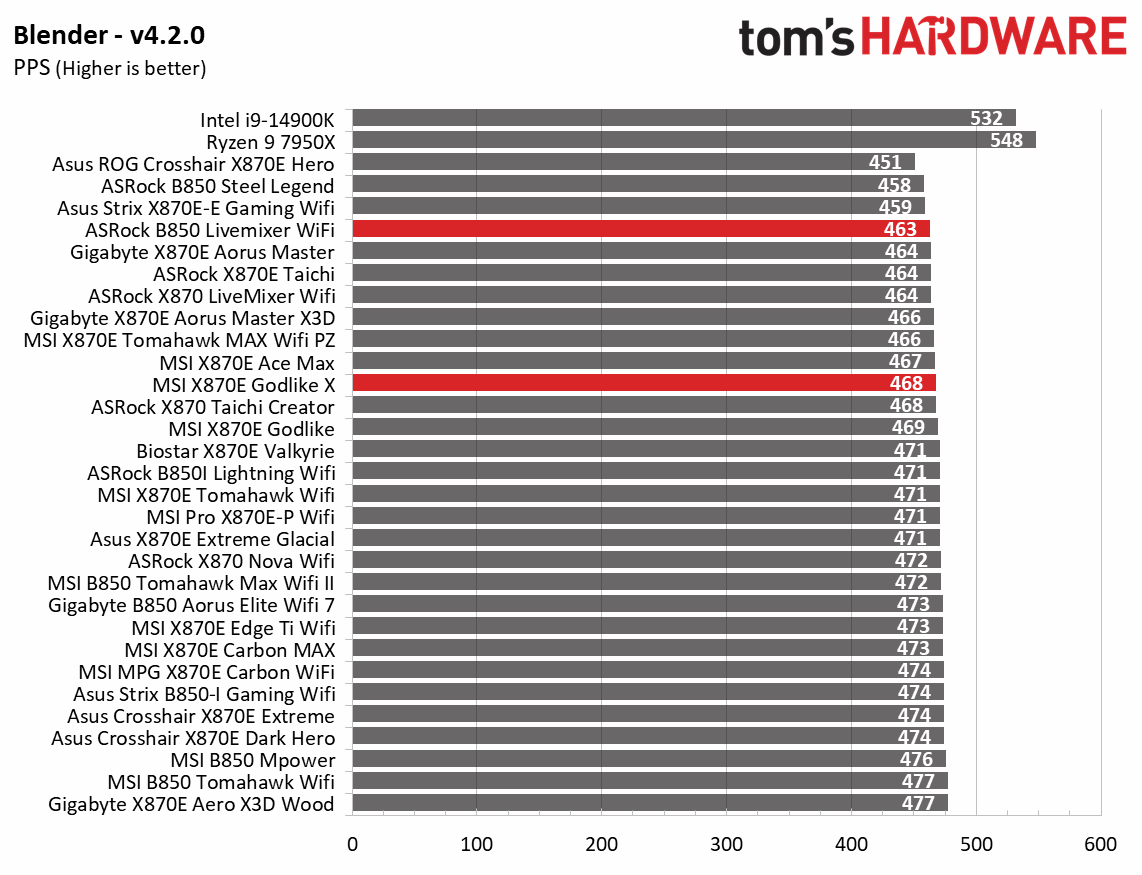
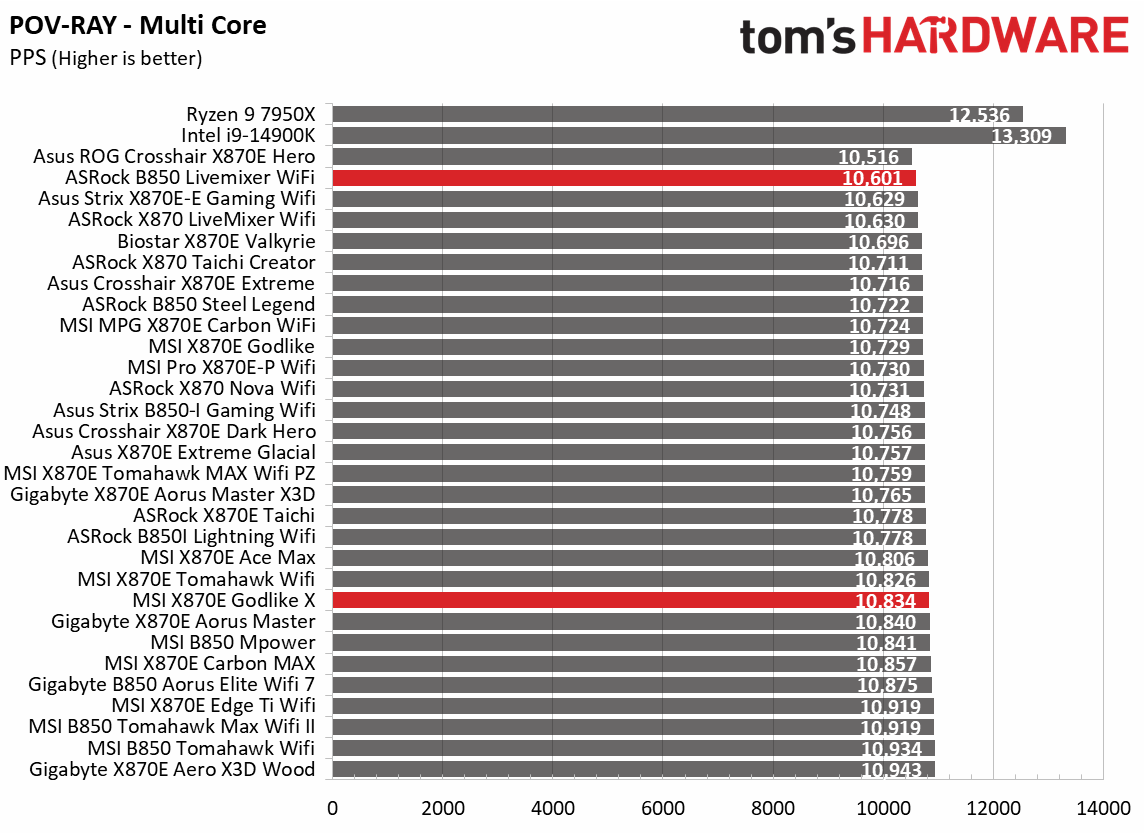
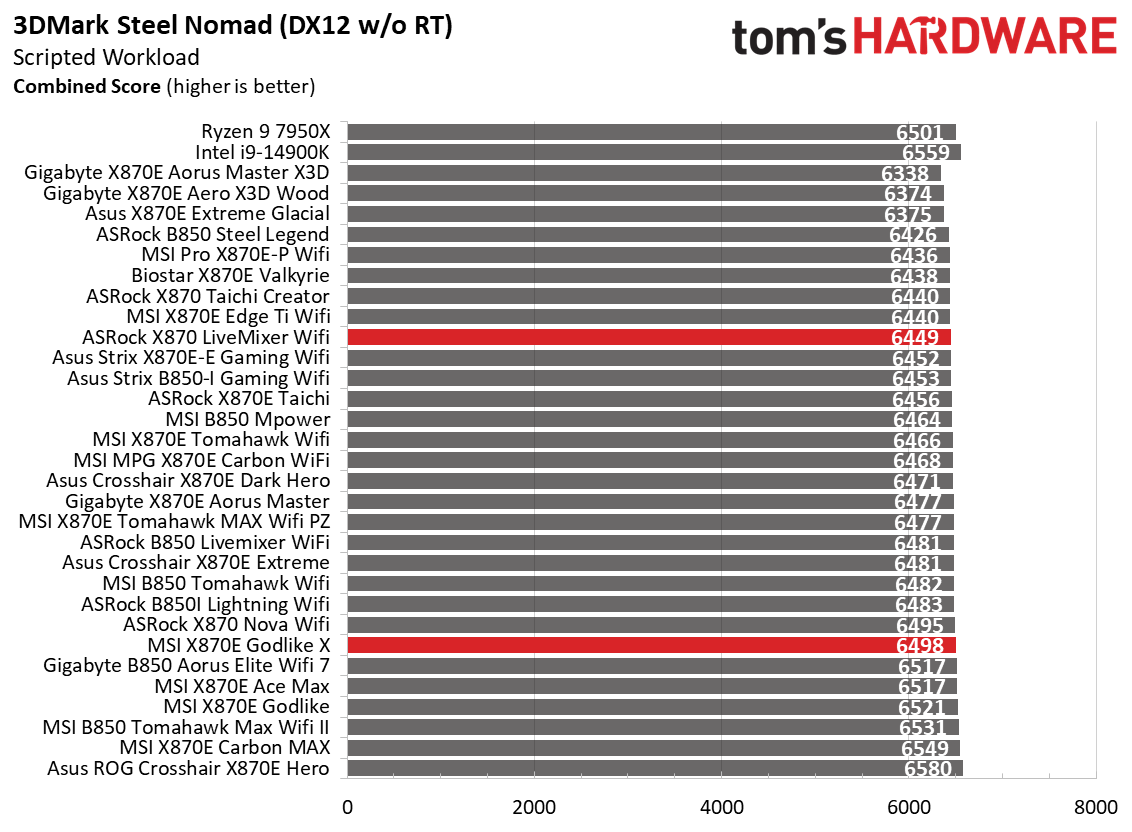
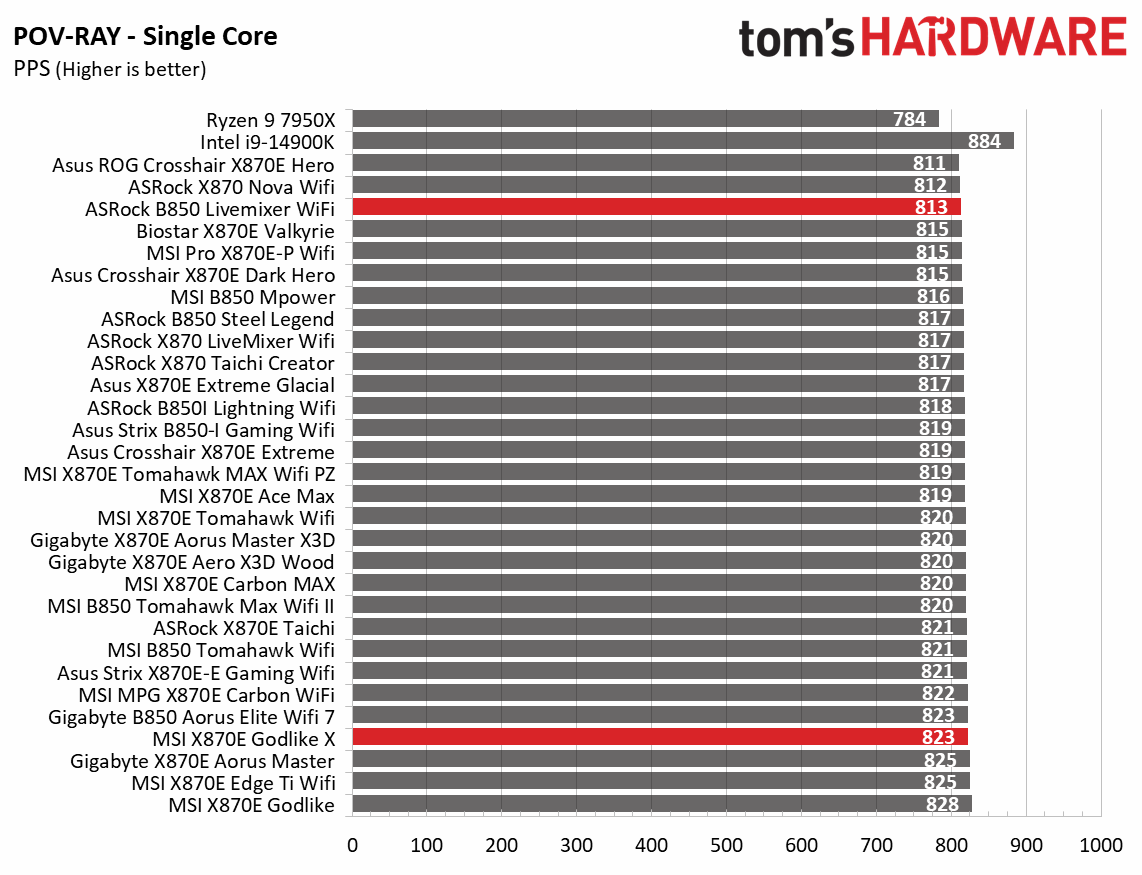
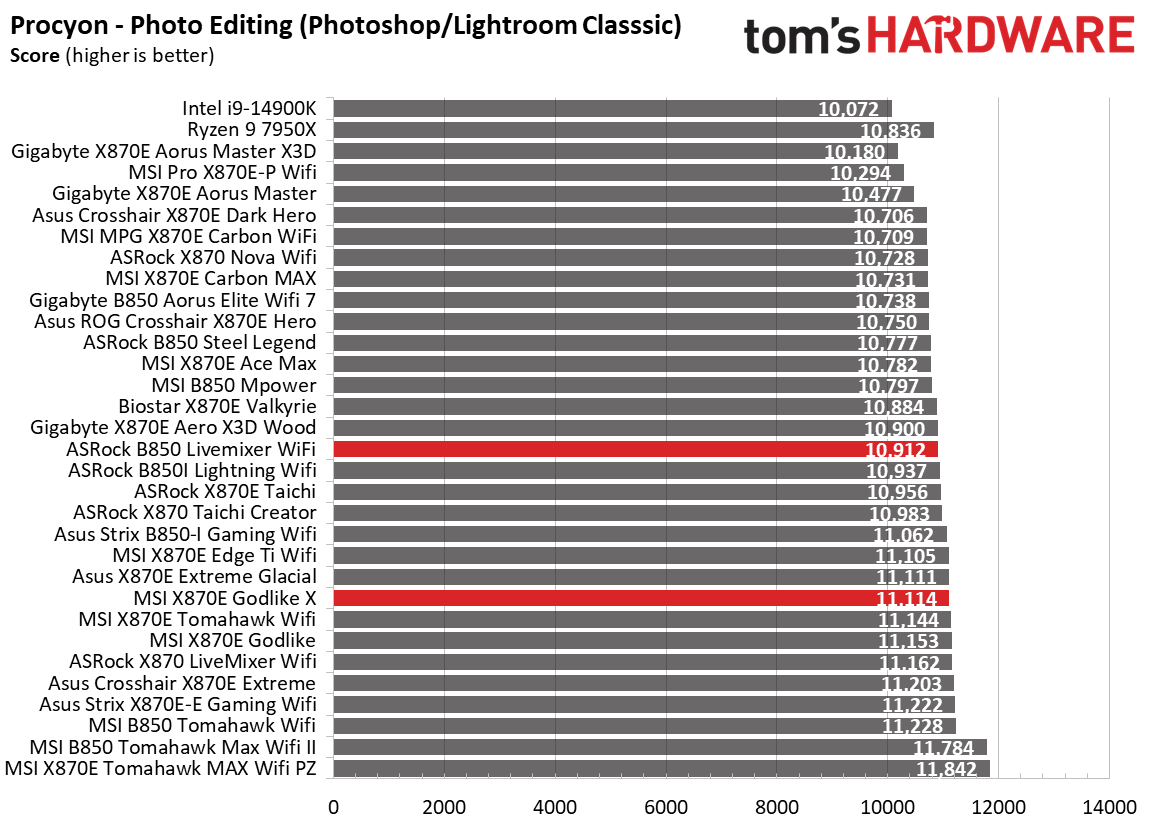
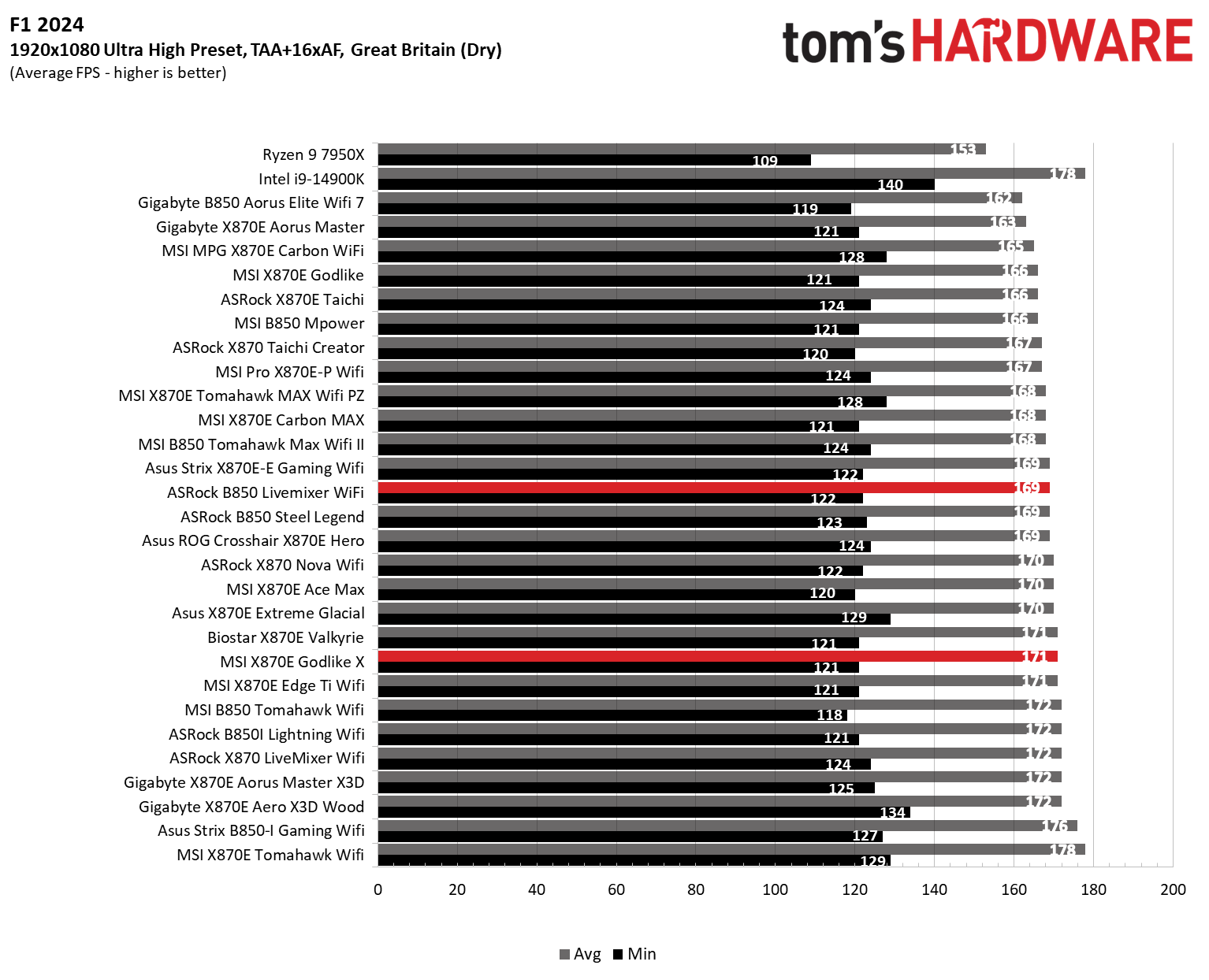
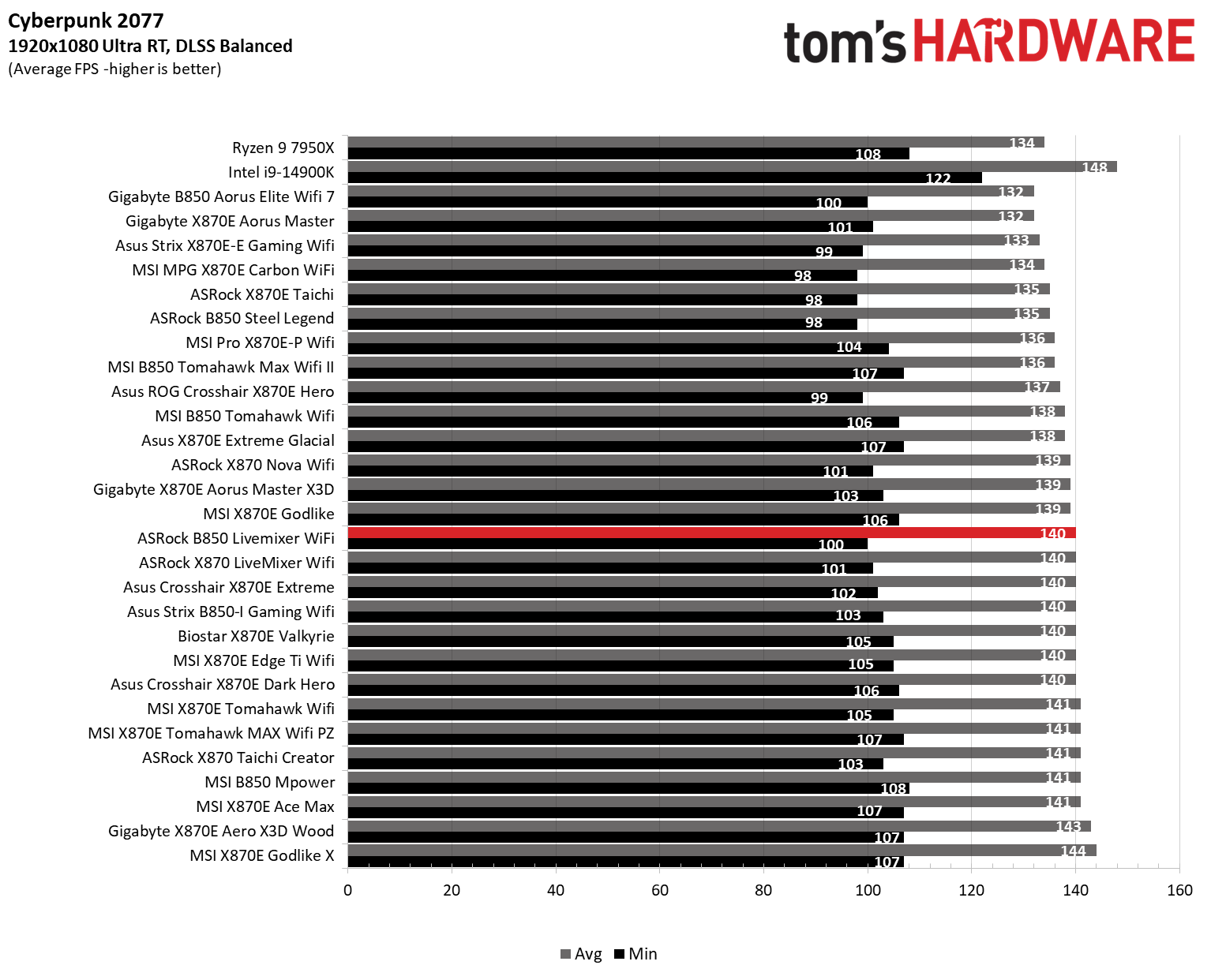
Where does the value end?Unfortunately, we don't have a black-and-white answer to this question, as it depends on the person making the purchase and their needs, or how they plan to use the PC. Speaking generically, very few people need incredibly robust, 20-plus-phase, 110A MOSFET VRMs, even with a high-power flagship-class processor. Most users with any processor will be fine with a 12-18 phase board with 60-80A MOSFETs. There's almost no point in paying the premium for a more-capable design so long as what it has can handle your processor without throttling it. And as you can see from our motherboard benchmarks below, performance is generally price-agnostic among these tightly grouped results.
 Tom's Hardware
 Tom's Hardware
 Tom's Hardware
 Tom's Hardware
 Tom's Hardware
 Tom's Hardware
 Tom's Hardware
 Tom's Hardware
 Tom's Hardware
 Tom's Hardware
 Tom's Hardware
 Tom's Hardware
 Tom's Hardware
Unless you plan to overclock and use extreme cooling methods, those monster 20-plus-phase 110A MOSFET power systems are overkill. Items like onboard buttons to adjust BCLK, voltage, or the multiplier are useless for all but the most extreme overclocking, used at the brink of stability. 99.9% of users who overclock can do so in the BIOS or use Windows tools without these extra features, which add cost. For example, the ASRock Z890 Taichi OCF with all of the overclocking bells and whistles for ~$400 isn't the right choice unless you're overclocking competitively.
Popular processors like the AMD Ryzen 7 9800X3D and other X3D derivatives won't need anything close to that and work just fine with 10-12 phase 50-60A MOSFETs. The same goes with Intel. You'll need a better motherboard for a Core Ultra 285K than for a 250K Plus, especially if you plan to overclock.
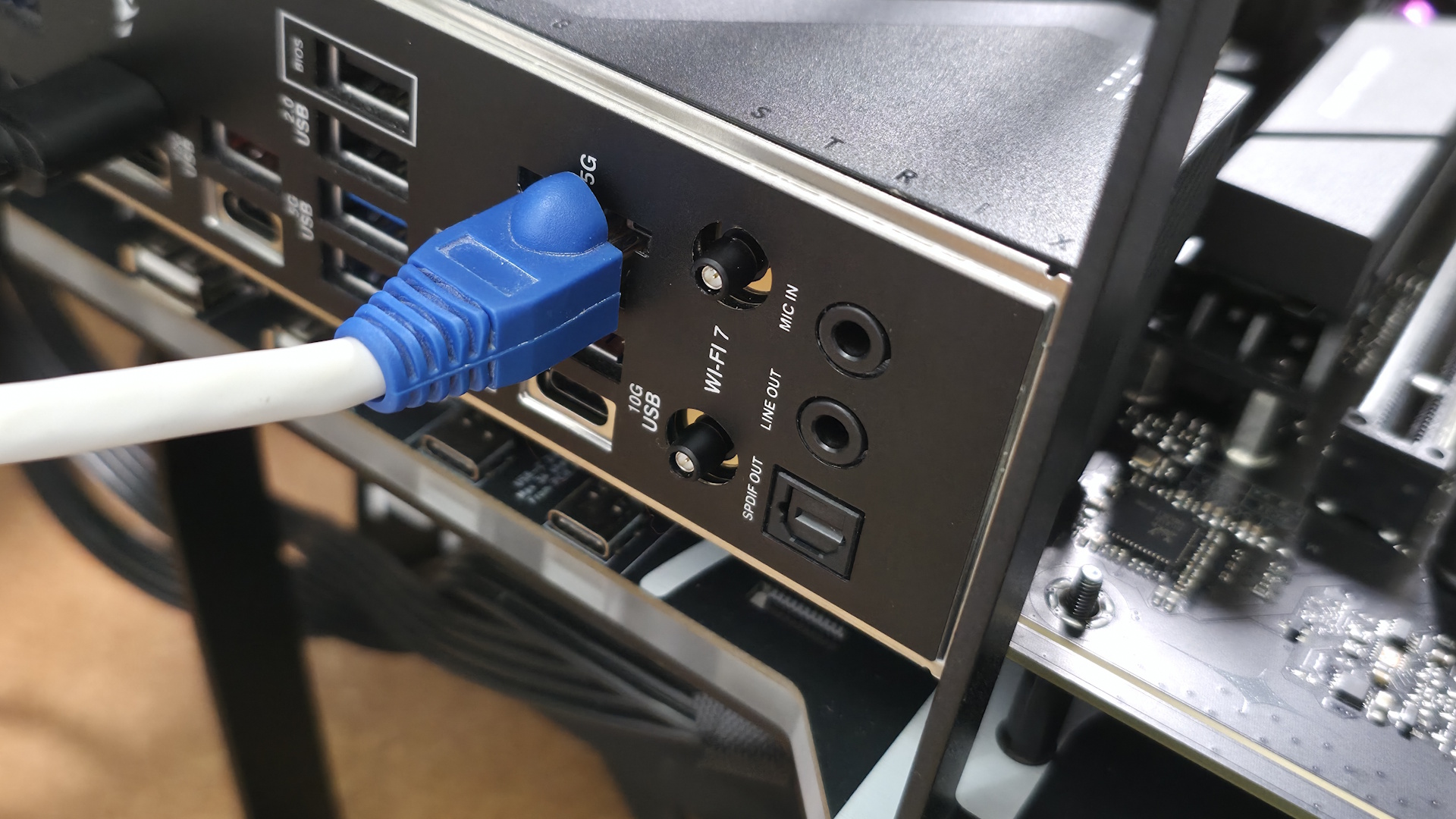
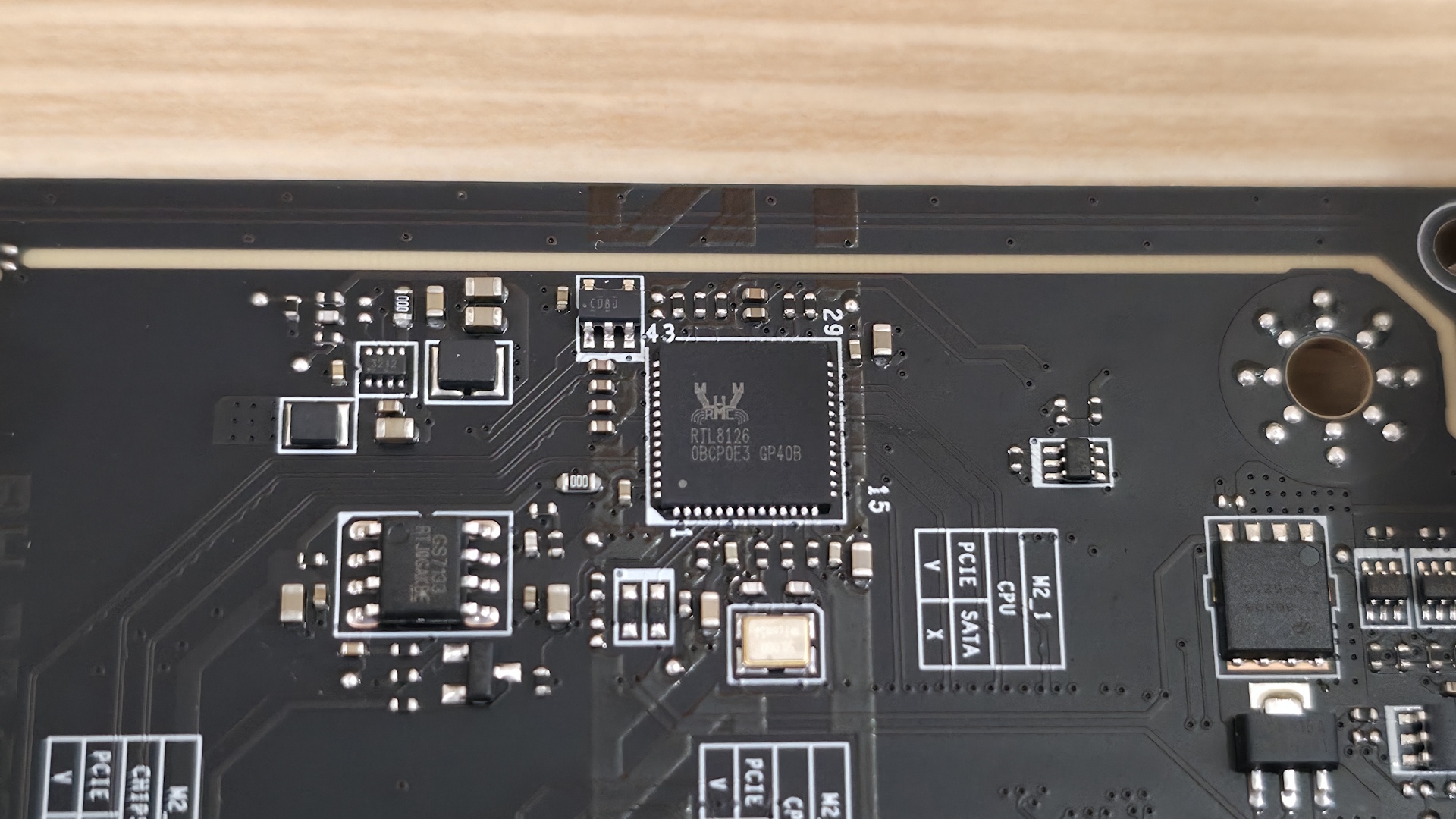
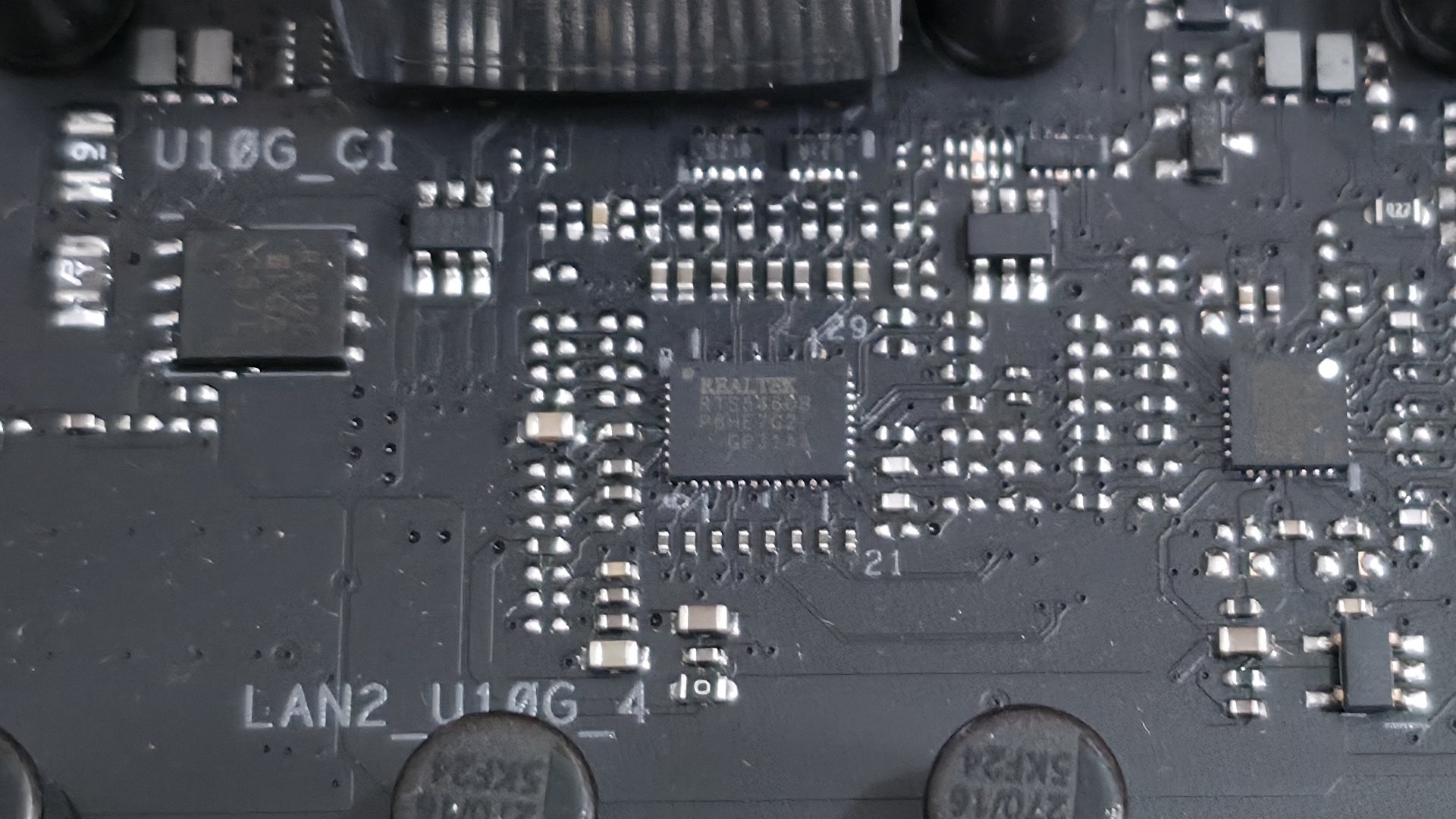
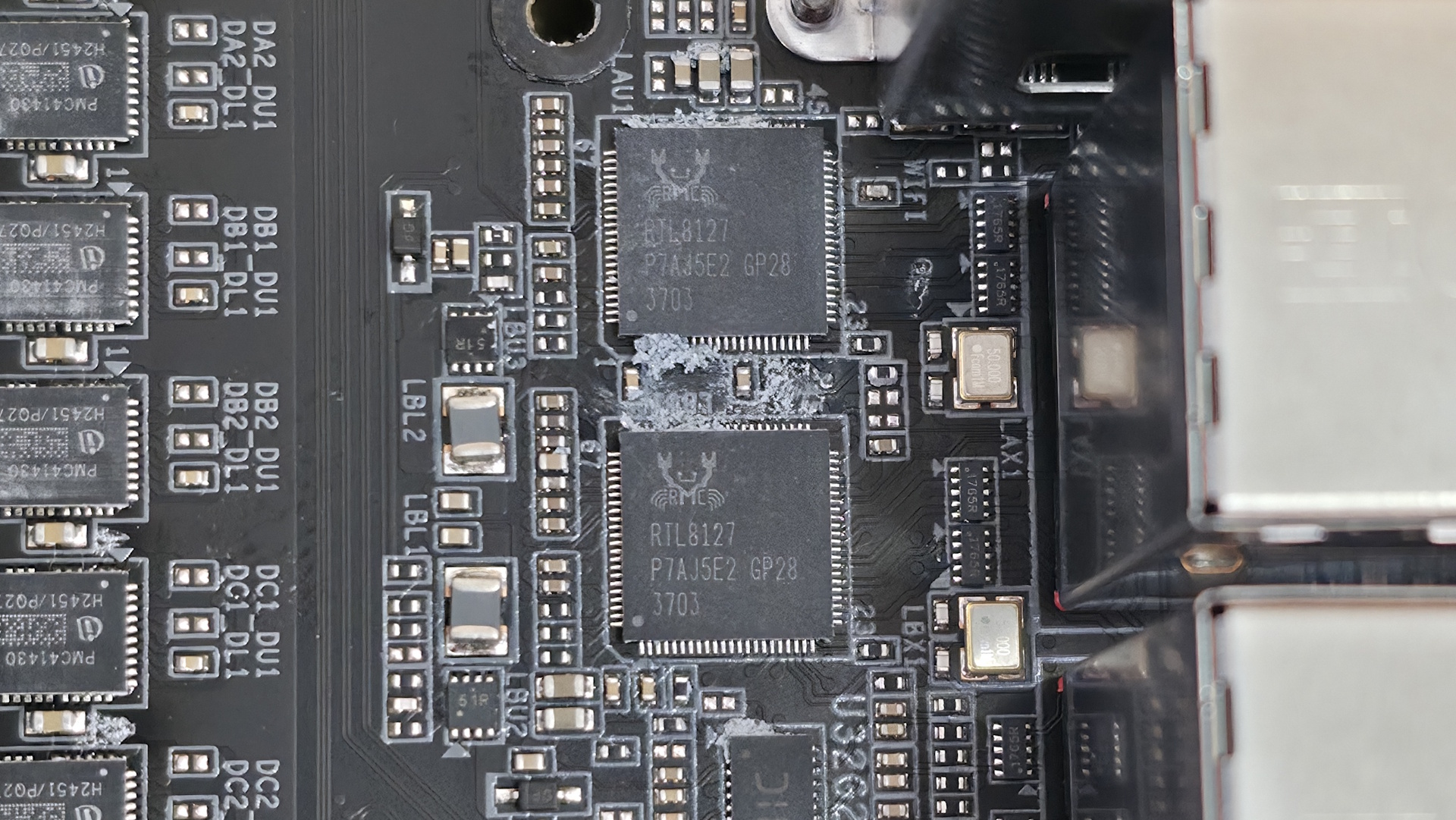
10 GbE, or even 5 GbE, networking is another item that, chances are, you don't need for most PC activities. With average download speeds in the US hovering just over 300 Mbps, you don't need to worry about faster wired connectivity unless you need the bandwidth for your internal network, like a NAS or transferring among devices on your internal network. For example, I have 1 Gbps (sequential) fiber, which is the fastest my area offers currently. In this case, 1 GbE is enough, but leaves no room for upgrades. A good sweet spot for wired networking is 2.5 GbE, so anything over that is overkill for anyone who doesn't need a fast LAN connection.
 Future
 Future
 Future
 Future
Wireless networking is another story. 2025 and 2026 brought Wi-Fi 7 to the masses, supplanting Wi-Fi 6/6E. The problem here is that few have Wi-Fi 7 wireless devices in the first place. Your motherboard, and perhaps your new phone or laptop, may have it, but that's about it. This also means you need a Wi-Fi 7-capable router, and if you don't have a capable adapter, buy one, which increases the total cost of ownership. Chances are you'll be fine on Wi-Fi 6E or even the slower' Wi-Fi 7 (160 MHz instead of 320 MHz), depending on your device count and bandwidth needs. The more you have of both, the more 320 MHz Wi-Fi 7 can be beneficial.
PCIe lane switches (read: bifurcation) are also something that not many users need unless you have PCIe add-in cards. This is something you'll need to dig into the specifications to find, as it's not typically listed as a feature. It generally happens automatically due to lane sharing anyway, but that ability can add cost to the bottom line. You also need to watch out for lane sharing so you get what you pay for with your chosen hardware. Be it M.2 sockets and PCIe, or USB and M.2 sockets, chances are you'll experience lane sharing in some form or another on Intel and AMD chipsets, more so on the mainstream and high-end boards. And while money doesn't prevent this occurrence, there are only so many lanes to go around; the more features you try to add to a limited number of lanes, the more it has to share.
 MSI
MSI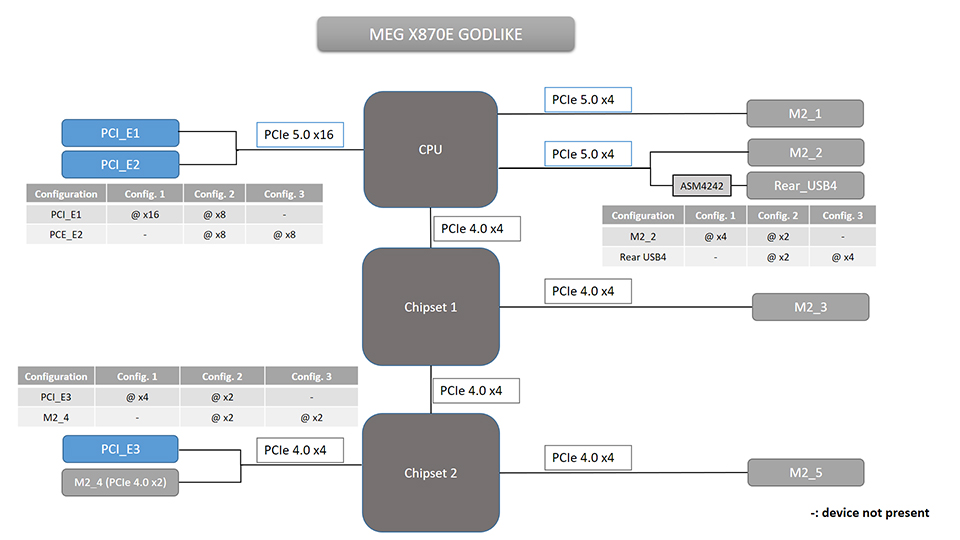 MSI
MSITake, for example, the flagship MSI MEG X870E Godlike and Godlike X we reviewed. Even though this is a $1,000 motherboard, it's still limited to the lanes and bandwidth the chipset offers. In this case, the rear USB4 ports share bandwidth with the second PCIe 5.0 x4 M.2 socket (M2_2). Here, because the board supports bifurcation, there are a few ways that setup plays out. If you want all of the bandwidth for the M.2, the USB4 port(s) are disabled. You can split them and share bandwidth, or you can get all the bandwidth for the USB4 ports, disabling the M.2 socket. On the same board, the third PCIe slot and fourth M.2 socket share the chipset's PCIe 4.0 lanes.
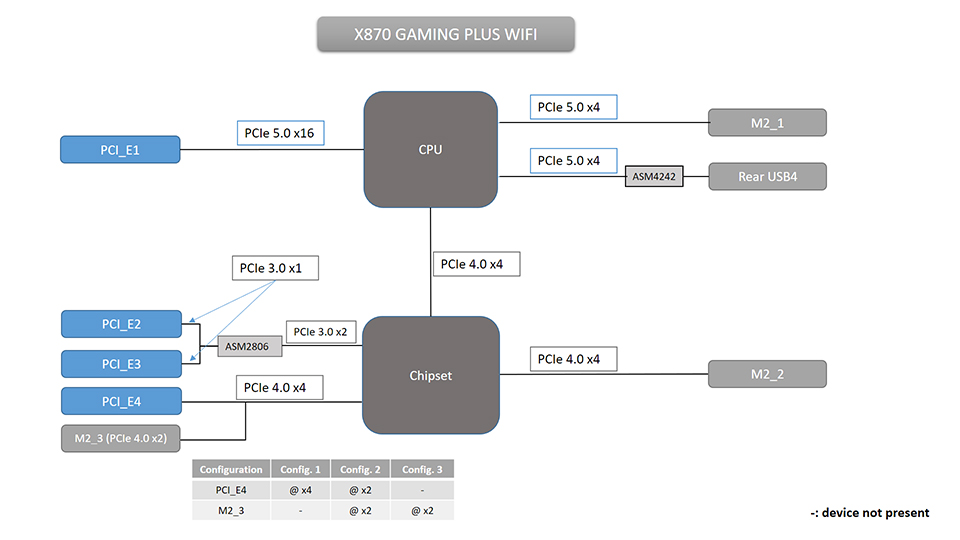
If we drop down to the X870 chipset, which uses only one Prom 21 chip and has fewer available lanes for sharing, we see a lot of the same thing. On the X870 Tomahawk Wifi (a $229 board), the rear USB4 port doesn't share with anything but also only uses one PCIe 5.0 M.2 socket. Lane sharing on it is the same as the $1,000 Godlike between a PCIe slot and an M.2 device. In this case, the M.2 device doesn't even receive the full x4 bandwidth, no matter what hardware is connected. The moral of the story here is to make sure you check the specifications and see what, if any, lane sharing occurs with your specific hardware configuration.
Who should buy what?When selecting a motherboard, there are a few basic tenets I look at before purchasing, regardless of how I use the PC:
- CPU compatibility - You can't fit square pegs into round holes. Intel doesn't work with AMD, AM4 boards don't work with AM5 processors, and so on. Make sure the board you want supports the processor you plan to purchase.
- Form Factor - Pick a size that fits your chassis: Mini-ITX, MicroATX, ATX, E-ATX.
- RAM Support - DDR4 or DDR5; again, you can't fit square pegs into round holes. You can even save some money using DDR4 and not lose much performance.
- Storage - How many M.2 sockets do you need, and at what speeds? How many SATA ports?
- Expansion slots - How many do you need, and at what speeds? PCIe 5.0 or PCIe 4.0?
- Rear I/O and connectivity - Make sure you have enough USB ports and the speeds you need for the usage.
- Networking - How fast for the wired solution? Do I need two? Is Wi-Fi 7 an absolute need or a want?
At a high level, we can say motherboards that cost:
- Under $150: have basic functionality, fewer high-speed connections, weaker VRM designs
- $150-250: additional connectivity, the sweet spot for most users
- $250-400: even more connectivity, storage, and premium features, a sweet spot for enthusiasts
- $400+: enthusiast-class features, extreme VRMs, aesthetics, and diminishing returns
- $1,000+: Halo products where you pay for everything, not necessarily for better performance
Basics aside, how many and what speed you need for each feature varies depending on the person and how they plan to use the PC. Currently, I have seven USB devices, three M.2 drives, and one SATA-based HDD, along with a 9900X3D. By day, my workflows are generally light, with a dozen or two Chrome tabs up at one time along with Google Docs and a messaging application. By night, when my work is done, the kids are taken care of, and my wife goes to sleep, it's a gaming PC.
A gamer's needs are different than someone who uses the PC for content creation, for example, or a workstation user (powerful multi-core processors and a lot of RAM), or even a competitive overclocker. You don't need a ton of or the fastest of anything to get the most out of your CPU, graphics card, and RAM. In other words, each type of user/functionality moves different features up and down on the priority list.
For example, as a budget-conscious gamer planning to use an X3D chip, I'd look at AMD and the B650E or B850 chipset-based motherboards, as they offer the best balance of price and features for a high-end gaming CPU without the tax of unnecessary enthusiast features. If you need advanced connectivity like USB and multiple PCIe 5.0 connections, that's fine. The same goes for Intel; the B860 boards will do most users just fine.
Content creators often need a well-balanced system with high-speed connectivity such as Thunderbolt 4/5 or USB4, multiple M.2 storage slots, and fast networking to handle large media files and heavy workflows. You tend to see those features in X870/Z890 motherboards, specifically those with Creator" in the title.
Extreme overclockers should look for boards with robust power delivery and overclocking features, such as integrated buttons on the motherboard or 2-DIMM slots that benefit memory overclocking. Boards like the ASRock X870E Taichi OCF ($499.99) or the Asus ROG Crosshair X870E Apex ($726.50) are good examples with features dedicated to overclocking and getting every last MHz out of your system. They are also overkill for just about everyone who doesn't have a Dewar full of liquid nitrogen.
Final thoughtsSo how much is actually too much? The takeaway is that it depends on the situation. Most of us don't require overkill power delivery and massive VRM heatsinks. Nor do we need 4-5 M.2 sockets or a dozen USB ports, and we can easily get away with less. Most motherboards in the $250-$400 range in the mainstream and enthusiast segment offer enough of everything to be a good enough' solution for most users. That said, they can also be overkill. It's when you get into the budget chipsets (think A620 for AMD and Q870/H810 for Intel) that you may run into problems with VRM capability when using high-end processors, as well as connectivity shortcomings.
It seems counterintuitive, and you do get more features on higher-tier motherboards, but buying a more expensive motherboard doesn't let you bypass the platform's hard limits. It often adds more lane/bandwidth sharing. For the most part, this isn't a bad thing. You just have to know what hardware you plan to use and what you need from it. Drawing on the examples above, do you need the USB4 port(s) and that bandwidth for external devices (like storage), or the second PCIe 5.0 M.2 socket and its 128 Gbps of bandwidth? Or do you need the last PCIe expansion slot for an add-in card?
If you can answer these questions, you're most of the way to avoiding overbuying on your motherboard and can then put that extra cash toward something you can actually benefit from. The best motherboard isn't the one with the most features: it's the one with the features you actually need. If you still need some assistance buying a new motherboard, check out our best motherboard list, which covers a wide variety of platforms, form factors, and price points. You can also check out our curated best motherboard deals to stretch your dollar even further.