MSI MEG CoreLiquid E15 360 AIO Review: Bold and stunning, with market-leading performance
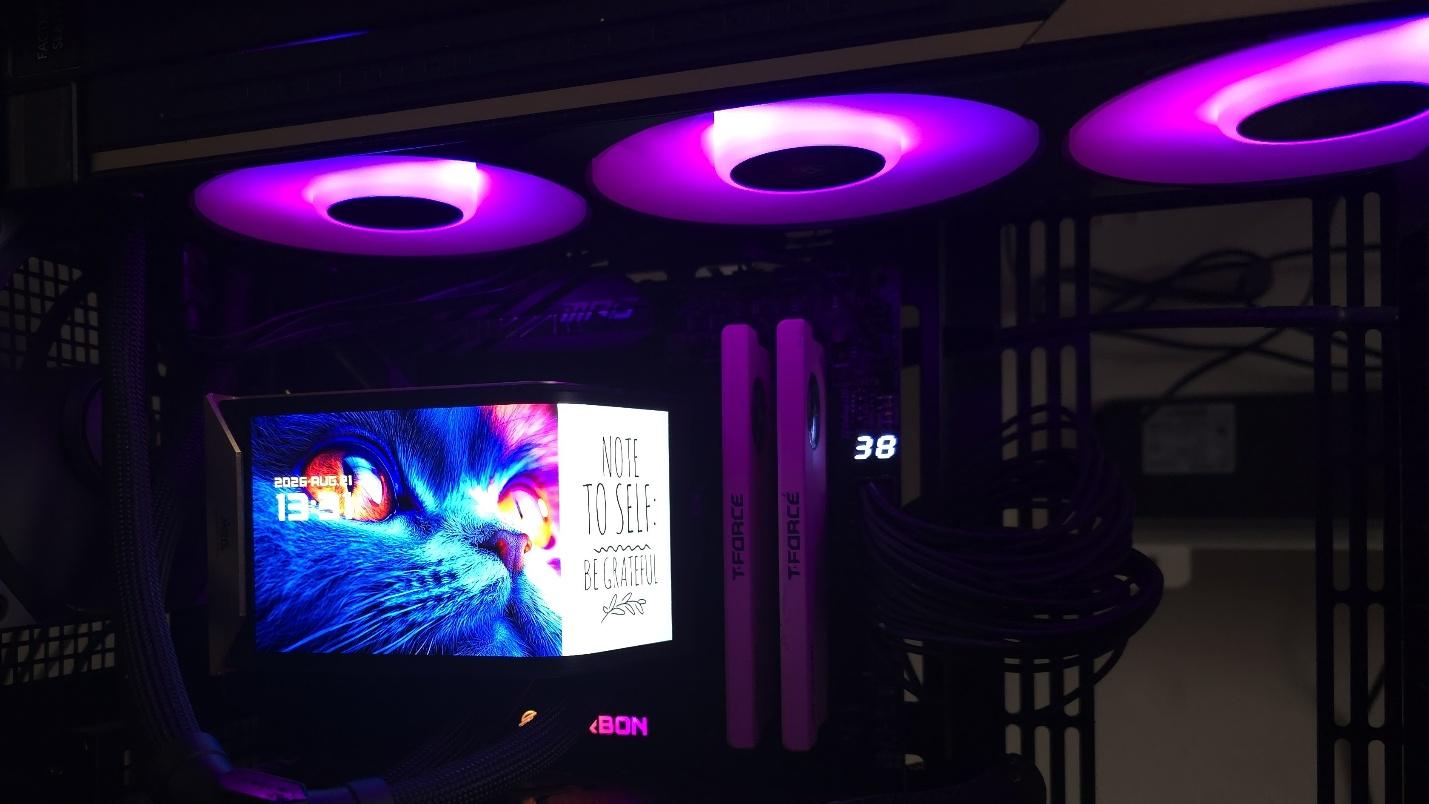
Today we're testing MSI's latest flagship AIO, the MEG Coreliquid E15 360, a luxury AIO with a premium black-and-gold aesthetic symbolizing authority and elegance. So we're expecting market-leading thermal performance. Of course, the feature that stands out the most is the stunning 6.67-inch curved 2240x1080 AMOLED screen. The whole design looks and feels premium, with a price tag to match.
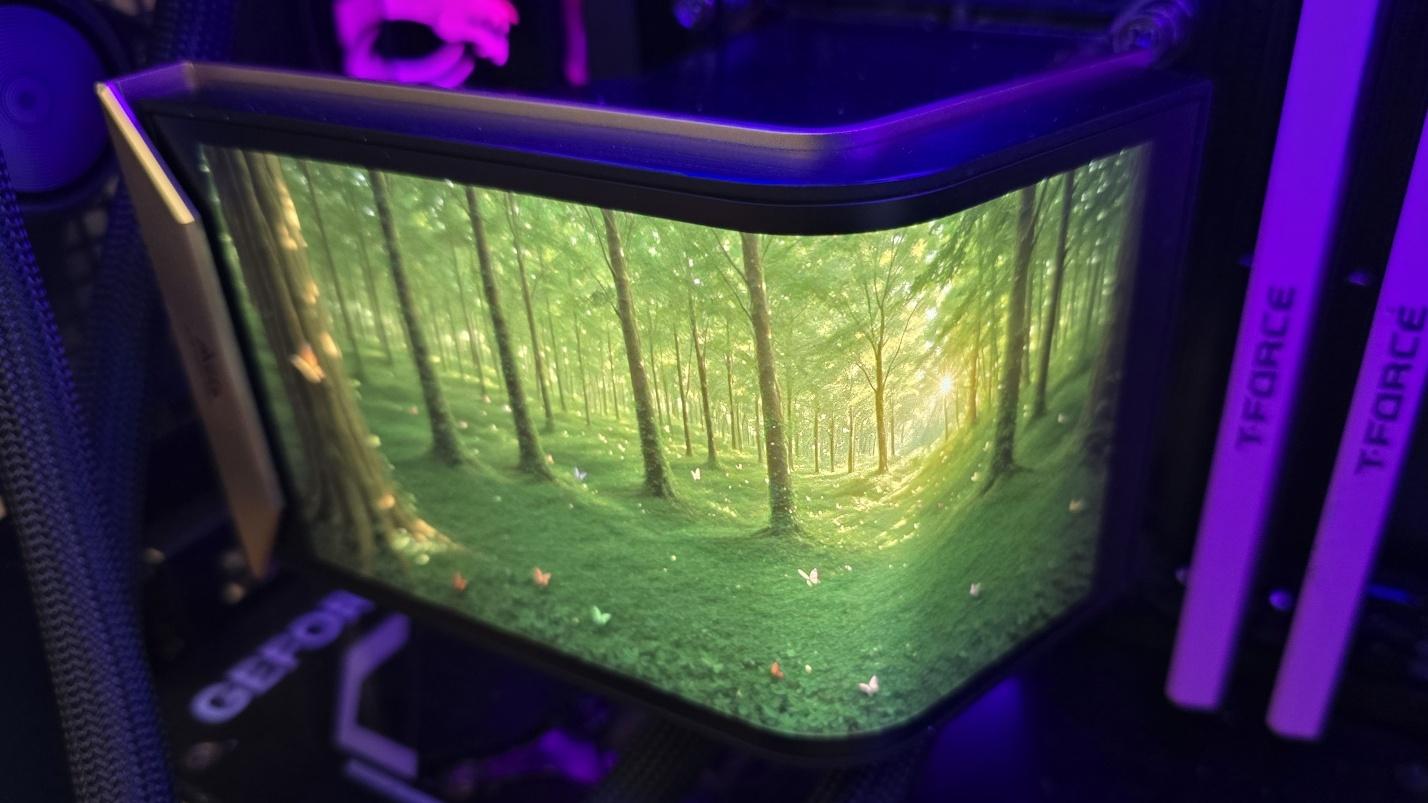
Let's take a look at the specifications and features of this CPU cooler, then we'll go over thermal and noise benchmarks to decide if the MEG CoreLiquid E15 360 is good enough to make our list of the best CPU coolers on the market.
Cooler specificationsCooler | MSI MEG CoreLiquid E15 360 |
Colors | Black with Gold |
MSRP | $399.99 |
Lighting | ARGB on fans |
Warranty | 6 years (cooling components) |
Socket Compatibility | AMD AM5/AM4 |
Dimensions | 138.95 (W) x 136.47 (D) x 167.3mm (H)/ 133 (W) x 114 (D) x 161mm (H) |
Maximum TDP with AMD's Ryzen 9 9950X3D (Our Testing) | >265W with AMD's Ryzen 9 9950X3D |
Premium black-and-gold aesthetic
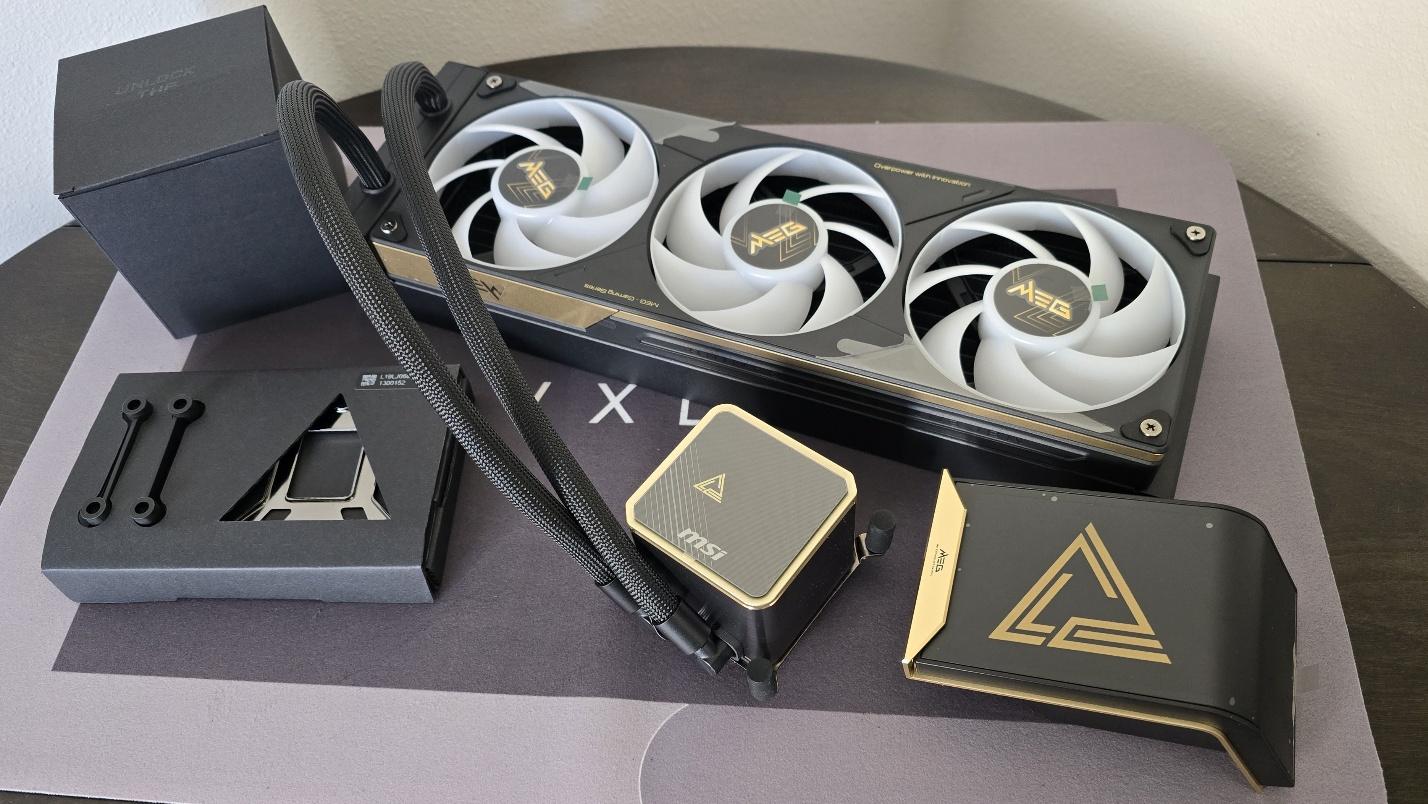
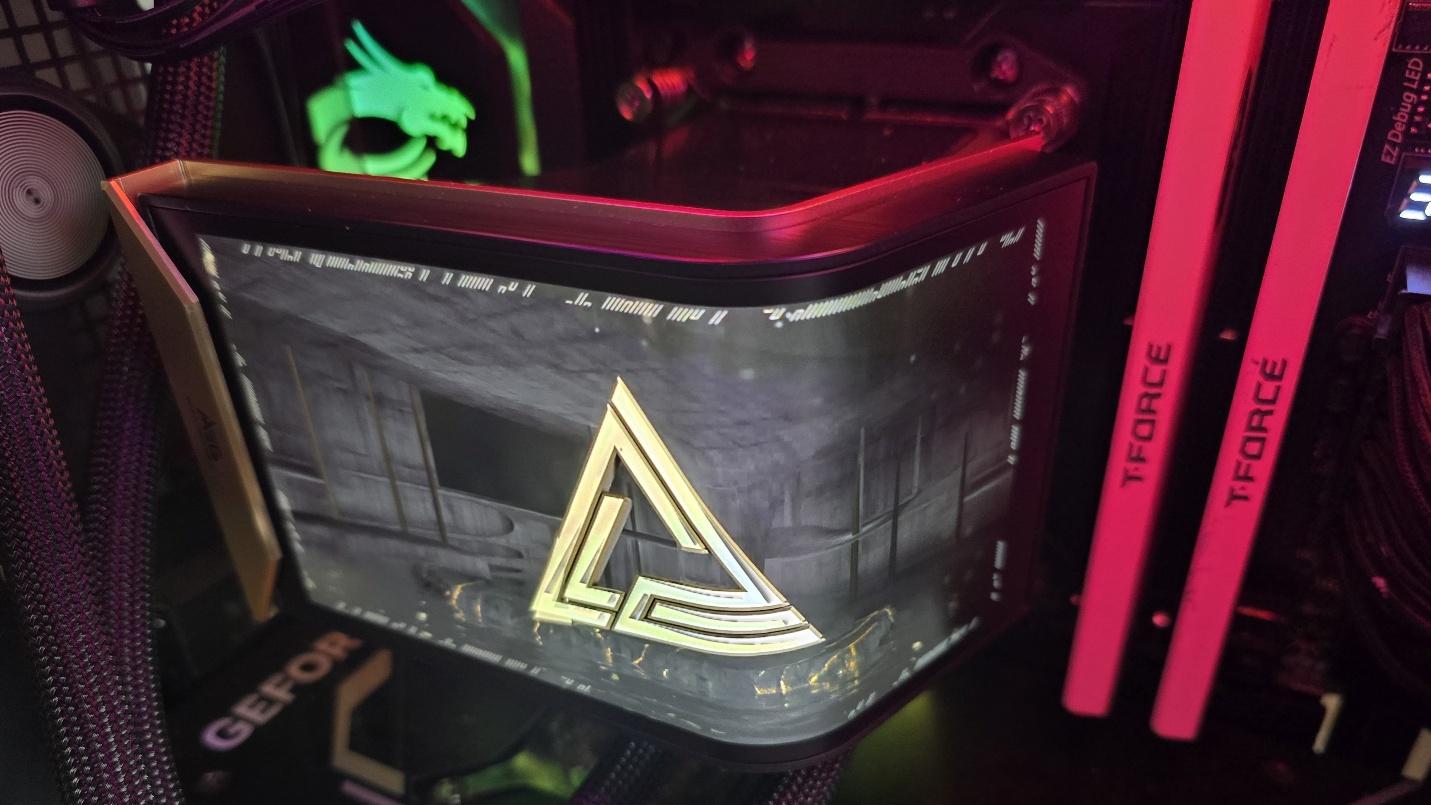
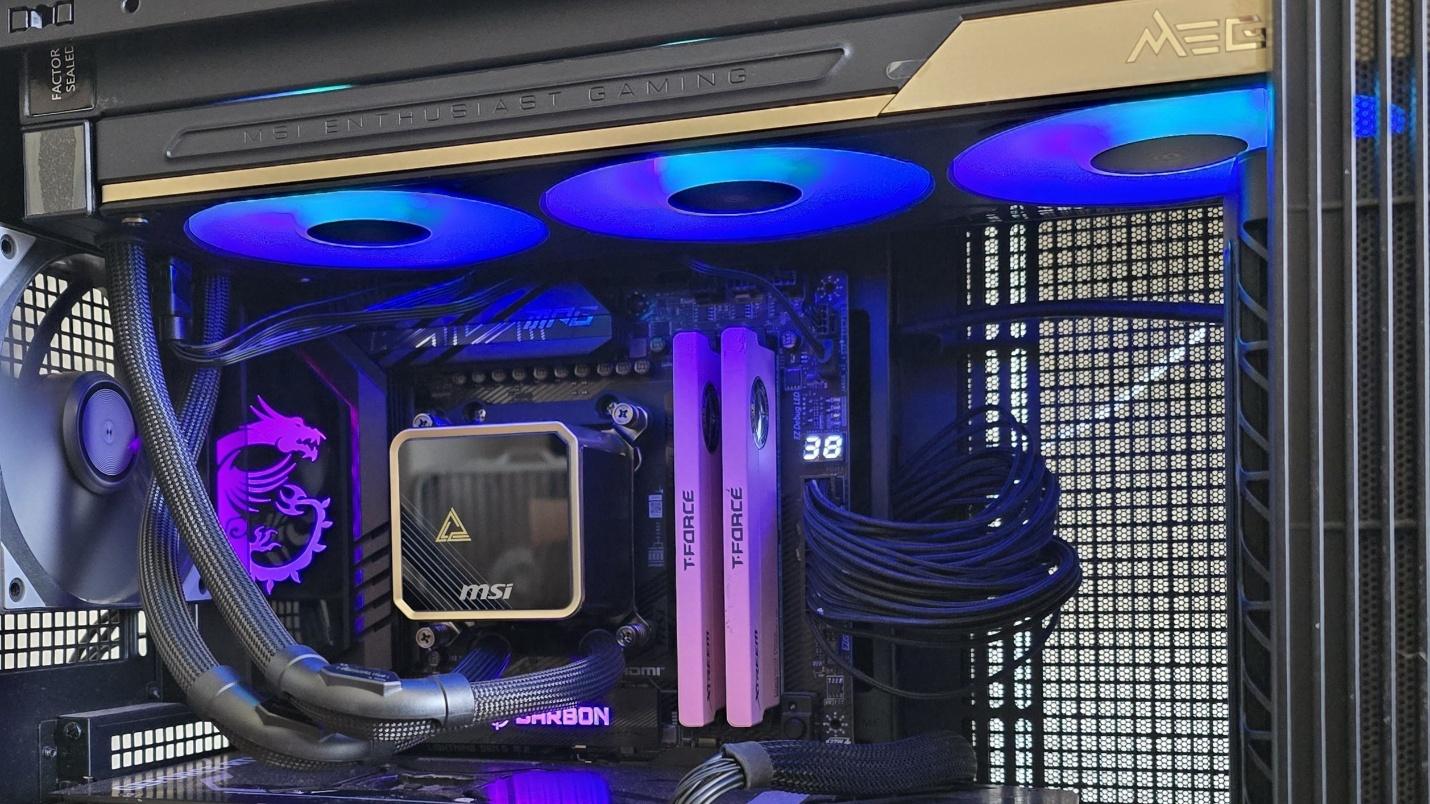
MSI's MEG CoreLiquid E15 features a design that just oozes a feeling of premium quality - each component is precision-made using high-quality components, with gold colored plating flanking black metal. The highlight of this cooler, of course, is the premium curved screen, but if, for some reason, you'd prefer not to use the screen, a stylish black-and-gold pump cover is also included.
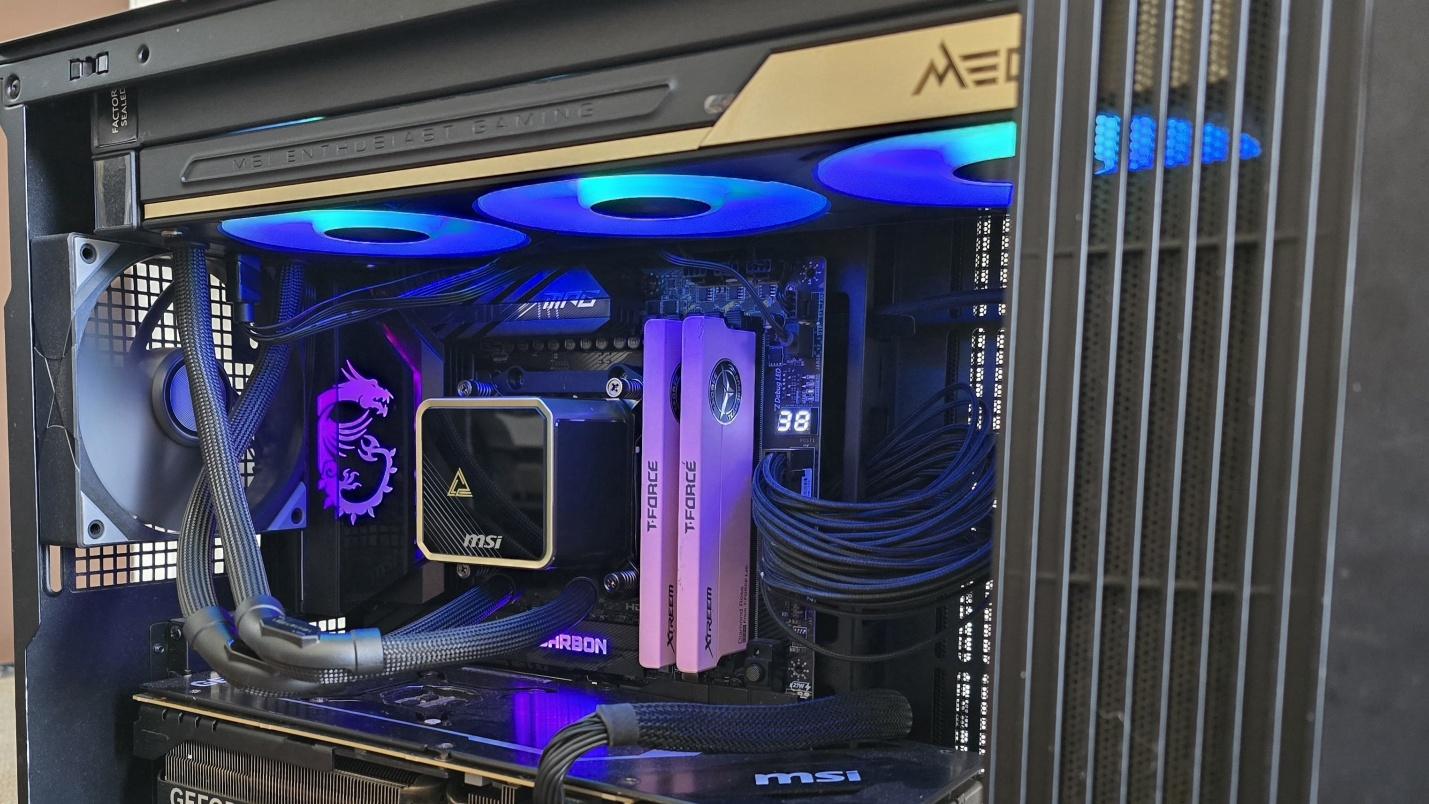
RAM Clearance
As with most AIOs on the market, MSI's E15 doesn't overhang or interfere with RAM DIMMs at all, allowing for compatibility with all sizes of DDR4 or DDR5 DIMMs, no matter how tall.
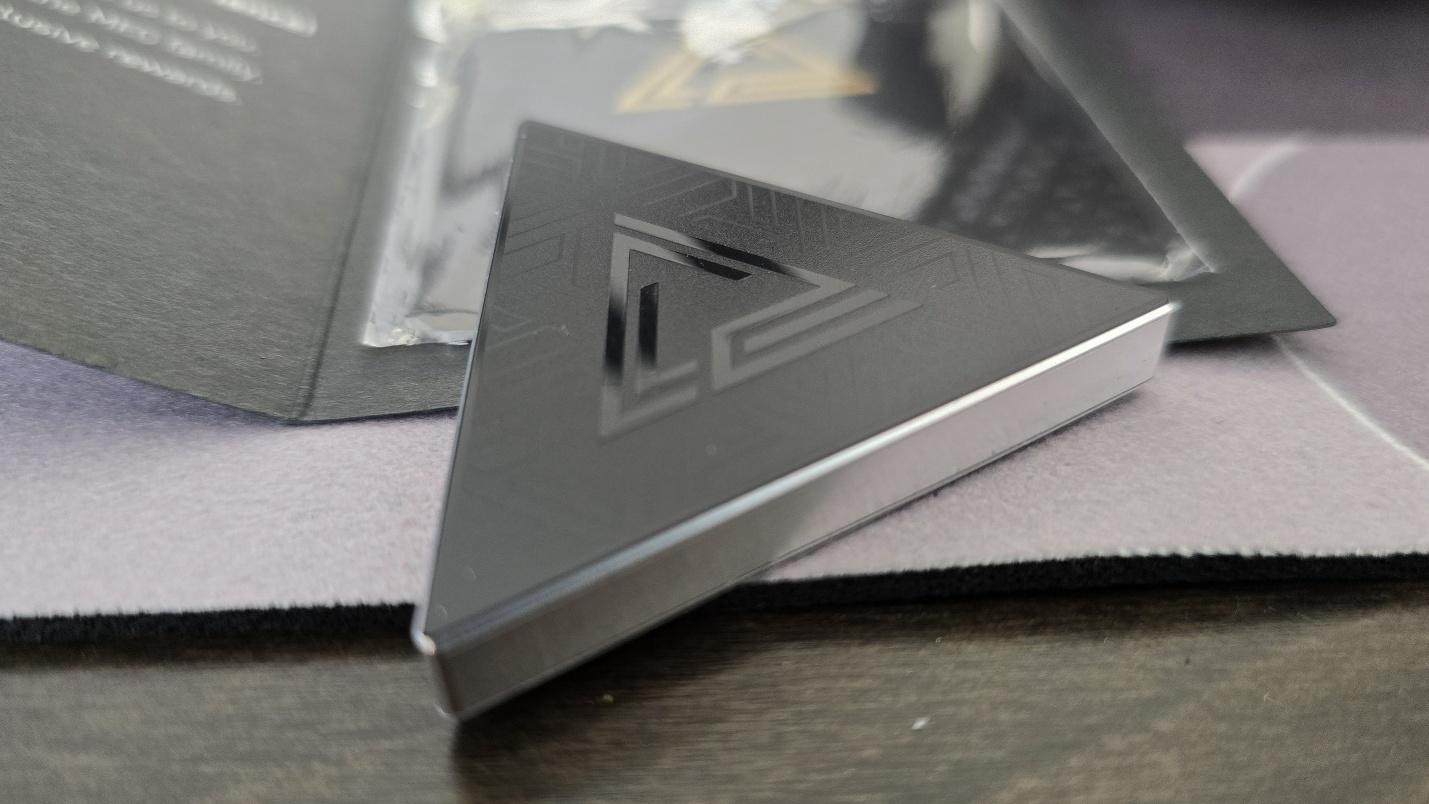
Magnetic Penrose Triangle
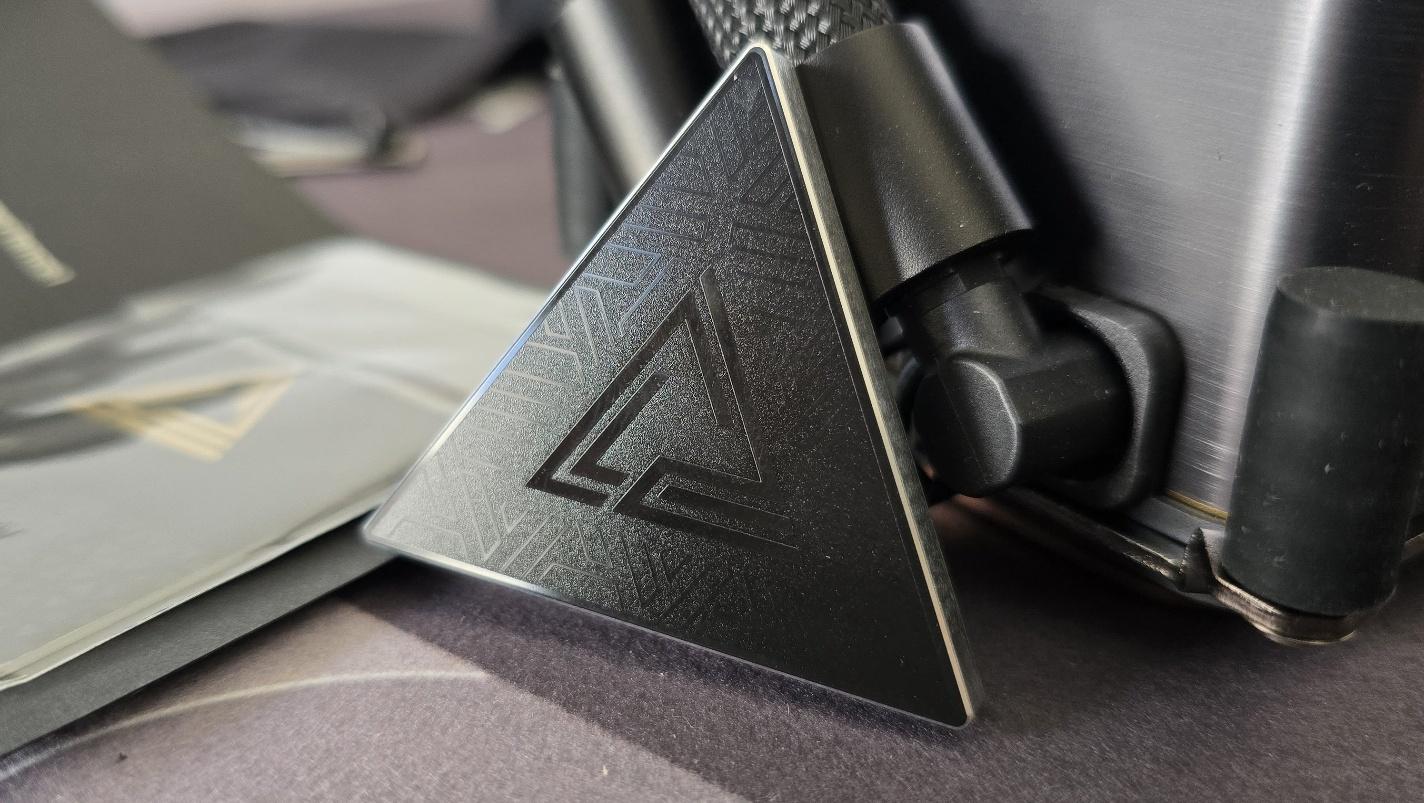
A pretty nifty piece of swag included with this AIO is a magnetic Penrose triangle and, boy, let me tell you, this magnet is strong! How strong? I threw it across the living room to a metal door and it instantly secured itself to the door!
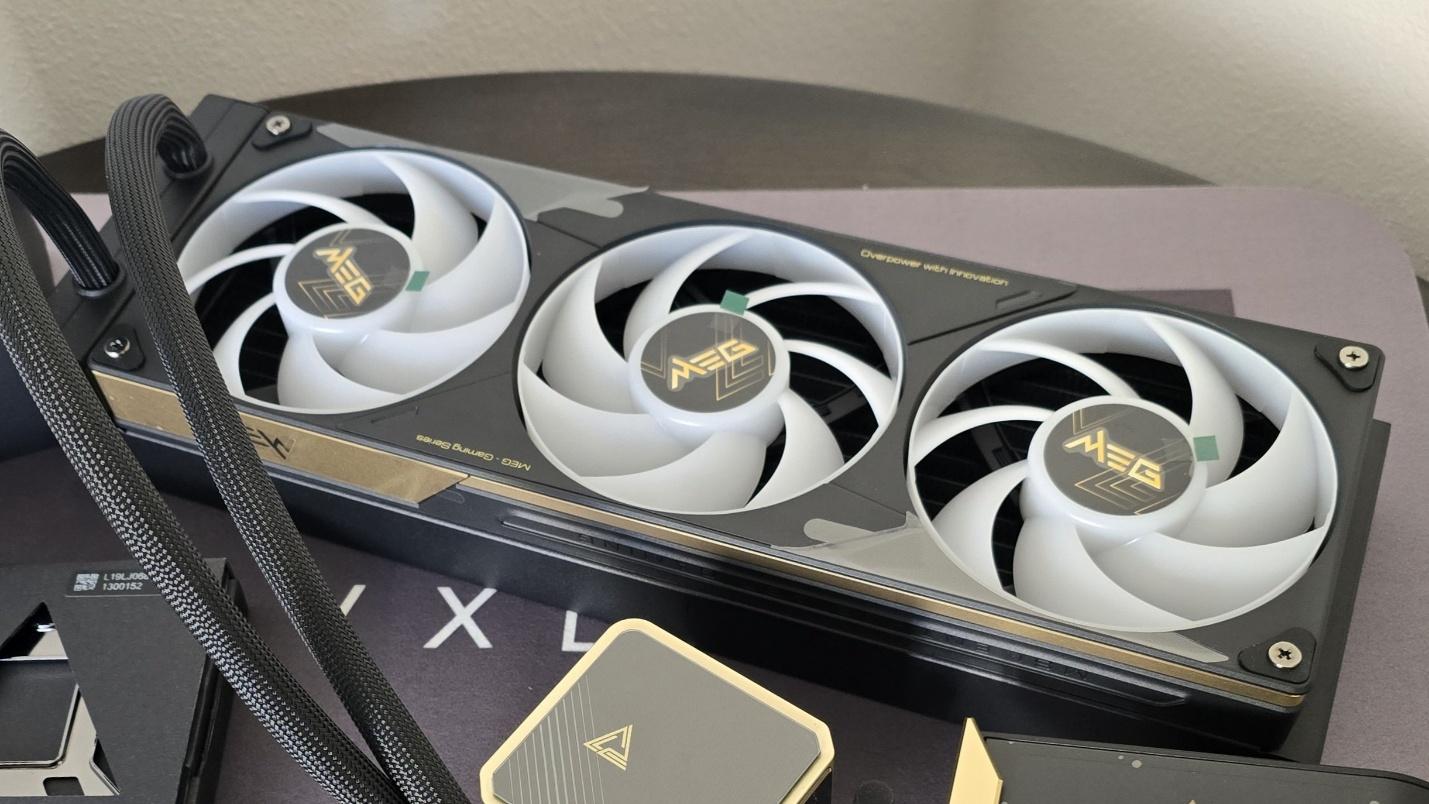
28mm thick single-frame fans
There's more to a cooler than just the heatsink. The included fans have a direct impact on aesthetics, noise levels, and overall thermal performance. The E15 features a 360mm single-frame fan unit, and it is pre-installed for user convenience, saving a few moments during cooler installation.
Fan Speed | 800-2300 RPM 10% |
Dimensions | 362 x 125 x 28.4 mm |
Airflow | 217.91 CFM |
Air Pressure | 3.84 MMH20 |
MSI EZ Display software - Pros and Cons
Strictly speaking, you don't actually need to install MSI's EZ Display software to enjoy the functionality of the included screen. The E15's default animation shows a Penrose triangle against a background strongly reminiscent of the brutalist Isu ruins from The Fate of Atlantis DLC in Ubisoft's Assassin's Creed: Odyssey.
If you're happy with this default animation, no software installation is necessary. It's only if you want to customize the screen that software installation is necessary.
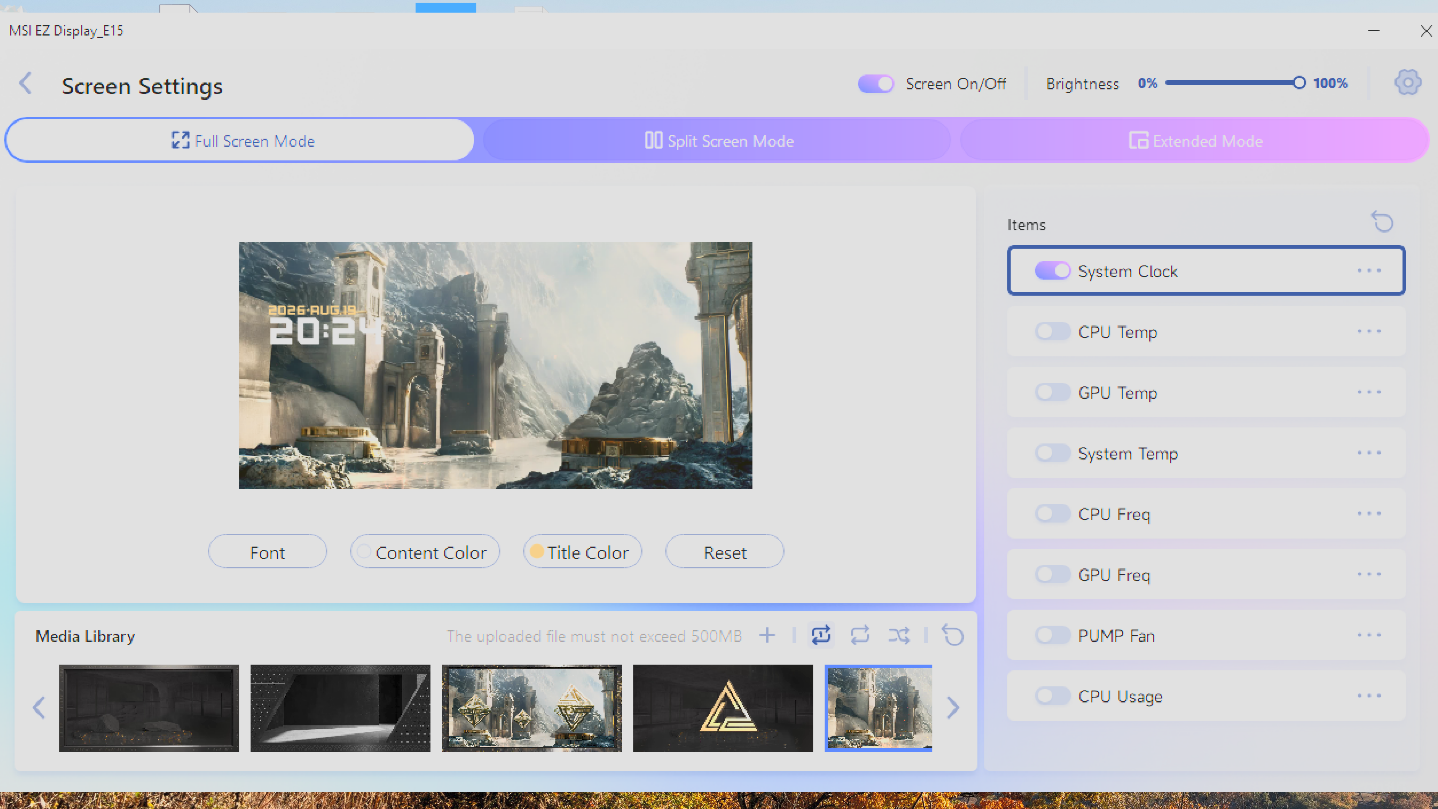
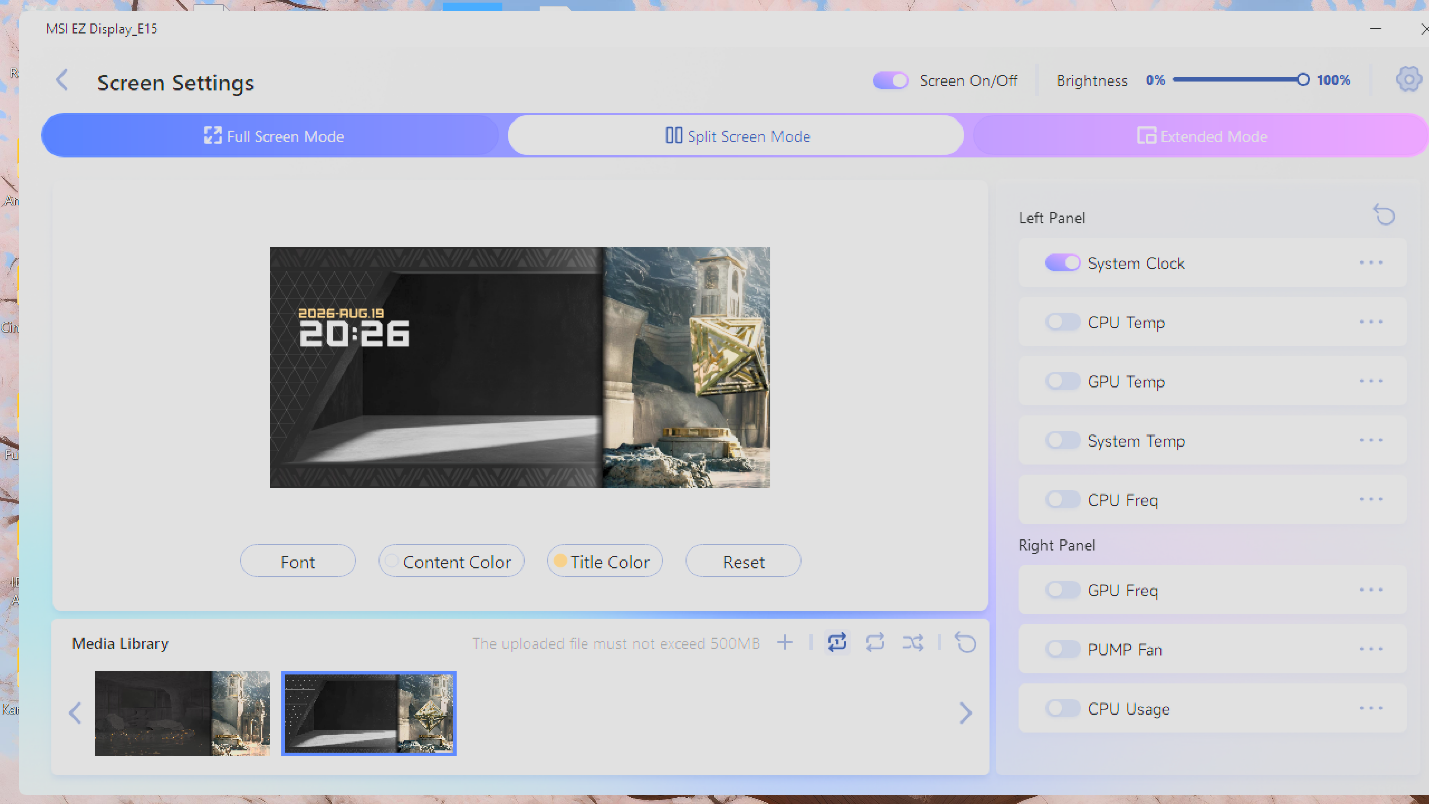
Once the MSI EZ Display software has been installed, there are three primary configuration styles. The first is a full screen" mode that has several stunning animations, each unique but in the same style as the others.
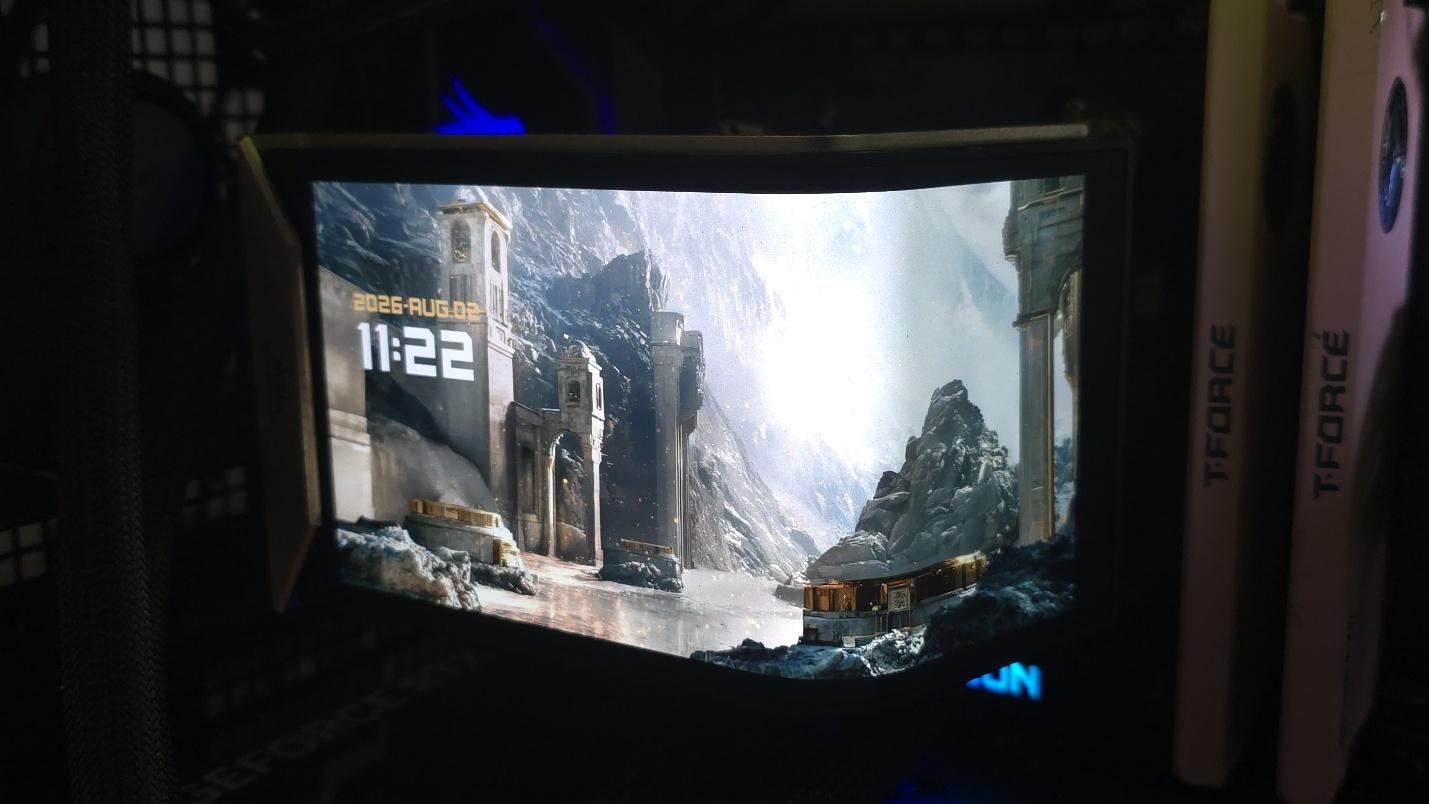
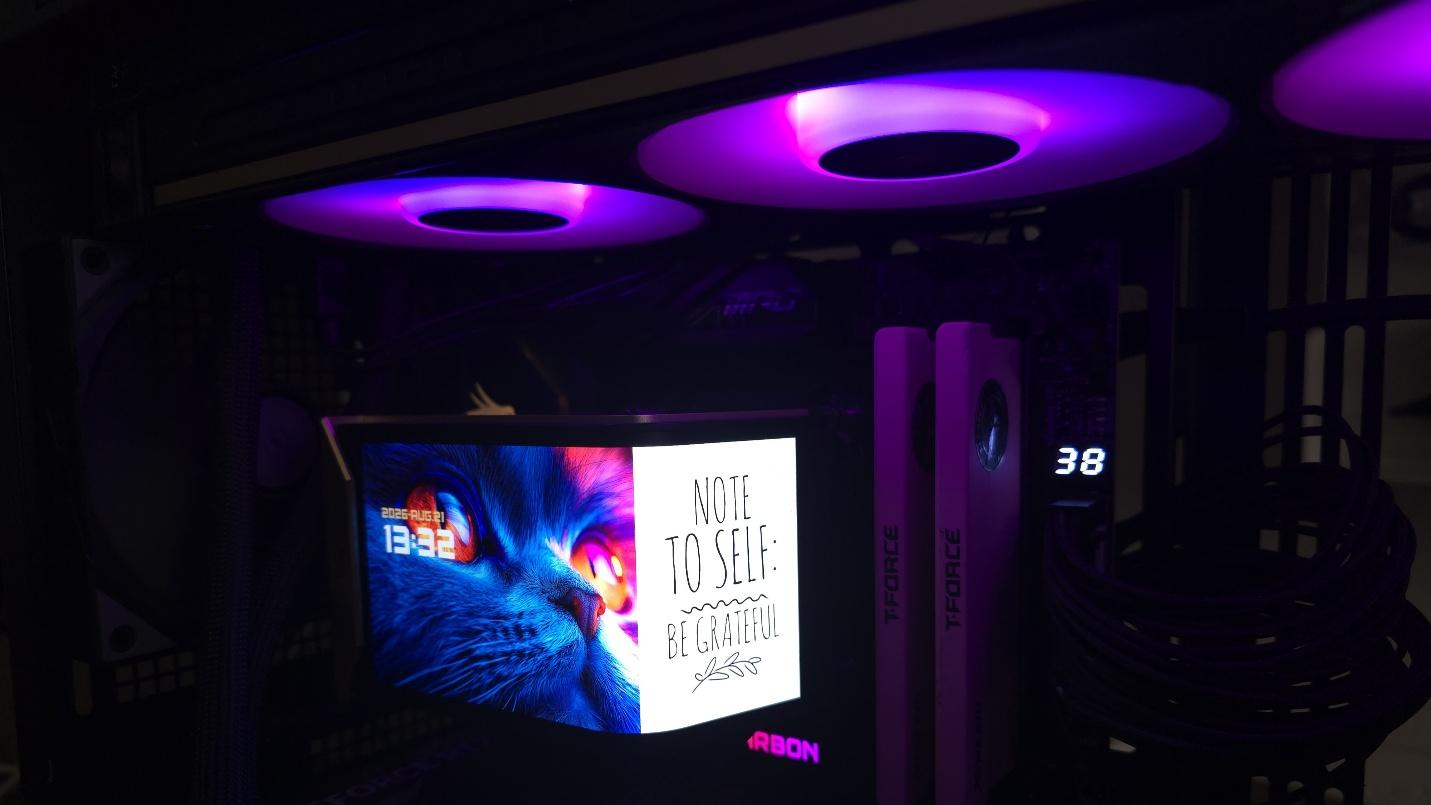
In addition to the visual theme, you can choose to enable several metrics on the screen. In the image above, I've enabled the date and time, but you can opt for other things, like CPU and GPU temperatures, processor frequencies, etc.
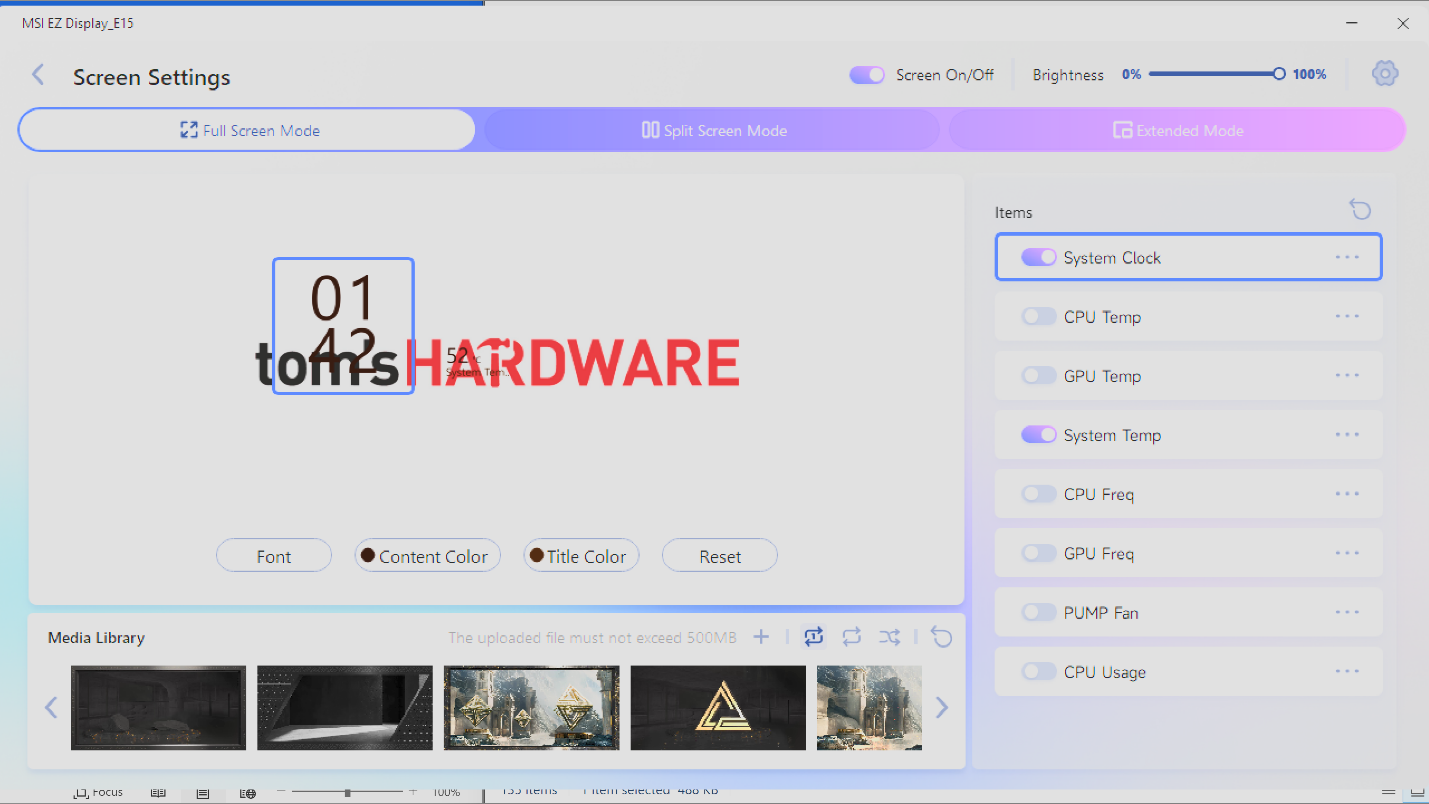
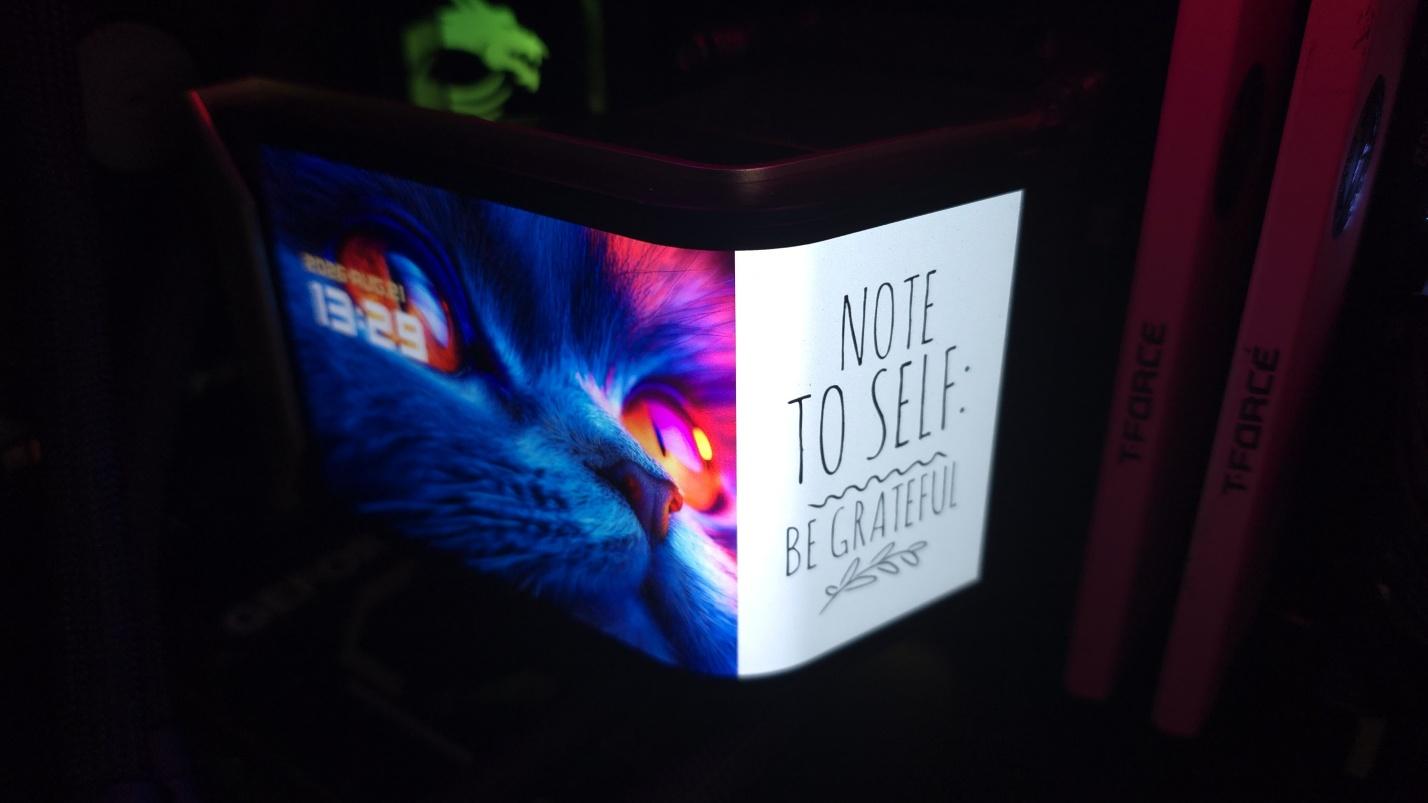
These are nice features and certainly look good, but that's where the customization ends for metrics. The EZ Display doesn't currently let you change the position or size of the metrics displayed. If MSI wants this AIO to appeal to tech enthusiasts, that's a feature they'll need to implement - especially when you consider the E15's luxury price tag. This lack of proper customization is especially annoying when trying to display metrics with a custom image, as shown below.
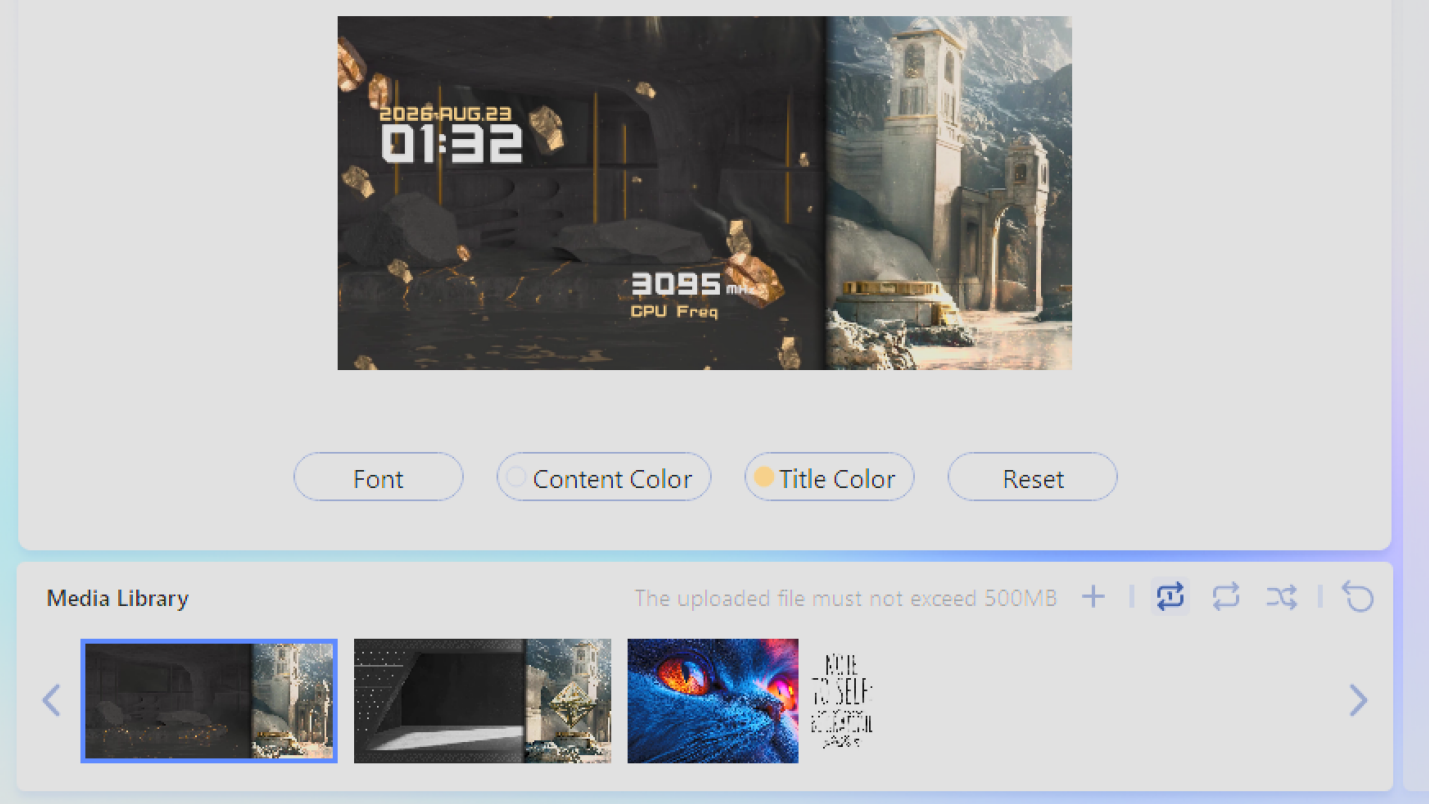
Another aspect I would like to see improved is the ability to deselect themes in the playlist." Currently, if you let the animations shuffle or loop, every single animation (preset and custom) that you have included in your library is played.
 Tom's Hardware
 Tom's Hardware
The second configuration mode available for this screen is a split-screen" option, which currently has only two presets. As the mode's name implies, this splits the display into two parts, allowing for one animation or image on each side of the display.
The last mode available for this screen is extended mode, which allows you to use the display as a secondary monitor with Windows.
This allows you to use your own software and show off themes and images entirely of your own creation, play movies of any length, etc. There is one downside though: when I tested this mode, HDCP would not work on either the MSI display or my primary LG ultrawide monitor when streaming video from Amazon Prime on my primary monitor, resulting in degraded video quality.
Packaging
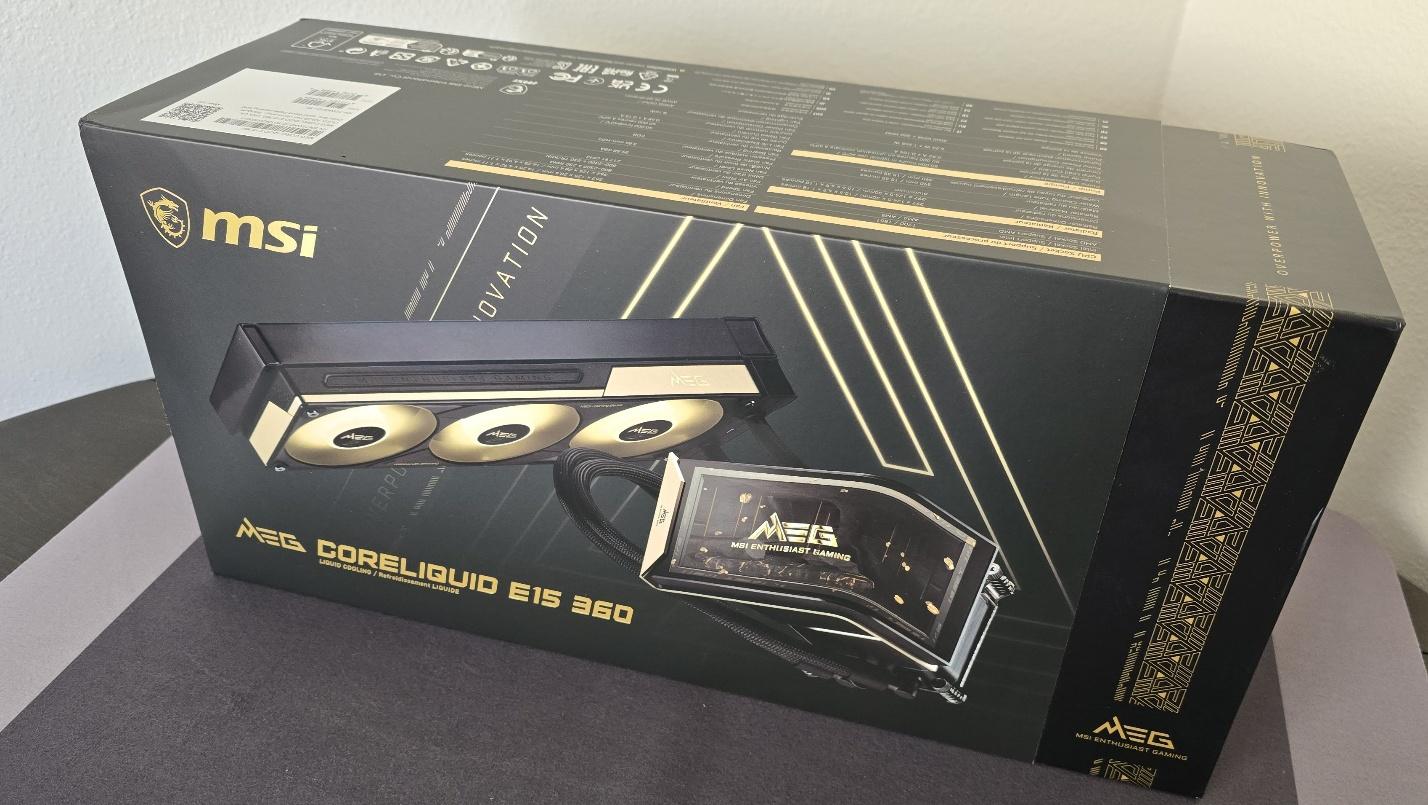
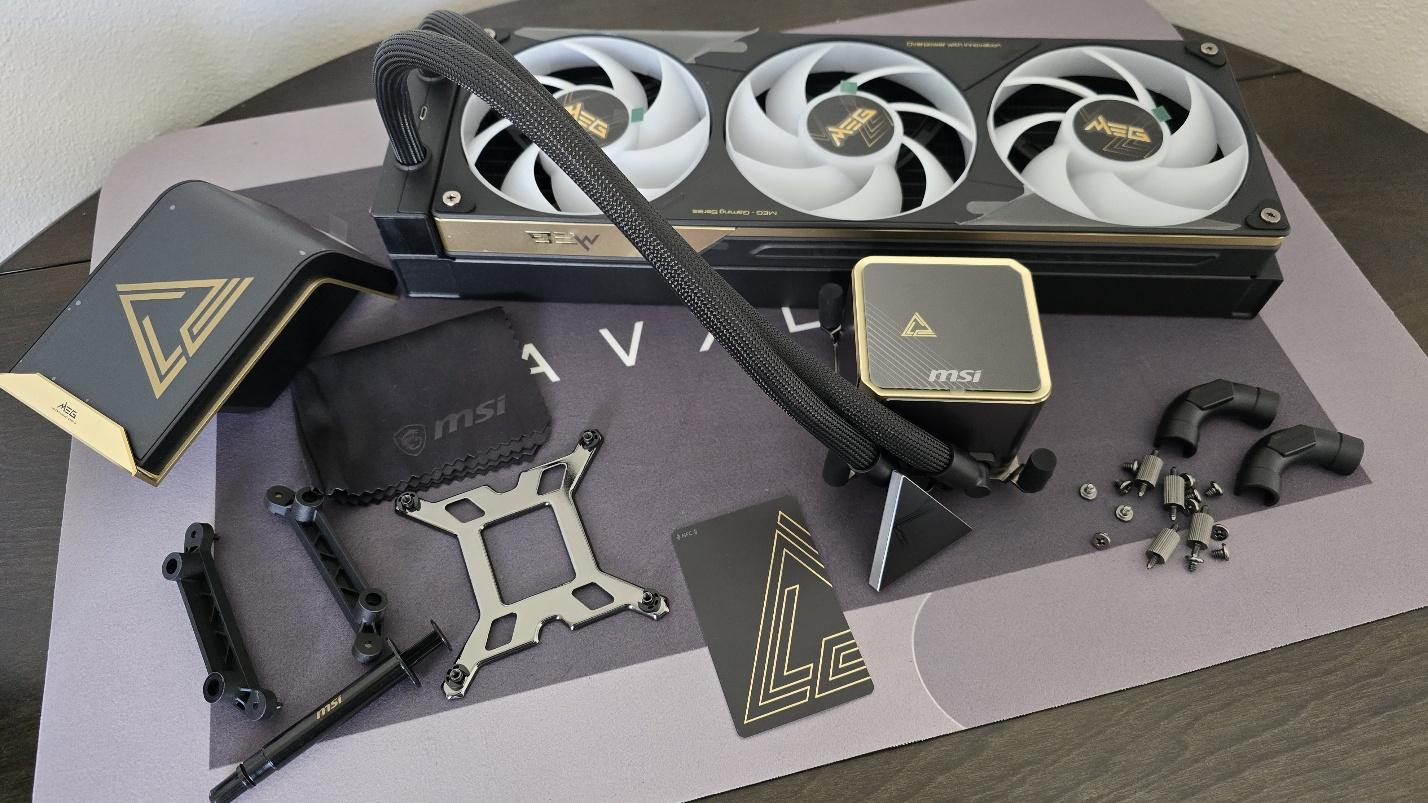
The outer packaging loudly advertises the product, with a stunning black-and-gold theme and the AIO's image on the front. The individual parts in the package are protected with cardboard, with mini boxes for the radiator, pump, accessories, and etc.
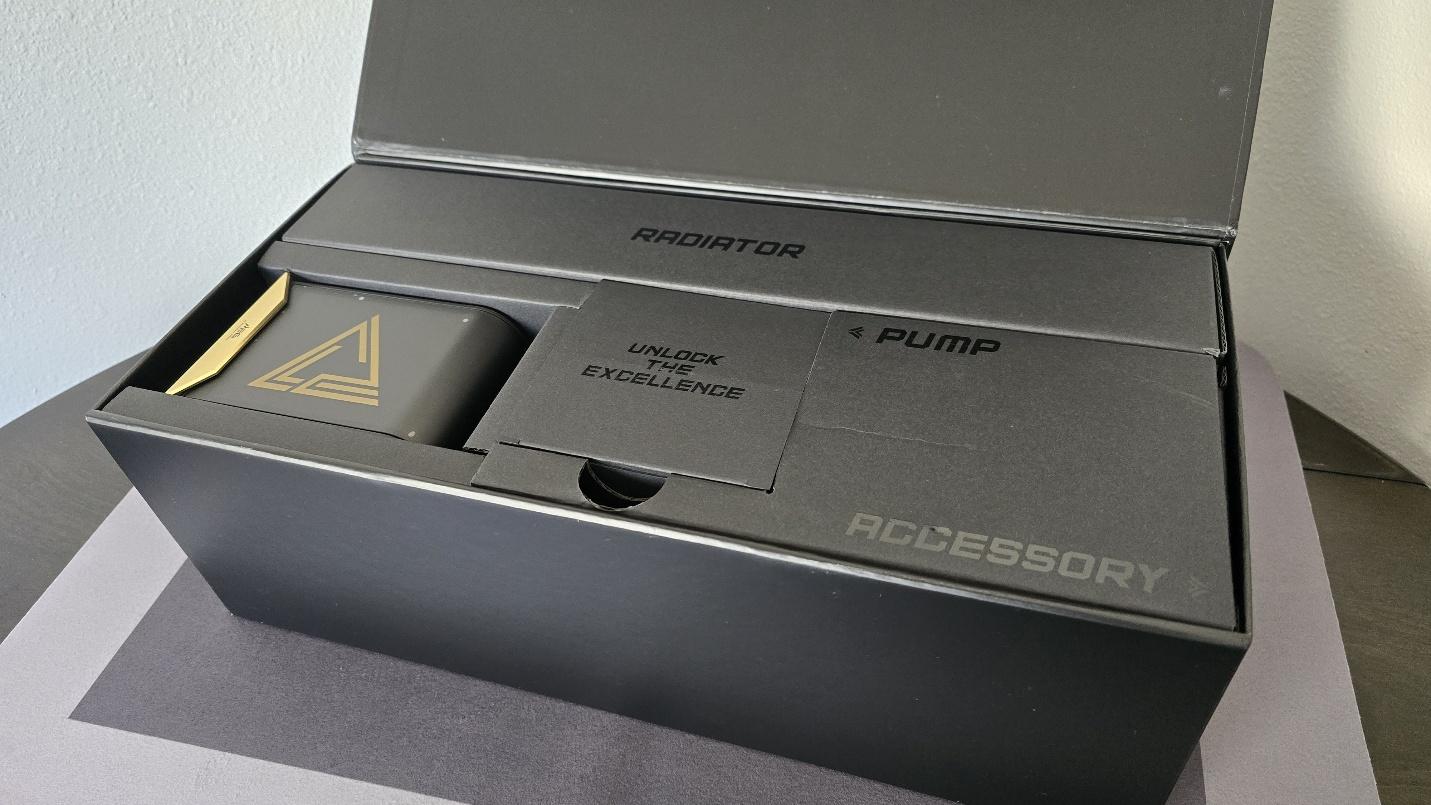
Included with the package are:
- Mounting hardware for AMD and Intel platforms
- 120mm fans
- Thermal paste
- Magnetic Penrose triangle
- Bending tube clips
MSI MEG CORELIQUID E15 360 AM5 Installation
To begin putting things together, you'll first need to remove the default AM4/5 retention brackets and replace them with the included mounting bars for the AIO.
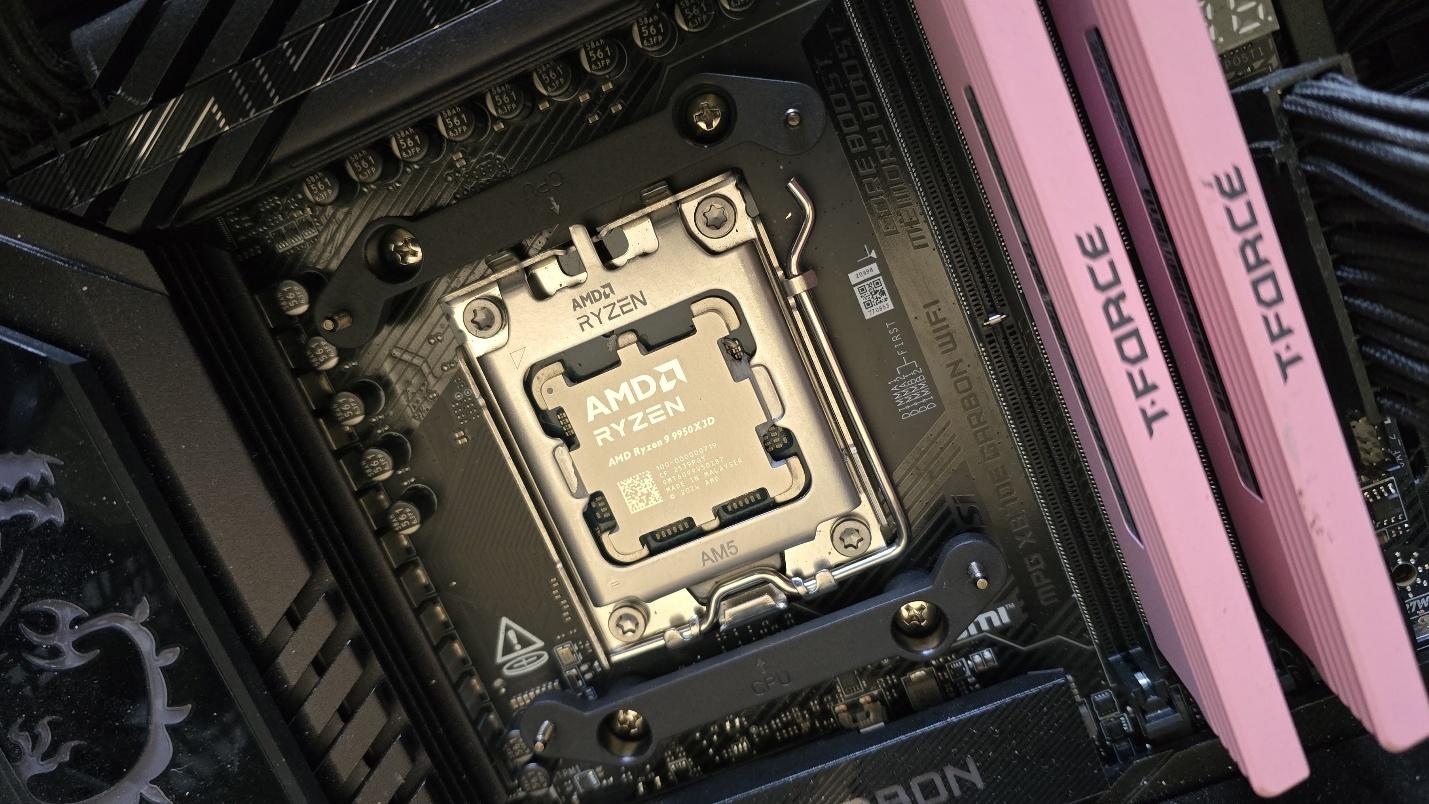
Next, take the mounting bars and secure them with the included screws.
Now it's time to apply the thermal compound. If you're not sure how to do that, we have a handythermal paste application guide that covers the different methods you can use.
After thermal paste is applied, take the CPU block and press it against the mounting bars, using the built-in screws to secure it in place.
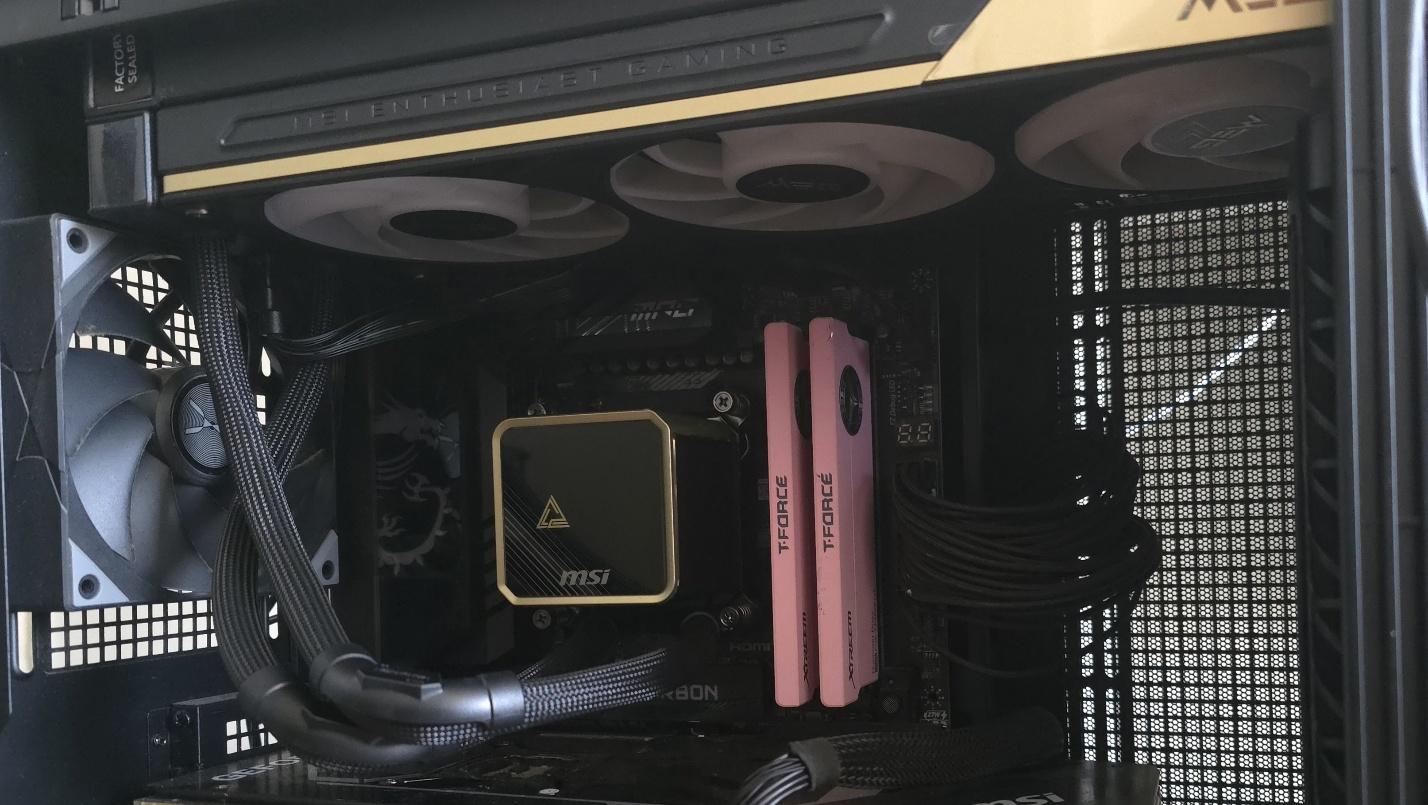
At this point, you're mostly good to go. You can leave the AIO set up as above if you want, but most users will want to take off the cover from the CPU block and place the screen on top of it instead.
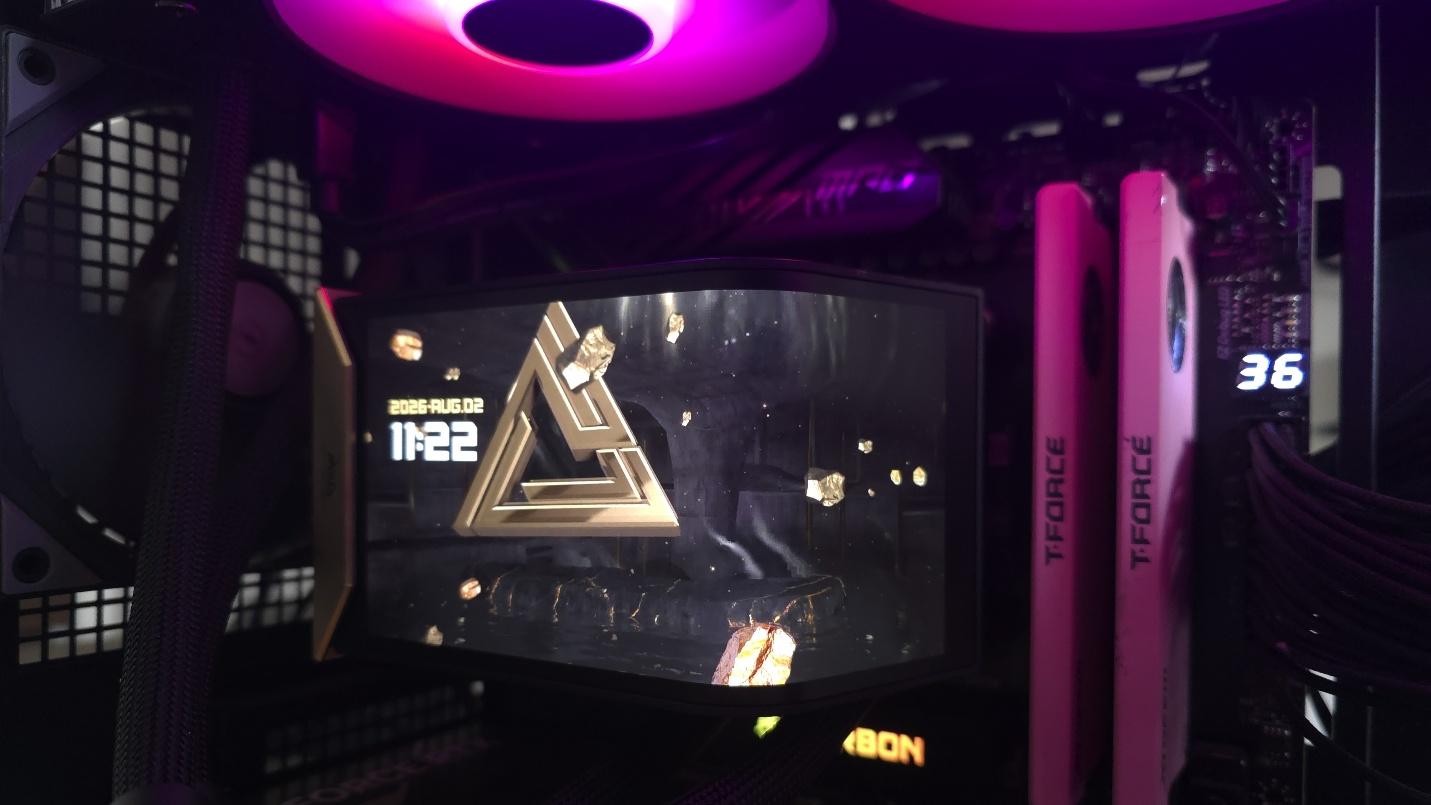
The final step, of course, is to connect the AIO's cables - ARGB, USB, and PWM.
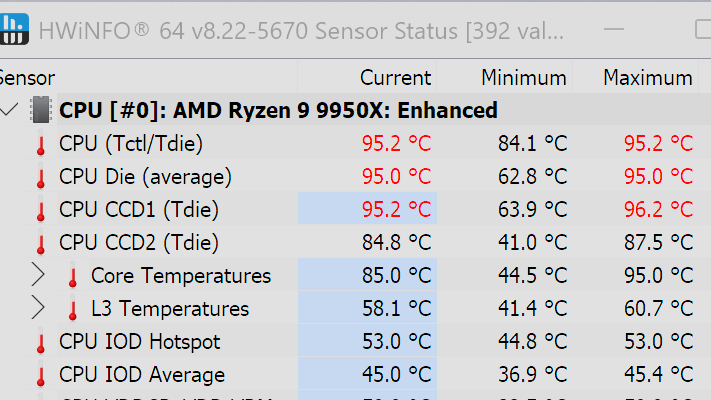
We've tested coolers with both the Ryzen 9950X3D and its non-V-Cache sibling, the 9950X. There are some differences in how the 9950X and 9950X3D CPUs are impacted by thermal events. While the heat output of the CCDs of AMD's 9950X3D is relatively balanced, the 9950X I used has one CCD that runs much hotter than the other, with a difference of over 10 degrees Celsius in some scenarios, shown below.
We've since returned to using a 9950X3D for cooler testing, as it has a more balanced heat profile, and is almost certainly a more widely adopted CPU. The benchmark results shared in these reviews may differ from others because I emphasize results that are comparable to real-world use. This means I generally test CPU coolers inside of a closed desktop case, which increases cooling difficulty compared to other testing methods.
Many reviewers test coolers on open test benches, which have a combination of lower airflow needs and lowered ambient temperatures. This can make weak coolers appear stronger than they really are. Some publications have also used generic thermal plates to test cooling solutions. I reject both of these methods because they don't accurately reflect real-world cooler conditions.
CPU | AMD Ryzen 9 9950X3D |
GPU | MSI Ventus 3X RTX 4070Ti Super |
RAM | TeamGroup Diamond Rose T-Force Xtreem DDR5-7200 |
Motherboard | MSI X870E Carbon Wifi |
Case | Tryx FLOVA F50 |
Our latest testing setup uses the FLOVA F50 computer case from Tryx.
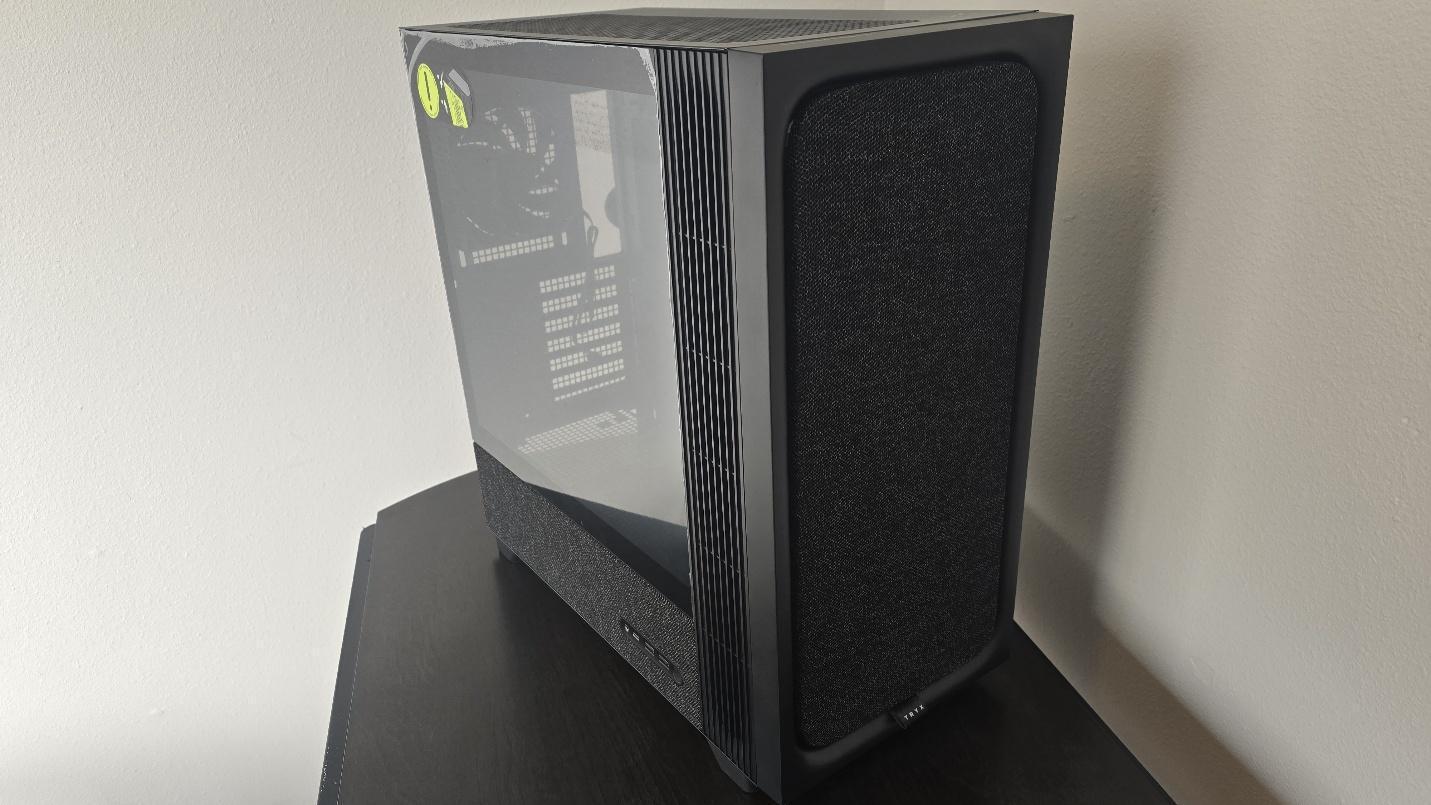
This case features a unique crossflow" fan that pulls air from the side, which the company claims is more effective than traditional intake fans. For air cooling tests, we've added a single Noctua NF-A12 G2 intake fan.
PBO Performance and maximum noise levelsWe're going to start this review's benchmark section by focusing on a traditional maximum performance test, with the CPU cooler's fans allowed to reach their fastest speeds, for the best cooling possible.
Turning on PBO allows AMD's Ryzen 9 9950X3D to stretch its legs and consume over 260W. Enabling PBO allows for high power consumption and heat output. When using MSI's X870E Carbon Wifi motherboard, the CPU will reach its TJ Max (peak temperature) of 95 degrees C (203 F) and thermally throttle, to some extent, with most coolers. When this throttling occurs, I've measured the average power consumption to determine performance.
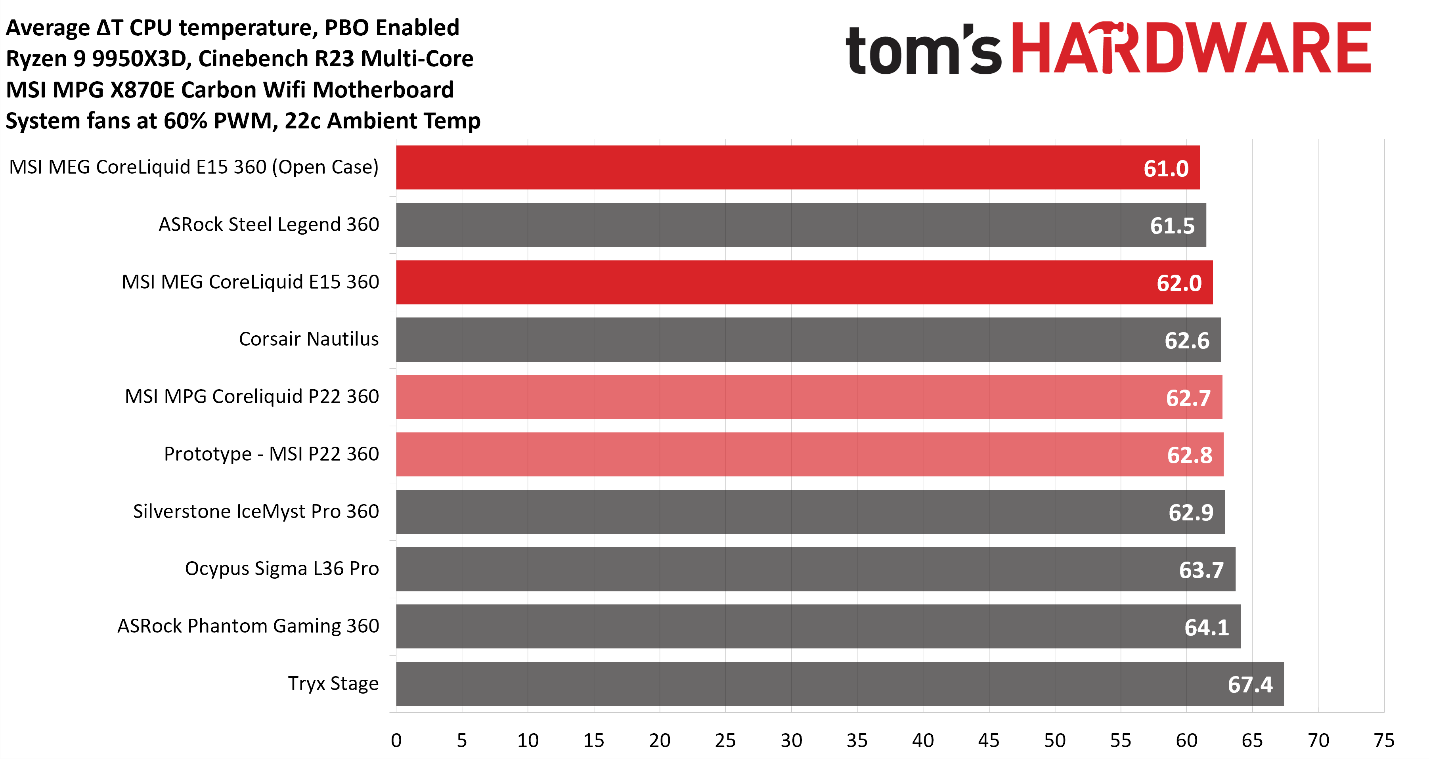
I've highlighted the performance of the MEG CoreLiquid E15, the P22, and the prototype P22 to demonstrate how MSI has been continuously improving the thermal performance of its AIOs. The MEG E15 has the second-best results in our current test bench, averaging 62 degrees Celsius over ambient (84 C). Out of curiosity, I also tested the thermal performance to see how better temperatures might perform with an open case - and surprisingly, there was only a single degree's difference.
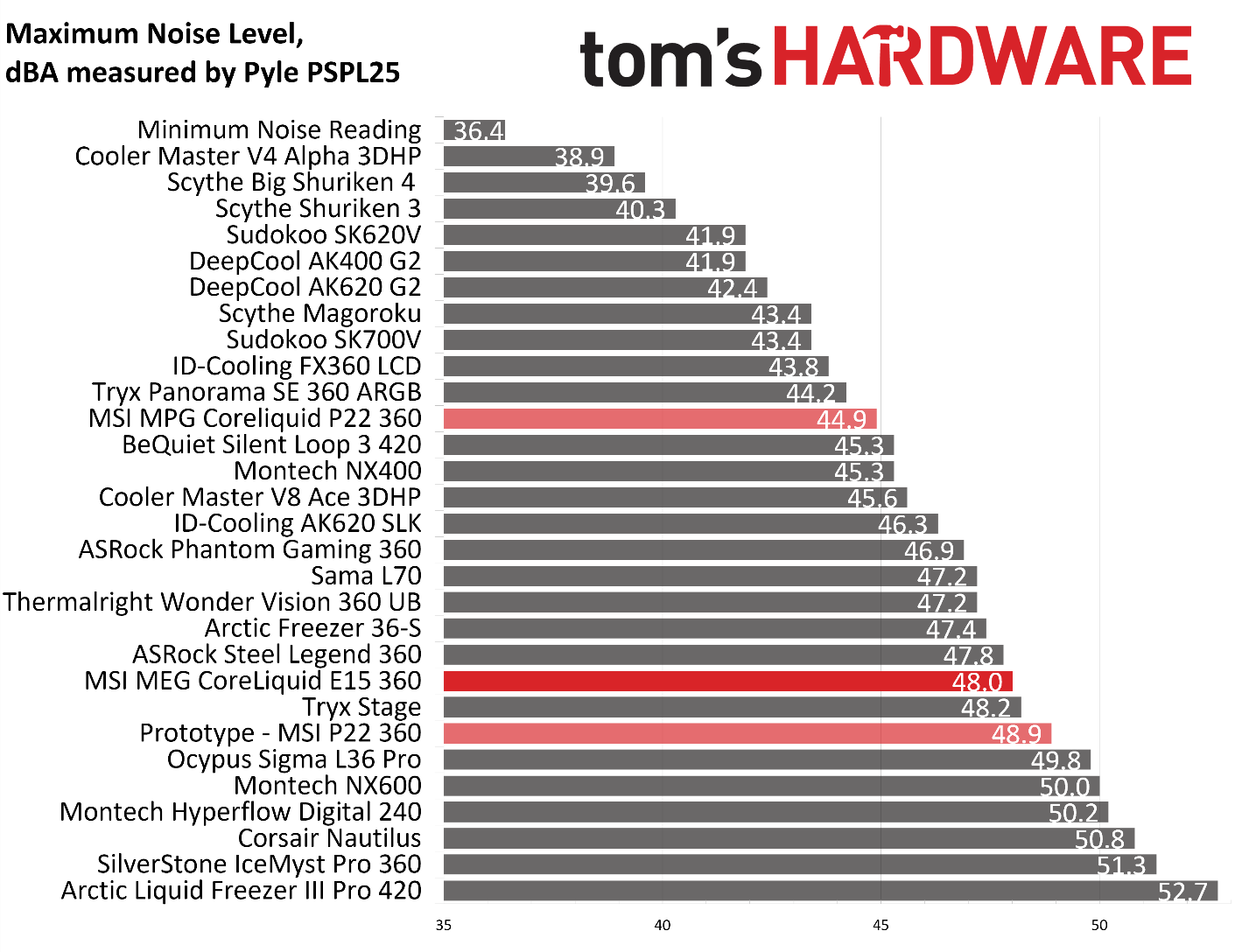
The maximum noise levels of this cooler are on the louder end, measuring 48 dBA. But to my ears at least, the the pitch of the cooler's fans is soft, which makes the cooler feel quieter than how it measures.
200W thermal benchmarksFor the next thermal test, I leave the motherboard settings at their defaults, which results in a power limit of 200W when running Cinebench R23.
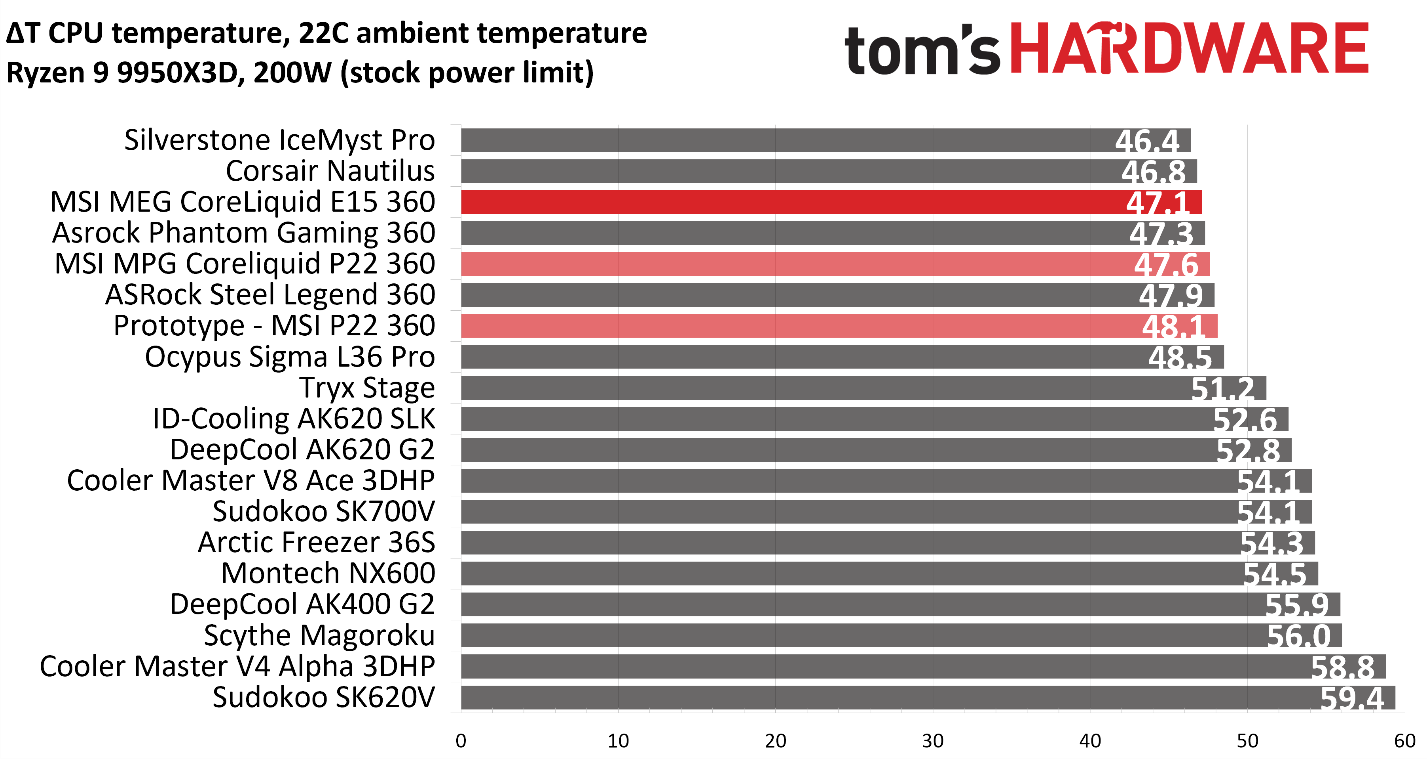
Thermal results in this scenario were similar to our first test, with MSI's E15 being a top performer, holding the third-best results, averaging 47.1 C over ambient (69.1 C).
150W + GPU thermal resultsOur next test runs Cinebench on the CPU with a 150W power limit, while also running Furmark on MSI's RTX 4070 Ti Super Ventus 3x OC. This causes the GPU to consume ~295W of power. This test is designed to emulate the thermals of games, which stress both the CPU and GPU.
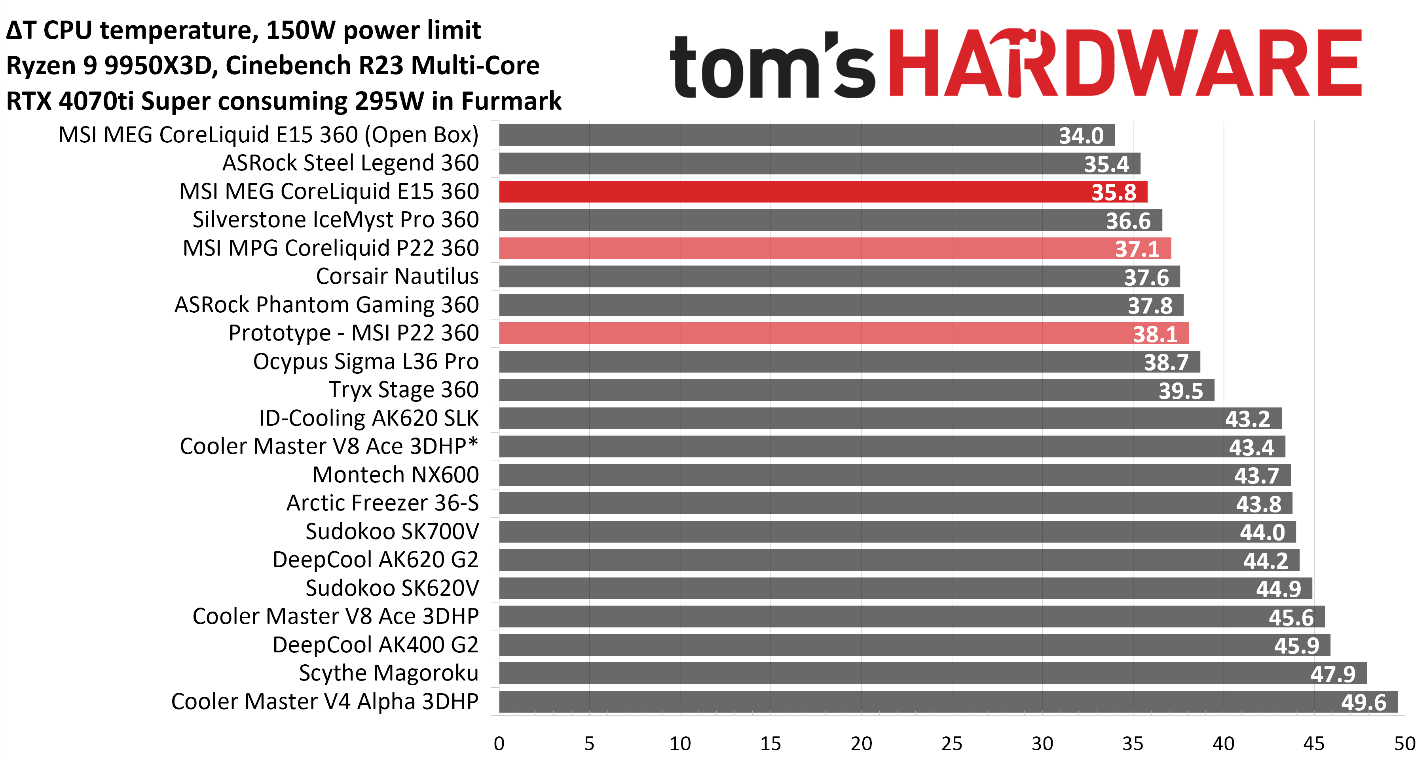
MSI's E15 AIO once again performs well here, with our second-place result when testing in our Tryx FLOVA F50 test bench. Out of curiosity, I also tested this AIO in an open case, which resulted in an additional thermal improvement of 1.8 C.
Noise levels in this scenario were moderate, registering at 40.9 dBA with our Pyle PSP25 sound meter.
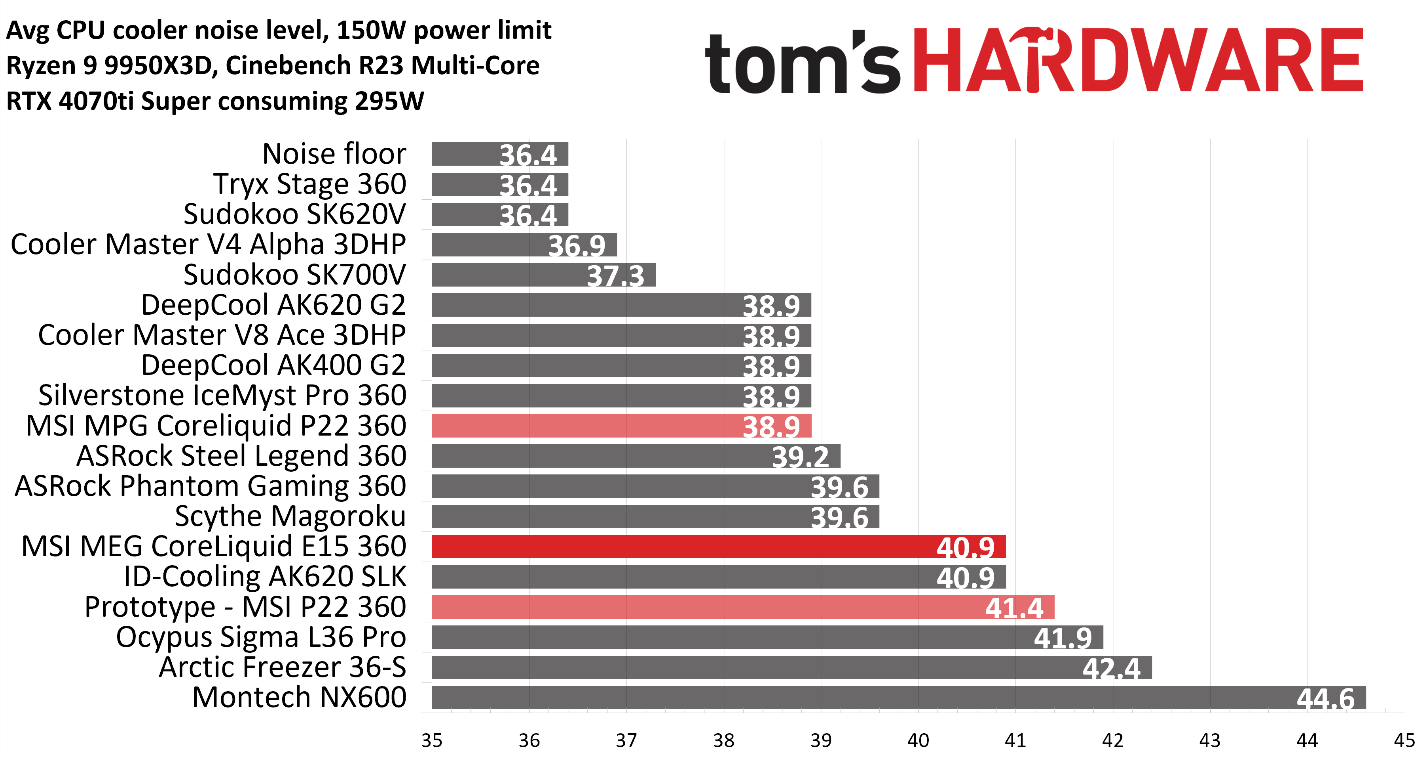
Most testing is performed with the cooler tied to the default fan curve of our MSI X870E Carbon motherboard, but some of y'all prefer to see tests when the noise levels of coolers are equalized. This is especially important to those of you who prefer silent computers. This next test has the CPU cooler noise-normalized to 38.9 dBA, with PBO enabled for the Ryzen 9 9950X3D CPU.
This test is especially difficult, because in addition to the reduced noise from the CPU cooler, our current test bench's system fans are configured to run extremely silently, below the floor of the noise meter I use to measure dBA.
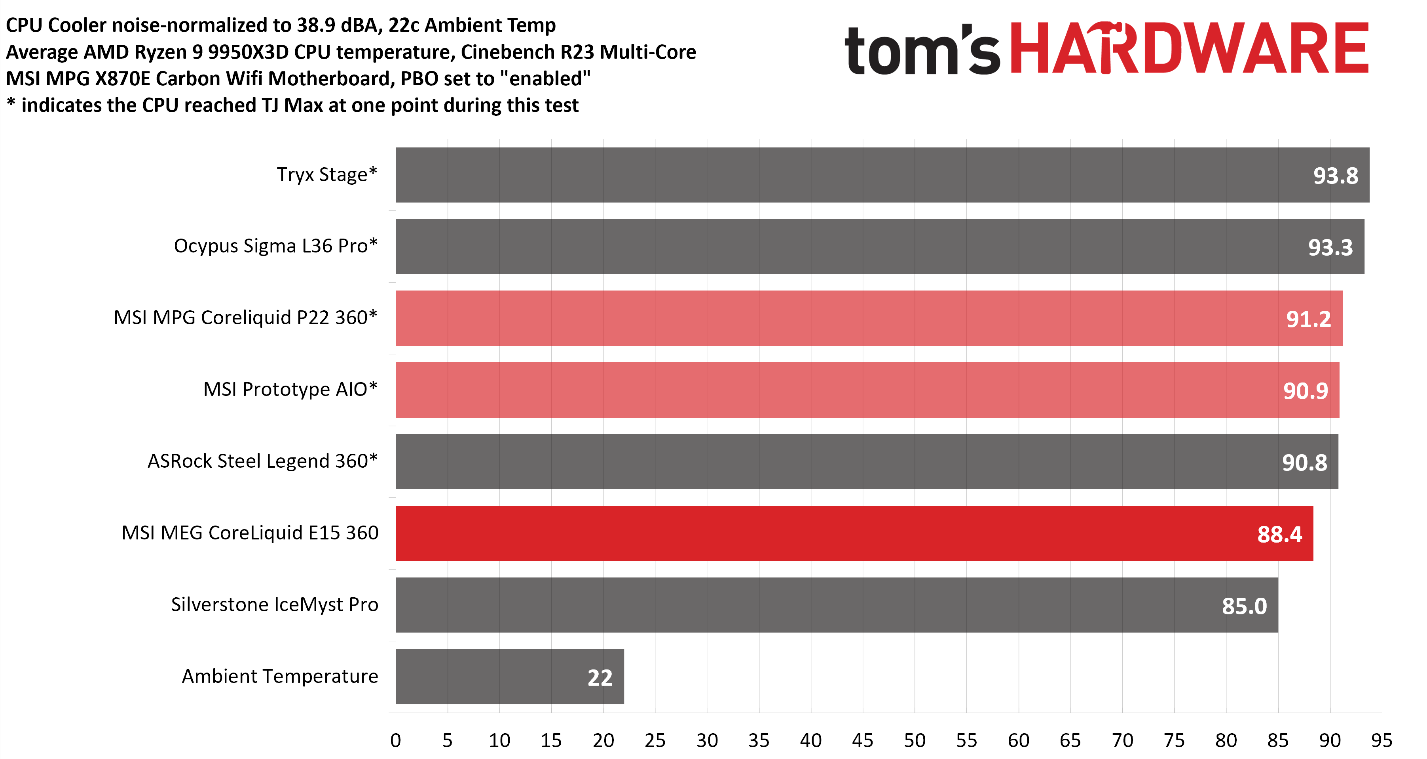
The results here are simply excellent. MSI's E15 is one of the few AIOs on the market capable of keeping the CPU under TJ Max with PBO enabled in our current test bench, even when the noise levels of the fans are limited.
Karhu DDR5 RAM thermals testingYour CPU cooler does not operate in isolation. It has an impact on not just your CPU's temperatures, but also the other components in your build, like your RAM and GPU. To that end, I've run the Karhu RAM stress test. This places a load of ~153W on the CPU and ensures system RAM (DDR5 in my case) is fully stable. In this type of scenario, most AIOs tend to produce worse results than air coolers.
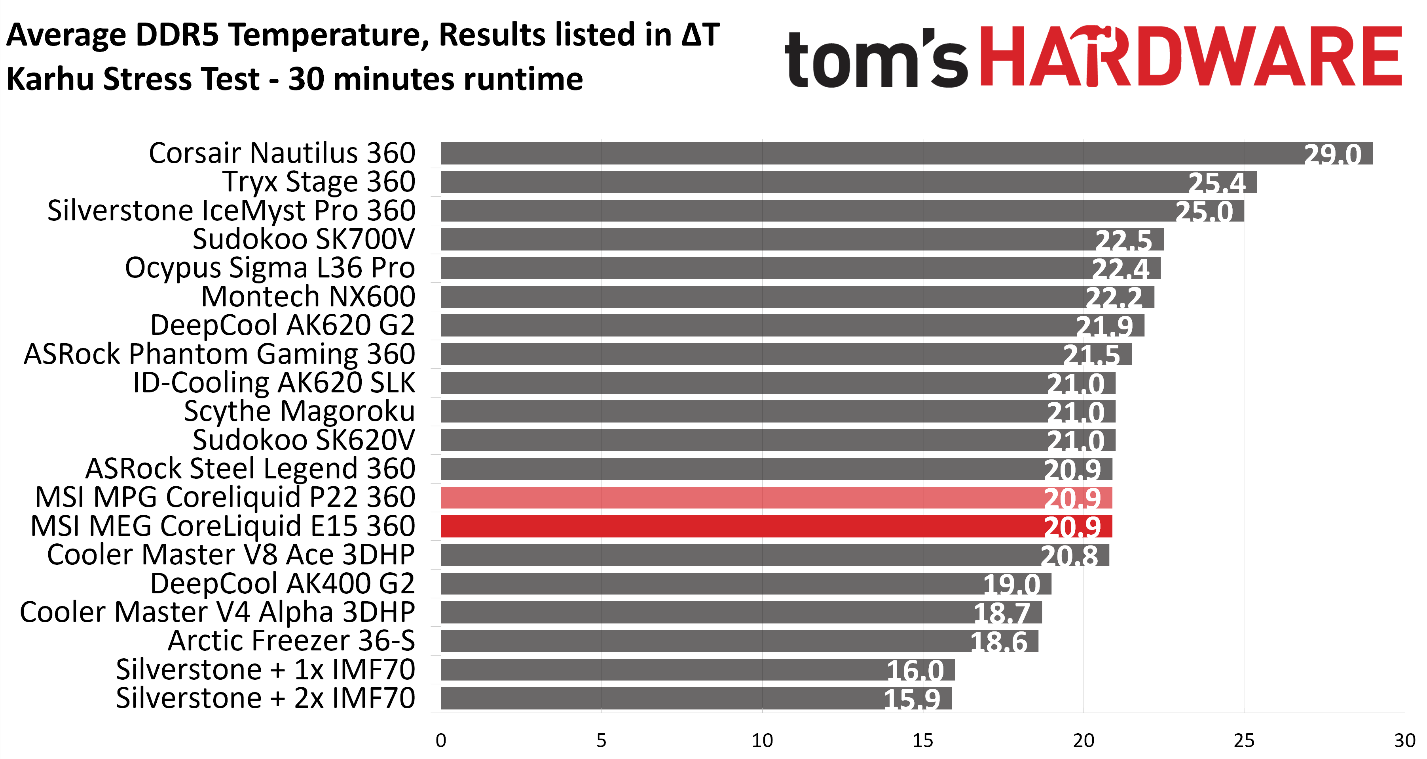
DDR5 temperatures in this test were good, the best of any AIO, save those incorporating VRM or RAM fans.
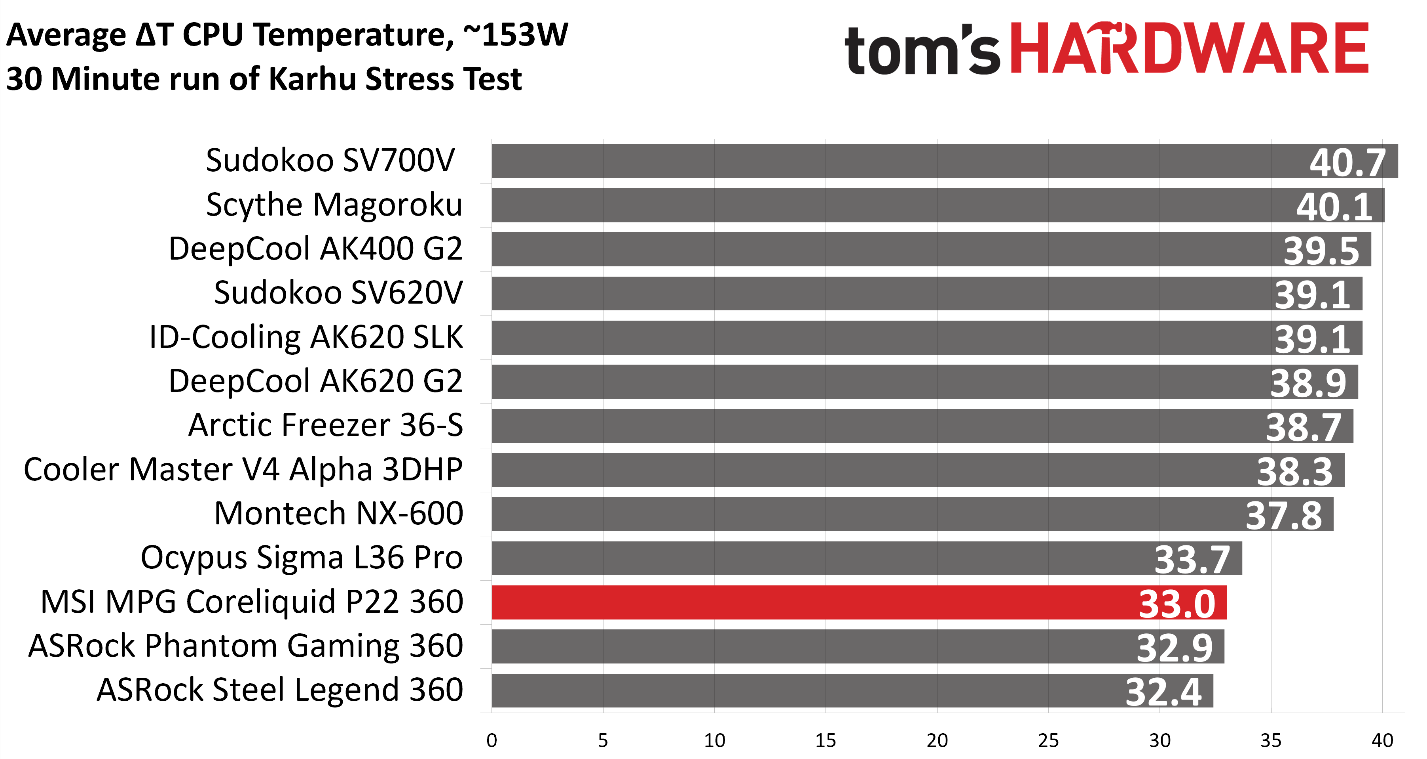
With a hefty $399 price, this AIO is strictly for users who don't care much about build budgets. The stunning black-and-gold aesthetic reflects that luxury status, and the included 6.7-inch screen and preset animations are stunning. Thermal performance is also among the best AIOs on the market, so the cooler isn't all about style over substance.
But of course, with the ongoing inflated prices of RAM, storage, and GPUs, most of us aren't likely to seriously consider spending nearly $400 on a cooler. If you're looking for a more budget-minded alternative, I'd encourage you to check out Arctic's Liquid Freezer III Pro instead.