Googlebooks from Dell, Lenovo, and HP tested: Nice hardware, but the OS isn't ready yet
Chromebooks have gotten a bad rap. The systems have often been seen as glorified web browsers designed only for schools. But with Googlebooks, Google is making a renewed push to show its laptops are designed to be full-on PCs, running a new operating system that feels more like Android than anything else.
Googlebook OS is also designed to merge your Android phone and your laptop in a way that has never been seen outside of Apple's macOS and iOS devices.
And of course, Google has packed Googlebook OS full of AI features. Some of these are unique to the new laptops, while others, like Rambler, have been introduced on Android phones before.
The new undertaking currently has five hardware partners: Dell, Lenovo, HP, Acer, and Asus. The hardware that we tested is generally sound, though I wouldn't mind a bit more battery life.It's the OS itself that needs some more time in the oven. It largely feels like Android, with some features nailed on to fit a desktop OS. Despite the expansive Google Play Store, the platform is still limited and largely centered around the web browser.
In some ways, Googlebooks are more powerful than Chromebooks could ever be. In other ways, they feel like they haven't yet grown into a full PC operating system.
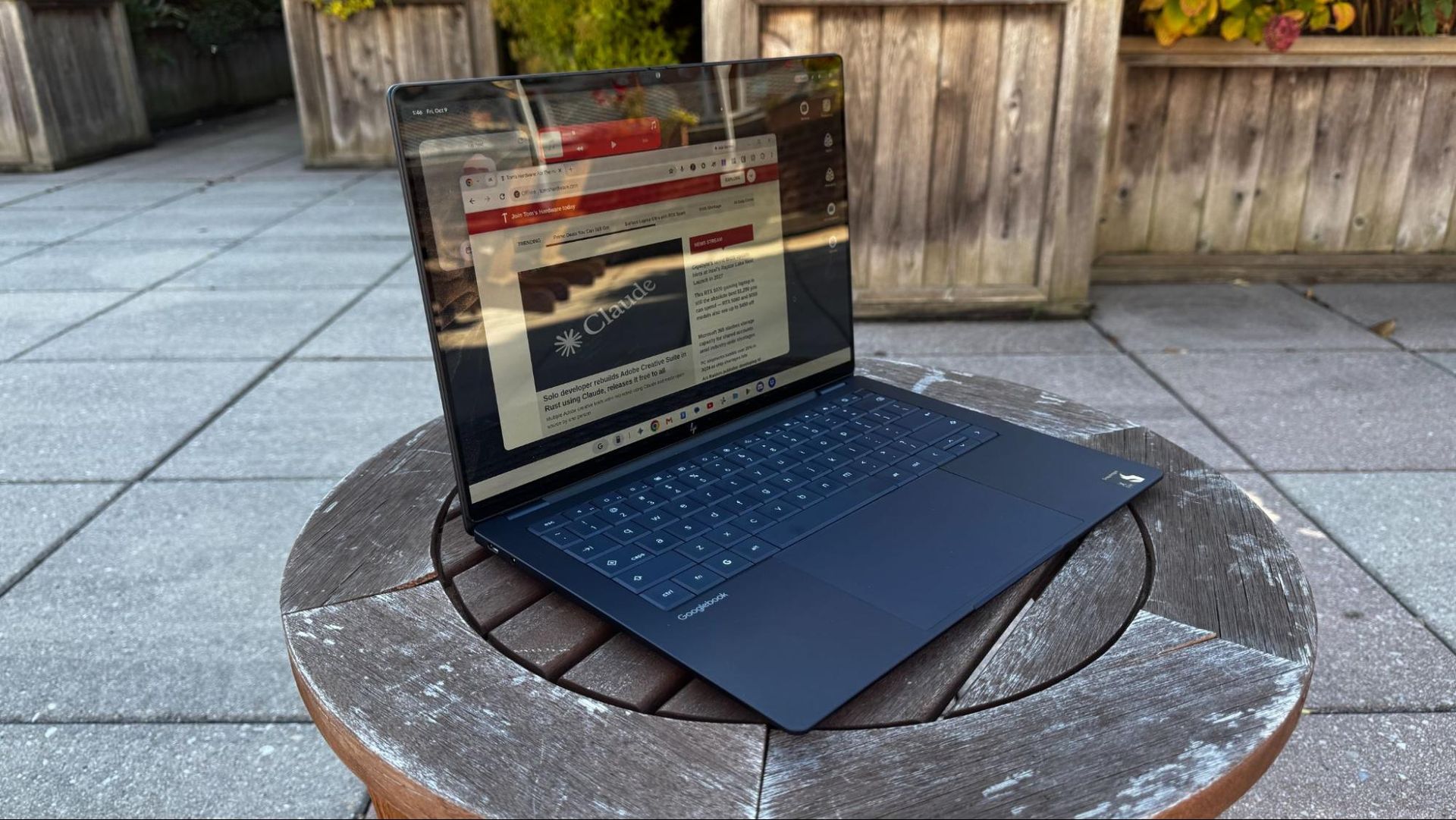
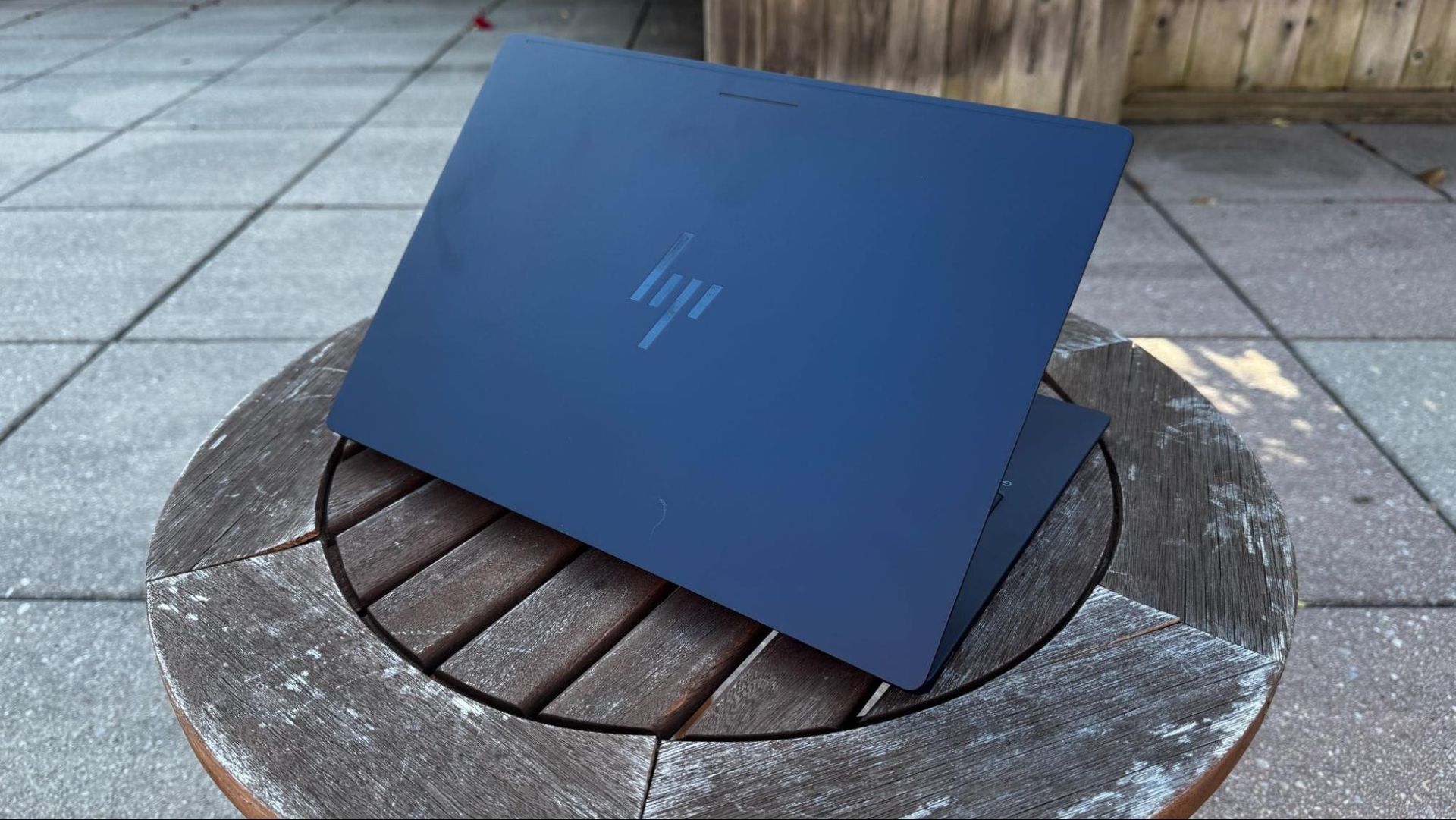
Googlebook HardwareI've spent the last few days using the Lenovo Googlebook 15, HP Googlebook 14, and Dell's XPS Googlebook. In general, if you've seen some recent Windows laptops, you've seen this hardware. The HP Googlebook 14 is clearly based off around the HP OmniBook Ultra, while the Dell XPS Googlebook is a carbon copy of the Dell XPS 13 - although there is a haptic touchpad in this version. I have few complaints there - both of those are solid machines, though I still wish HP would move away from the keyboards without spaces around the keys.
 Tom's Hardware
 Tom's Hardware
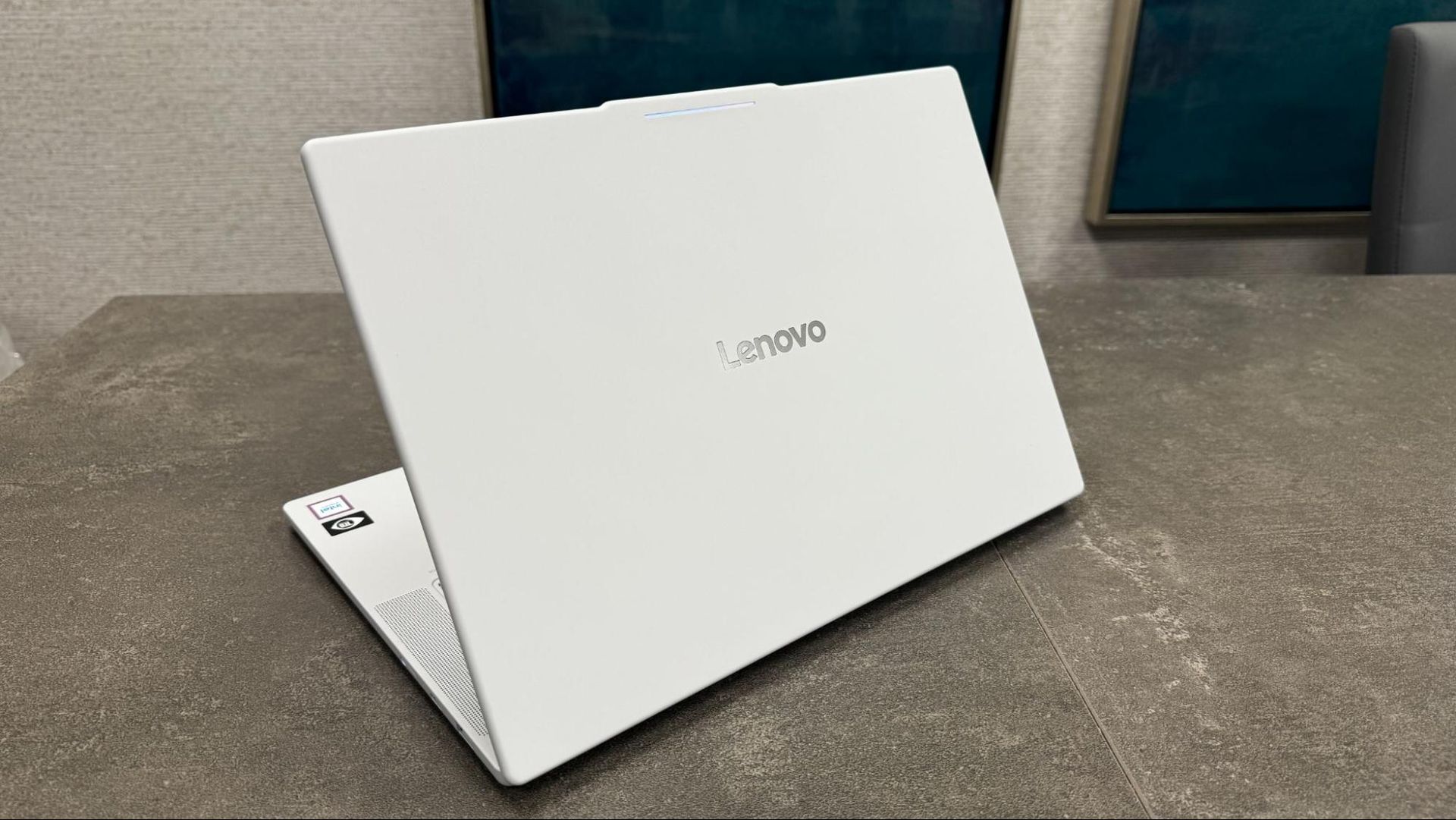
Of the systems, the HP feels the most premium, but I've come to appreciate Lenovo's airy design with the all-white Lenovo Googlebook 15. Despite the 15.3-inch OLED screen, the mix of carbon fiber with aluminum and magnesium doesn't feel as high-end, but is light at approximately 2.84 pounds.
HP and Lenovo both include beautiful 2880 x 1800 OLED screens, while Dell opted for a 2560 x 1600 LCD panel instead.
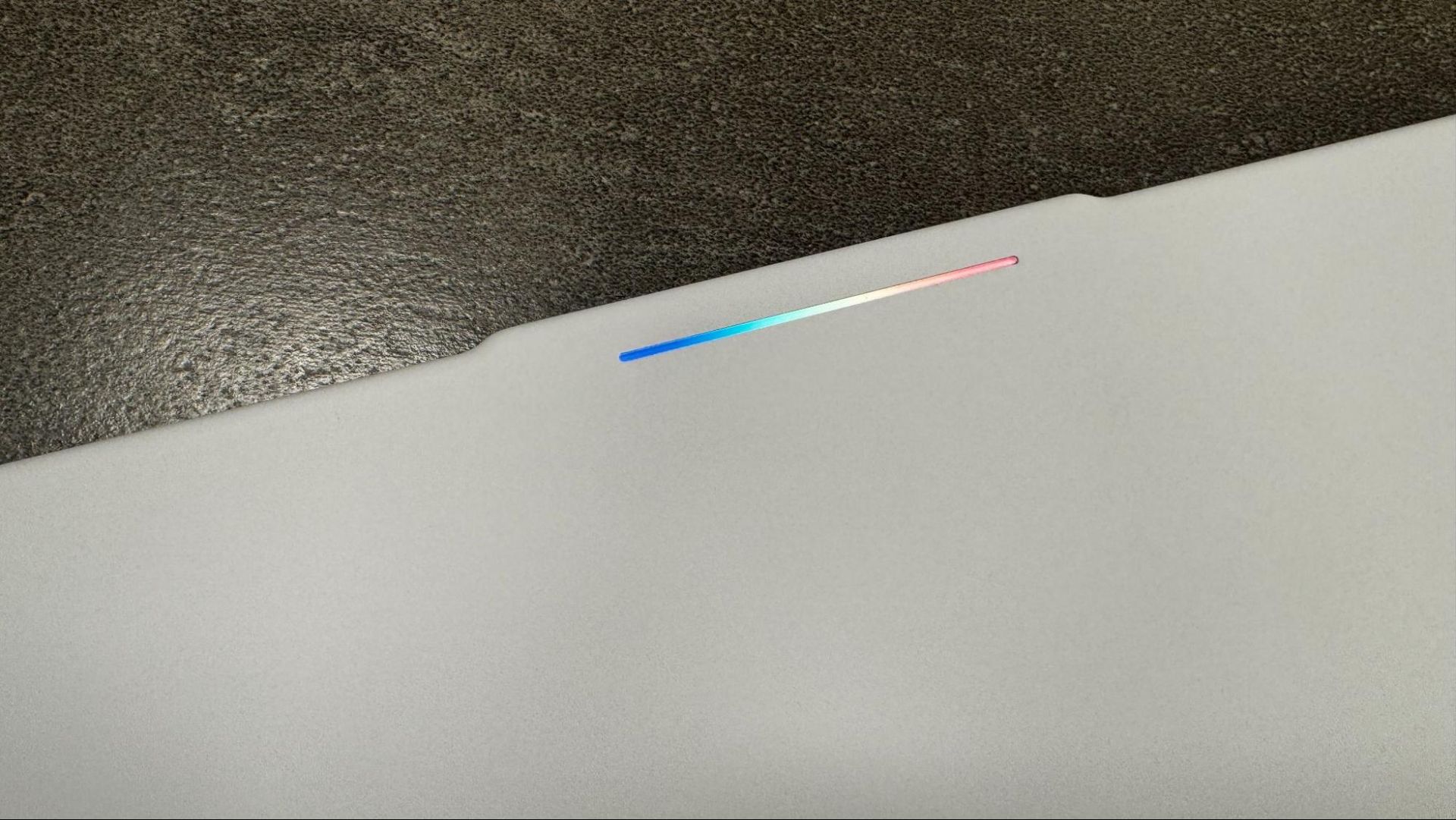
While ports, materials, and screens might differ, all of the Googlebooks share a few things in common. The first is the Glowbar, which originated on the Chromebook Pixel and Pixel C tablet. Here, it serves as the sole unifying element that tells anyone looking at you that yes, you're using a Googlebook. When you turn the system on or put it to sleep, it has a nice rainbow pattern, but otherwise it largely glows white. It dances around when you speak to Gemini, and when you plug or unplug the device, it indicates battery life with colors (green, yellow, red) and flashing when the battery is low or there's a charging problem.
 Tom's Hardware
 Tom's Hardware
Other than turning the Glowbar off, there's not much customization. Or rather, there isn't unless you find the hidden Glowbar Disco app, which Google is positioning as an easter egg. (SPOILER ALERT: Go to Settings > Apps and click "See all [Number] apps." Click on the three dots in the corner and click "Show System." Click "Glowbar Disco" and press the External arrow button. This launches Glowbar Disco.)Glowbar Disco lets you choose a custom color, preset gradient, or a series of animations like a Knight Rider-style scanner, a rainbow, or my favorite "vibe code," which looks like the letters from The Matrix dropping. You can also set it to sync to music, which is set as "experimental." That's funny, given how hidden this app is. Effects aren't persistent when you close the app, and you can't even pin the app to the taskbar to easily reset it.
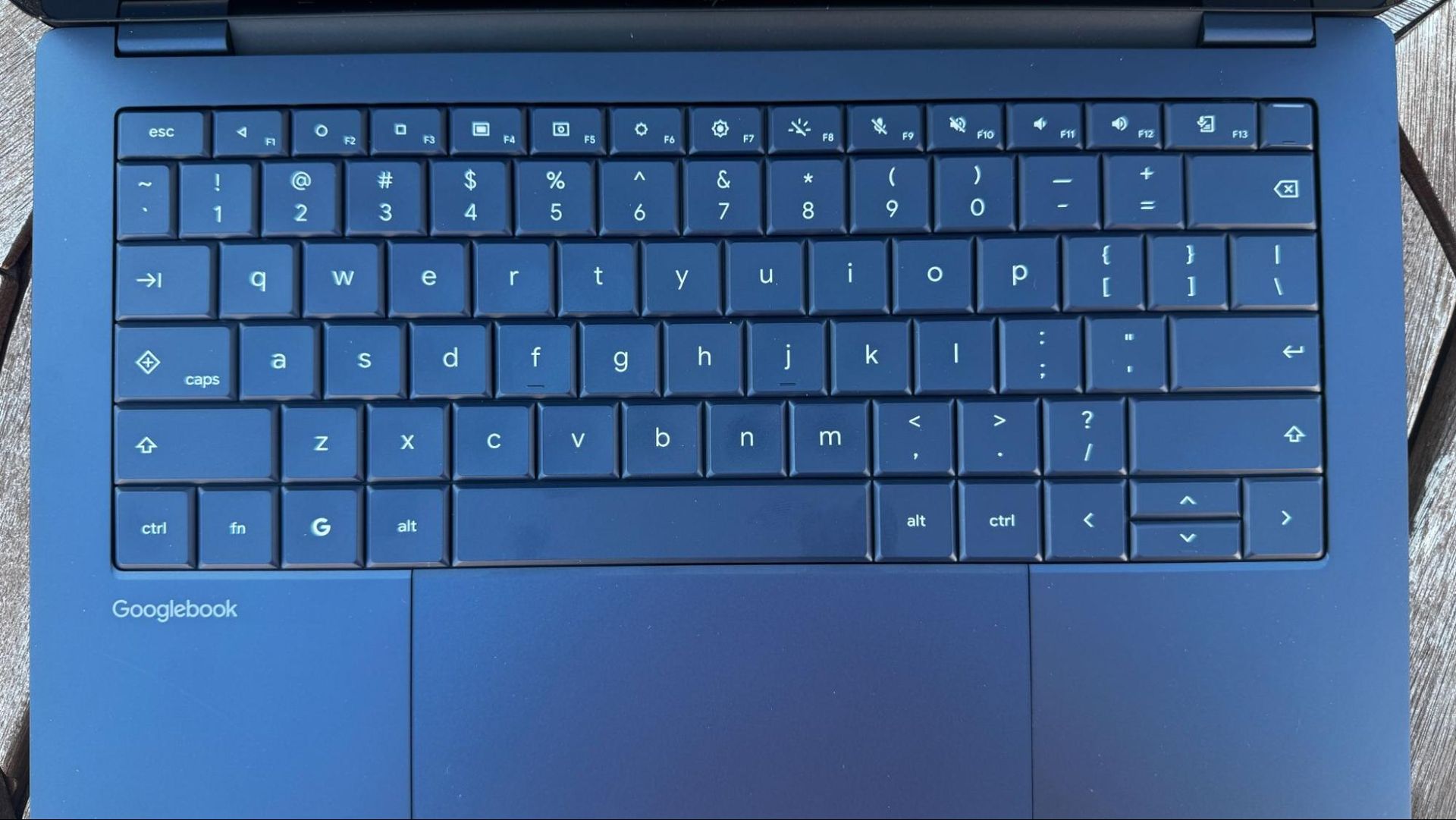
The other major similarity across all of the hardware is the keyboards. Google has a shared layout across all of the devices, including a G key that opens the app launcher and works with shortcuts, a Caps Lock key that doubles as Quick Insert, and, on F1 through F3, are the Back, Show Homescreen, and Overview buttons (The latter shows all open apps). These feel like throwbacks to Android phones before they largely went gesture-based, though they can still be found in Settings on Android phones today.
Performance: Intel vs. QualcommThere are two chips in the first crop of Googlebooks. The HP Googlebook 14 and Dell XPS Googlebook are powered by the Qualcomm Snapdragon X Elite X1-80-100, while the rest are using Intel's Core Series 3 "Panther Lake" processors, specifically the Core Ultra 5 325 in the Lenovo Googlebook 15.Since launch, there have been questions about app compatibility on the Intel models, as most Android apps are designed to run on Arm chips in phones. Google and Intel are in a bit of a back-and-forth over how many Android apps simply work on Intel right now. I've also found a few glitches in the Android based-version of Googlebook OS, like popping icons on the taskbar. Perhaps most notably, when trying browsers that weren't Chrome, the Arm-based Googlebooks were able to run Microsoft Edge, while the Intel-based Lenovo had issues. That app is marked as being "compatible with desktop" in the Play Store.
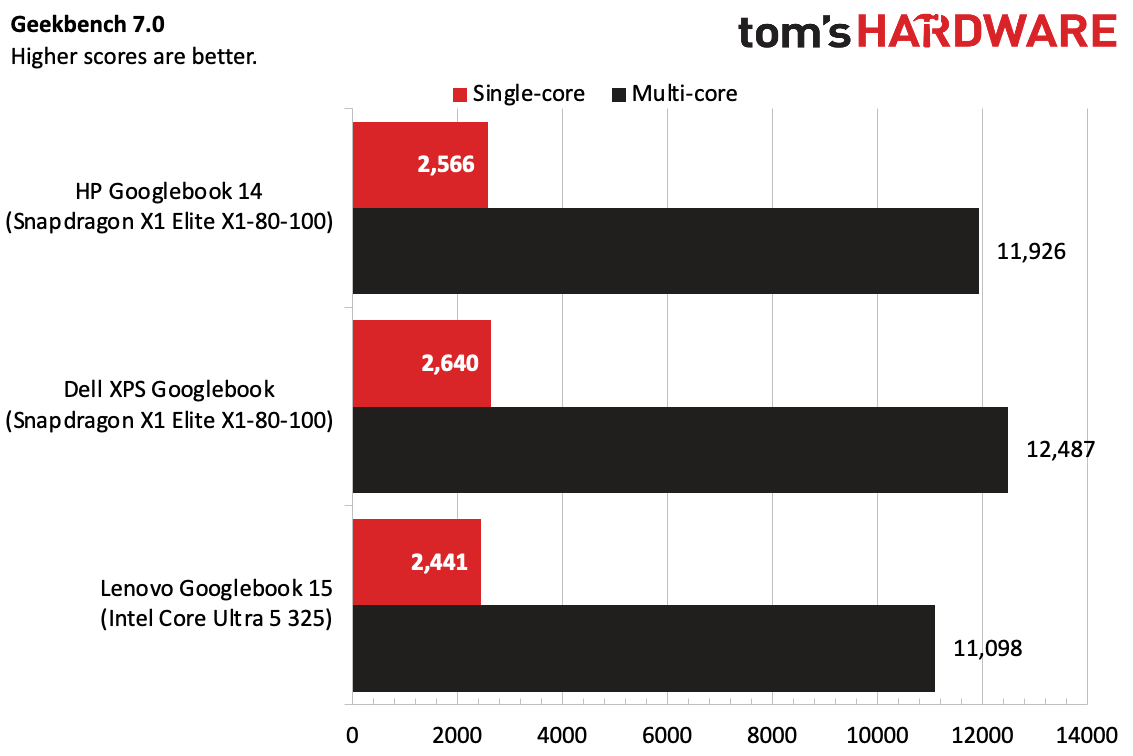
In benchmarks, we found that the Snapdragon X1 Elite models outperformed the singular Intel option we had to test. Notably, though, that's Qualcomm's high-end Oryon chip (albeit from its first generation) compared to an Intel Core Ultra 5. We didn't have a system with an Intel Core Ultra 7.
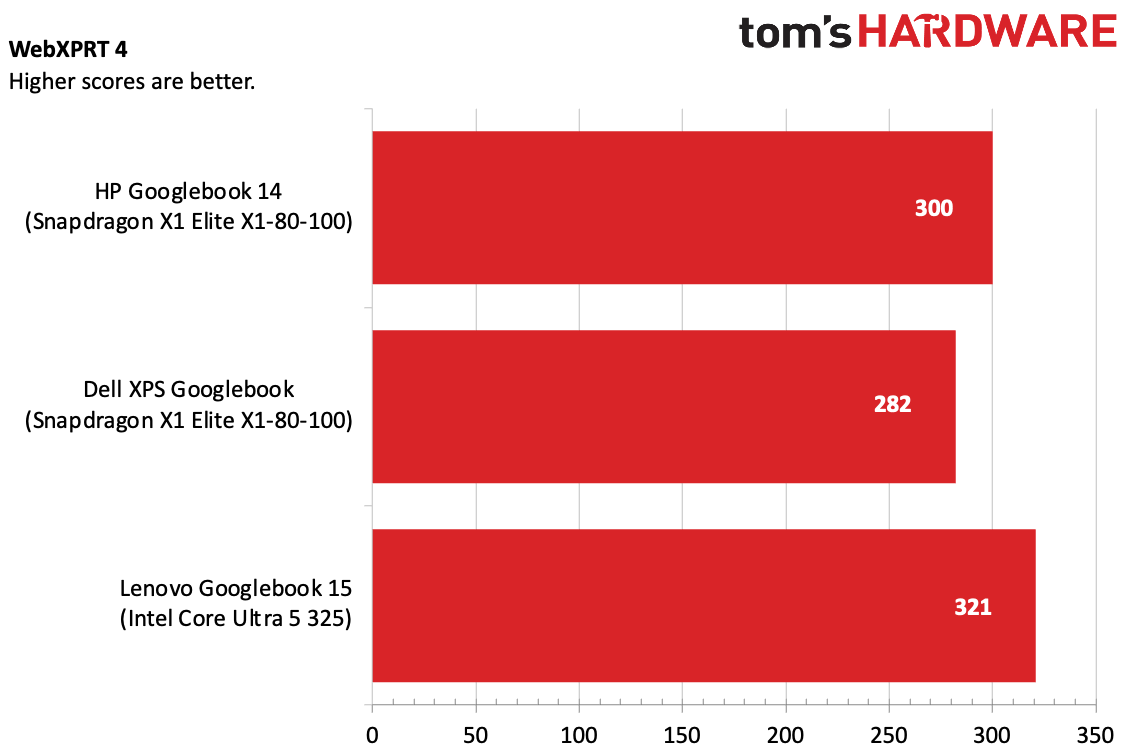
In Geekbench 7, the Snapdragon-based systems edged out the Lenovo Googlebook with Intel, particularly in multi-core. But on WebXPRT4, the Lenovo system won. Google claims people spend 70% of their time in the browser.
 Tom's Hardware
 Tom's Hardware
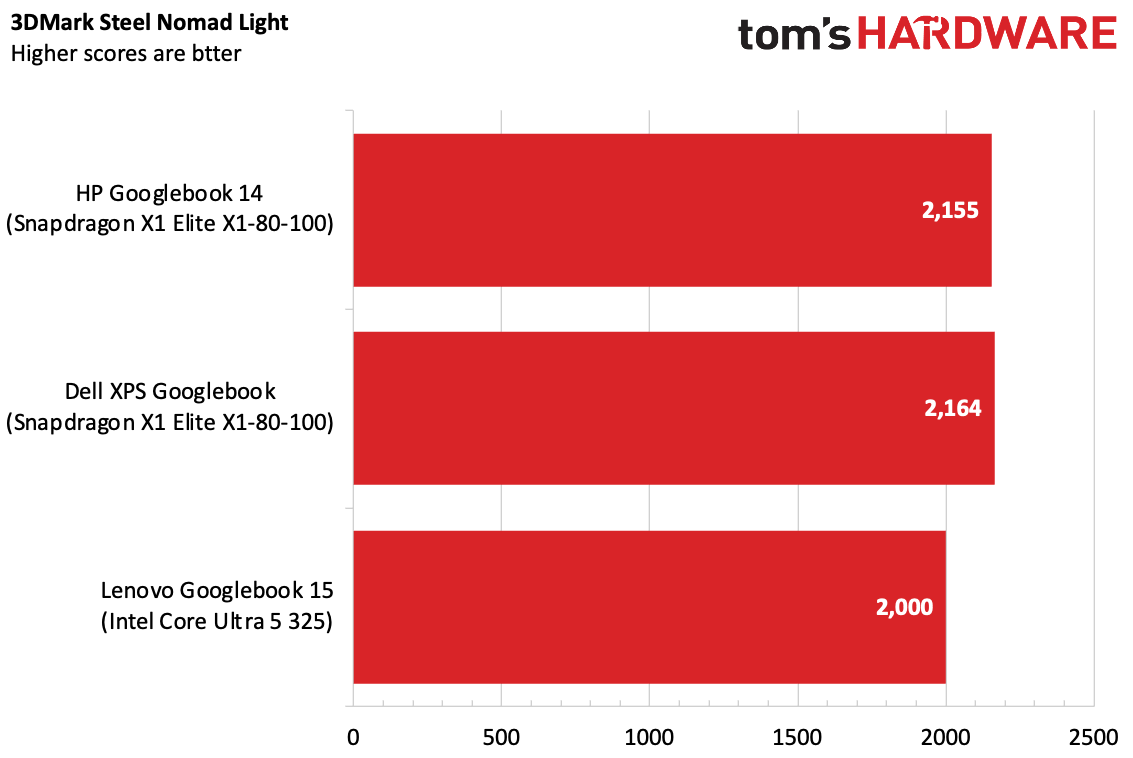
On 3DMark's Steel Nomad Light, the Snapdragon systems won out again, though not by a ton. If you're doing a lot of Android gaming, it's worth noting.
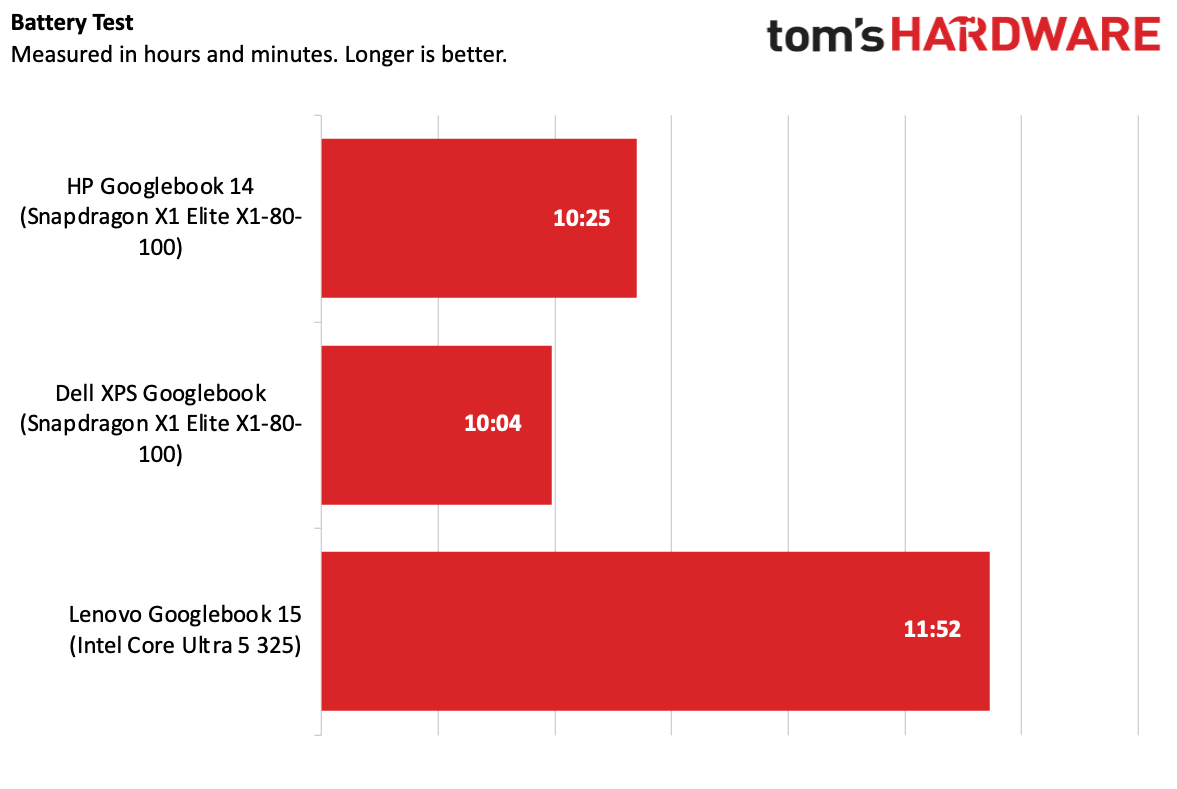
On our battery test, the Intel-based Lenovo won out at 11:52, while the HP hit 10:25 and the XPS reached 10:04. None of these are amazing times. Our Googlebook battery test browses a list of 30 live websites on a loop at 150 nits of brightness.
It's also notable that while Googlebooks as a class have at least 16GB of RAM, they appear, according to their task managers, to always have at least 7-8GB in use, likely housing local AI models to be ready at any moment.
Googlebook OSIf you use an Android phone, specifically one of Google's Pixels, you'll feel right at home with a Googlebook. For all the talk of merging ChromeOS and Android, Googlebook OS really feels like an Android phone, just on a laptop.
There's a taskbar on the bottom (there's no way to move that yet - shades of Windows 11 there), and the systems come with some precreated folders for Google apps on the desktop. There's also a dedicated My Googlebook app on the desktop to teach you the ropes.
Along the very top, there's a status bar with the time, date, a button to turn on the Magic Cursor, and some quick settings that can be accessed by clicking the Wi-Fi and battery icons (think macOS' Control Center).
Apps are in the G Menu, and, if you have a phone paired, it appears next to it with a separate drawer of apps you can cast to your phone.
It's quite simple - especially if your primary app is Google Chrome. If you use the rest of Google's ecosystem, like Photos, Calendar, and Messages, you'll almost be set up out of the box (they all wanted me to confirm my Google account, which was a bit annoying). In fact, if you don't use all of those services, I question the value of buying a Googlebook at all.
But the simplicity and elasticity of Android only goes so far. While it's clearly flexible enough to become a desktop OS, there are some areas where you can just tell the team needed more time.
For starters, a lot of the spacing feels meant for touch. When I right clicked on the desktop for context menus, there would be a significant amount of space to move my mouse. But when I touched the screen, that spacing felt natural for my finger.
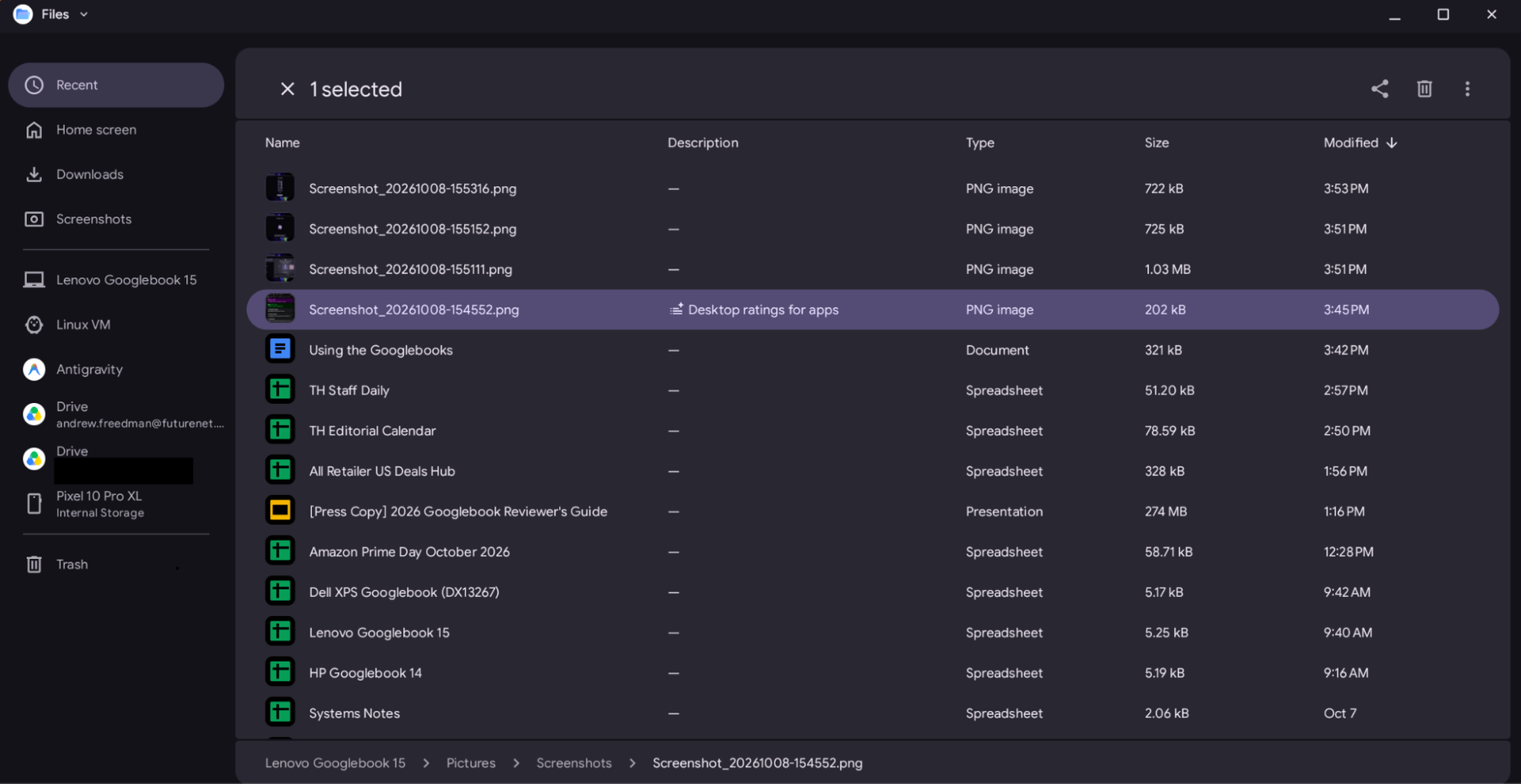
You see more of that in the Files app. It's lacking features that make some sense on a phone but don't on a computer. For example, there are no forward and back buttons. Instead, you have to navigate through folders or the path at the bottom of the screen. Additionally, the Files app doesn't let you pin or re-order the folders in the sidebar.
Perhaps the most damning, given how flexible ChromeOS is with profiles, is that the version of Google Chrome on Googlebook OS doesn't, as of this writing, support multiple profiles. That breaks plenty of people's workflows, especially those who have separate accounts for work and personal use.
The best thought-out desktop feature is Quick Insert. Having a key that serves as a go-to place for your clipboard history, suggested emojis, recent browsing, and links to tools is a real time saver when you don't want to click around looking for them all.
All the apps you want, as long as you like the Play StoreThe only way to install apps on a Googlebook is through the Play Store. That is where the system is most locked down. Unlike Windows, macOS, and Linux, you can't install software from the web browser.
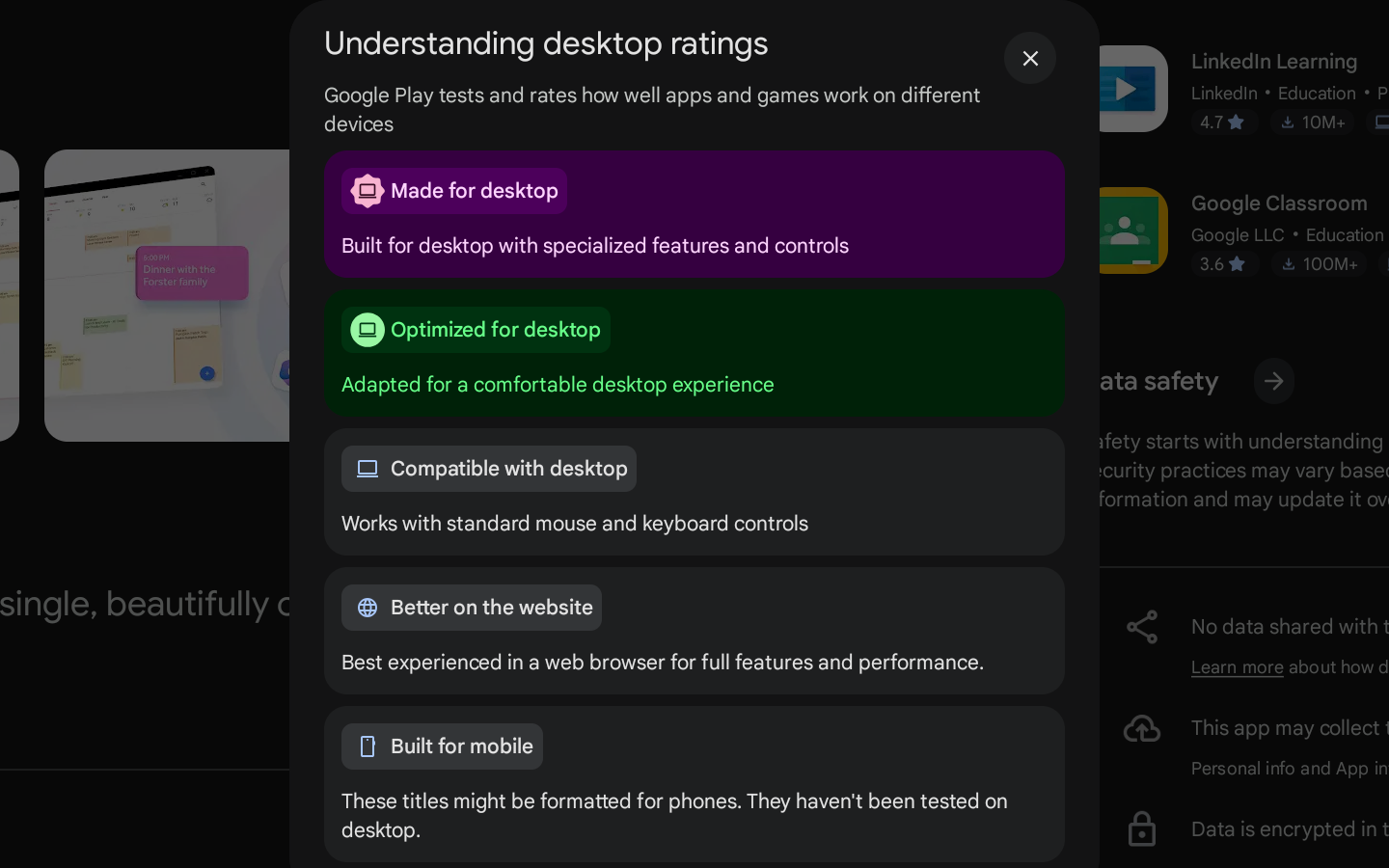
In the Play Store, Google has five "desktop ratings" that lets you get an idea of how an app works on a Googlebook. Made for Desktop is the gold standard, which means it's a desktop-first app with features and controls designed for a mouse and keyboard. Optimized for Desktop is a close second, in which an app has been adjusted for the bigger screen.
Compatible with Desktop means a keyboard and mouse will work. After that, you get Better on the Website. Slack gave me this, as did Duolingo. Lastly, Built for Mobile means you'll get the app, but it will be formatted for a smartphone.
Compatible with Desktop doesn't always mean great. One of my go-to mobile games, Marvel Snap, is compatible, but it stretches out and leaves black bars on the sides. It did, however, support Google's ability to map touch to keyboard controls, though that's not really appropriate for this game. Given this game has a widescreen version on Steam, I'd hope Google could get developer Second Dinner to make it work on Google Play just as well.
Designed for Mobile should be a last resort. I downloaded my bank app, and I regretted not just going to the website.
Google's own apps are a mixed bag. Gmail and Calendar are just web apps in a nice wrapper. At least Messages feels like a proper Android app.
One issue I had is that when I connected a phone at setup, it offered to transfer my apps. It auto-selected some, like Apple Music (Optimized for Desktop), but left a bunch off. But I thought I'd want some, so I picked them. At that time, it didn't tell me why they left them off, though I'm guessing it's the lack of optimization many of them later displayed.
In many ways, that lack of optimization means that Googlebooks still feel like Chromebooks, with web apps as a major fallback. There are some major apps, like Photoshop, Netflix, Fantastical (leaving the Apple ecosystem!), Obsidian, Notability, Zoom, and Microsoft Office all optimized or straight up designed for desktop. But it's not enough just yet. Google really needs developers on board.
The other option is installing apps through a Linux virtual machine, but I don't recommend it (see below).
Cross-device useThe other trick up these Googlebooks' sleeve is to pair your laptop and phone together more closely than has ever been done before. In many ways, it's impressive. You can share notifications and drag files to and from devices wirelessly in the Files app.
Perhaps the biggest issue was finding a phone that worked. Google keeps it in the fine print that you need a phone with Android 17 to get the best cross-device features, like app casting, Continue On, and Quick Access in the Files app. If you have a phone that doesn't have Android 17 yet, like the Samsung Galaxy S23 I had set up ahead of this review, you'll only be able to use the phone to set up the computer and transfer apps. This is surely a technical hurdle, but one that leaves out the vast majority of people with Android phones right now.
Google loaned us a Pixel 10 Pro XL to test these features, and it's important they did. Even Samsung's Android phones, the most popular in the United States, don't all work with Googlebooks yet. On Reddit, one Google staffer wrote that support "will be rolling out across all Android 17-supported Samsung devices over the coming weeks. Sorry for the inconvenience!" News broke just days ago that support was rolling out for Samsung phones running Android 17 and Samsung's One UI 9, but we still had issues connecting a Samsung S25 Ultra after initial setup with Dell's XPS Googlebook.
Otherwise, perhaps my biggest issue was that you have to turn on a bunch of settings that you may not have turned on yet. Even Google's reviewer's guide had a bunch of steps to enable cross-device settings, and, if that didn't work, on its own, a series of restarts or QR code scans. When it works, though, it takes, and the experience is far better than what you get on Windows.
The key word being "when." I didn't always get notifications. I couldn't drag some small files from my Googlebook to the phone, and I still don't know why.
Casting Apps was my favorite use case, especially apps I wouldn't really install on my laptop. Unfortunately, there was some lag and hiccups with connections, both at work and at home, which occasionally made the whole thing unusable. It's impressive, however, that you can have your Android phone running other apps while you have one open only on your Googlebook; Apple's casting method mirrors the whole phone, so it can only be on a Mac or on the phone itself.
Continue On is also appreciated. Like Apple's continuity, I could be browsing the web on my phone and pick it back up on the laptop. I just wish it worked with more apps, as it mostly works with Google's work suite and Chrome.
So many ways to use GeminiGooglebooks are smothered in AI. For the most part, you never have to use it, but the system is all about teaching you at first. For example, there are early prompts to learn about the Magic Cursor, which lets you click on something and share it with Gemini immediately.
It's quicker than copy and paste, but I never found myself using it as often as I expected. Maybe the next time I see a shirt I like, I'll try it.
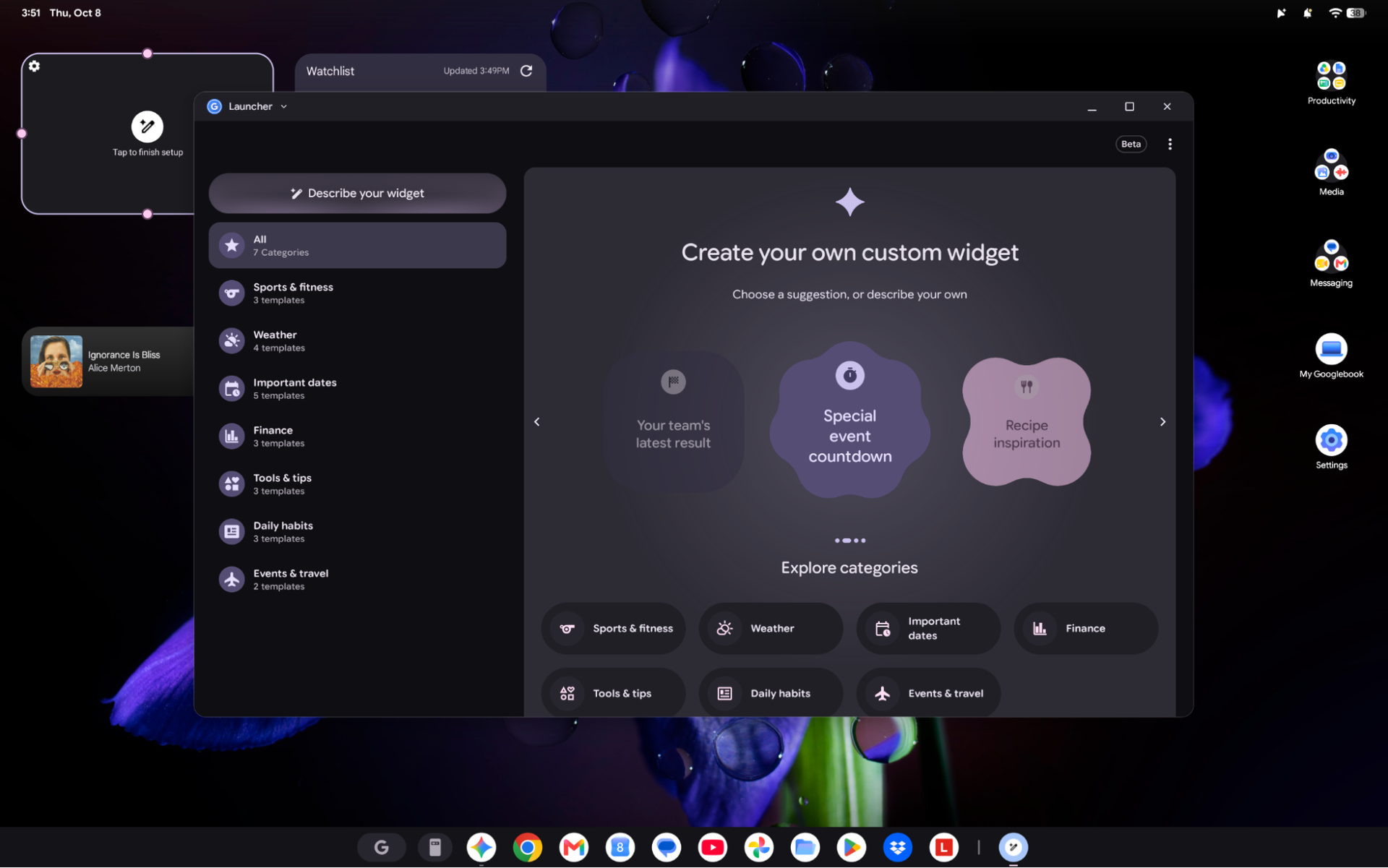
The idea of making your own widget is really neat, but I wish it was more flexible. Sure, countdowns and motivational quotes are fun, but when I asked the AI to create a widget showing me CPU usage, it denied me, expressly telling me that system telemetry wasn't allowed.
The most impressive thing, which Google should talk about even more, is Rambler. This isn't new to Googlebooks - it's already on Android phones. It lets you talk, make mistakes, and still correct your statements into what you ultimately meant. For people who talk to their computers and use dictation, this is powerful to have on the computer alongside the phone.
The one I worry the most about is Antigravity. This comes preinstalled, without a care if you are a developer. In theory, this is empowering Googlebook users to make their own apps. On the other hand, there's a reason AI models keep asking for human intervention and approval. The agentic-first IDE may let anyone make prompts, but given that your agents can execute shell commands, it's far safer if you understand what they're doing. I expect many people to just hit "yes" without knowing what they're talking about, but hey, it's just bringing vibe coding to more people.
Gemini is also sprinkled throughout Google's apps, and you can also talk to it with a simple "Hey Google" command. I would argue these systems are best if you are a Gemini user, if only because you'll get so many features.
The Debian Linux TerminalEach Googlebook comes with a Debian Linux terminal and virtual machine preinstalled. I was able to install apps, like the photo editor GIMP and Steam for gaming, but I don't find these Linux apps decent replacements for most people.
For starters, the apps in the VM live there, and only there. You can't put them in the app drawer and run them separately later.
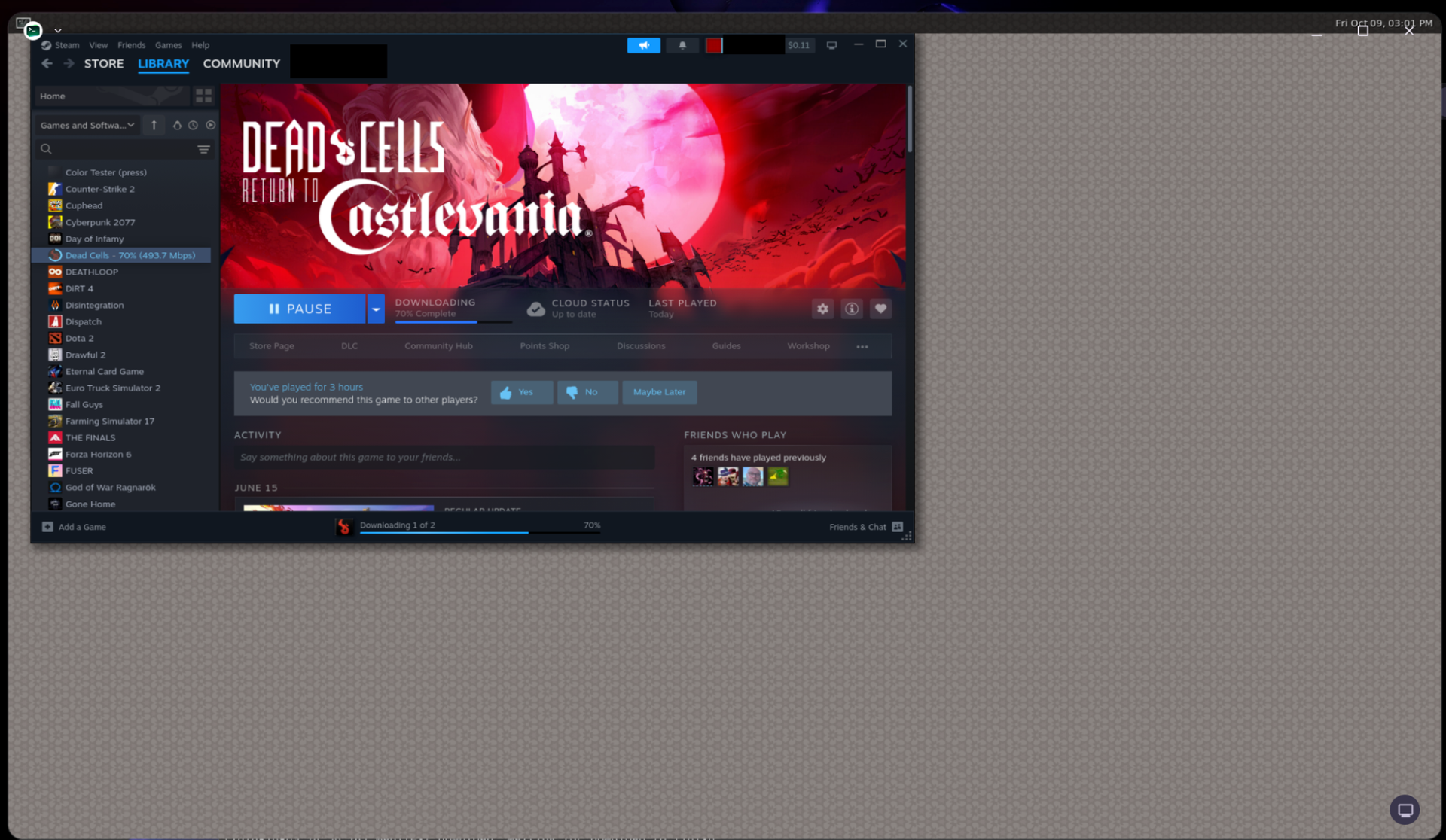
The VM is also laggy. Even lightweight games like Dead Cells didn't always run fluidly, and I had some issues with the sound making popping and groaning noises.
Resizing windows and using some tools in GIMP resulting in its own lag. This might work for basic development testing, but for applications, you're better off sticking with the Play Store or web apps.
Too early to tell, but already on saleIt's too early to render judgment on the ultimate fate of Googlebooks. If you like using Android on your phone and do everything on the web or Android apps, you can make this work.
Google clearly has some work to do to make Googlebook OS feel truly at home with a keyboard and mouse. And it needs a ton of developers to optimize their apps to feel like you're not using them on a phone when you put them on a big screen. With enough of them, the Googlebook platform will feel far more friendly.
At the moment, I think people should wait and see how the Googlebook platform evolves. If you buy now, you're getting the early adopter experience. There's too much that doesn't work as it should for you to spend your hard-earned money on these. The hardware is there, but Google's software doesn't feel done.
Google should ensure users' favorite apps work no matter which silicon platform they use, and they should be darn sure their phone will work with the system they have. And prospective buyers should definitely wait and see if Google delivers on its promises that developers will improve their apps.