Gigabyte X870 Aorus Infinity Motherboard Review: limited-edition, designed for extreme overclocking, but pricey for X870
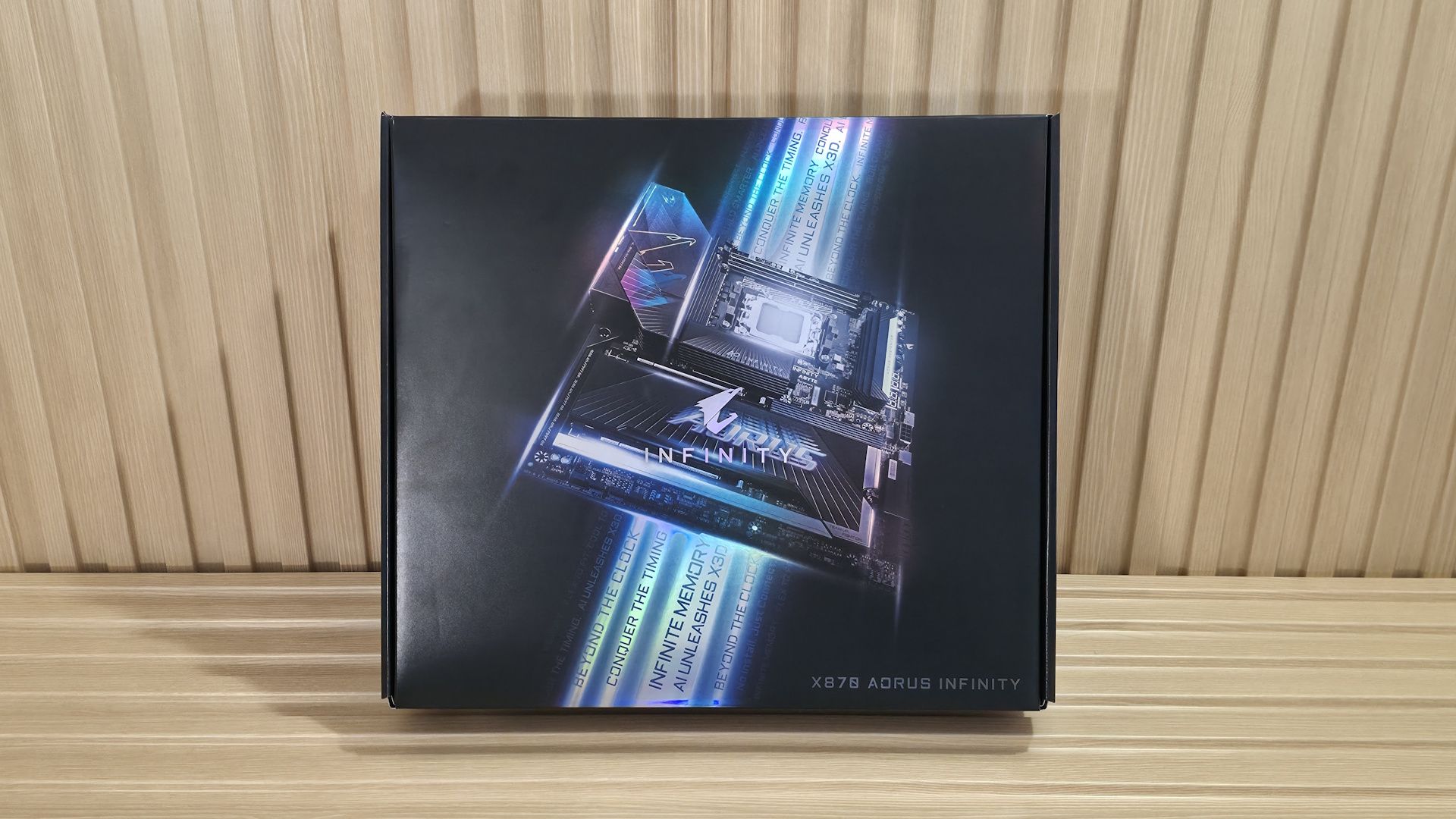
At Computex 2026, we saw Gigabyte's concept X870E Aorus Infinity Next motherboard using that incredible-looking space-age material for VRM cooling, along with something more practical: the X870 Aorus Infinity, a production board, not a concept. The Infinity is made for overclockers. Just look at the right edge: All those buttons and voltage read points make pushing the limits even easier. It sports a two-DIMM design, with the DRAM slots above the socket, prioritizing speed over capacity. Priced at an eye-opening $799.99, it's far from cheap (it is a 40th-anniversary limited-edition board), even for the enthusiast X870E platform, but it offers a wide range of features that work for nearly everyone.
As far as specifications go, the Aorus Infinity is well-equipped for an X870 board. You get eight total USB ports on the rear IO (one USB4), three M.2 sockets (one PCIe 5.0), and four SATA ports for storage, fast networking with 5 GbE and Wi-Fi 7 (320 MHz), and a quality last-gen flagship-class audio codec. And of course, there are all of the features designed for overclocking, including robust power delivery and the Overclocking kit, with several buttons and voltage read points, to take some of the complications of extreme overclocking down a notch. Gigabyte also lists support for a staggering DDR5-11400(OC), but it needs manual tweaking, specialized BIOS fine-tuning, and the right hardware (likely an APU with an excellent IMC).
On the performance front, the X870 Aorus Infinity delivered average-to-above-average results across most tests, using our primary Kingston DDR5-6000 kit, which is what we like to see. It proved competent not only in daily office tasks and other productivity functions, but also as a solid gaming platform. Overall, this board is a well-rounded performer.
Below, we'll examine the Aorus Infinity's performance and other features, and decide if it has a chance to make our list of the best motherboards. But before we share test results and discuss details, here are the specifications from the Gigabyte website.
Socket | AM5 (LGA 1718) |
Chipset | X870 |
Form Factor | ATX |
Voltage Regulator | 22 Phase (18x 110A SPS MOSFETs for Vcore) |
Video Ports | (1) USB4 |
USB Ports | (1) USB 4 (40 Gbps) Type-C |
Network Jacks | (1) 5 GbE |
Audio Jacks | (2) Analog and SPDIF |
Legacy Ports/Jacks | (2) PS/2 ports (keyboard and mouse) |
Other Ports/Jack | |
PCIe x16 | (1) v5.0 (x16, x8) |
PCIe x8 | |
PCIe x4 | |
PCIe x1 | |
CrossFire/SLI | |
DIMM Slots | (4) DDR5-11400+(OC), 128GB Capacity |
M.2 Sockets | (2) PCIe 5.0 x4 (128 Gbps) / PCIe (up to 110mm) |
SATA Ports | (4) SATA3 6 Gbps |
USB Headers | (1) USB v3.2 Gen 2x2 (20 Gbps) Type-C |
Fan/Pump Headers | (8) 4-Pin (Accepts PWM and DC) |
RGB Headers | (3) 3-pin ARGB Gen2 headers |
Diagnostics Panel | (2) 2-character Debug |
Internal Button/Switch | CMOS, Retry, Reset, Power, ECLK +/-, BIOS and OC Trigger switches |
SATA Controllers | |
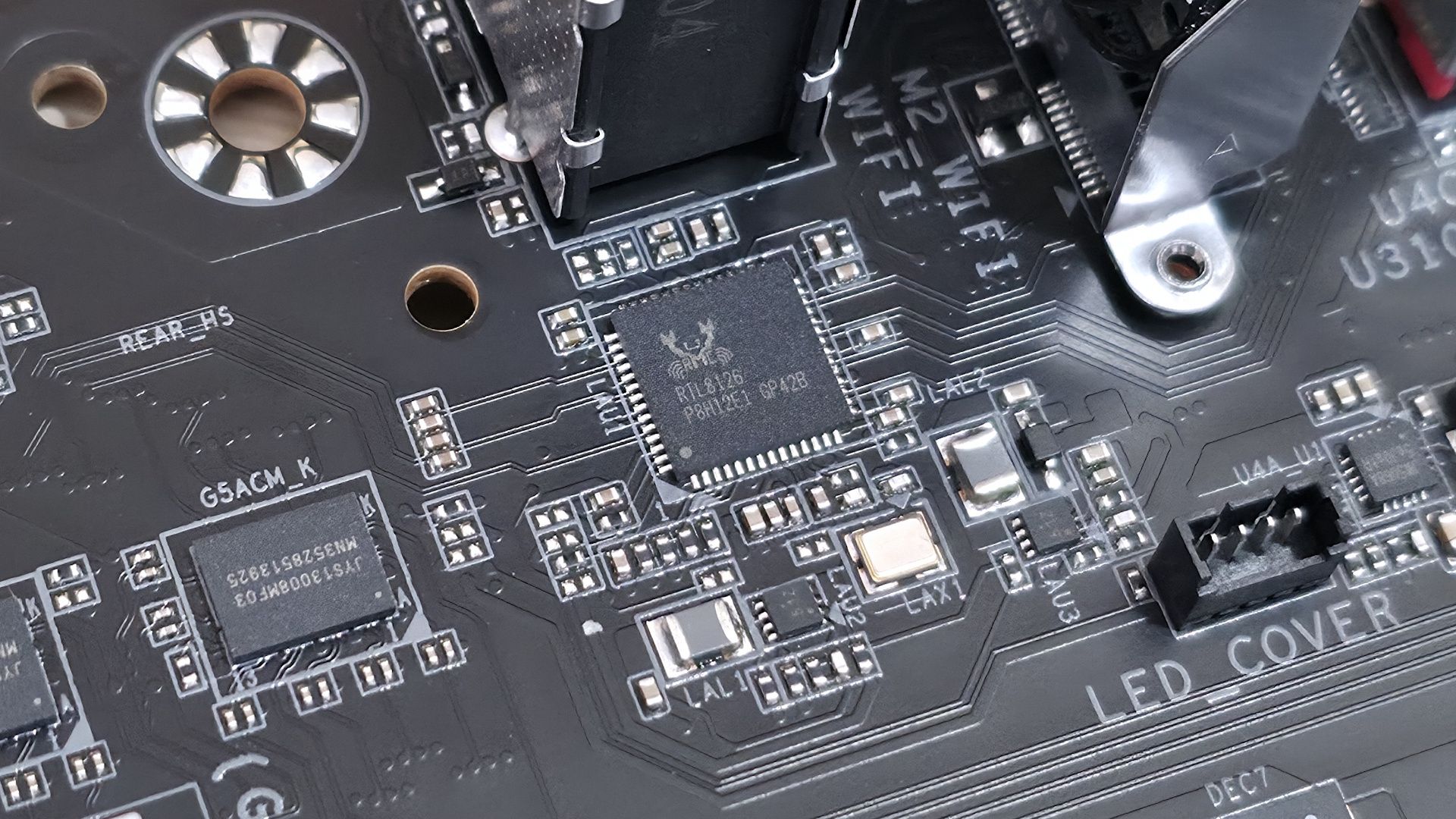
Ethernet Controller(s) | (1) Realtek RTL8126 5 GbE |
Wi-Fi / Bluetooth | Qualcomm QCNCM865 Wi-Fi 7 - 320 MHz, 6 GHz, BT 5.4 |
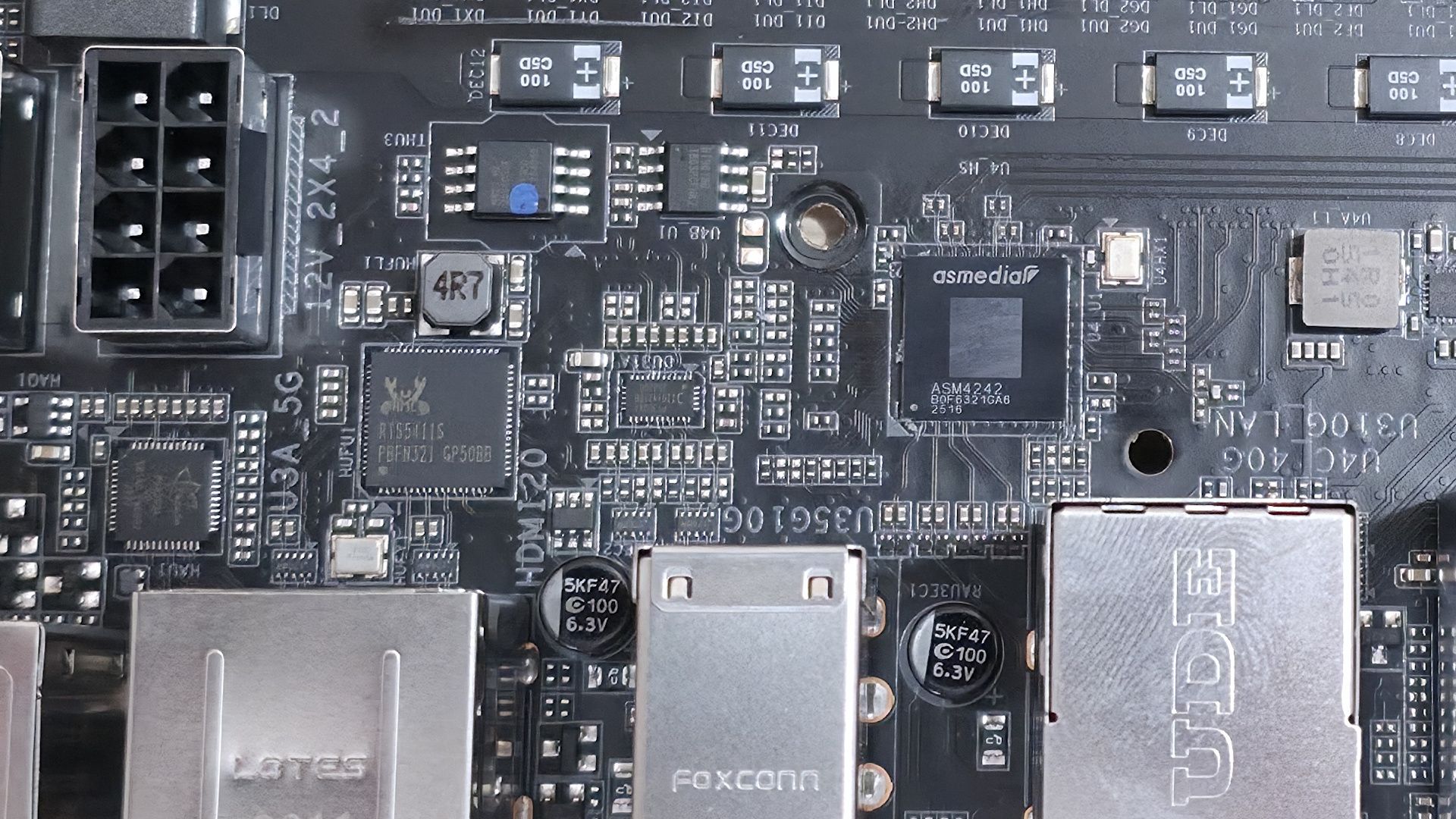
USB Controllers | ASMedia ASM4242 |
HD Audio Codec | Realtek ALC1220 |
DDL/DTS | / DTS:X Ultra |
Warranty | 3 Years |
Gigabyte includes the typical accessories, including two SATA cables and two 2-pin thermistors, a front panel connector, a Wi-Fi EZ Mag connector for the Wi-Fi Antenna, a manual, and an Aorus sticker. It also includes the CPU Thermal Matrix, two plates (a backplate and one that mounts on top) designed to mount around the socket to reduce VRM and RAM temperatures by up to 8.5 degrees Celsius, which can benefit both the average user and the extreme overclocker.
Design and Features of the Gigabyte X870 Aorus Infinity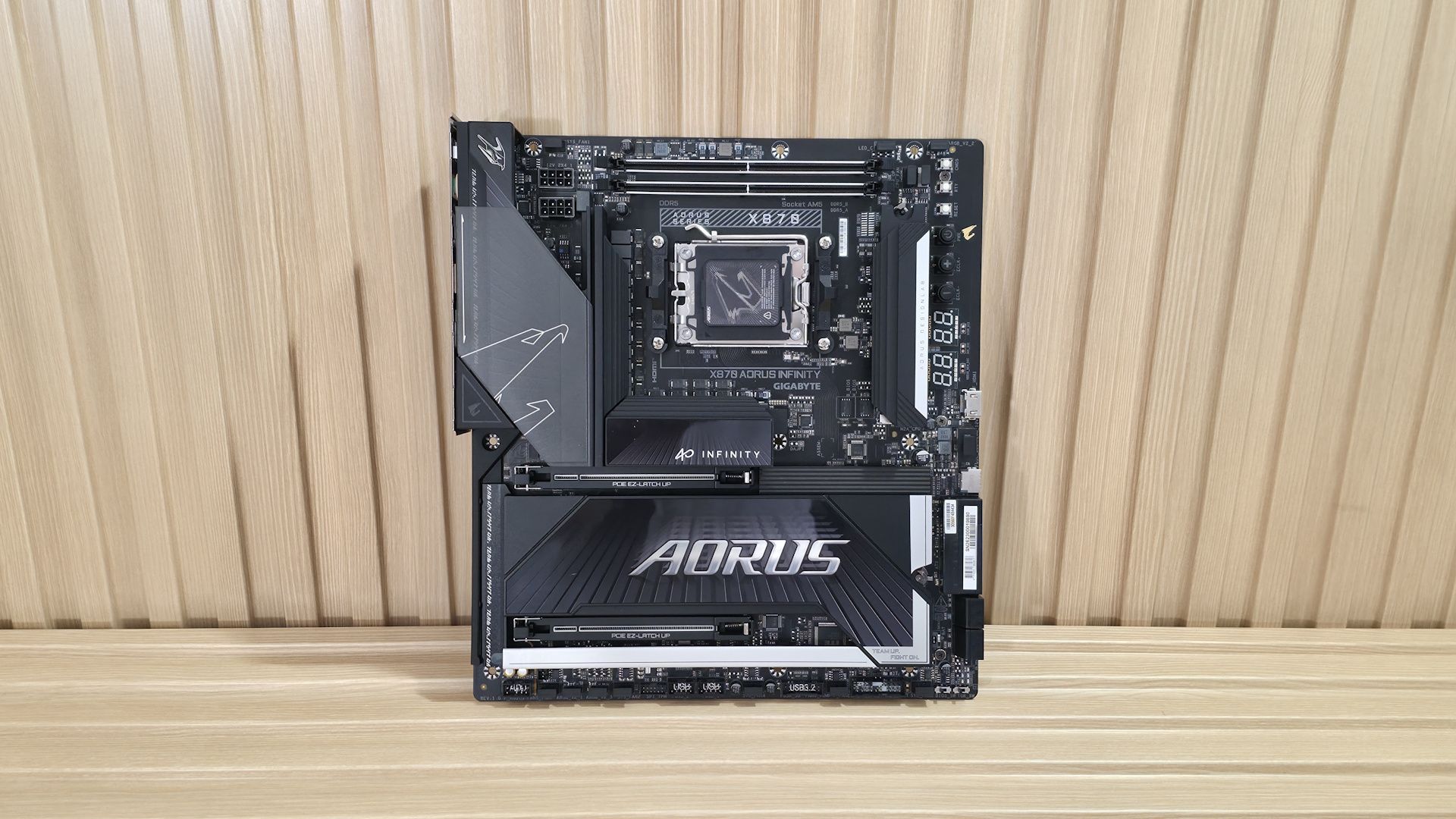 Future
 Future
 Future
 Future
 Future
 Future
 Future
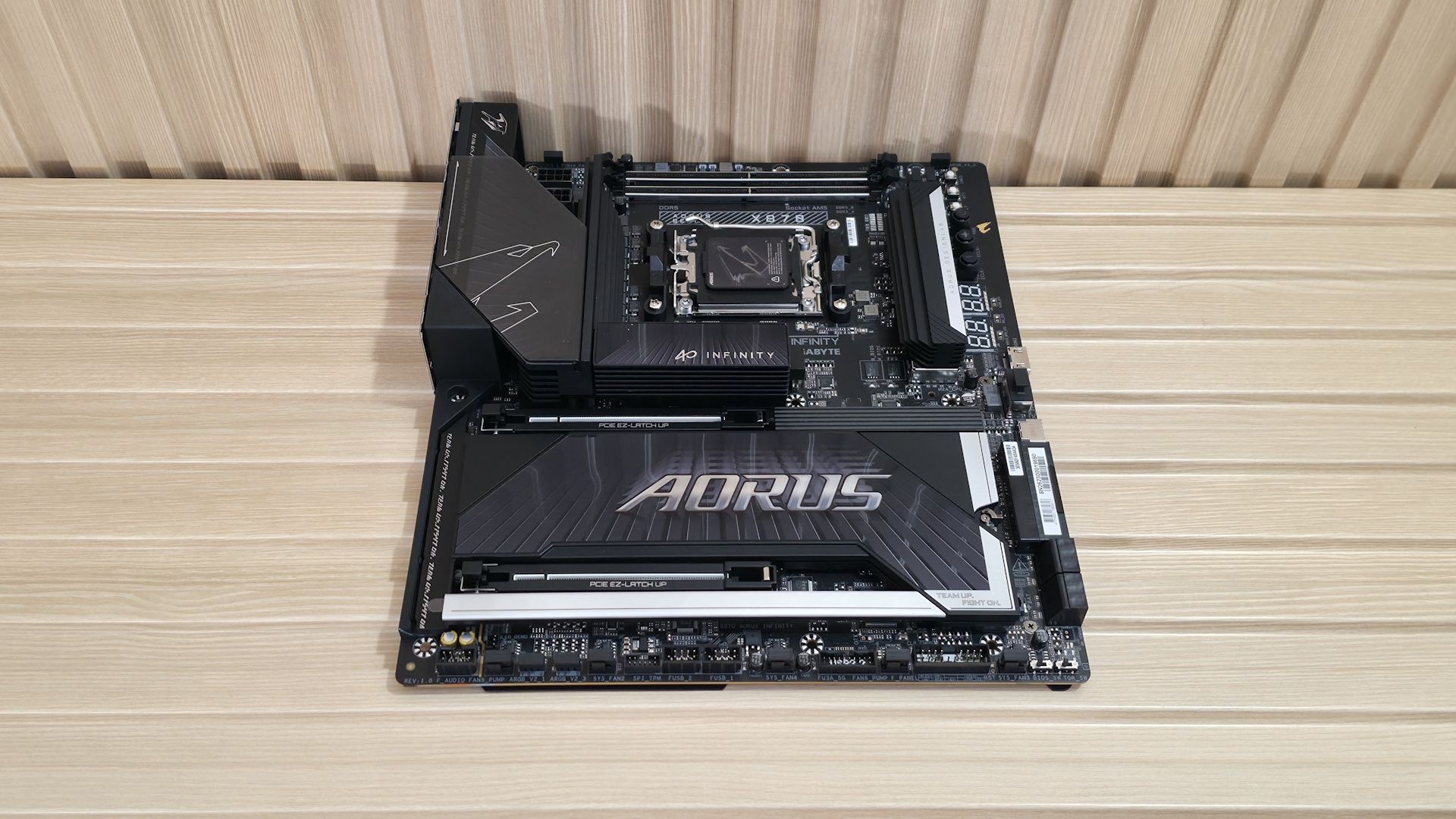
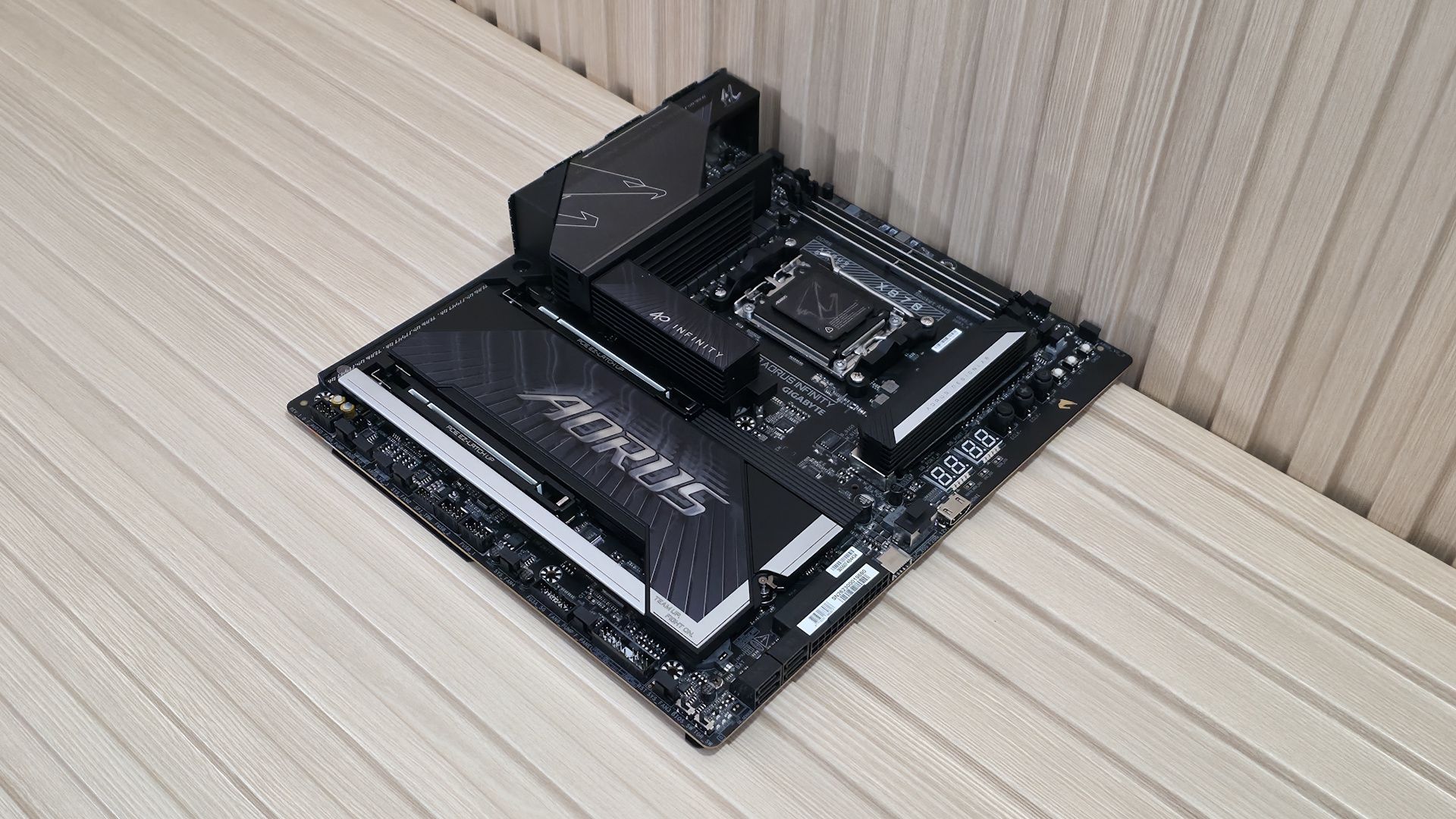
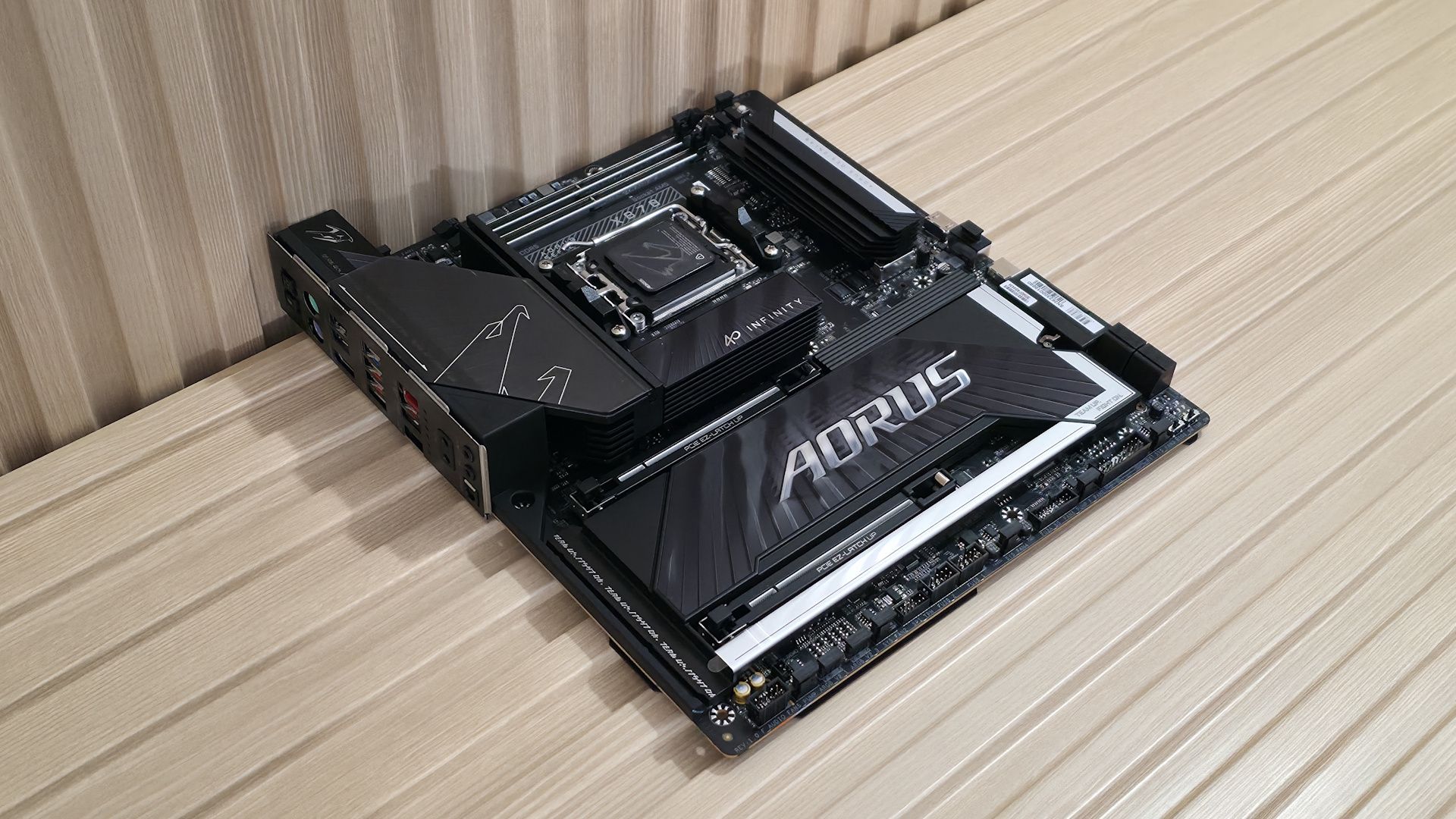
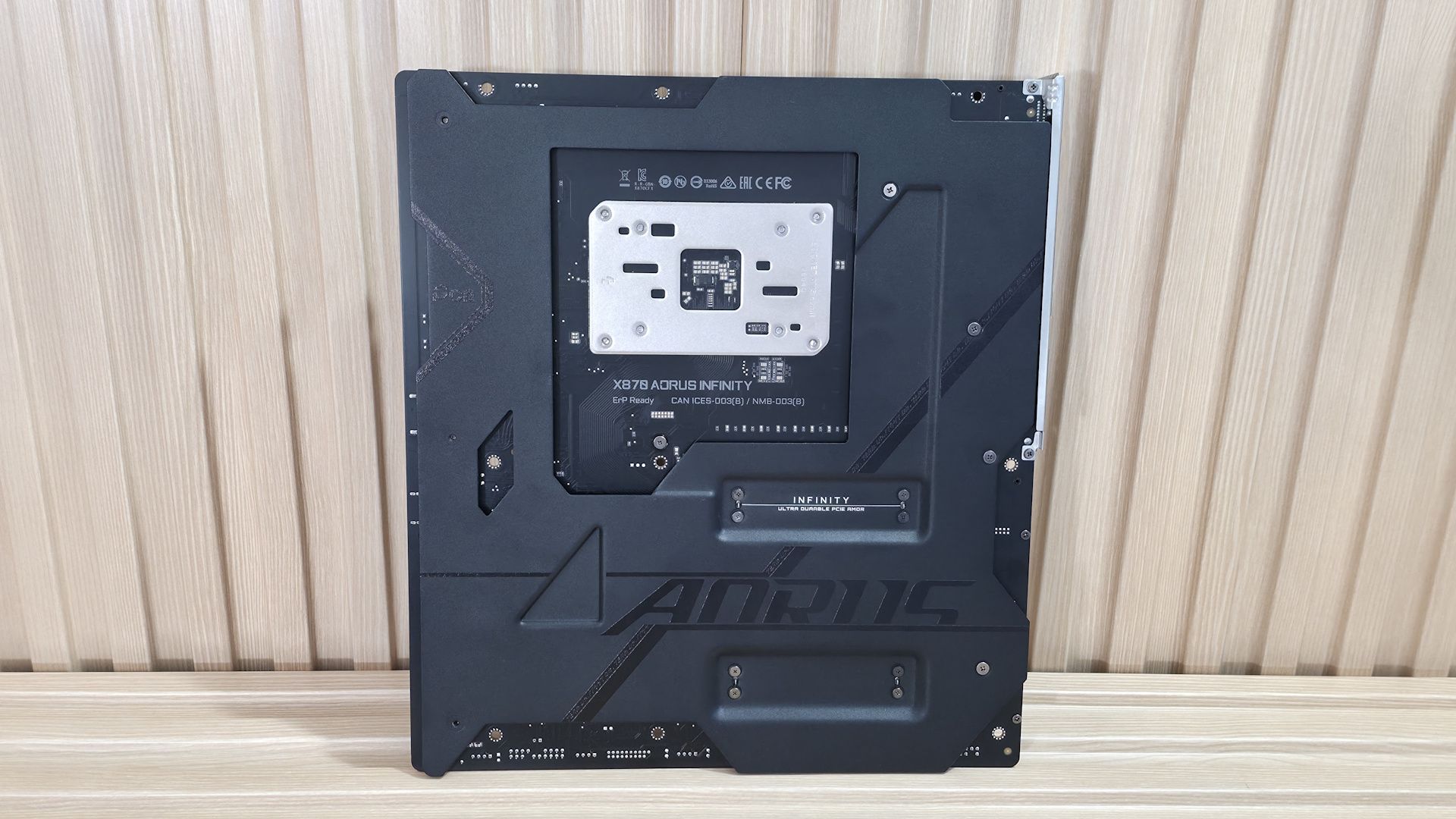
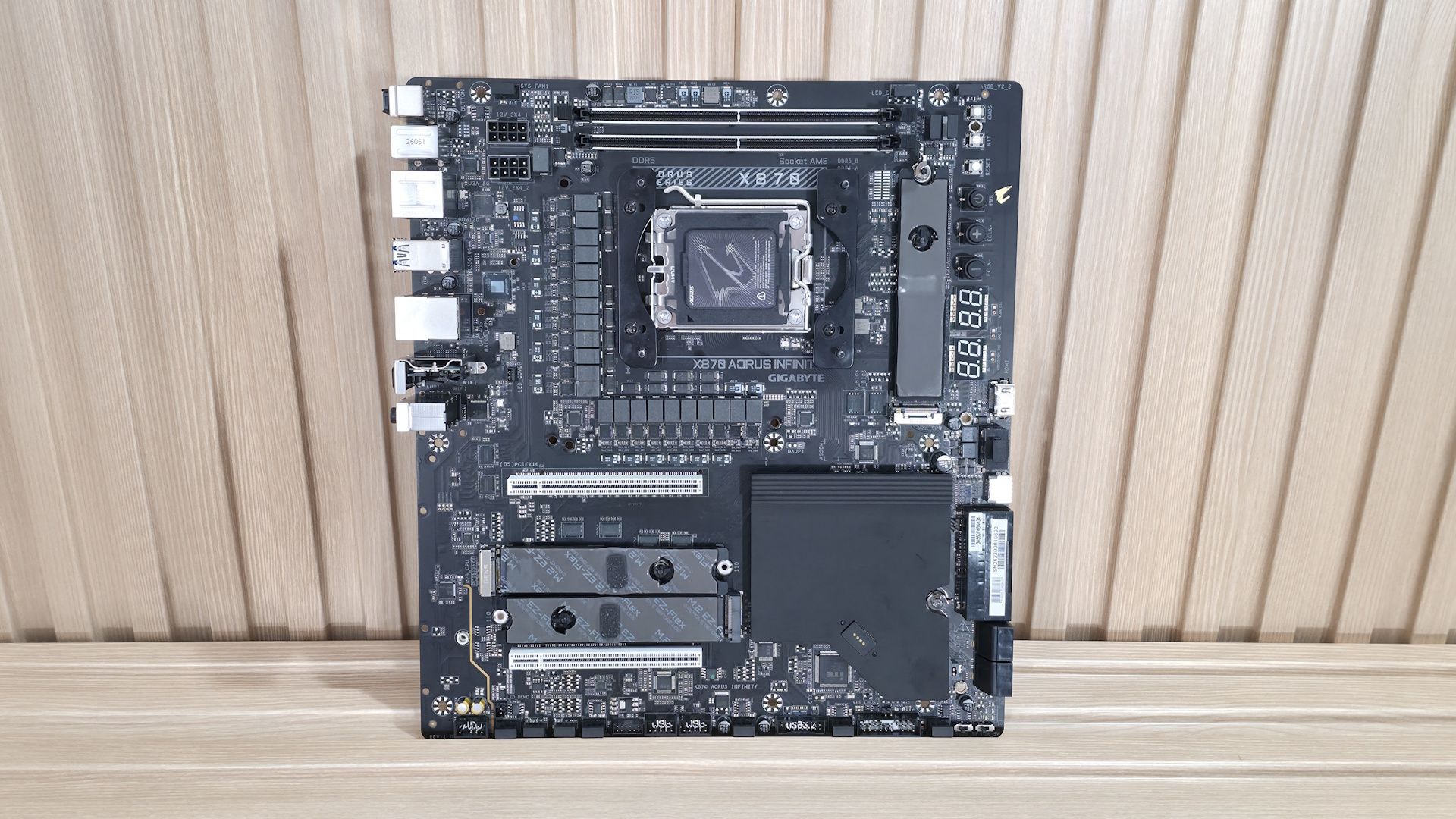
The Aorus Infinity's design stands out primarily for its rotated socket area and top DRAM slots. The left VRM area features a unique heatsink with a plastic cover that slides open to install 8-pin EPS connectors, and slides closed to cover them. On top is the Aorus Falcon, representing the brand, and it's backlit by RGB lighting from below. Where you'd normally find the top M.2 socket (below the CPU socket) is now populated with VRMs, and the M.2 is to the right, running vertically where the DRAM slots normally are. In essence, the entire socket area primary M.2 socket and DRAM slots are rotated 90 degrees counterclockwise.
The bottom portion of the board uses reinforced PCIe slots and plate-style heatsinks with DIY-friendly features like PCIe EZ Latch Up (which works similarly to Asus' method they had to change) and EZ Latch Plus/Click for screwless M.2 mounting. Overall, it's a good-looking board that looks good inside any dark chassis.
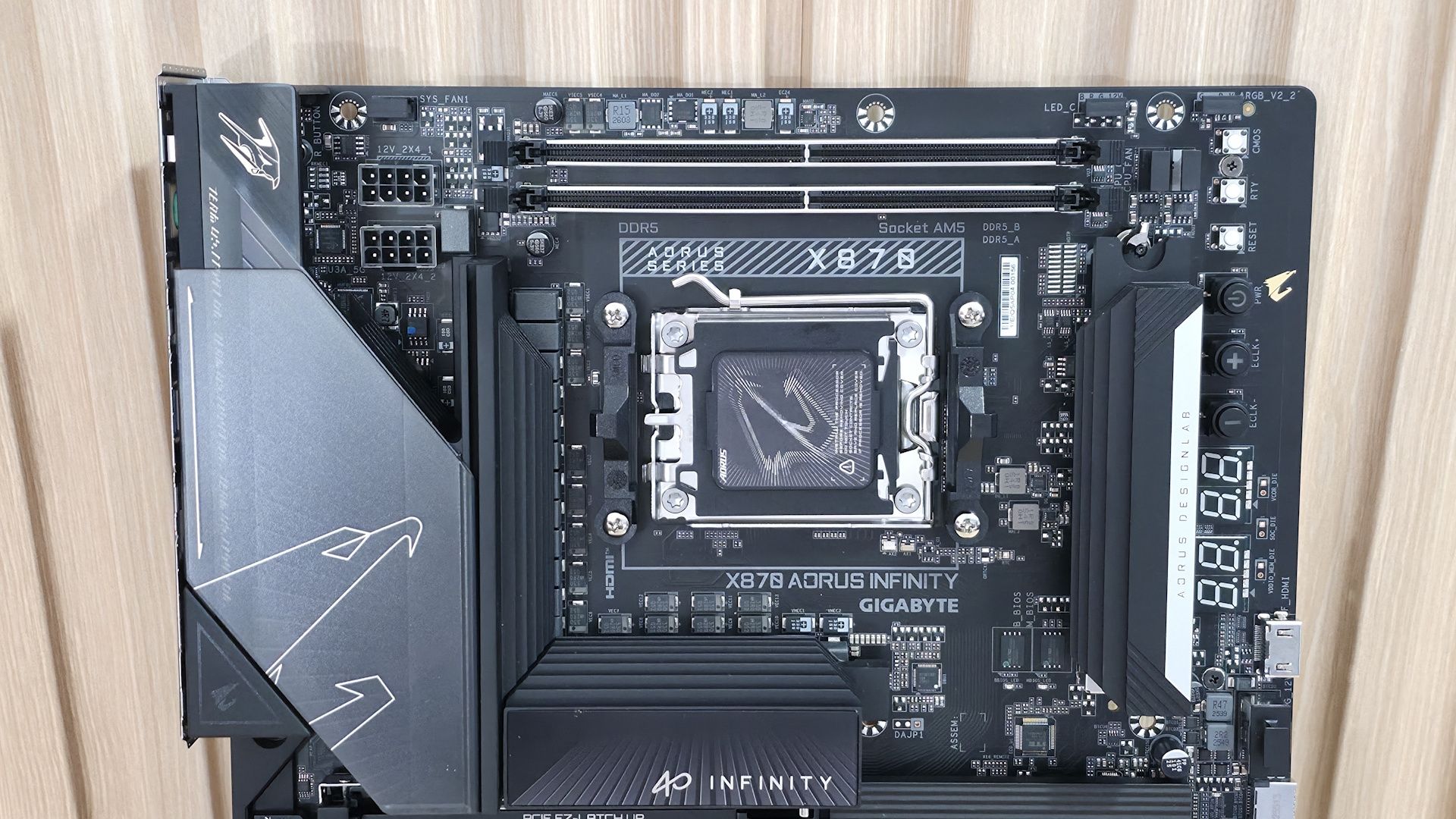
Starting our tour in the top left, we get a better look at the sliding cover on the large, heatpipe-connected (big 8mm heatpipes) heatsinks. The smoked plastic piece on top slides down to allow access to the two 8-pin EPS connectors (one required). Connect the leads from the power supply, then slide the piece up to hide the unsightly wires. The only RGB element on the board is the Aorus Falcon flying high on the VRM heatsink, with RGB lighting radiating a frosted glow from below.
The two DRAM slots on top of the board have locking mechanisms on both sides. Gigabyte lists support up to an incredible 9600 MT/s and has/had a record on this board reaching an insane 11,400 MT/s (surely that's achieved with cherry-picked processors and RAM kits) with heavy manual tweaking. Still, it is possible. In a nod to how well this dual-DIMM-slot board handles RAM, it's one of the rare motherboards that lets our Ryzen 9 9900X run our Klevv DDR5-8000 kit. Normally, that's only reserved for the APU and its superior IMC or other (but not all) two-DIMM boards.
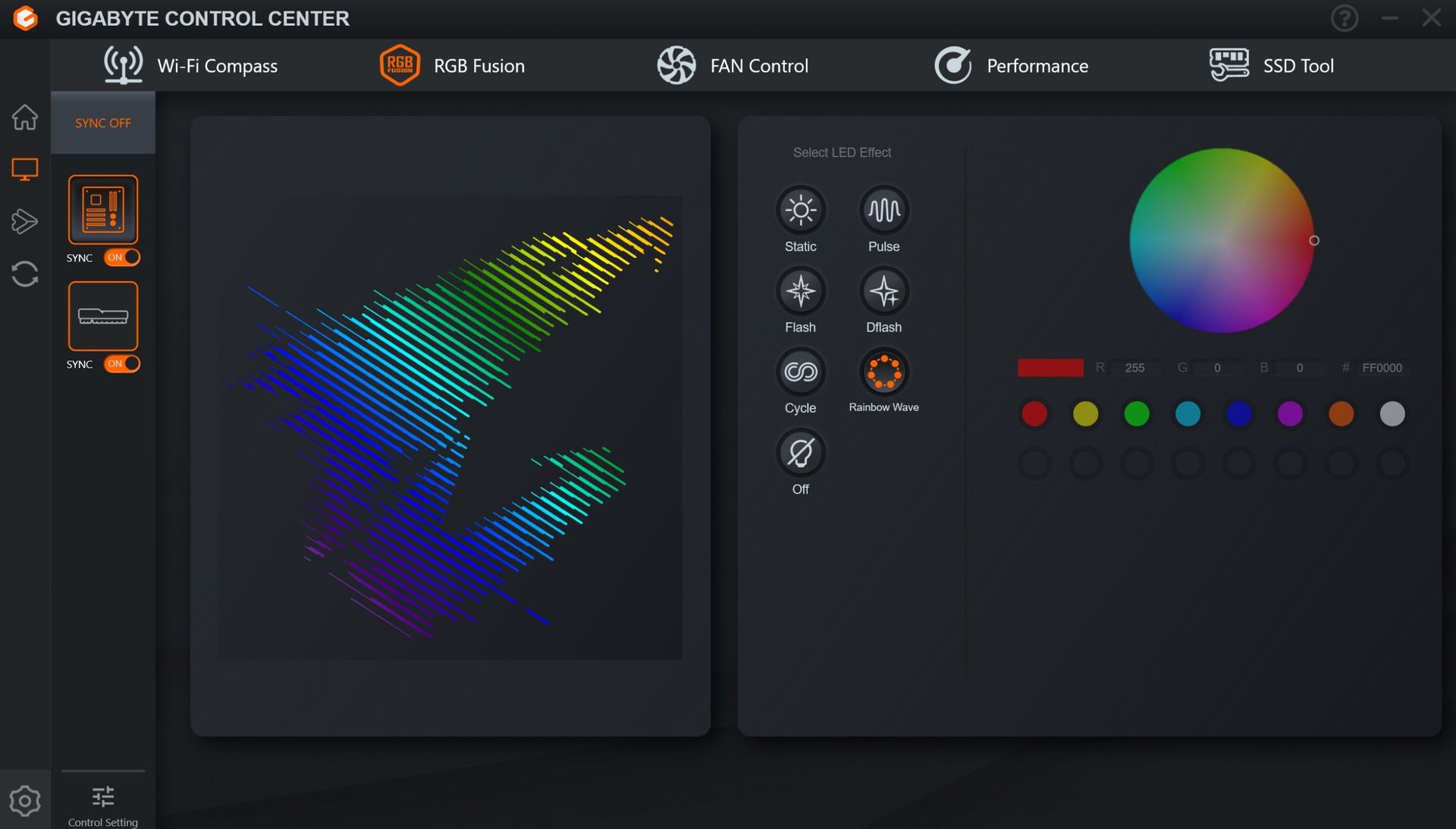
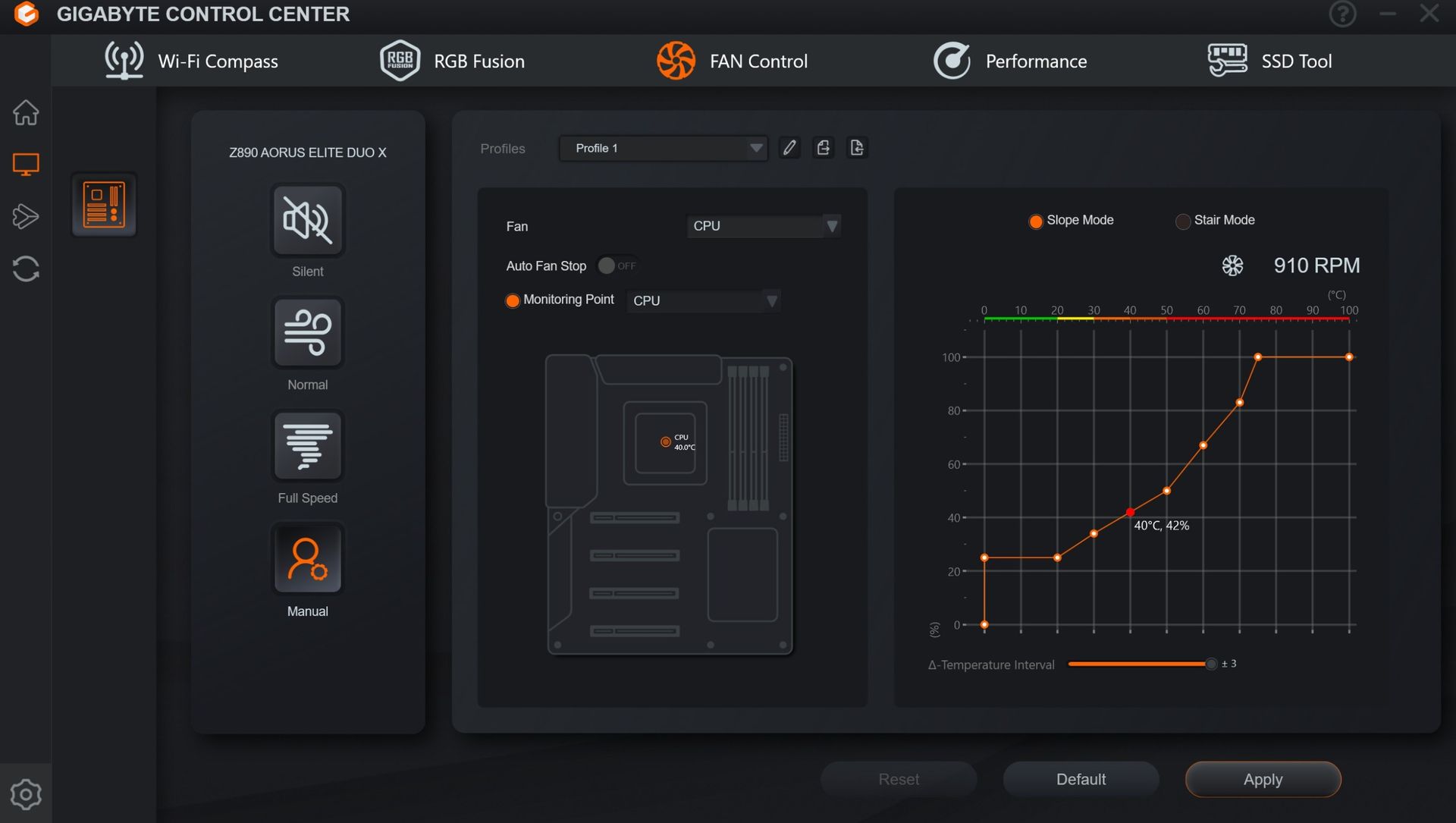
Moving past the socket, we hit our first M.2 slot, running vertically where you would normally see RAM slots. It's also one of two CPU-connected M.2 sockets, both supporting PCIe 5.0 x4 (128 Gbps) speeds and 110mm drives. Above that are two (of eight) 4-pin fan headers, each supporting PWM or DC-controlled devices. The BIOS or Gigabyte Control Center (GCC) controls these headers. Above that are two RGB headers, a 3-pin ARGB (one of three) and a 4-pin RGB header. The RGB Fusion app in GCC controls the integrated RGB feature and anything attached through the headers.
Last but not least, on the top half of the board is the Overclocking Kit and EZ-Debug area. This is what makes the board unique compared to normal' motherboards (ones that aren't focused on overclocking). Here we see three simple white buttons: a CMOS clear button, a cold reset button for cold boot, and a reset button.
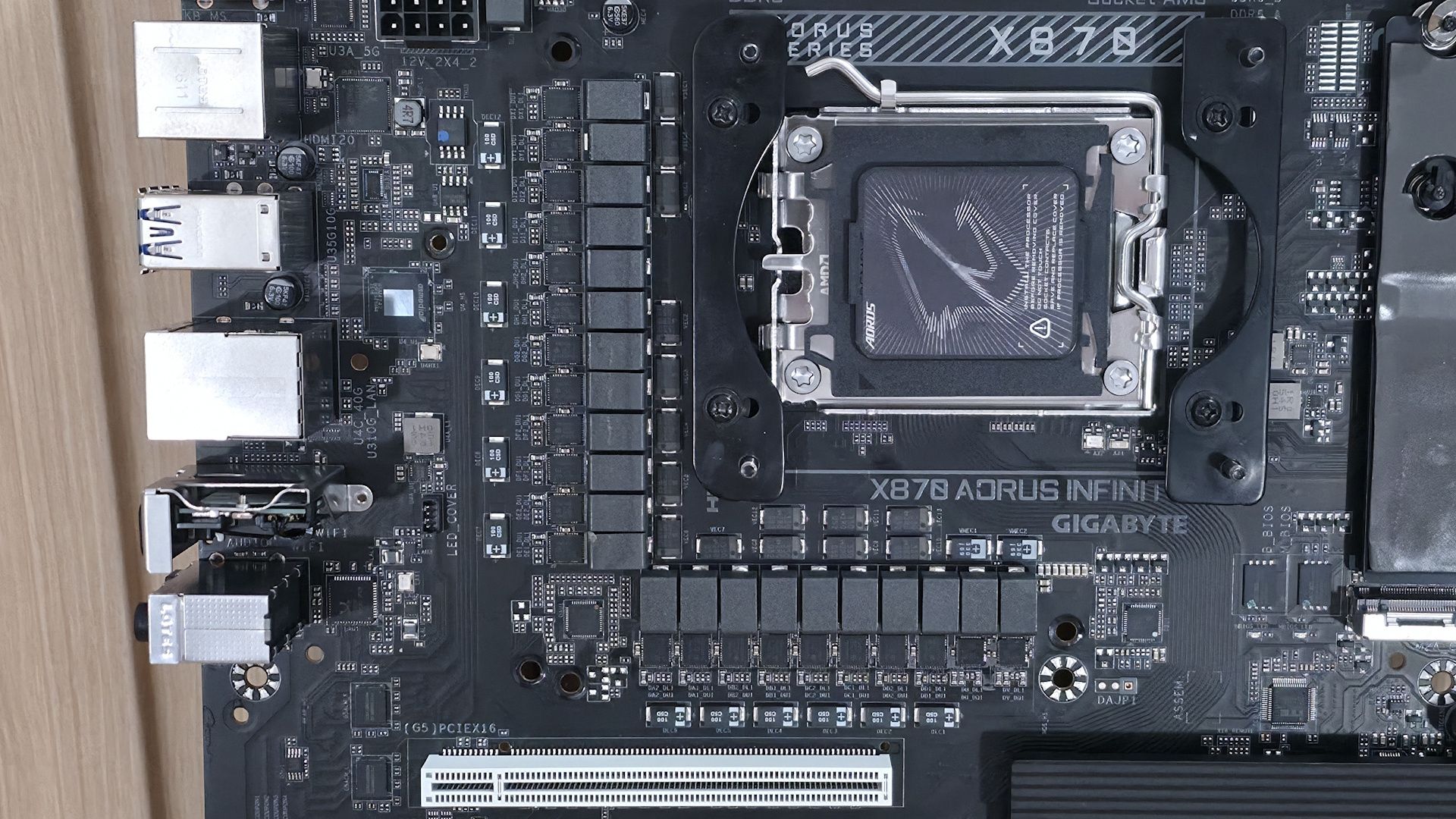
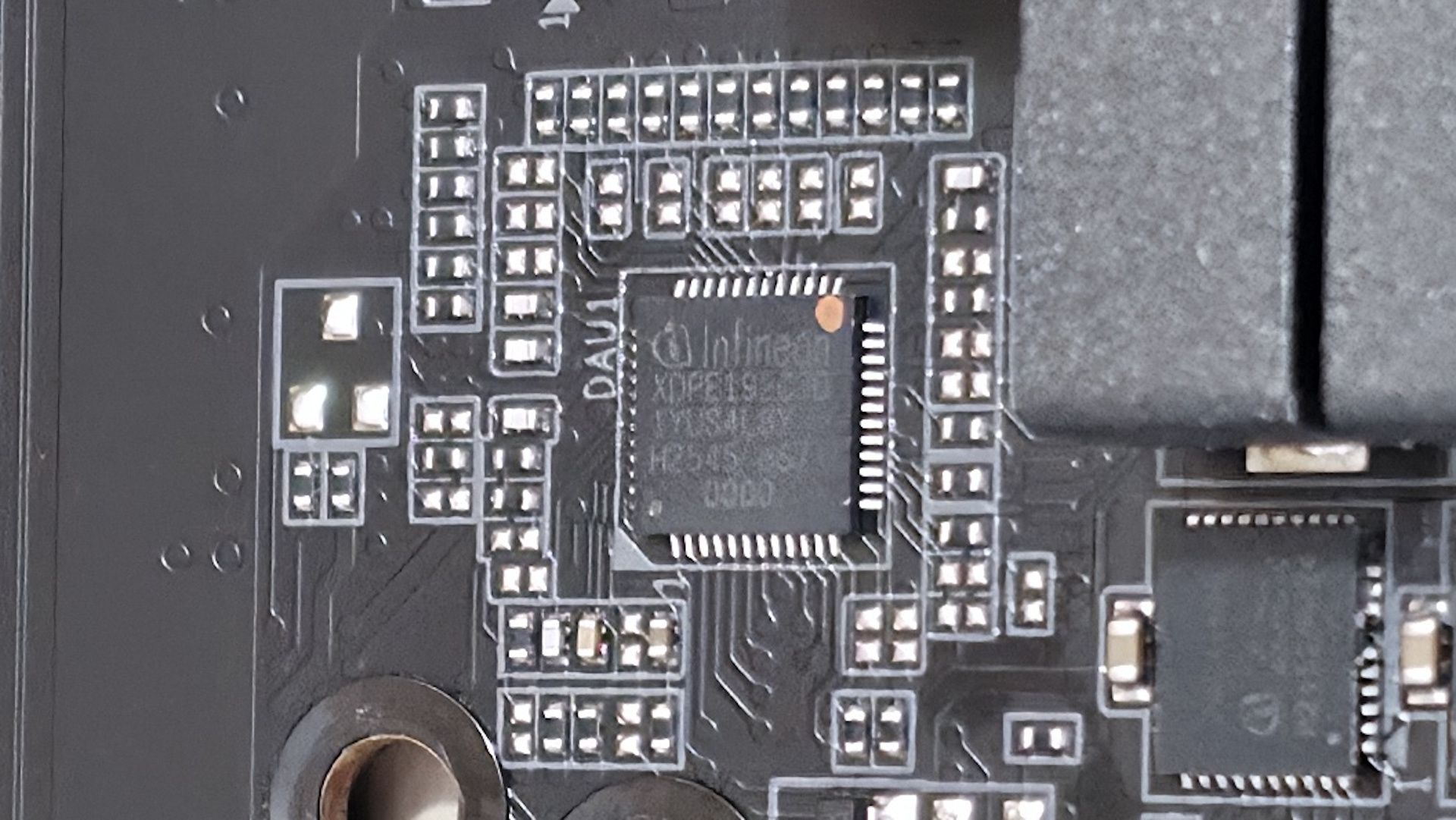
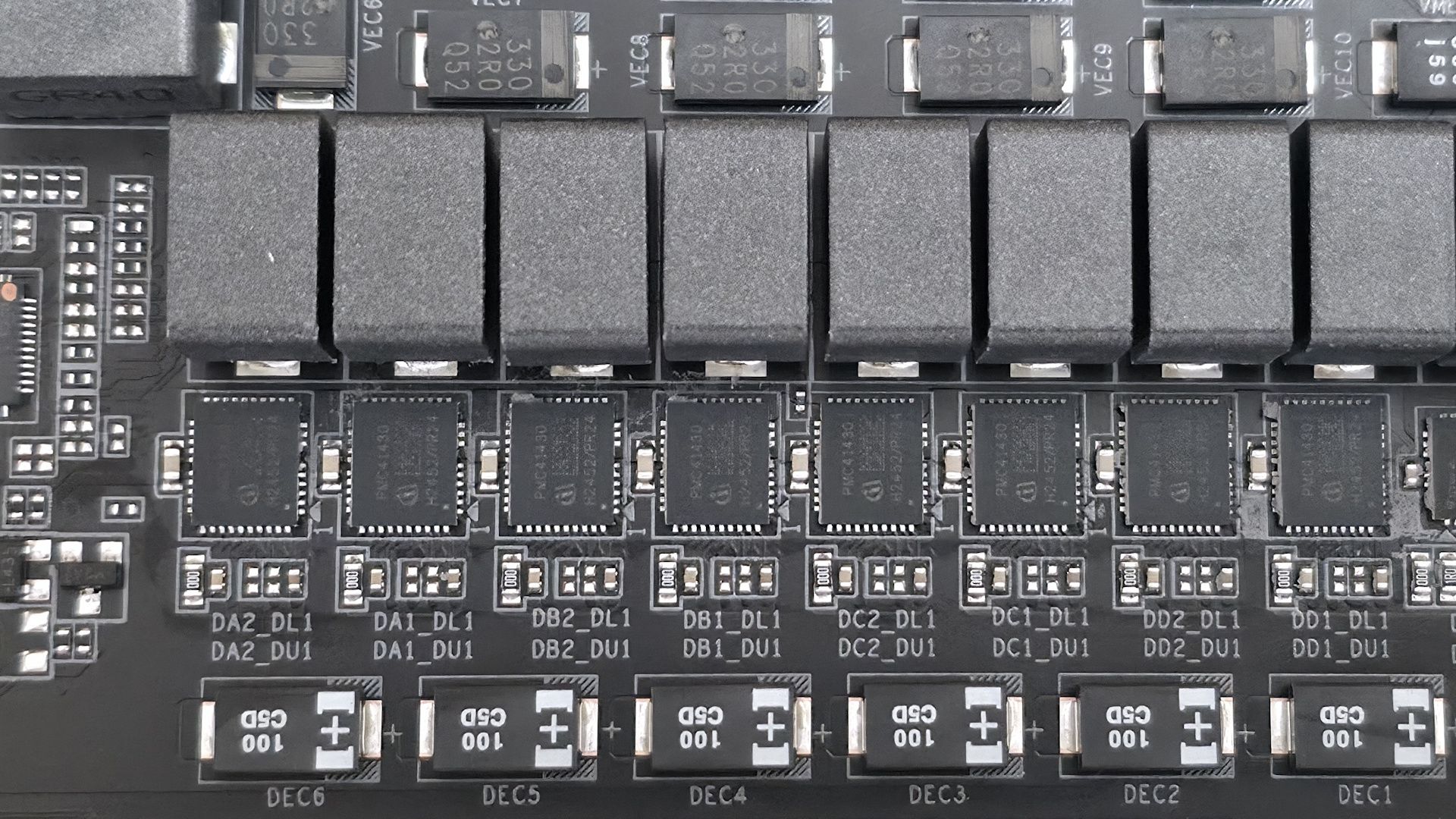
On power delivery, we see a high-end solution with 22 phases, 18 dedicated to Vcore. Power comes from the 8-pin EPS connector(s) and goes to the Infineon XDPE192C3D 12-phase PWM controller using a teamed configuration. From there, it moves to the powerful Infineon PMC41430 110A Smart Power Stage (SPS) MOSFET/gate driver. The 2,200A available will easily handle anything you throw at it, including flagship-class processors like Ryzen 9 9950X or Ryzen 9 9950X3D2, even with extreme cooling methods
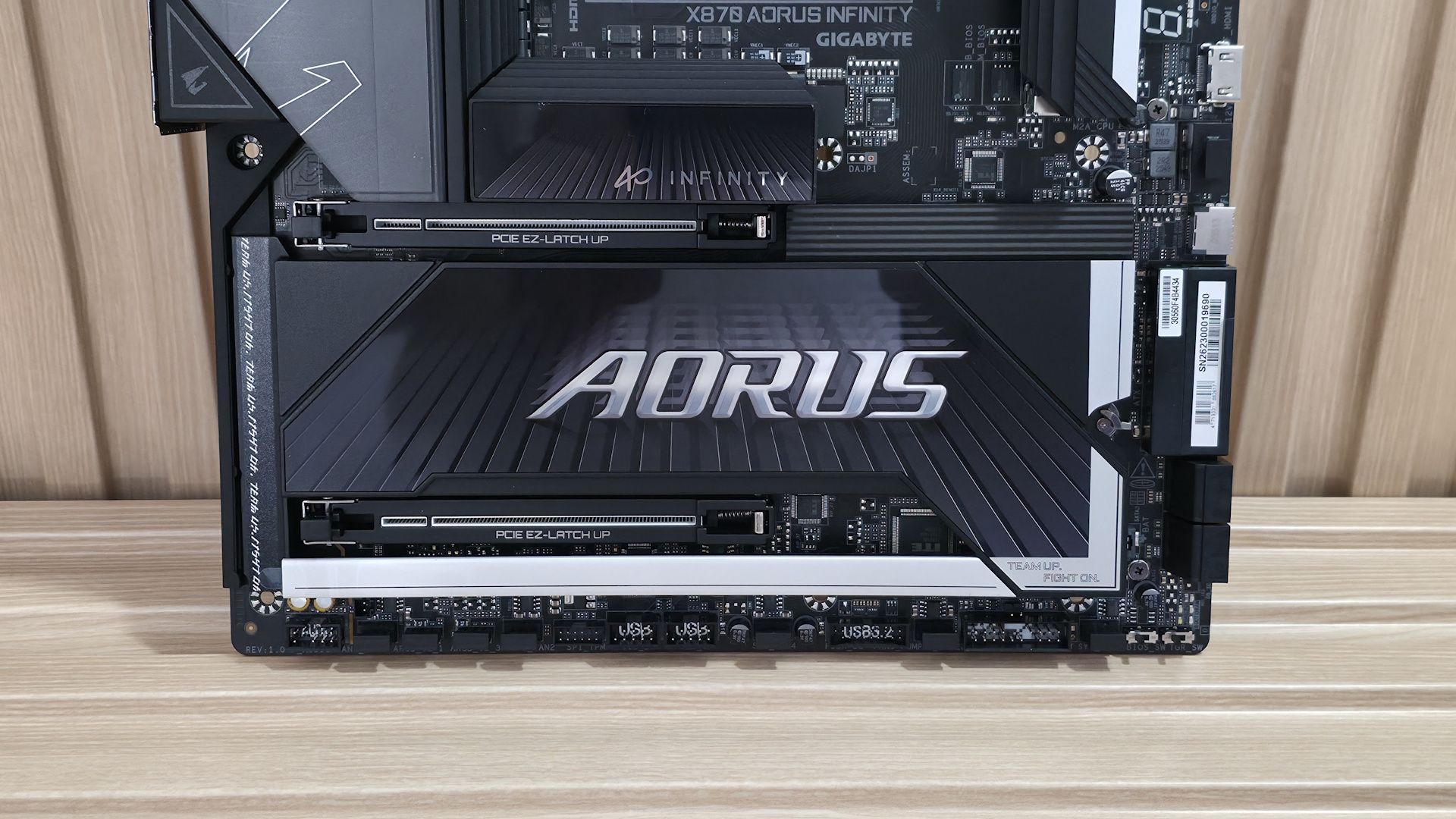
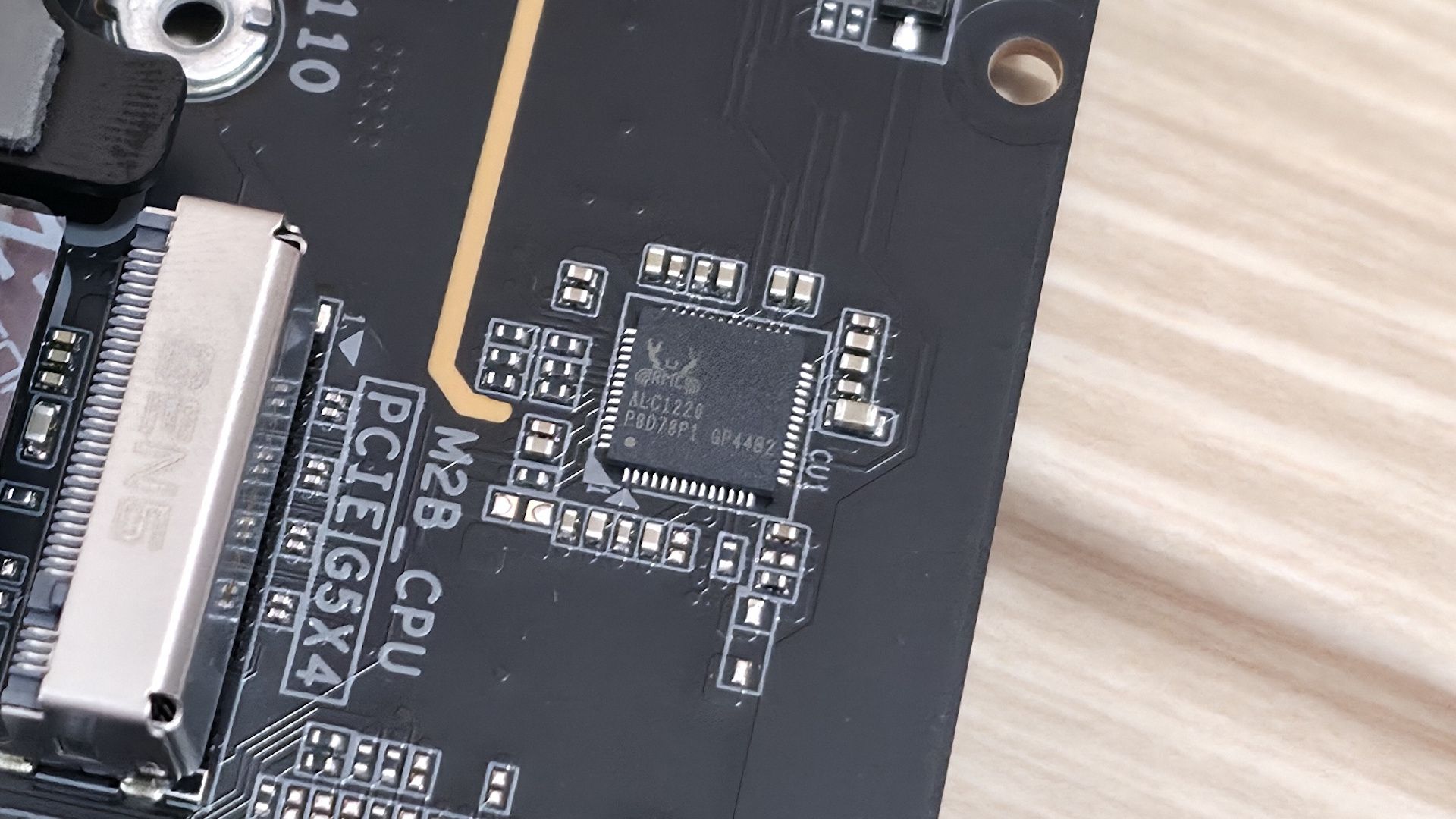
On the bottom half of the board, starting on the left, the audio section is hidden under heatsinks and shrouds. Here, we spy the last-gen flagship Realtek ALC1220 codec and a couple of dedicated audio capacitors. You won't find a DAC or integrated amplifier, but this board targets overclockers, and we shouldn't expect that from this type of board. That said, you'll be perfectly happy with this solution.
In the middle of the board are two full-length PCIe slots, both reinforced and using Gigabyte's PCIe EZ-Latch Up, which brings back bad memories of Asus' implementation that got skewered for scratching video-card PCIe connectors. Here's hoping Gigabyte learned from Asus. The top slot is your primary for graphics and runs up to PCIe 5.0 x16. The bottom slot, also CPU-connected, runs up to PCIe 5.0 x8. When you populate the bottom slot, the top slot drops to x8 speeds (and also supports bifurcation in the BIOS).
Under the large plate-style heatsink with the Aorus branding are two other M.2 sockets (M2B_CPU and M2D_SB). The top socket, M2B_CPU, as the name implies, connects through the CPU and runs at PCIe 5.0 x4 (128 Gbps). Note that this socket shares bandwidth with the USB4 port. You can run it at PCIe 5.0 x2 (64 Gbps, like PCIe 4.0 x4) or disable the USB4 port altogether for full M.2 bandwidth. This isn't ideal for those who need two PCIe 5.0 x4 drives and USB4, but this split is common across vendors. All M.2 sockets also use Gigabyte's M.2 EZ-Latch Plus and EZ-Latch Click for easy M.2 installation. For anyone who may want to RAID their M.2s, the board supports RAID01/5/10 modes for NVMe (but RAID5 is only available with Ryzen 9000 series).
Along the right edge, we spot a vertical 8-pin PCIe connector that, when used, supports up to QC-USB 65W charging on the front panel (Type-C port). Below that are the front-panel USB 3.2 Gen 2x2 (20 Gbps) Type-C connector and the board's ATX power connector. Just behind the ATX connector are two 2-pin temperature headers for the two included thermistors. Below the ATX connector are the four SATA ports (supports RAID0/1/10).
Below that are five LEDs: four used for debugging during POST (CPU, VGA, DRAM, Boot), and an additional LED (orange) is for storage activity. We've also included several images of the board's active IC's. Gigabyte uses a mix of Infineon (PWM controller and MOSFETs) and Realtek (audio, USB, USB4, LAN, etc.).
 Future
 Future
 Future
 Future
 Future
At the bottom, several headers run the full width of the board, including front-panel audio and USB ports. A complete list of connectivity is listed below (from L to R):
- Front panel audio
- 4-pin fan header
- 3-pin ARGB
- 4-pin RGB
- 4-pin fan header
- TPM header
- (2) USB 2.0 headers
- 4-pin fan header
- 19-pin USB 3.2 Gen 1 header
- 4-pin fan header
- Front panel
- 4-pin fan header
- BIOS switch
- OC Trigger Switch
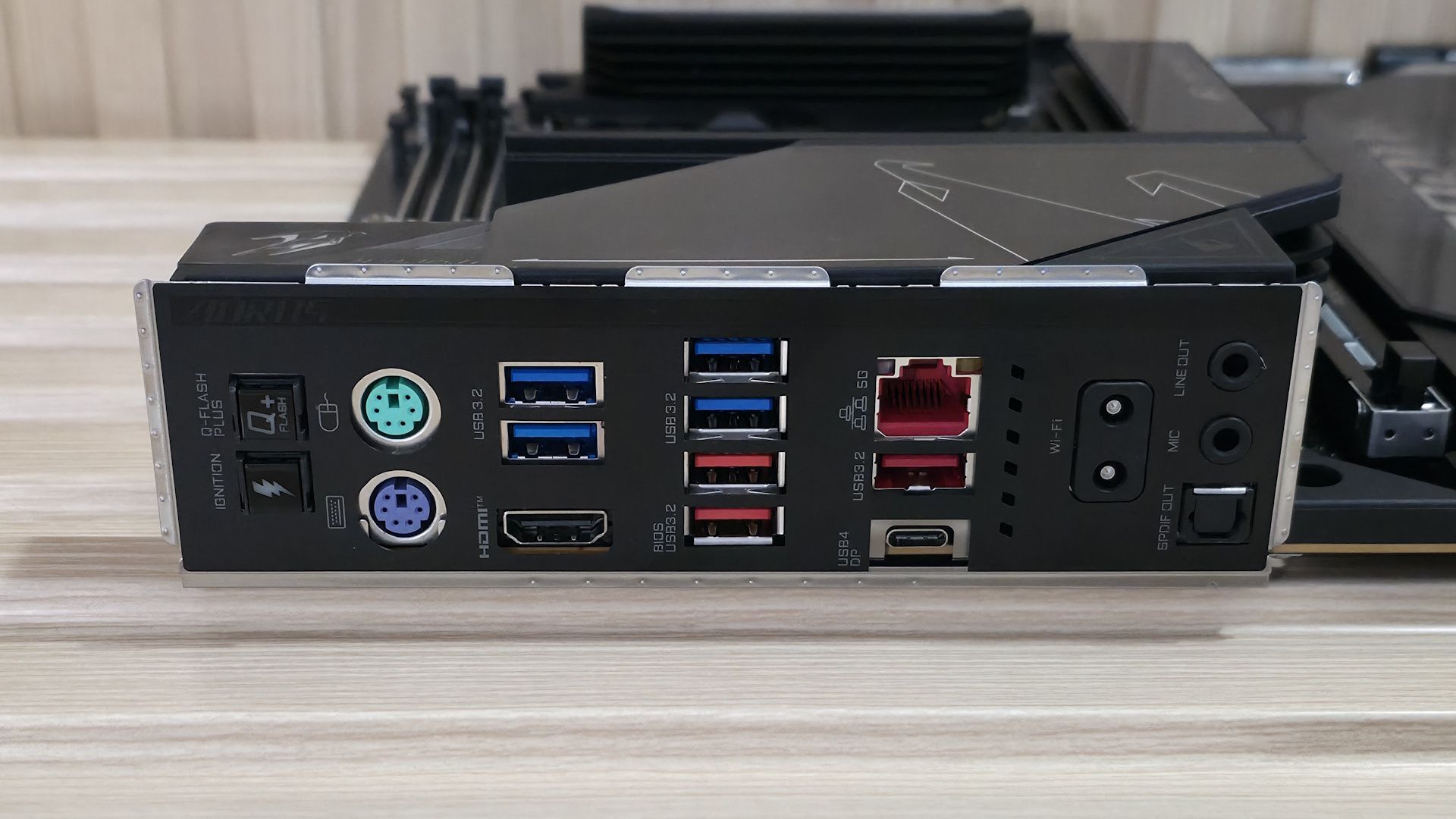
Working our way to the rear I/O, we can see it's packed with ports (even legacy PS/2) and buttons. On the left is the Q-Flash Plus button, along with the OC Ignition button, which lets users pre-test water-cooling setups when building the PC without booting. Next are two legacy PS/2 ports for a keyboard and mouse, best used for extreme overclocking and pushing the limits (PS/2 is less stressful on the system than USB). After that, we run into the HDMI port and two USB 3.2 Gen 1 (5 Gbps) ports.
Further right, we see another USB 3.2 Gen 1 port and two USB 3.2 Gen 2 (10 Gbps) ports (red; the bottom one is used for Q-Flash). The next stack holds the Realtek 5 GbE, another USB 3.2 Gen 2 port, and below that, the sole USB4 (40 Gbps) port. The Wi-Fi antenna connector is next and connects magnetically - just get it close and let the magnet connect it. Last but not least is the audio stack, which includes two 3.5mm jacks (line out/front speaker out, mic in/rear speaker out) and an optical S/PDIF connector.
It should have plenty of ports, and fast ones at that, for the average user.
MORE: Best Motherboards
MORE: How To Choose A Motherboard
MORE: Best Motherboard Deals
MORE: Best Motherboard Combo Deals
MORE: All Motherboard Content
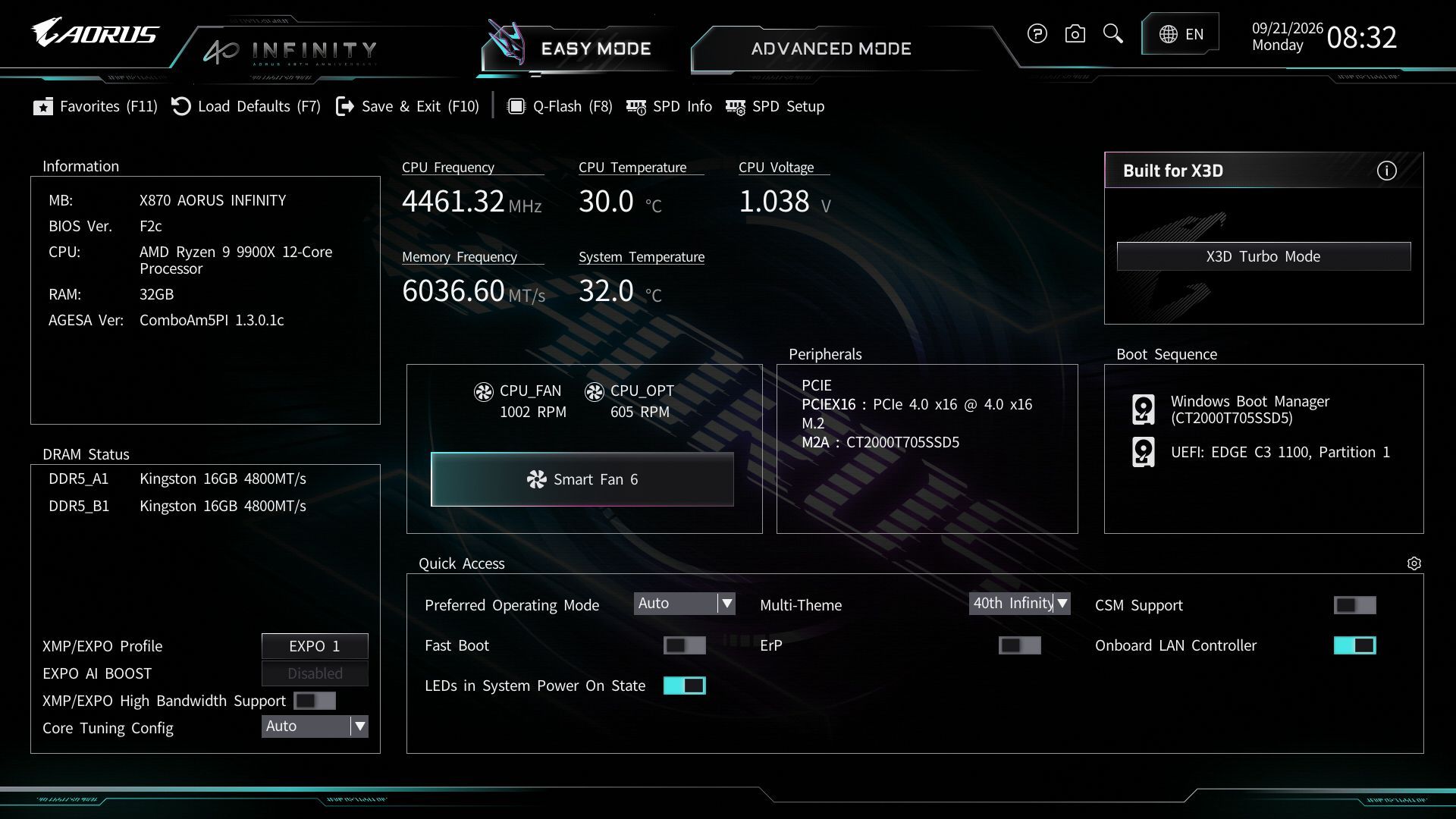
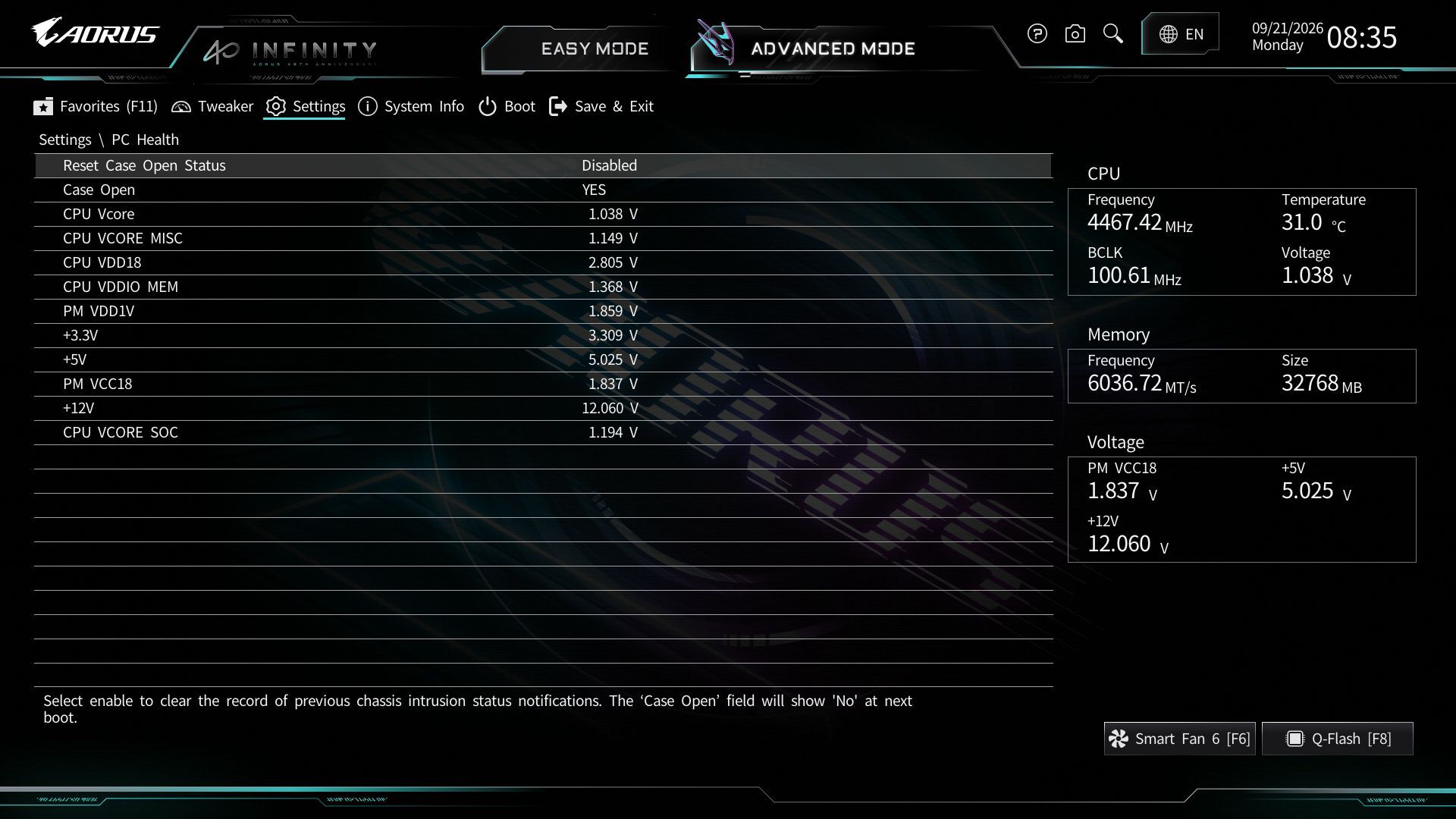
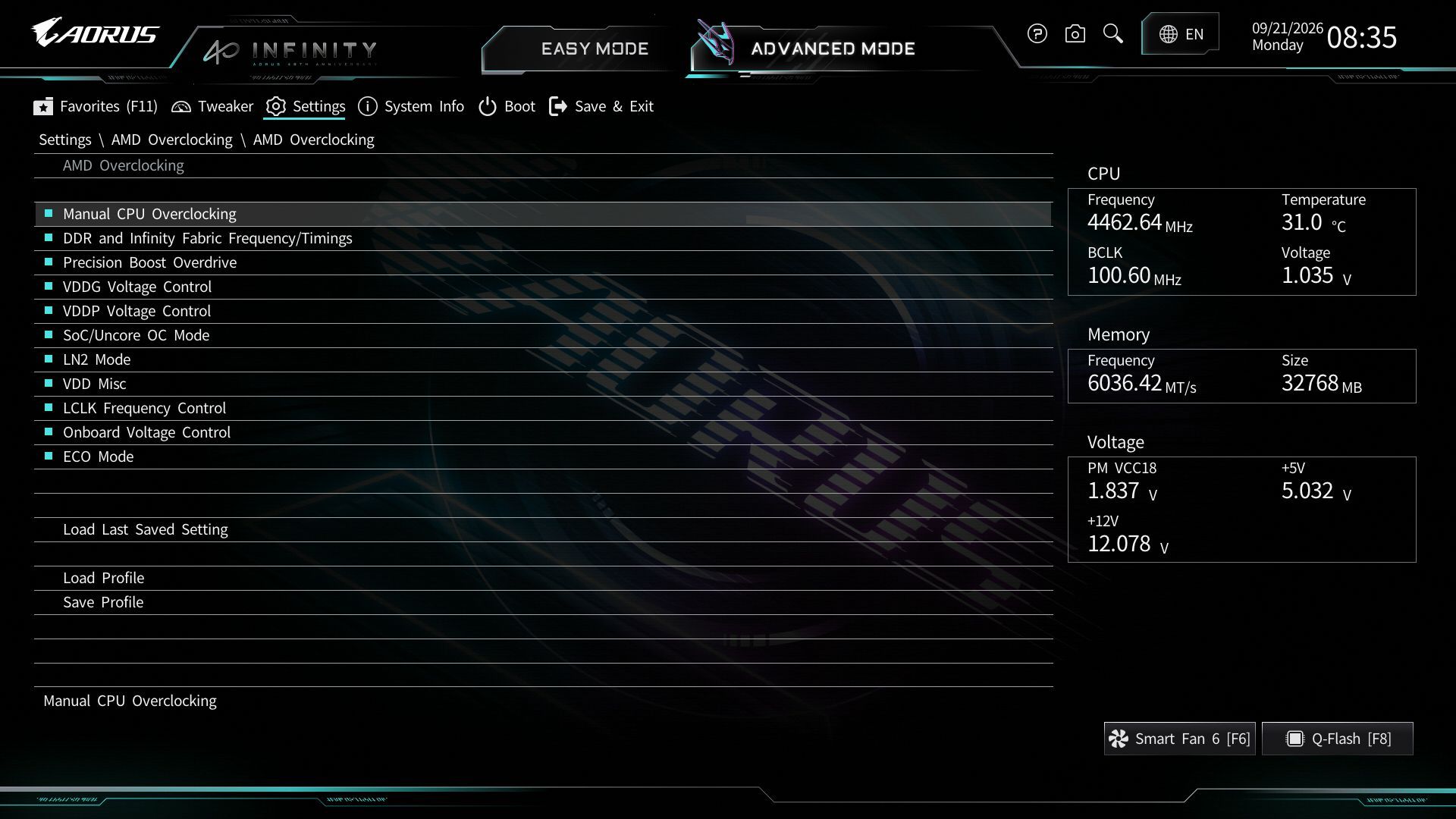
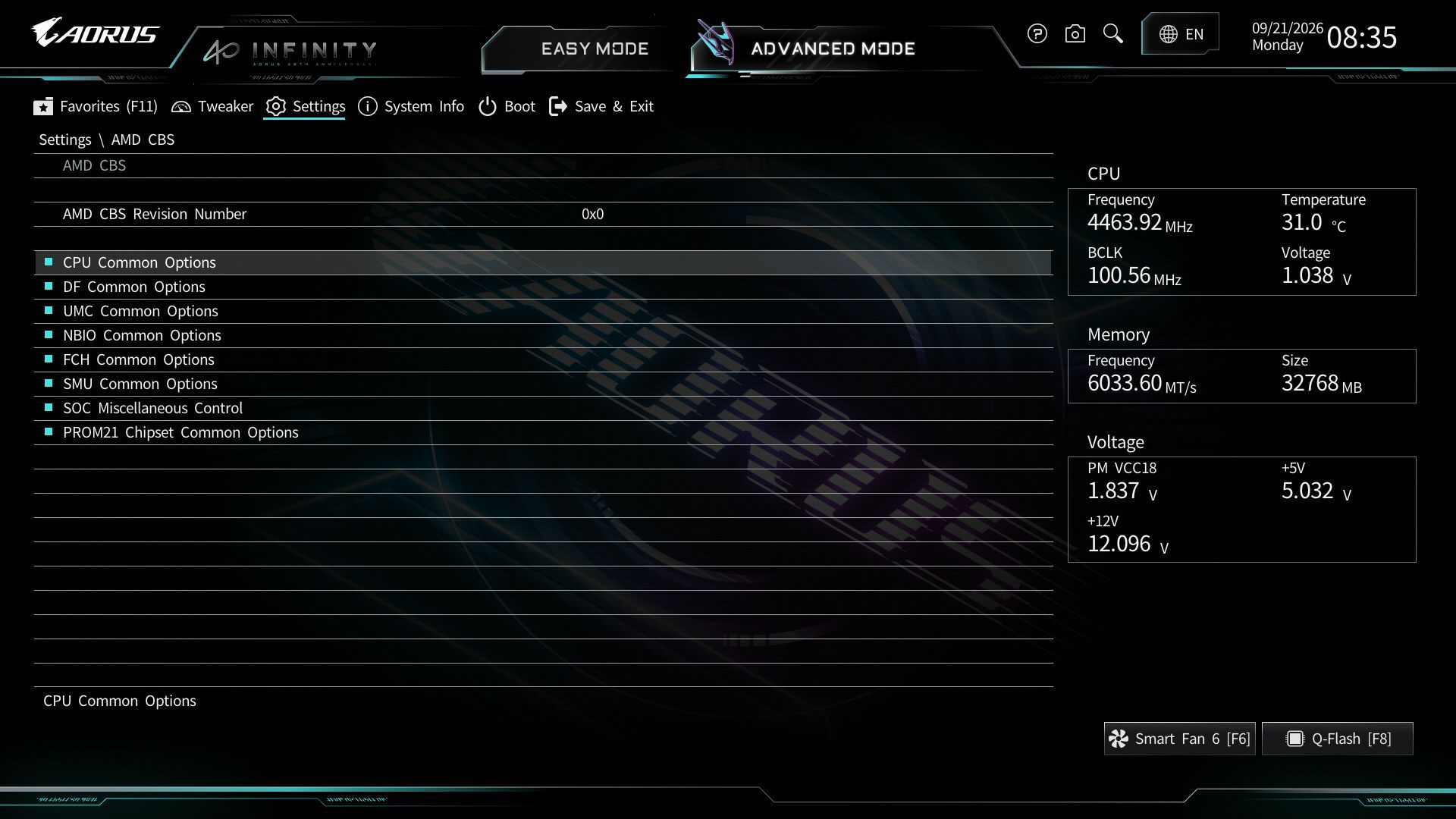
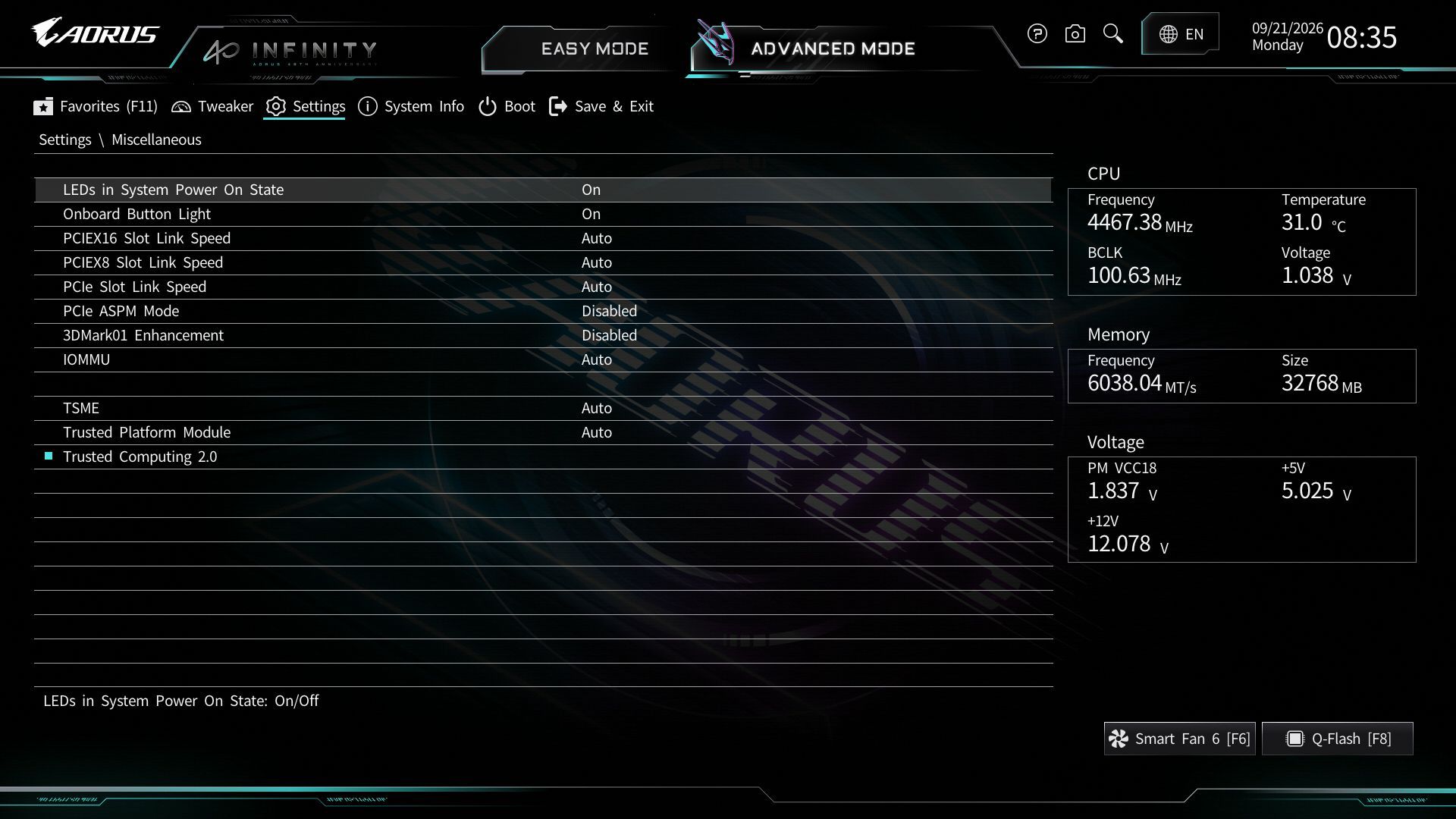
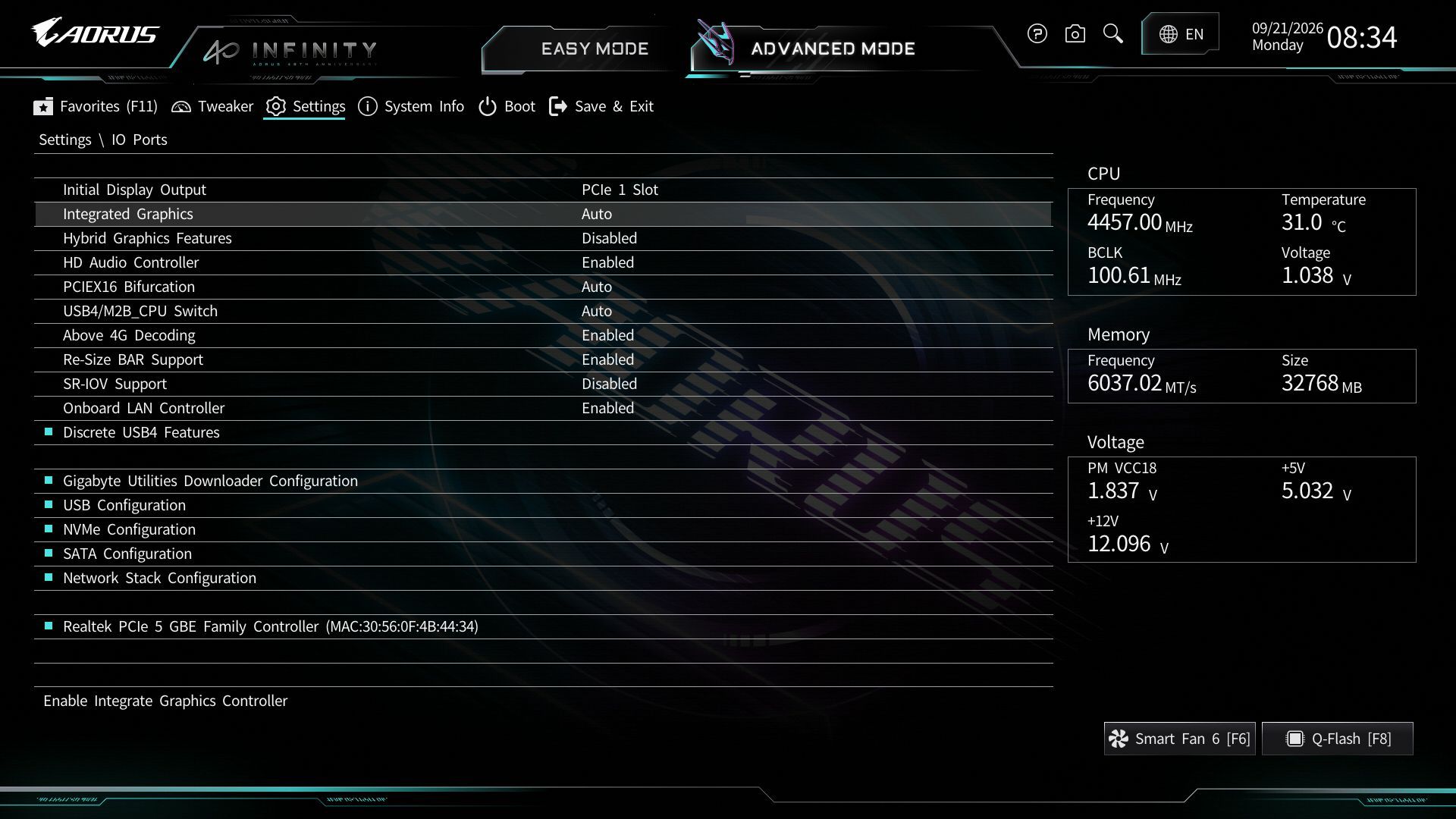
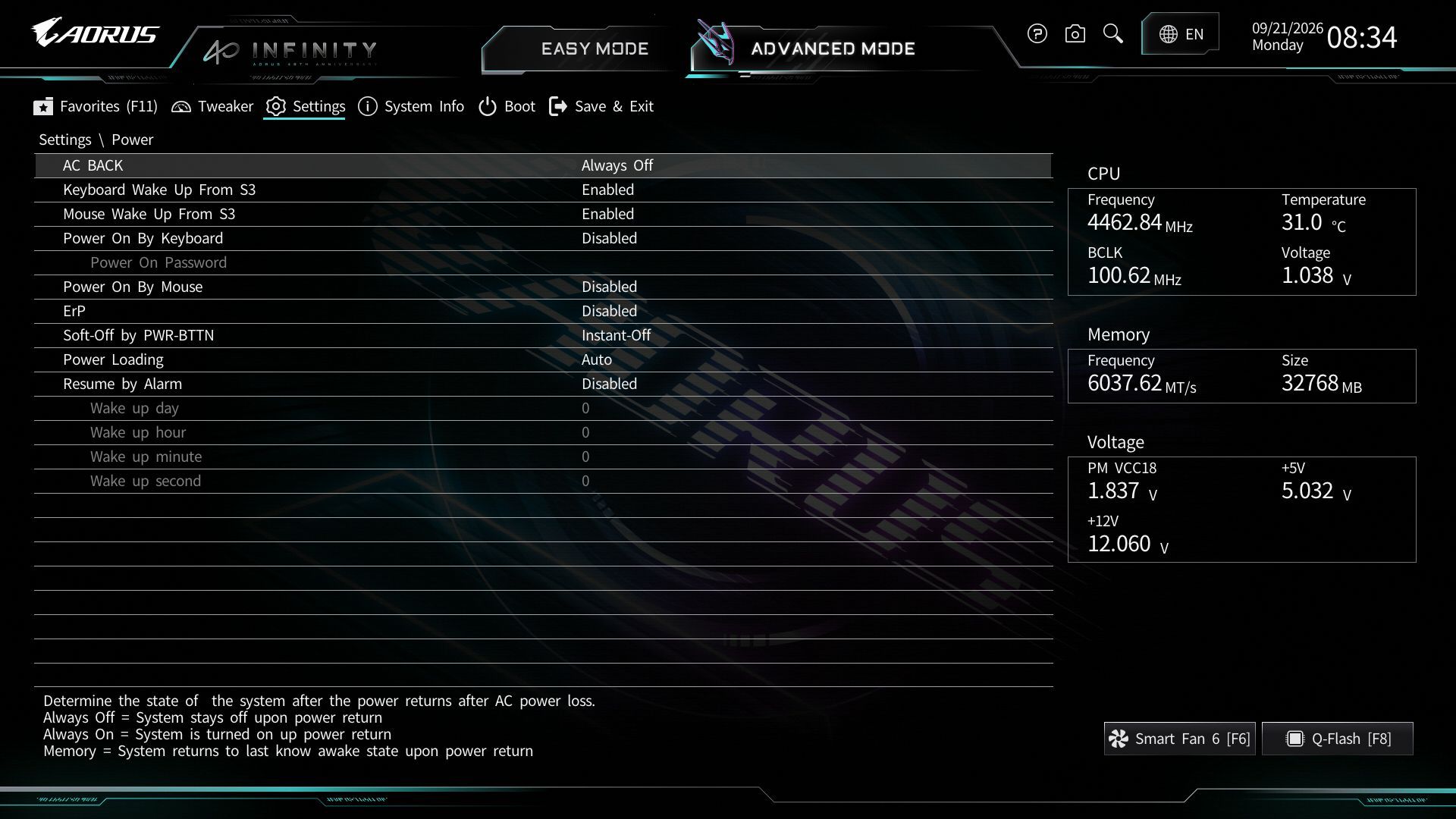
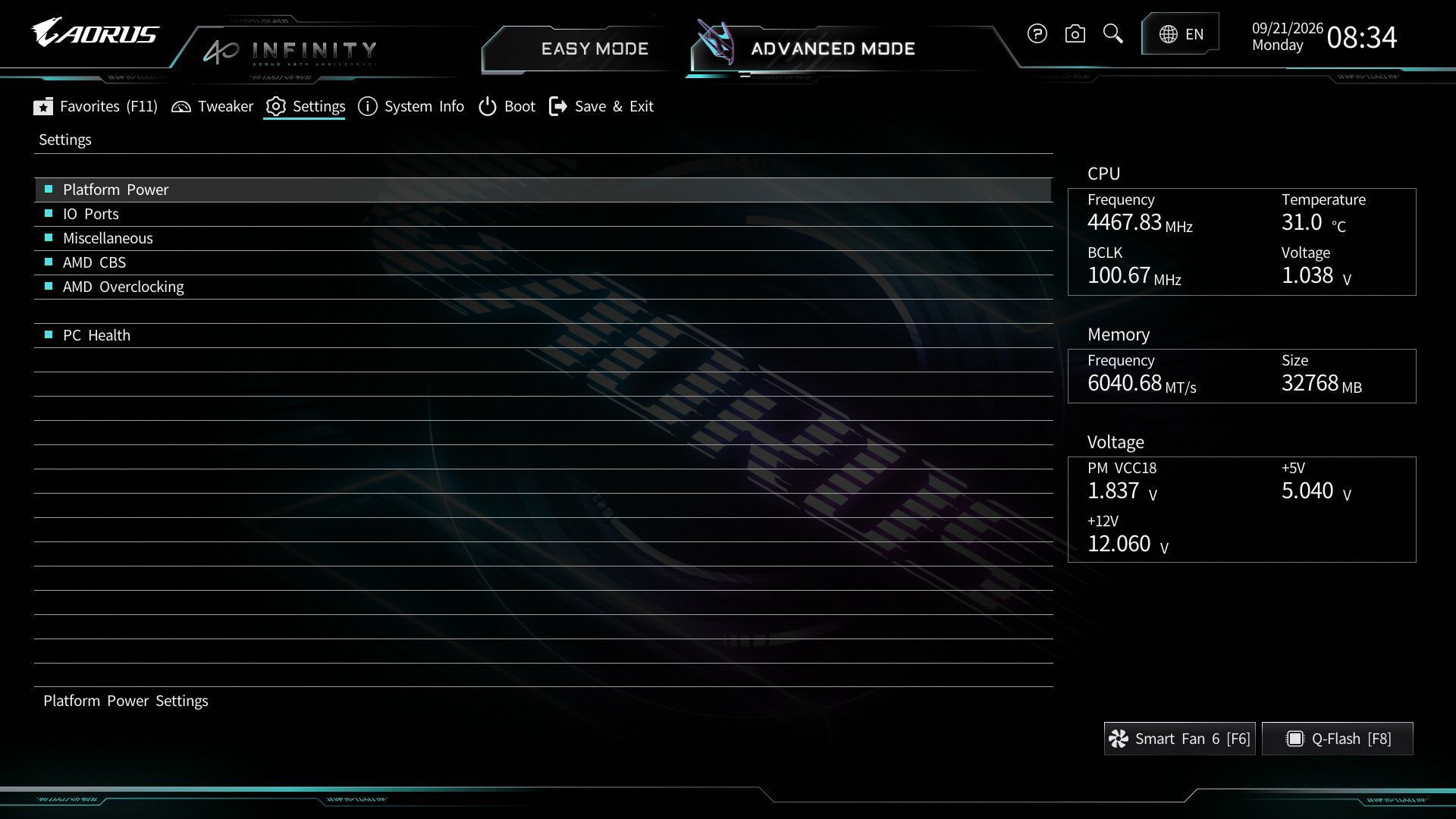
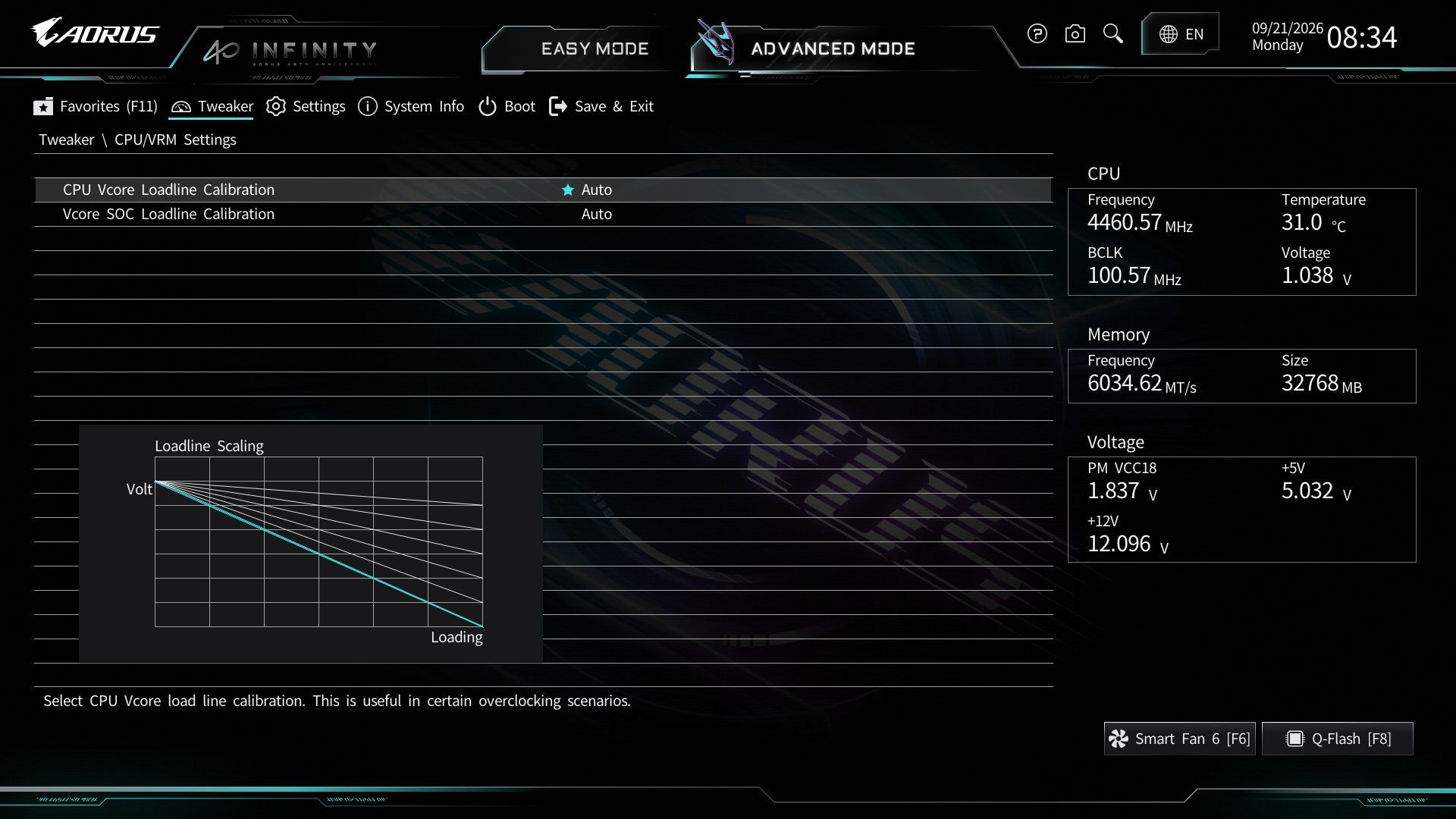
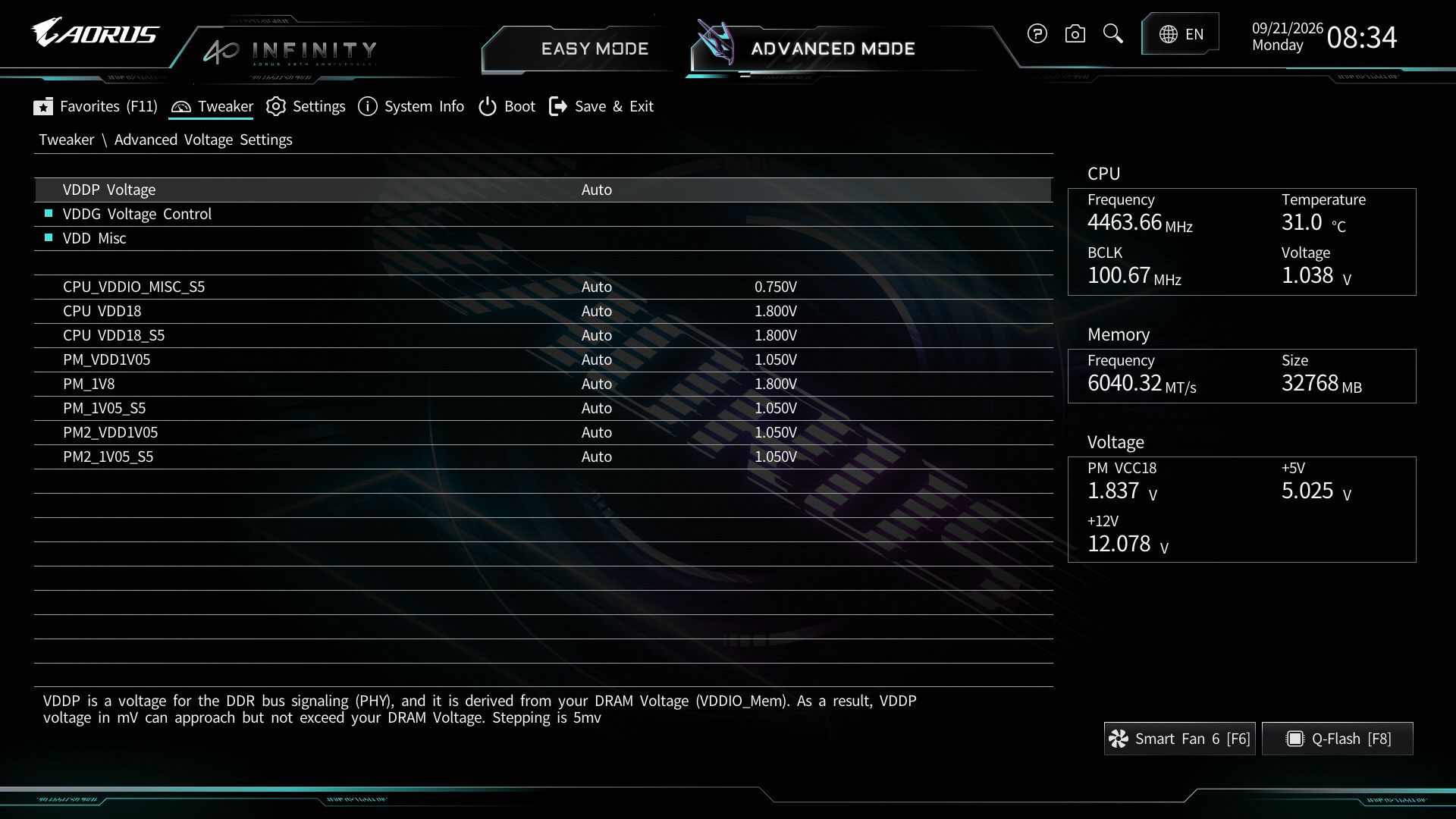
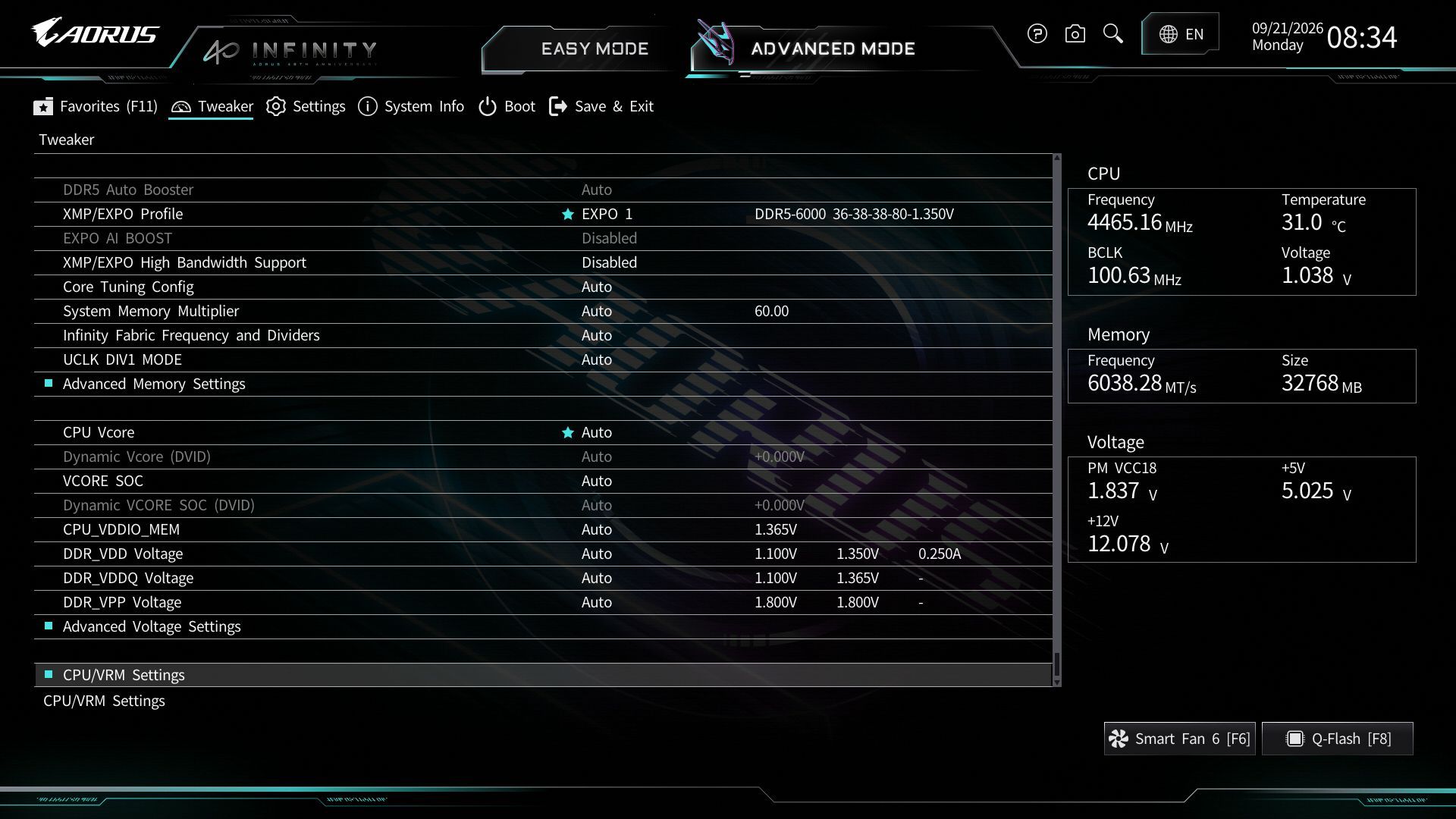
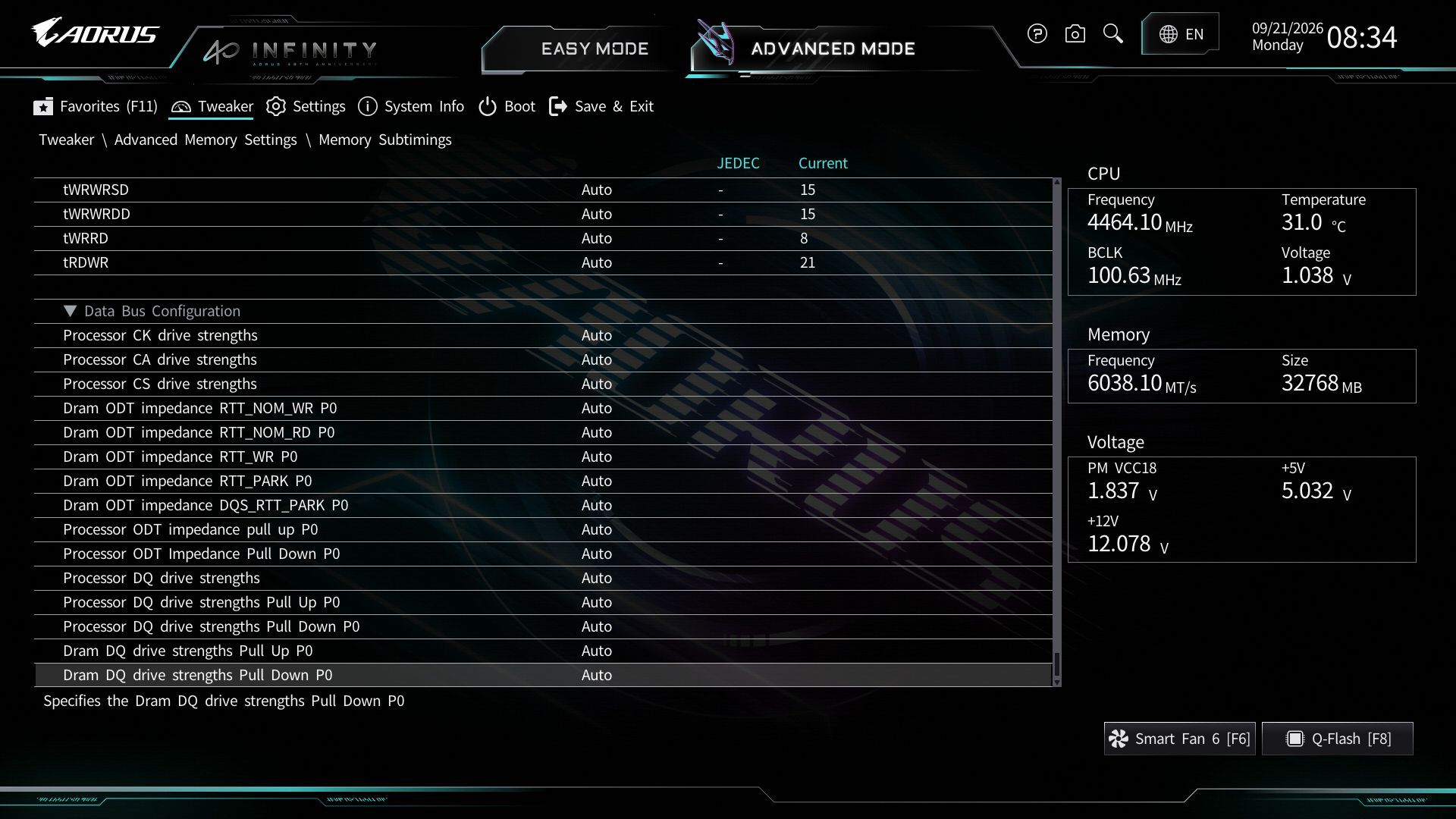
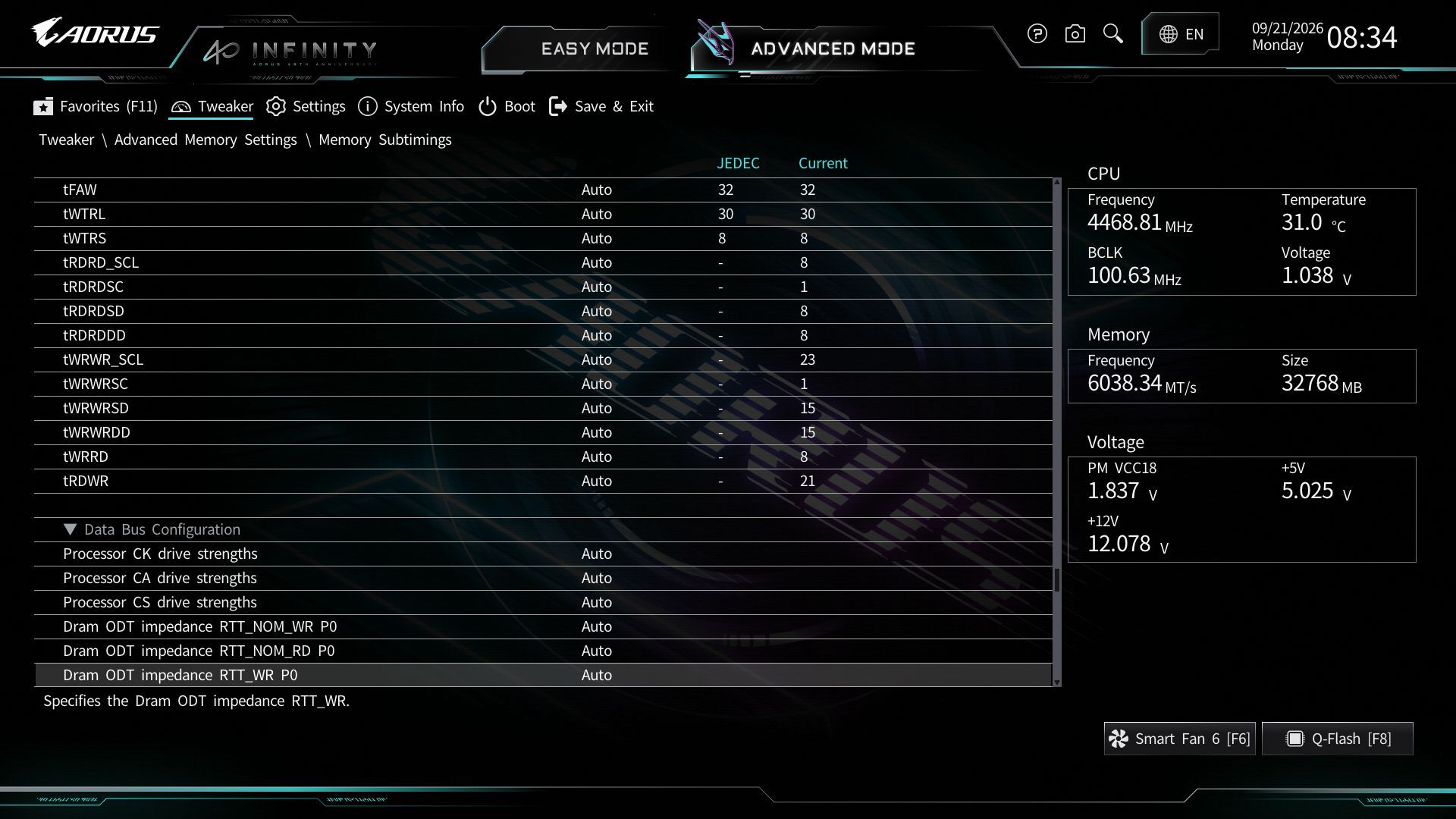
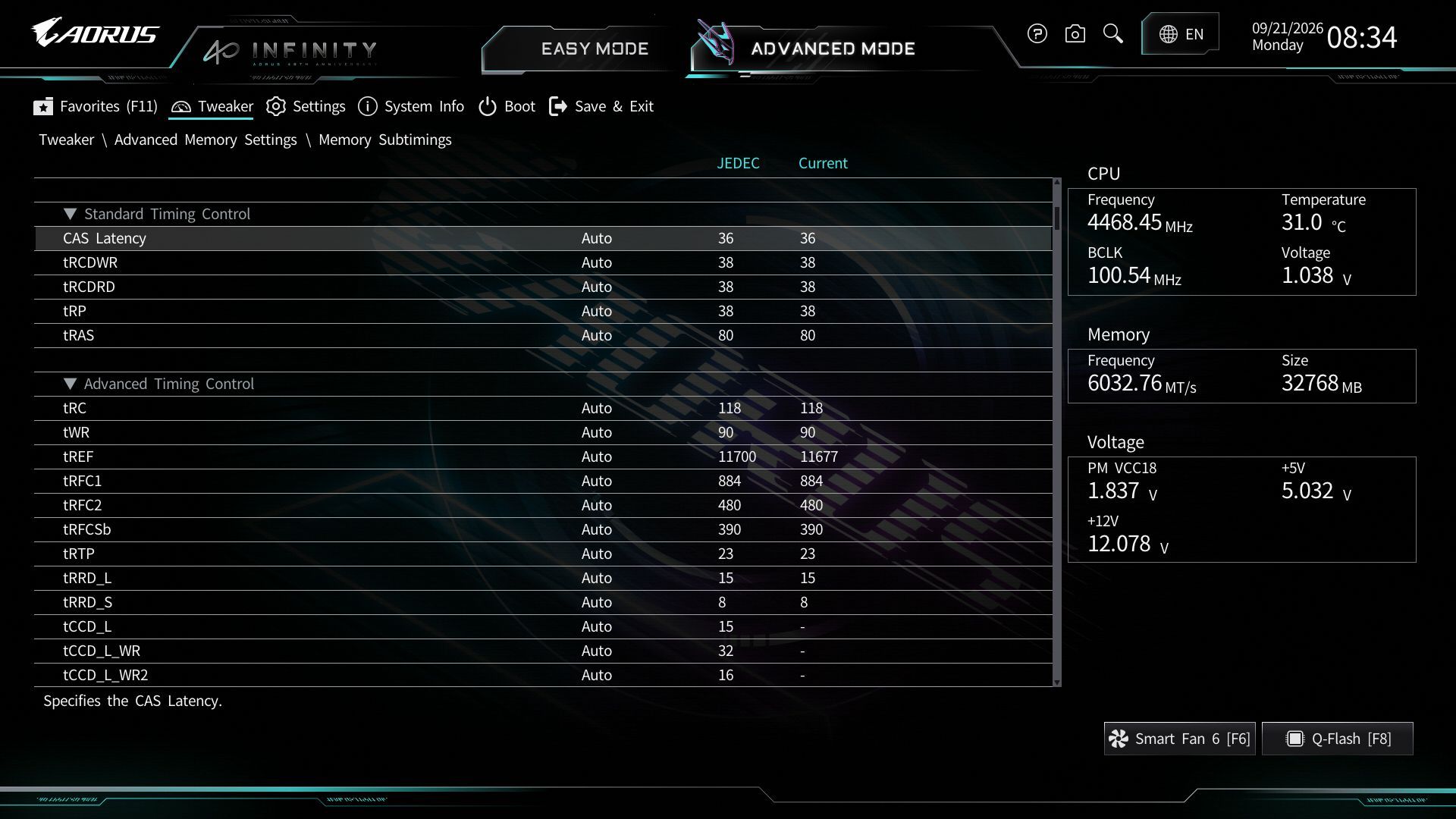
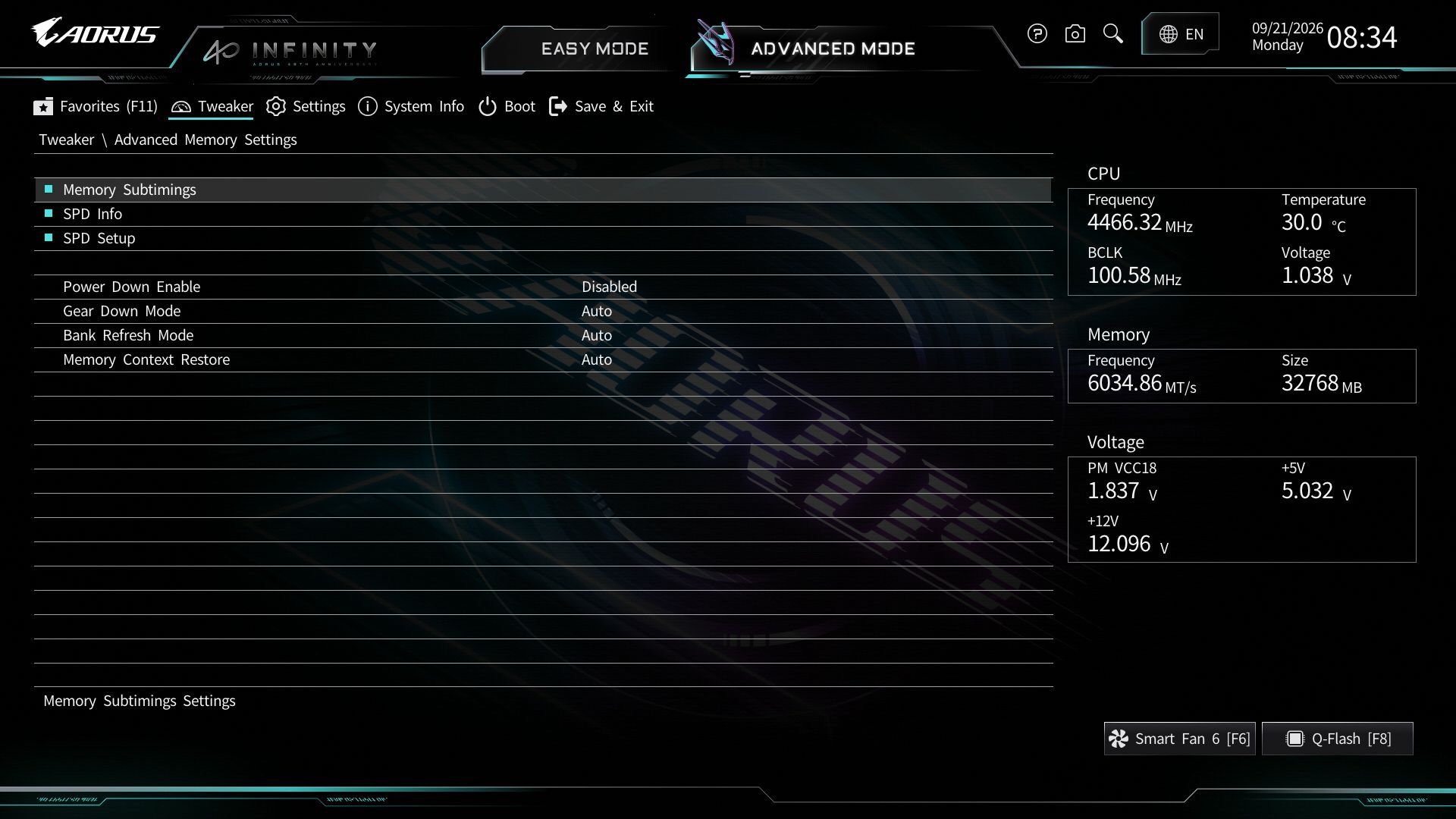
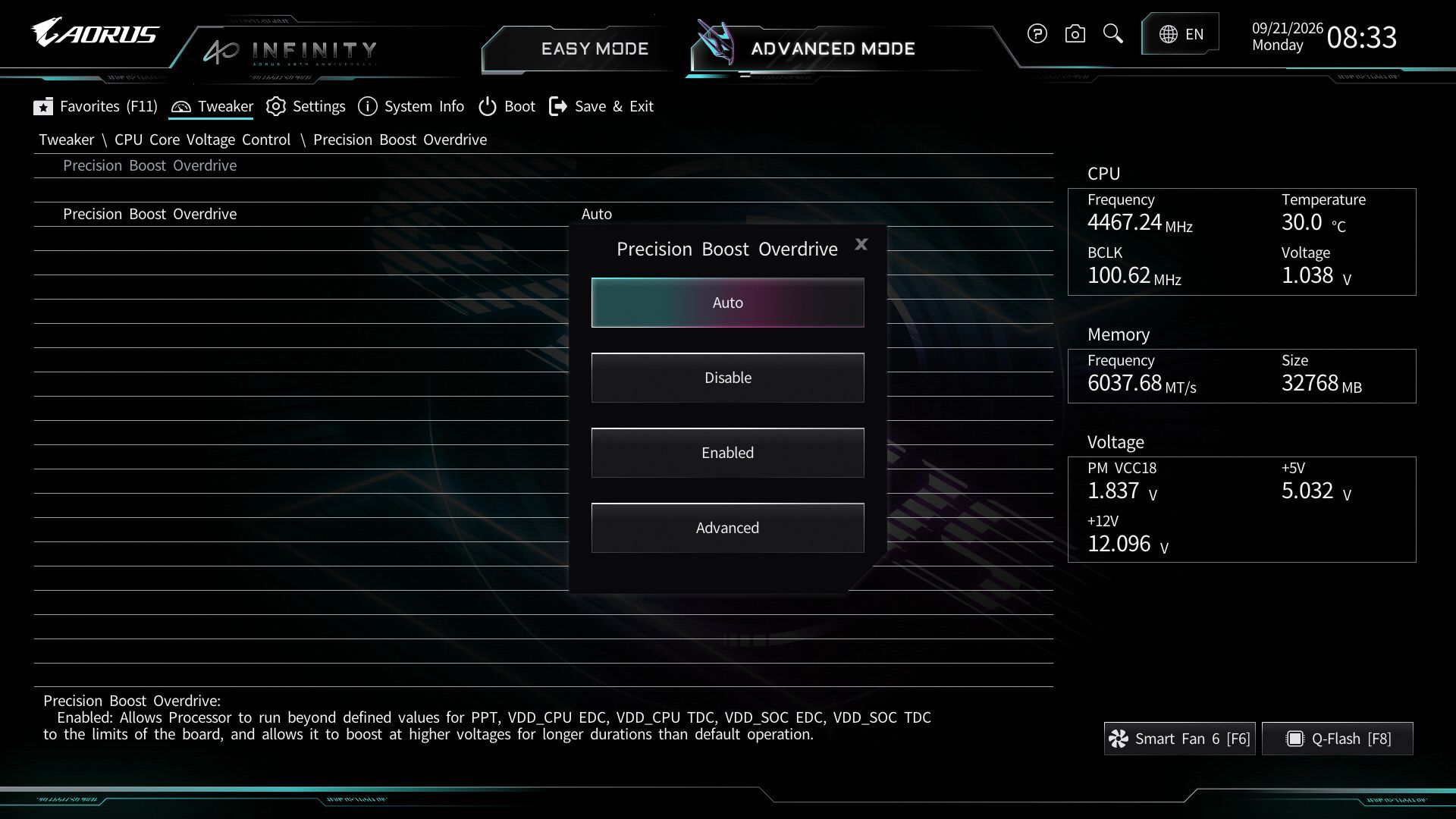
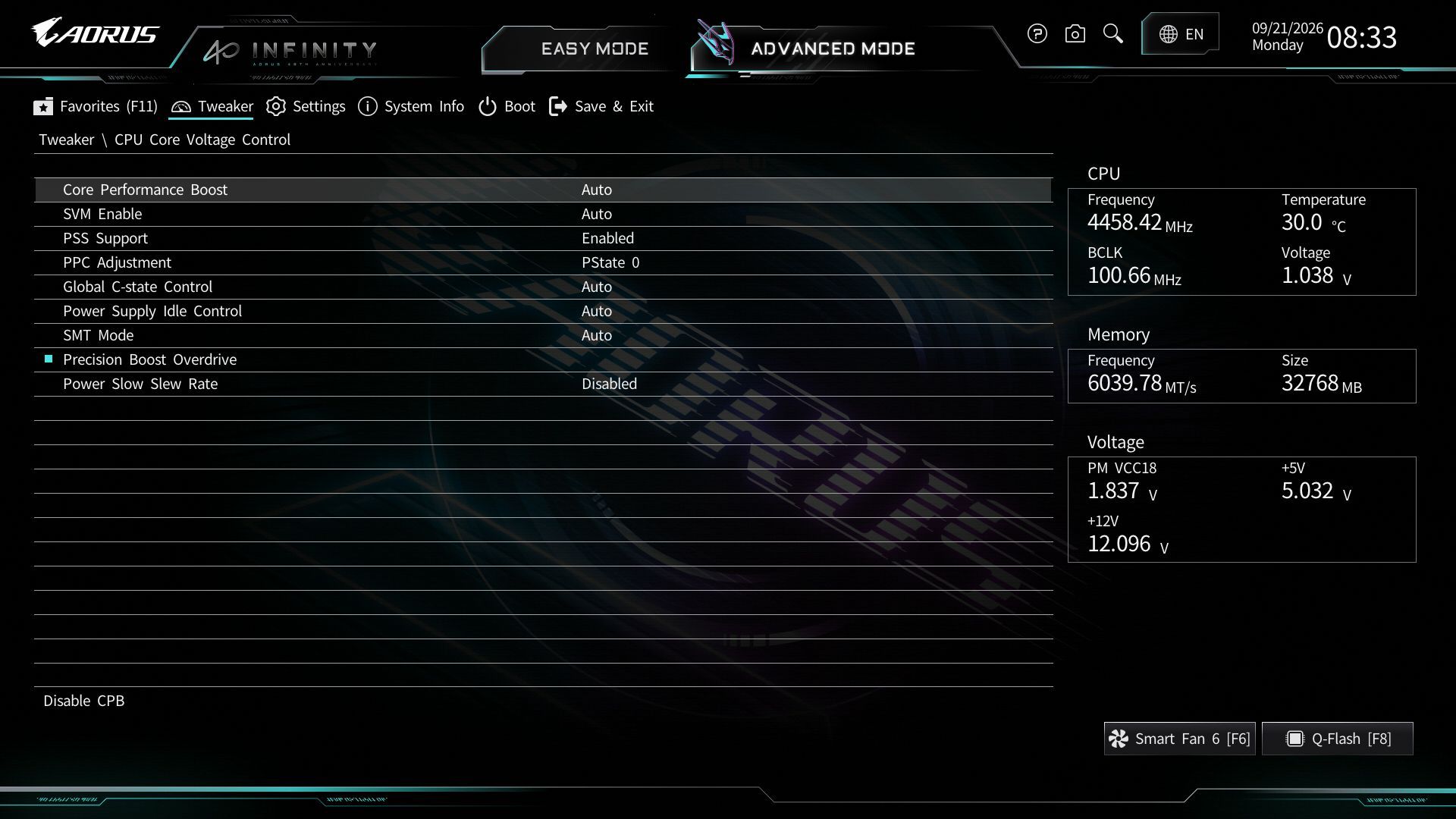
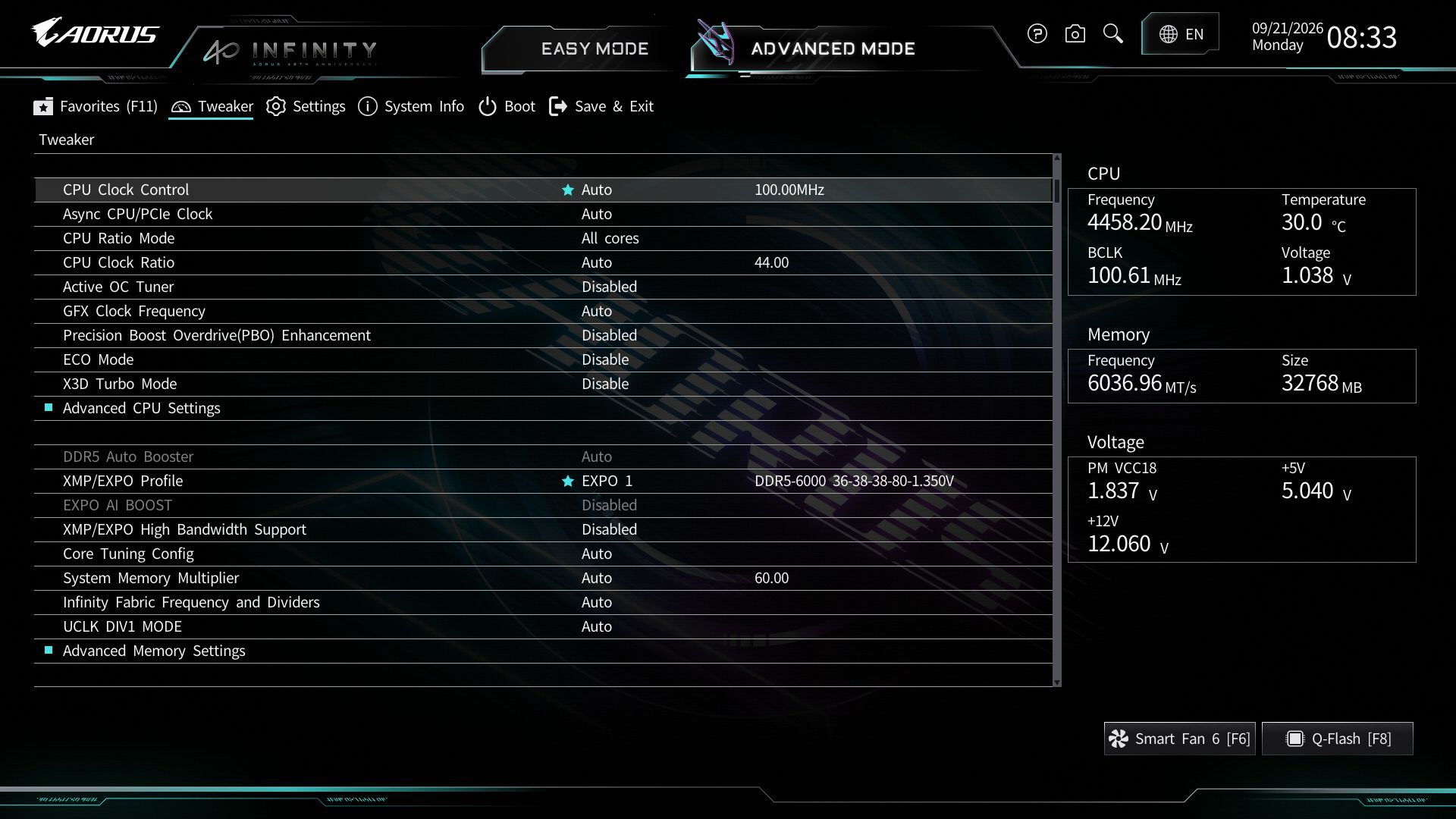
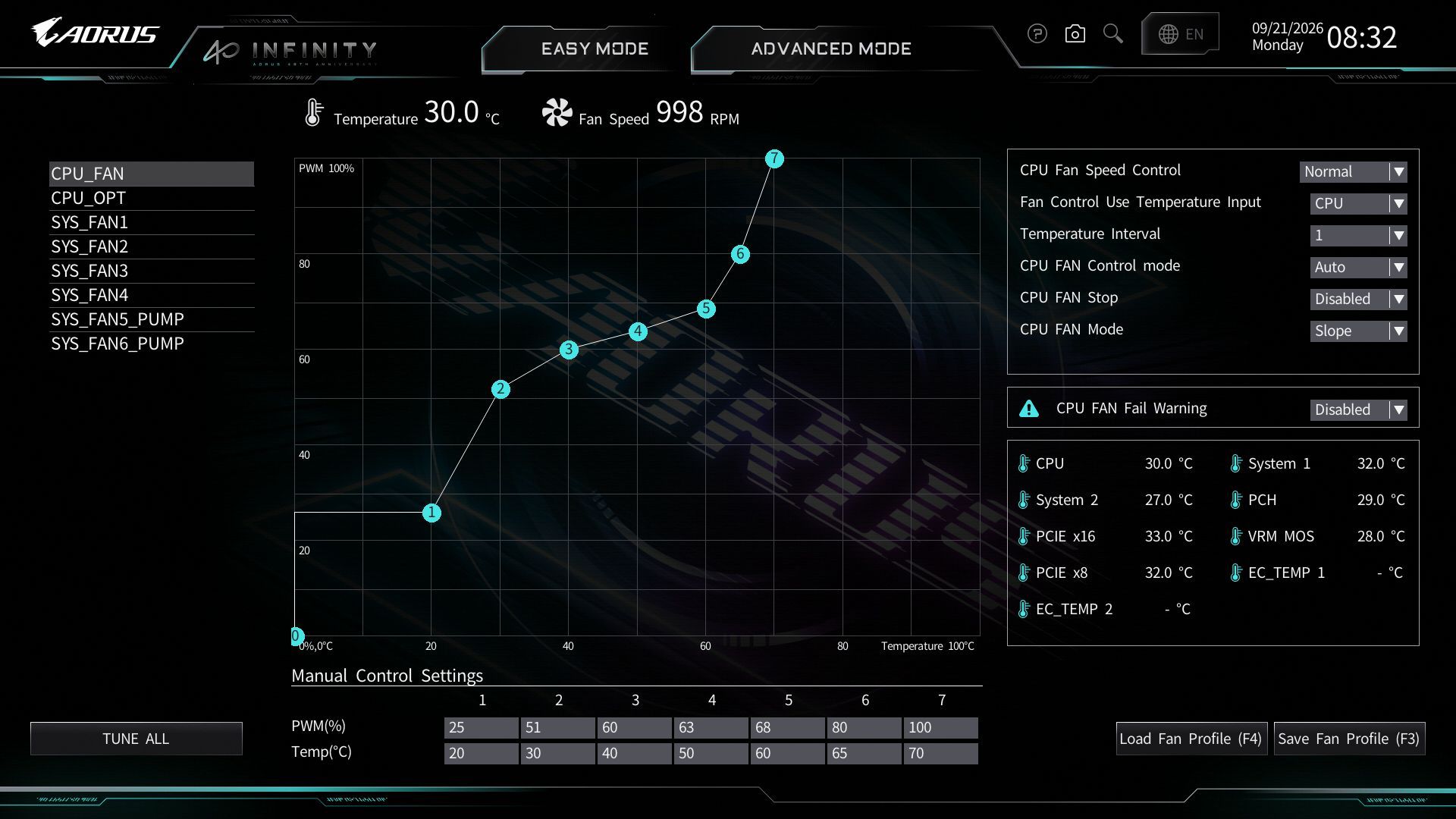
Gigabyte's updated UC BIOS 2.0" defaults to Easy Mode. It's logically laid out and displays a wealth of system information, including processor, RAM, fan speeds, and several selectable options such as XMP profiles, RAM tweaks, Re-Size BAR support, Smart Fan 6 access, and more. The Aorus Infinity uses a black background with light blue accents and white text, creating a high-contrast, easy-to-read screen similar to the Aorus Stealth, but with a moonlit mountain background instead of Aorus branding. The BIOS also offers different themes in EZ mode via a dropdown if you want to change it.
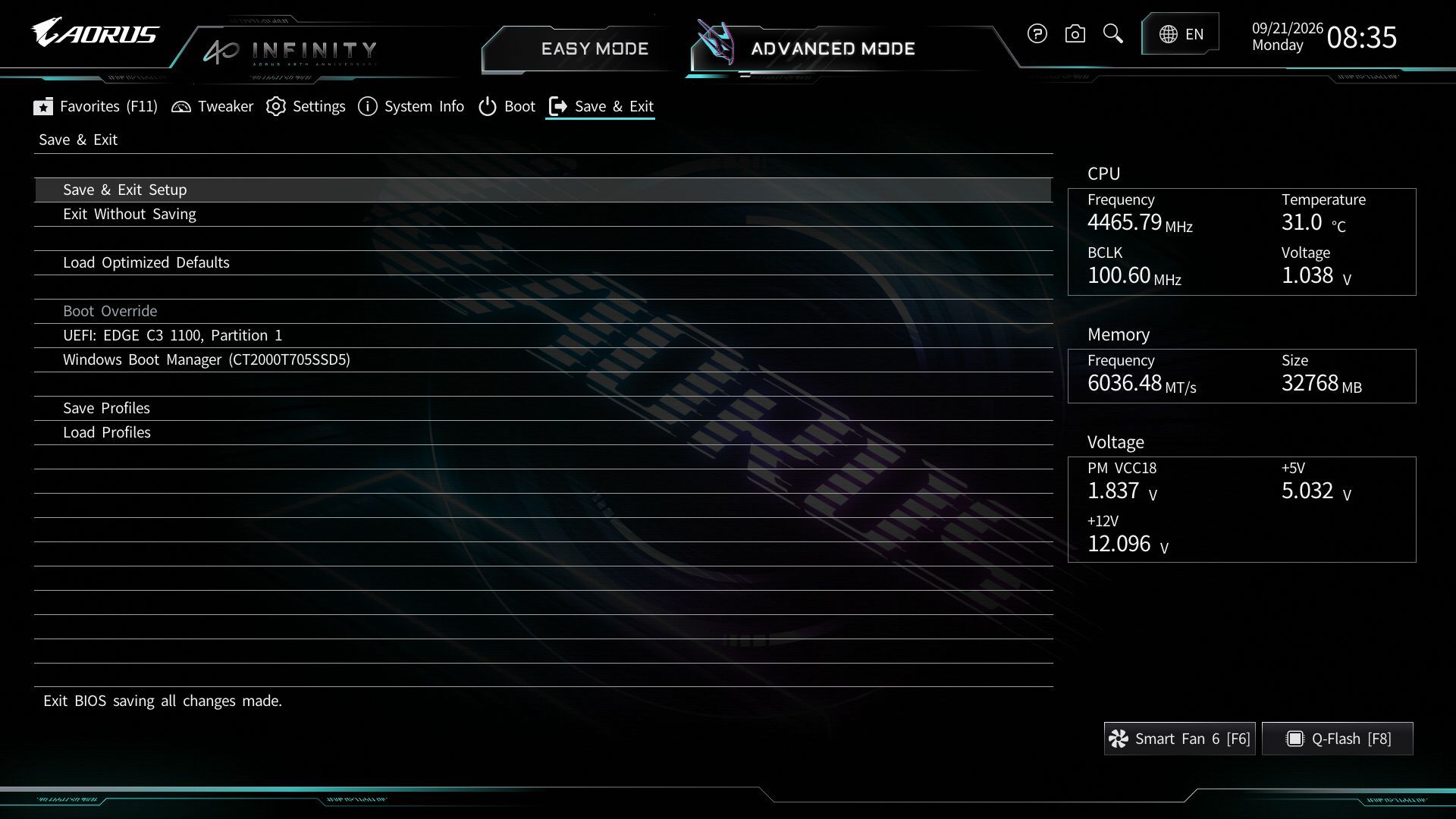
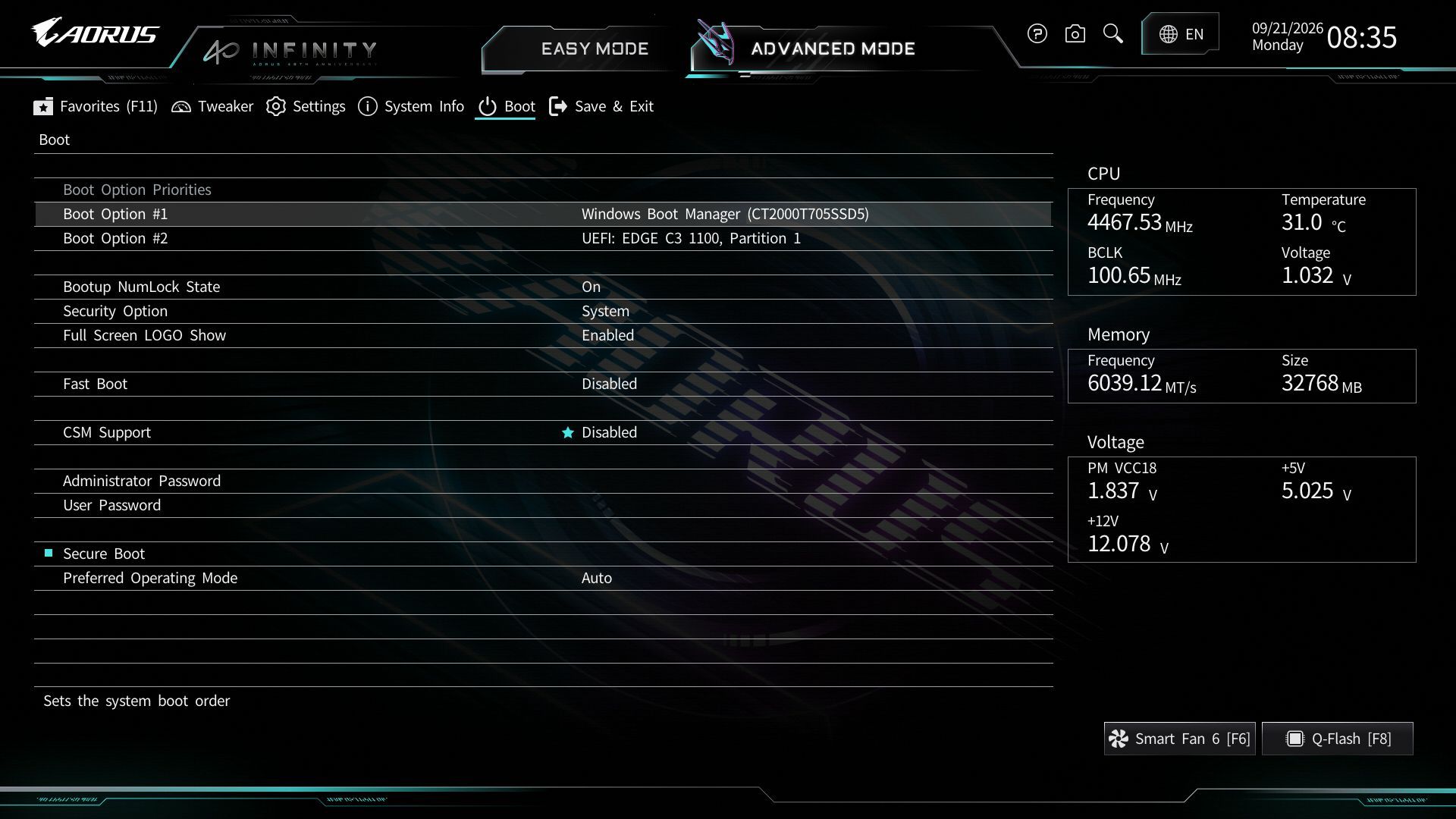
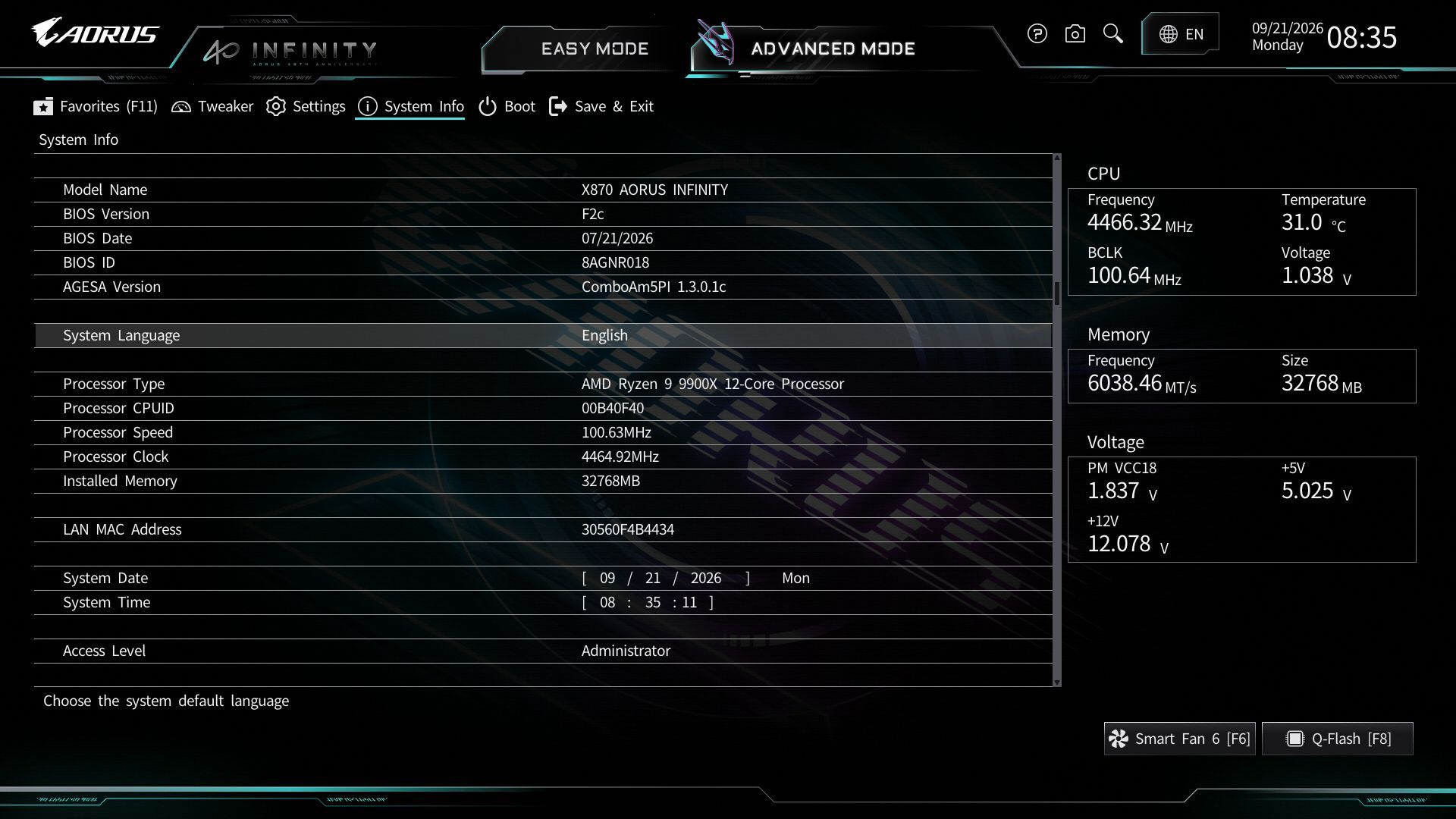
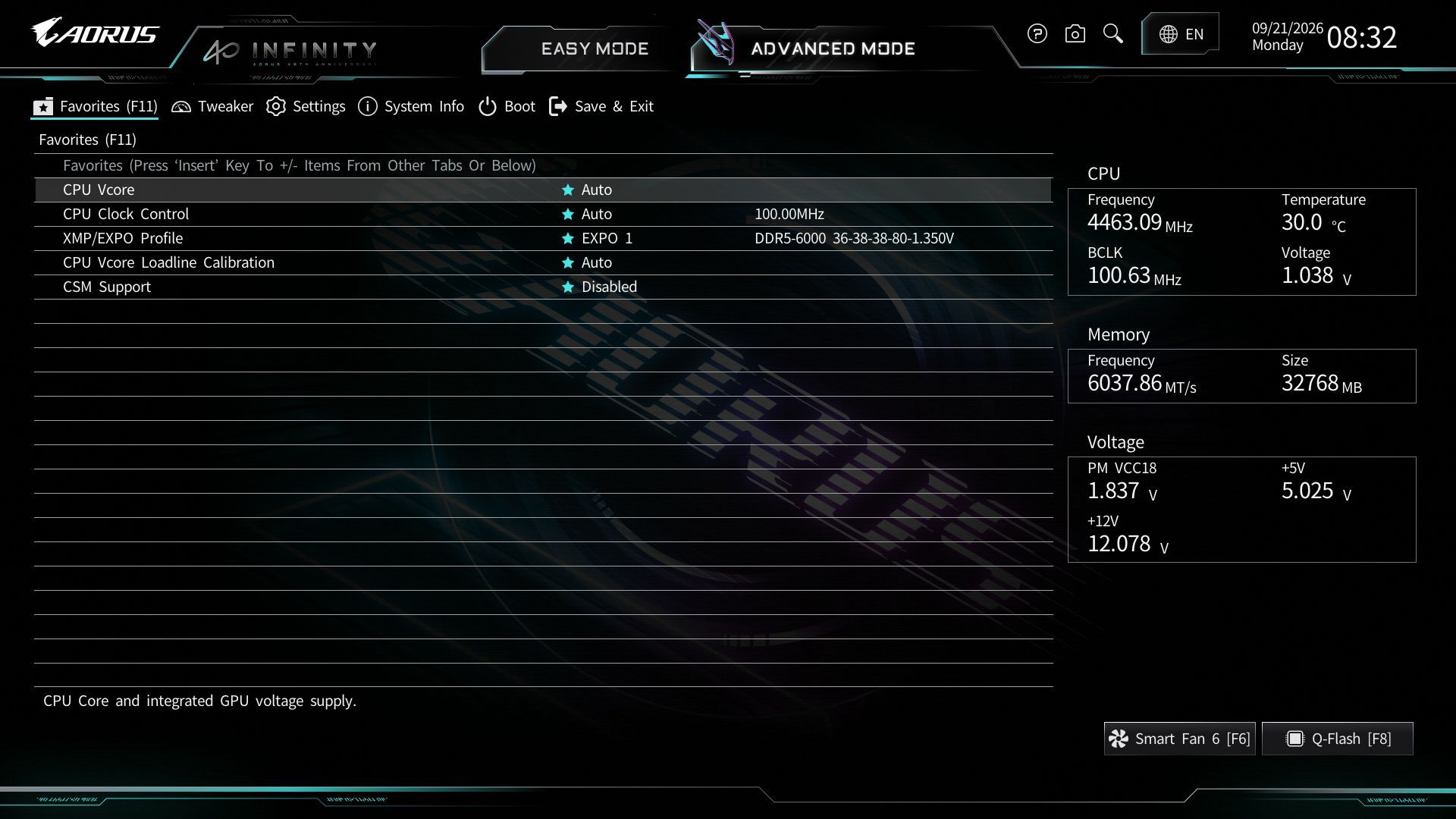
All headings still appear across the top in advanced mode; they are now larger buttons' and easy to select with a mouse. The highlight bar (where you are on the page) is a light blue here and easy to see. Every option you need and want is at your fingertips, and you don't have to drill down several layers to reach the most commonly used functions - especially if you populate your selections in the Favorites section.
 Future
 Future
 Future
 Future
 Future
 Future
 Future
 Future
 Future
 Future
 Future
 Future
 Future
 Future
 Future
 Future
 Future
 Future
 Future
 Future
 Future
 Future
 FutureSoftware
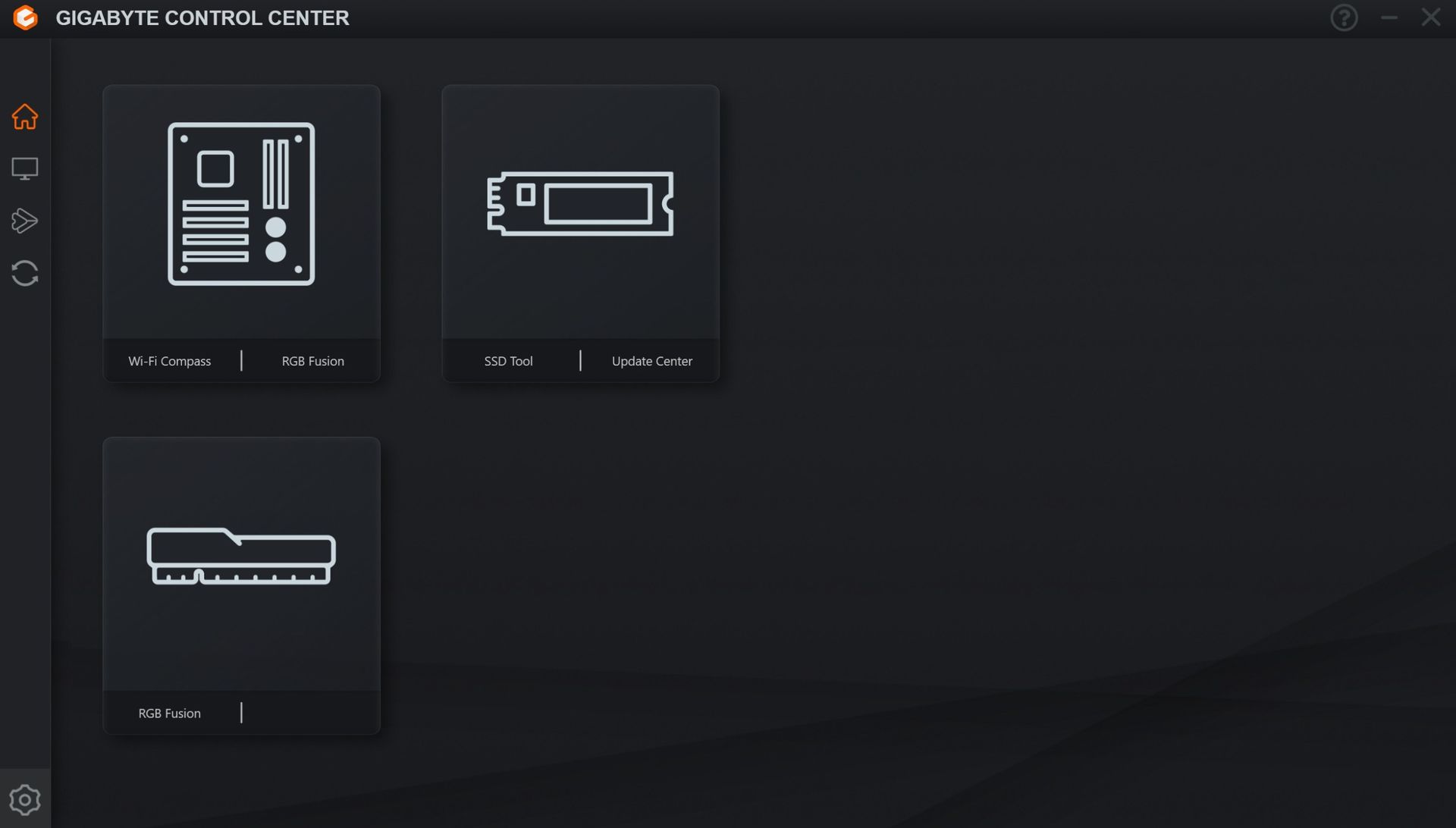
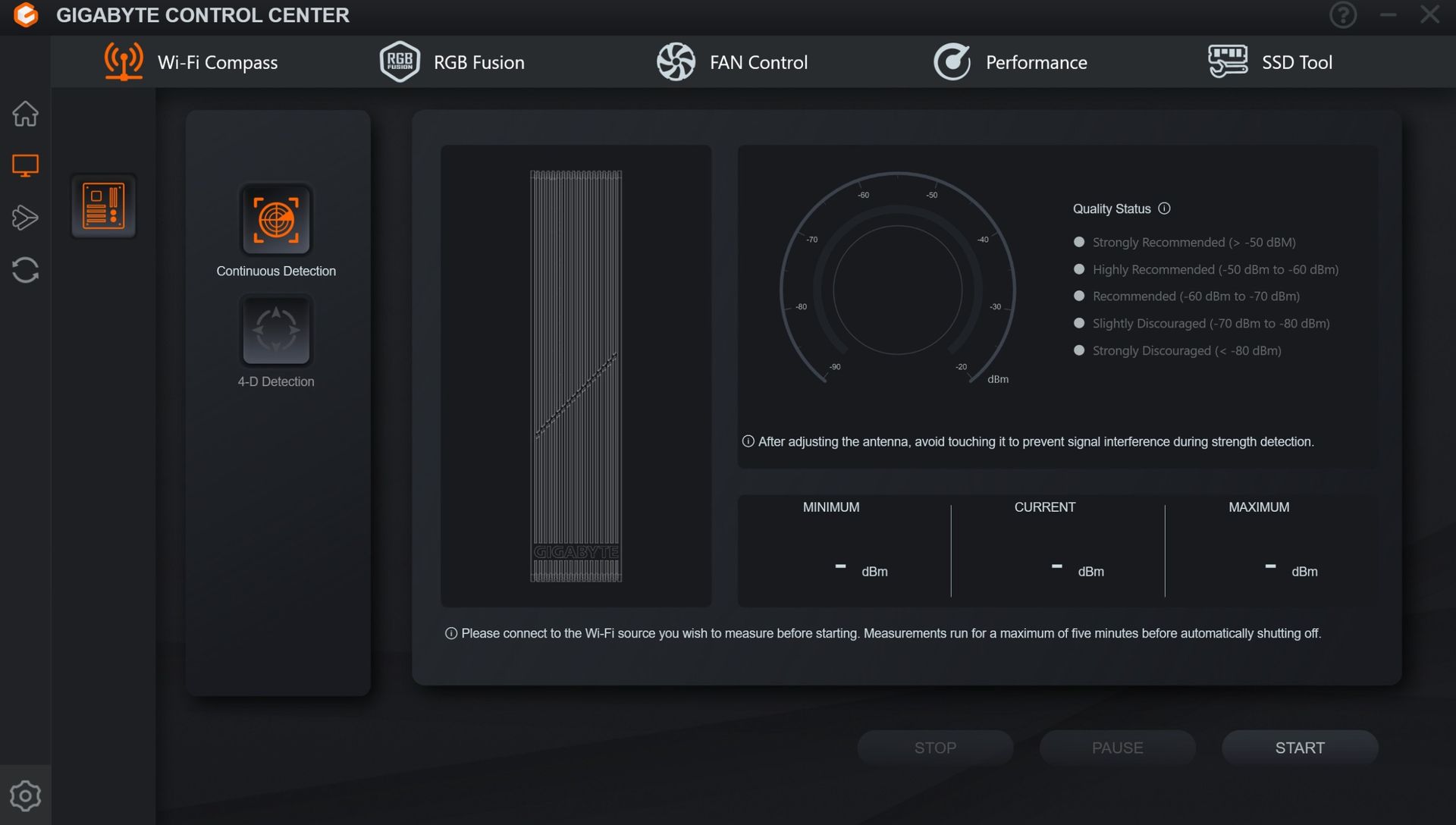
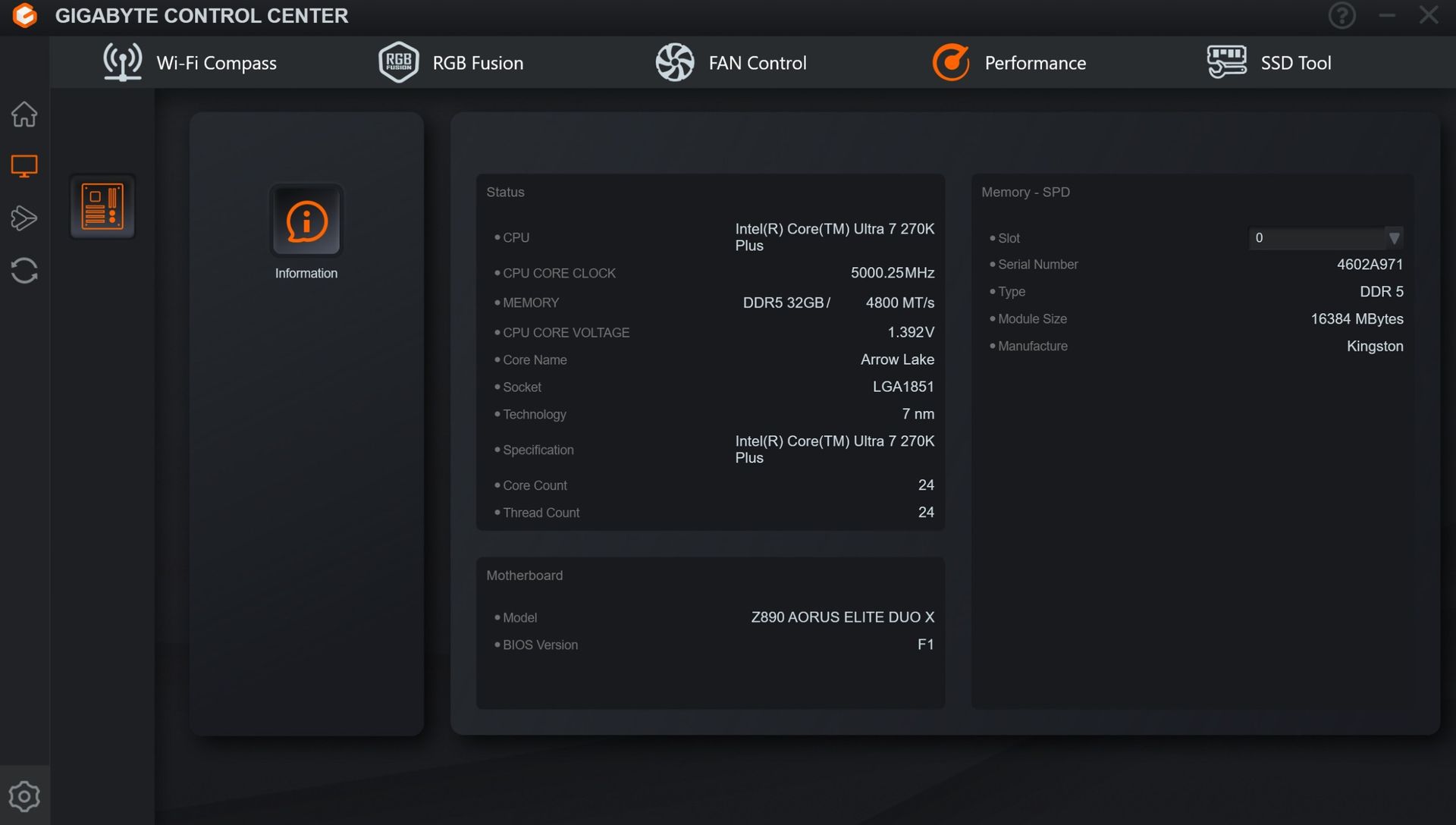
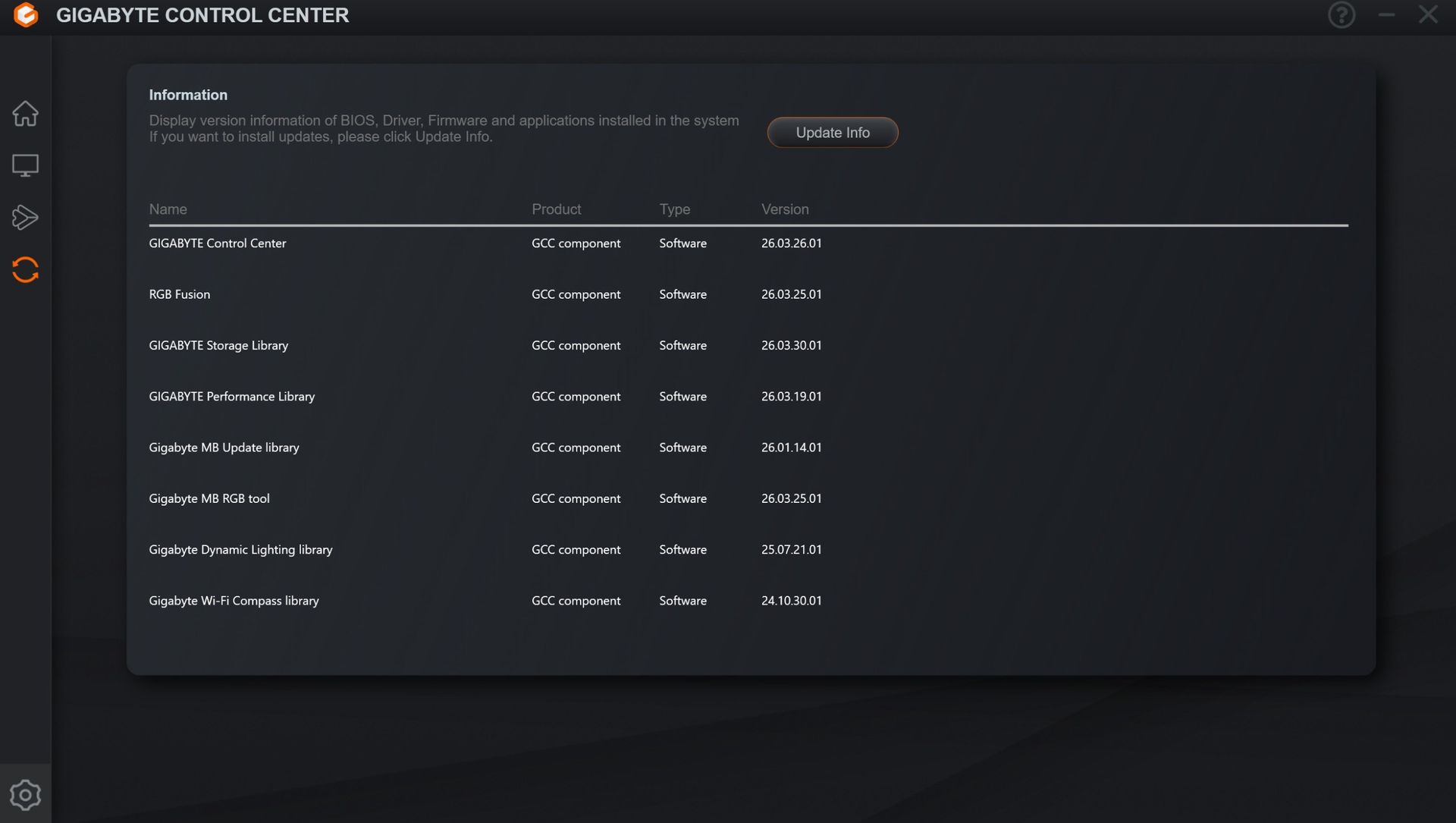
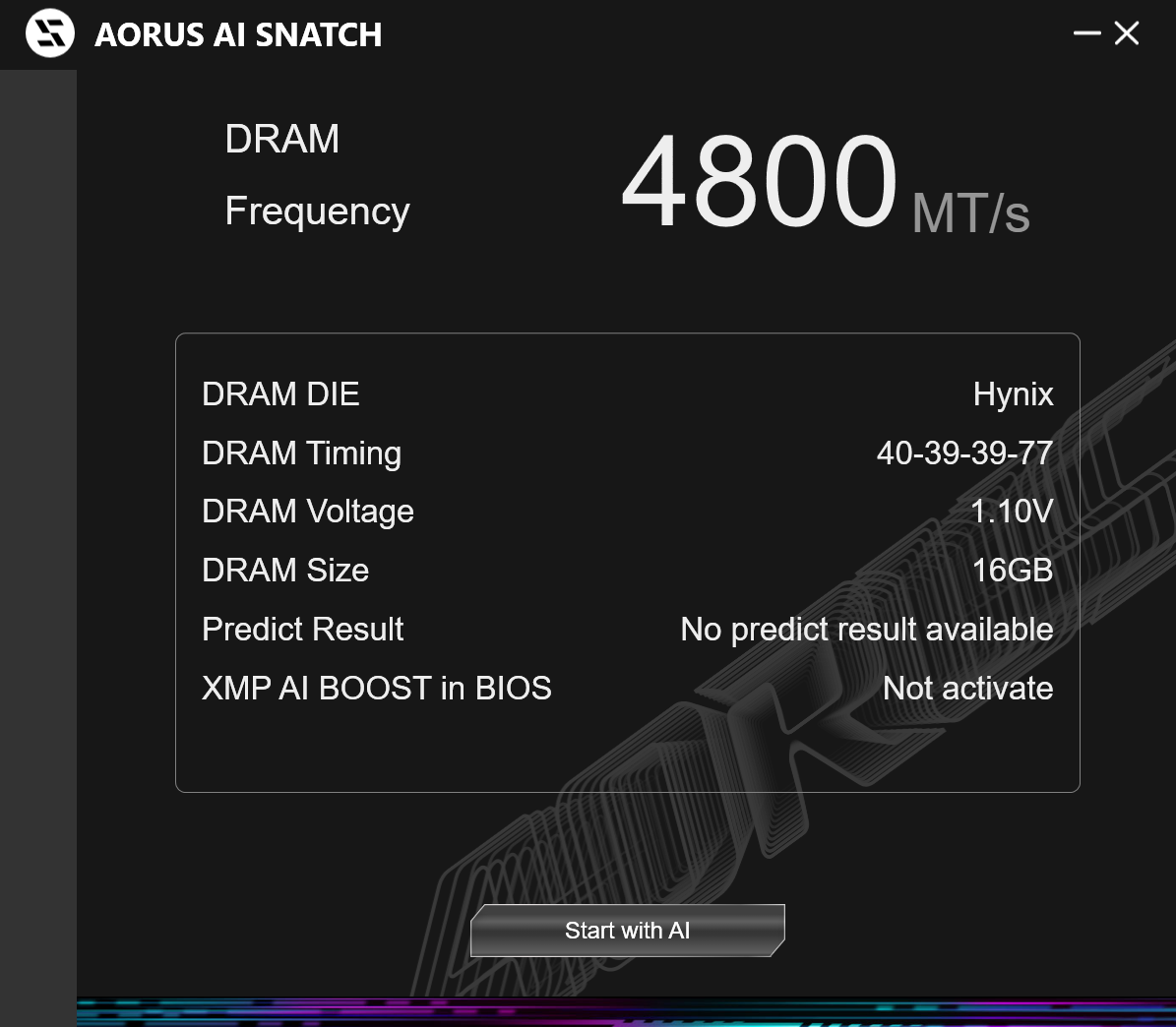
Gigabyte Control Center (GCC) is a one-stop solution for controlling various functions, including RGB and Fan control, hardware monitoring, and overclocking. It also helps you find, download, and install driver updates for your system. It's a simple application that does its job. It's also a much cleaner tool than the previous App Center. It earns our approval for the breadth of functionality it offers users. There's also the curiously named AI Snatch to help with overclocking.
 Future
 Future
 Future
 Future
 Future
 Future
 Future
 FutureTest System / Comparison Products
We've updated our test system to Windows 11 (23H2) 64-bit OS with all updates applied as of late September 2024 (this includes the Branch Prediction Optimizations for AMD). Hardware-wise, we've updated the RAM kits (matching our Intel test system), cooling, storage, and video card. Unless otherwise noted, we use the latest publicly available non-beta motherboard BIOS. The hardware we used is as follows:
TEST SYSTEM COMPONENTS
CPU | ||
Cooling | ||
Storage | ||
RAM | Kingston Fury Beast DDR5-6000 CL36 (KF560C36BBEAK2-32) | |
GPU | ||
PSU | ||
OS | Windows 11 64-bit (23H2 - 22631.4169)NVIDIA Driver 561.09 |
Sound | Integrated HD audio |
Network | Integrated Networking (GbE to 10 GbE) |
Graphics Driver | GeForce 561.09 |
Synthetic Benchmarks and Settings | |
Procyon | Version 2.8.1352 64 Office 365, Video Editing (Premiere Pro 24.6.1), Photo Editing (Photoshop 25.1.2, Lightroom Classic 13.5.1) |
3DMark | Version 2.29.8294.0 64 Speed Way and Steel Nomad (Default) |
Cinebench R24 | Version 2024.1.0 |
Blender | Version 4.2.0 |
Application Tests and Settings | |
LAME MP3 | Version SSE2_2019 Mixed 271MB WAV to mp3: Command: -b 160 --nores (160Kb/s) |
HandBrake CLI | Version: 1.8.2 Sintel Open Movie Project: 4.19GB 4K mkv to x264 (light AVX) and x265 (heavy AVX) |
Corona 1.4 | Version 1.4 Custom benchmark |
7-Zip | Version 24.08 Integrated benchmark (Command Line) |
Game Tests and Settings | |
Cyberpunk 2077 | Ultra RT: - 1920 x 1080, DLSS - Balanced. |
F1 2024 | Ultra High Preset - 1920 x 1080, 16xAF/TAA, Great Britain (Clear/Dry), FPS Counter ON |
MORE: Best Motherboards
MORE: How To Choose A Motherboard
MORE: Best Motherboard Deals
MORE: Best Motherboard Combo Deals
MORE: All Motherboard Content
We run our standard benchmarks and power tests using the CPU's stock frequencies (including any default boost/turbo) with all power-saving features enabled. We set optimized defaults in the BIOS and the memory by enabling the XMP profile. We set the Windows power scheme to Balanced (default) for this baseline testing, so the PC idles appropriately.
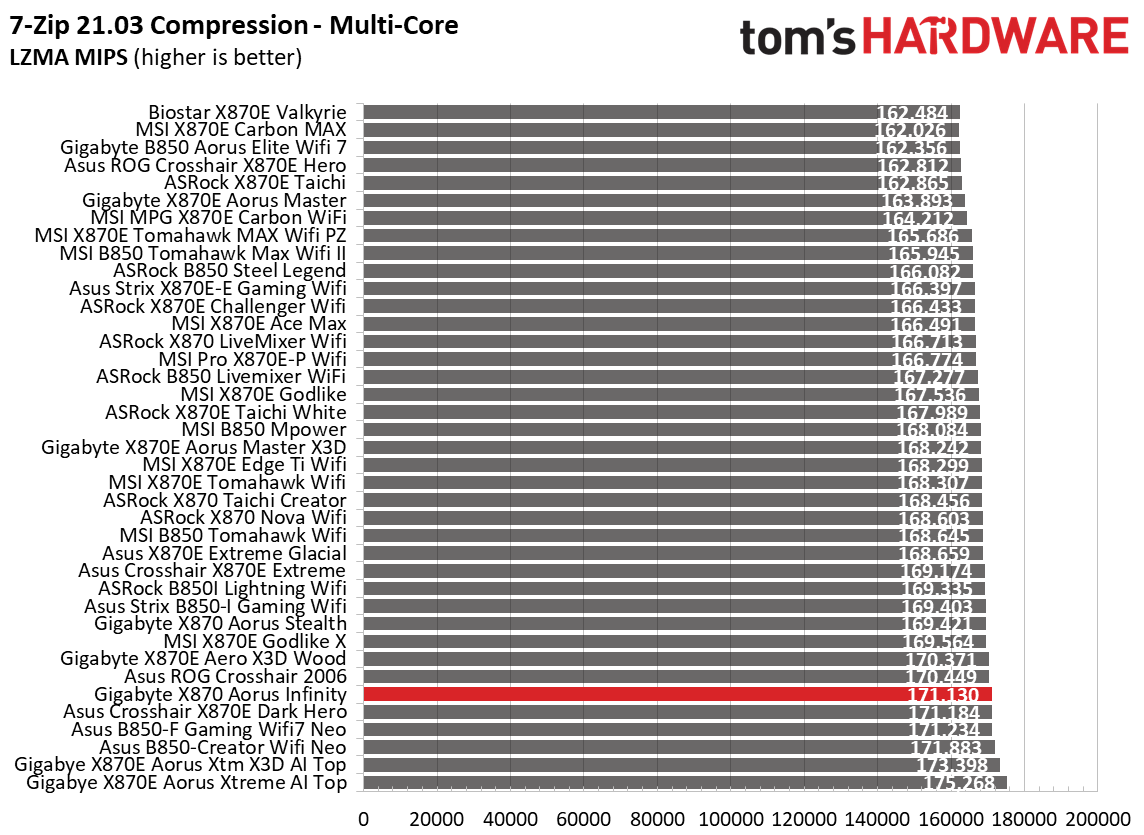
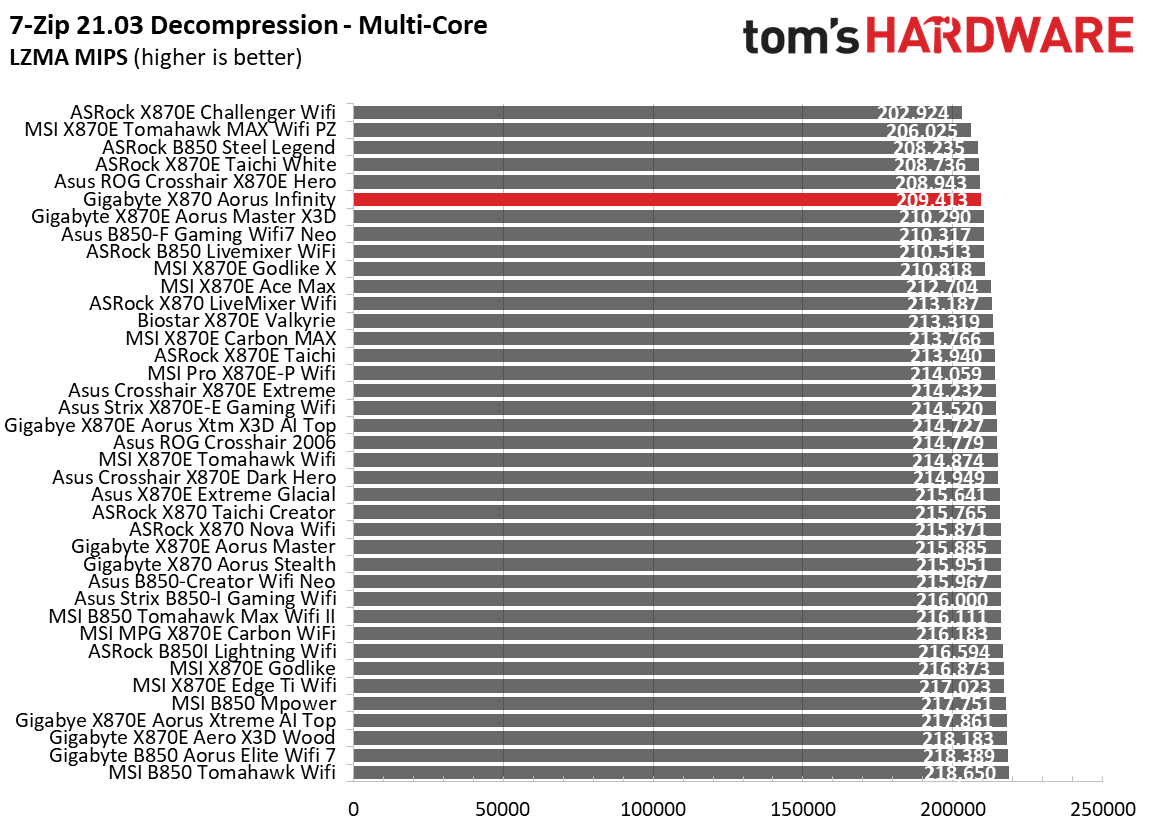
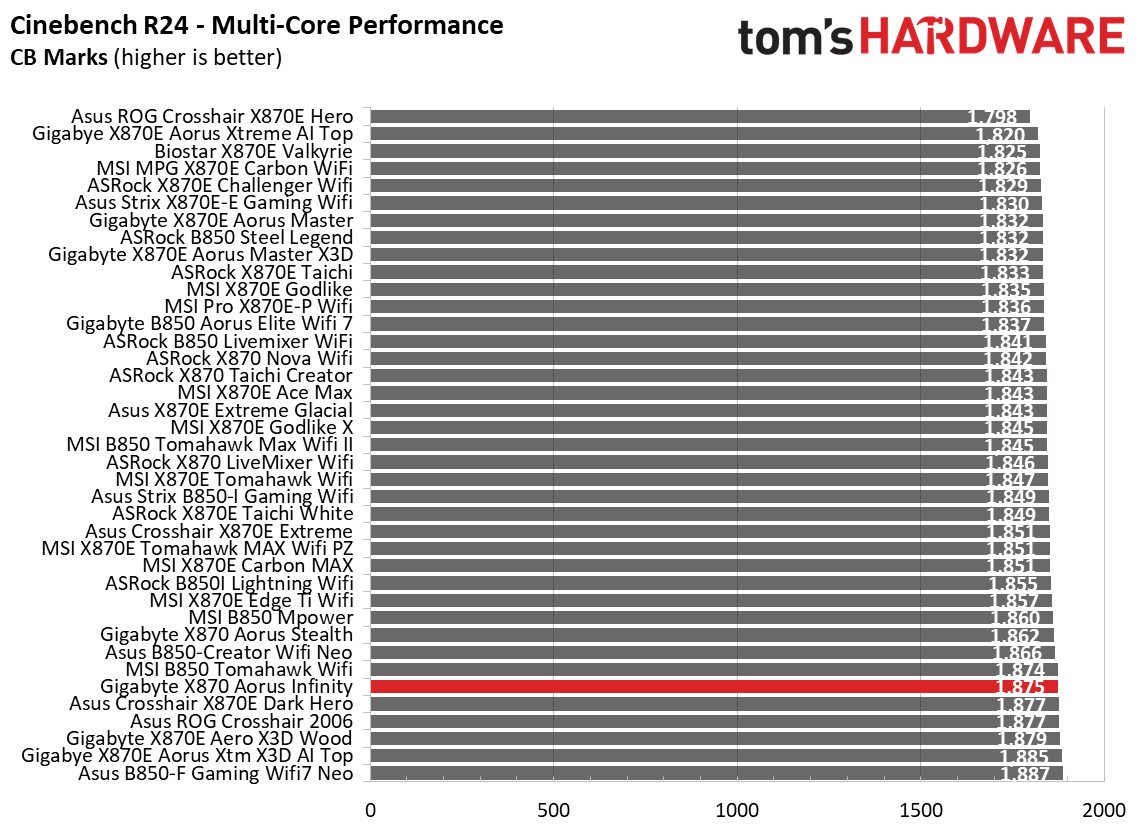
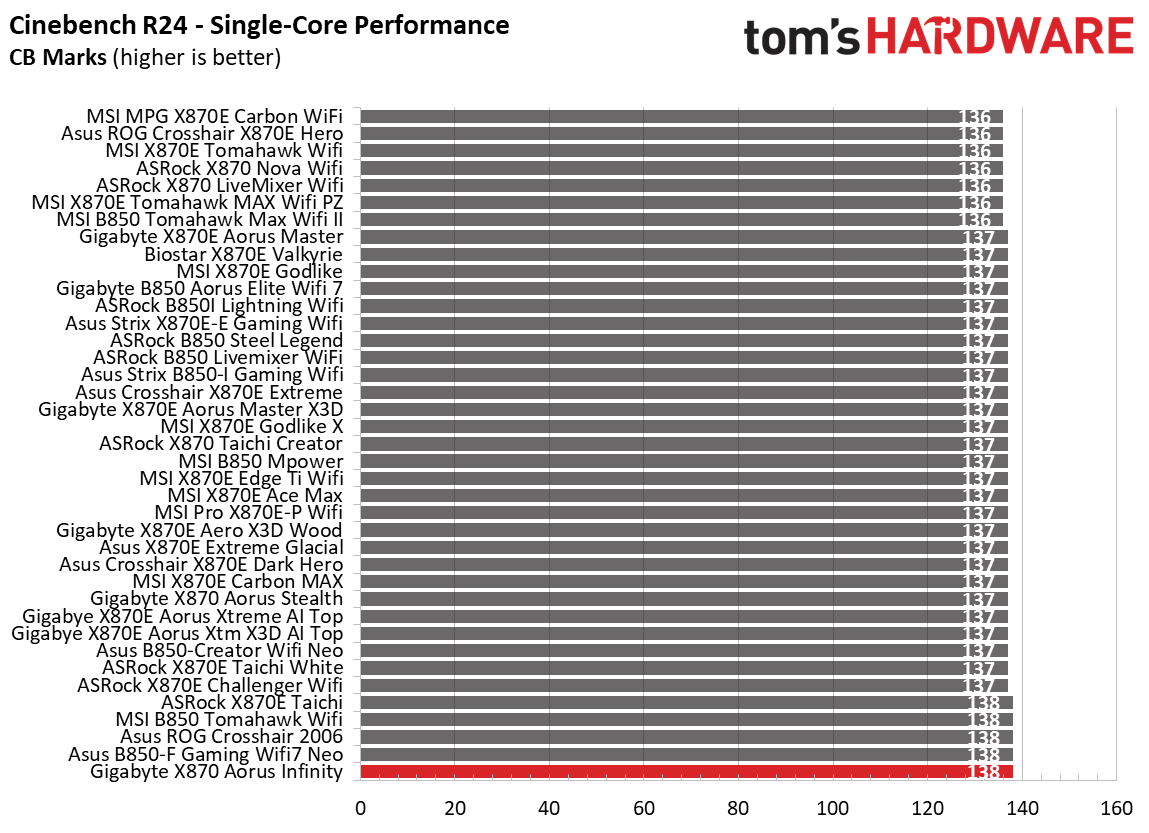
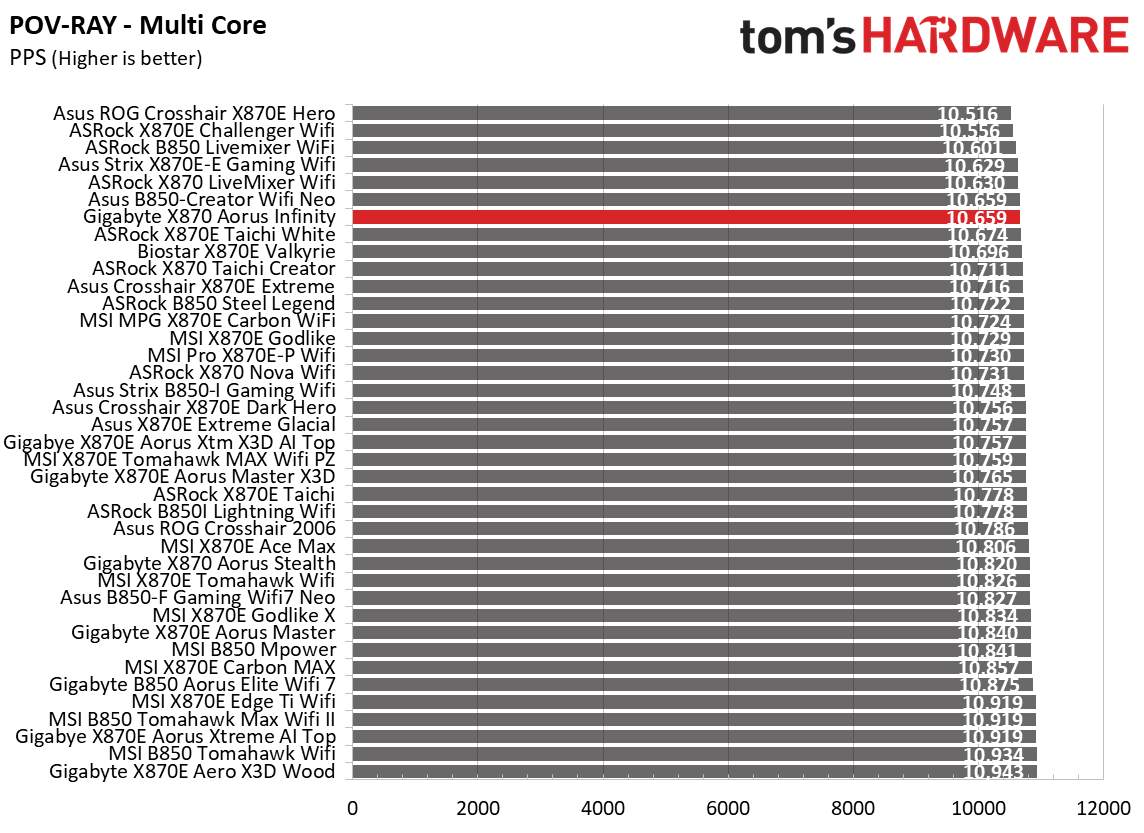
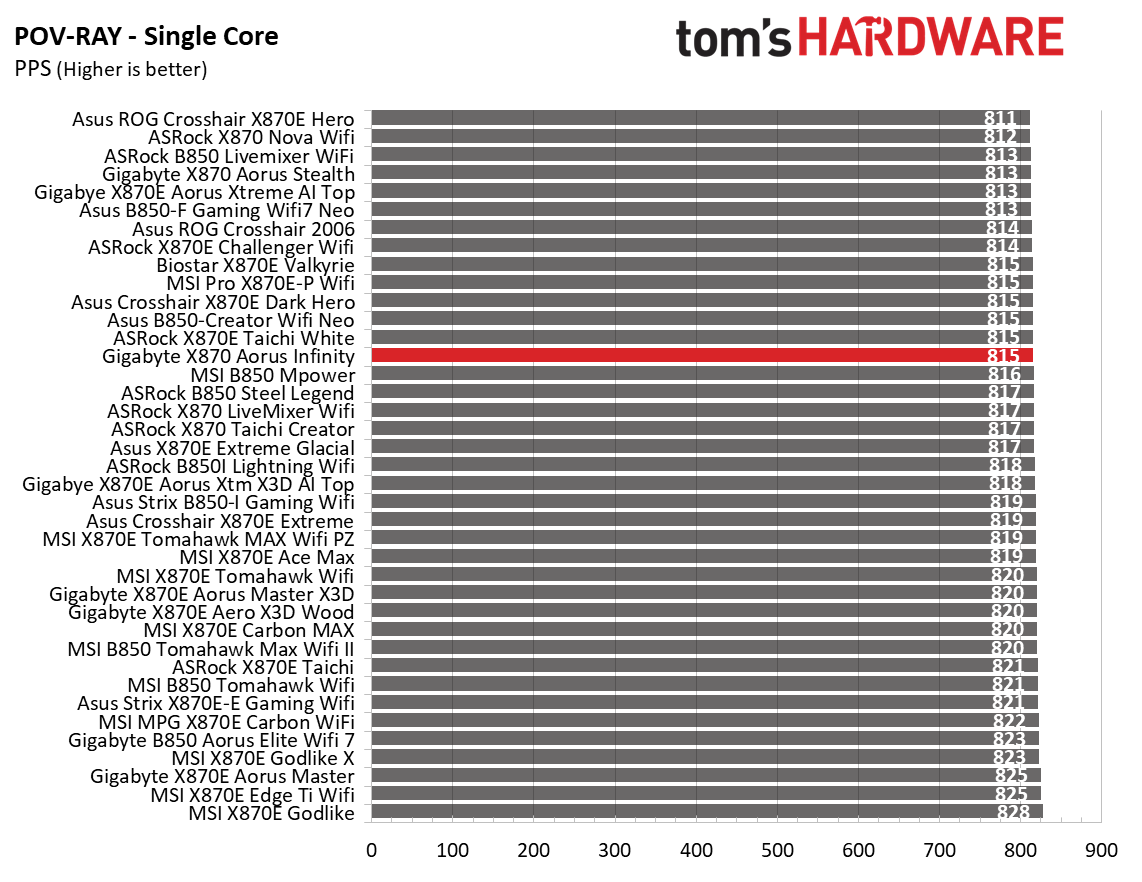
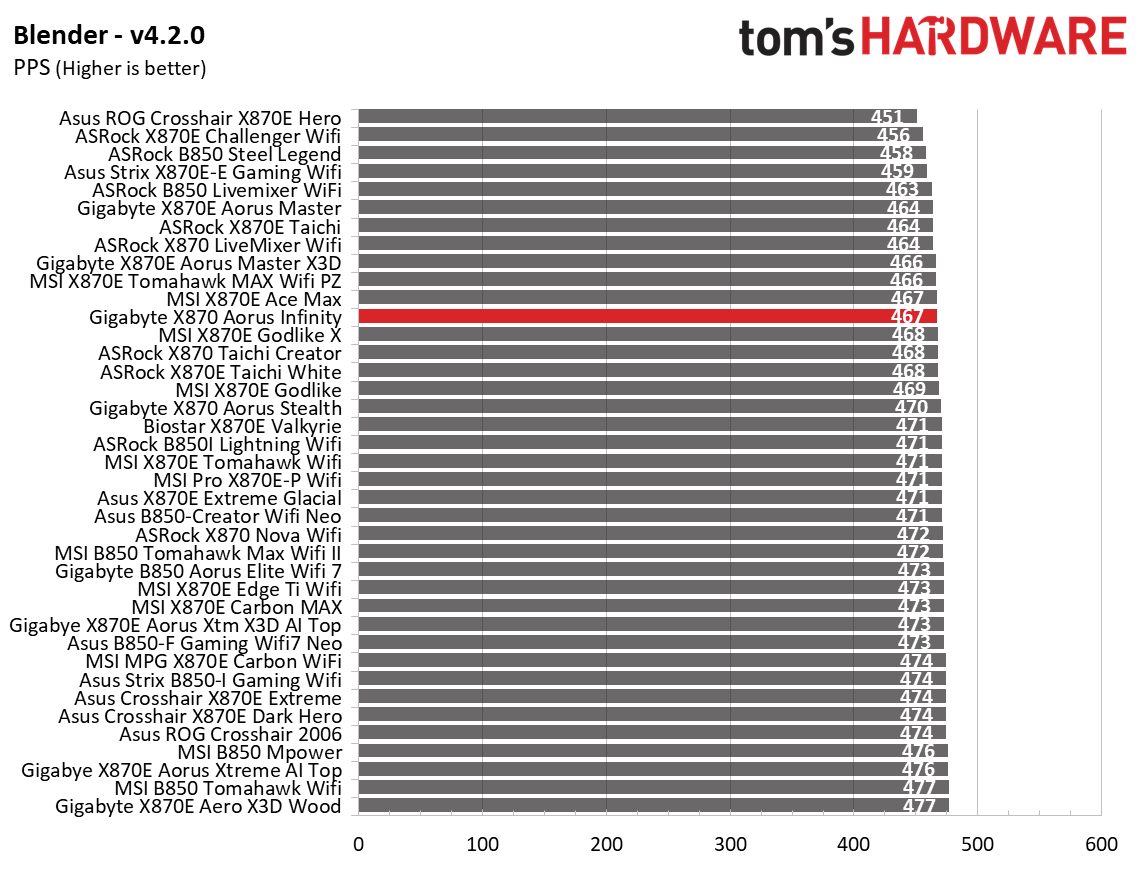
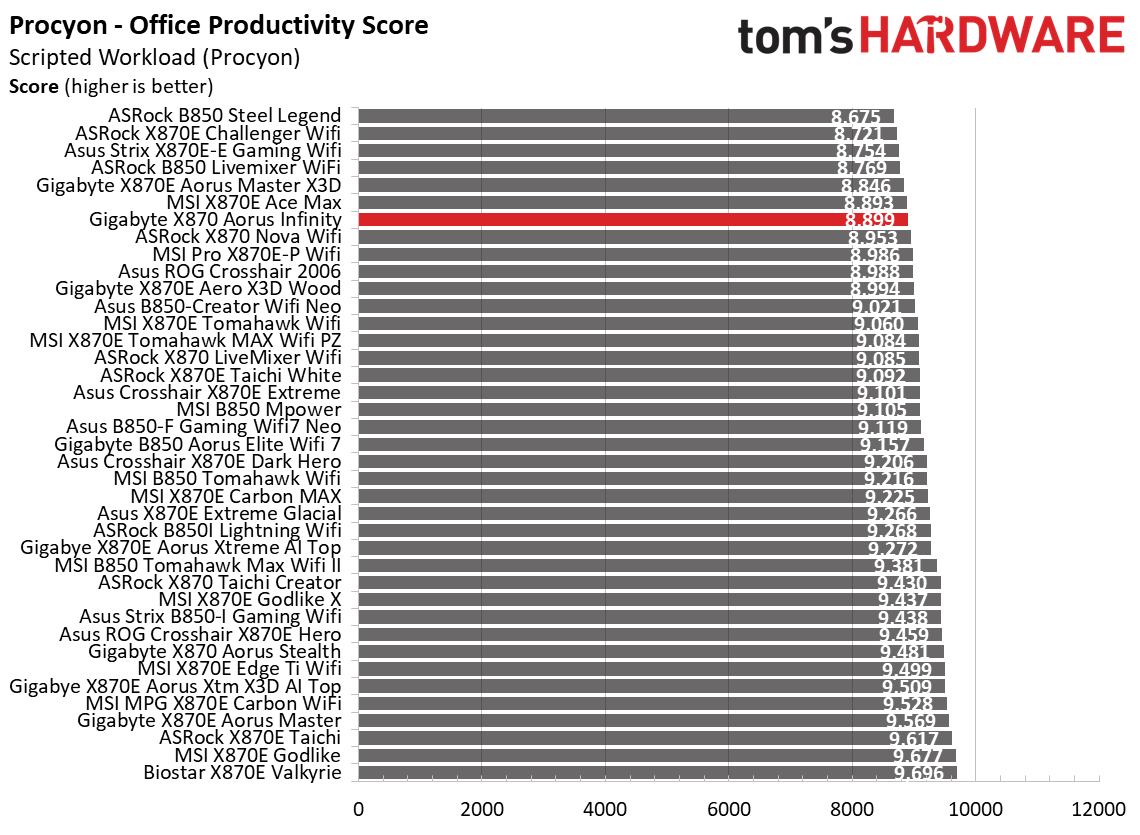
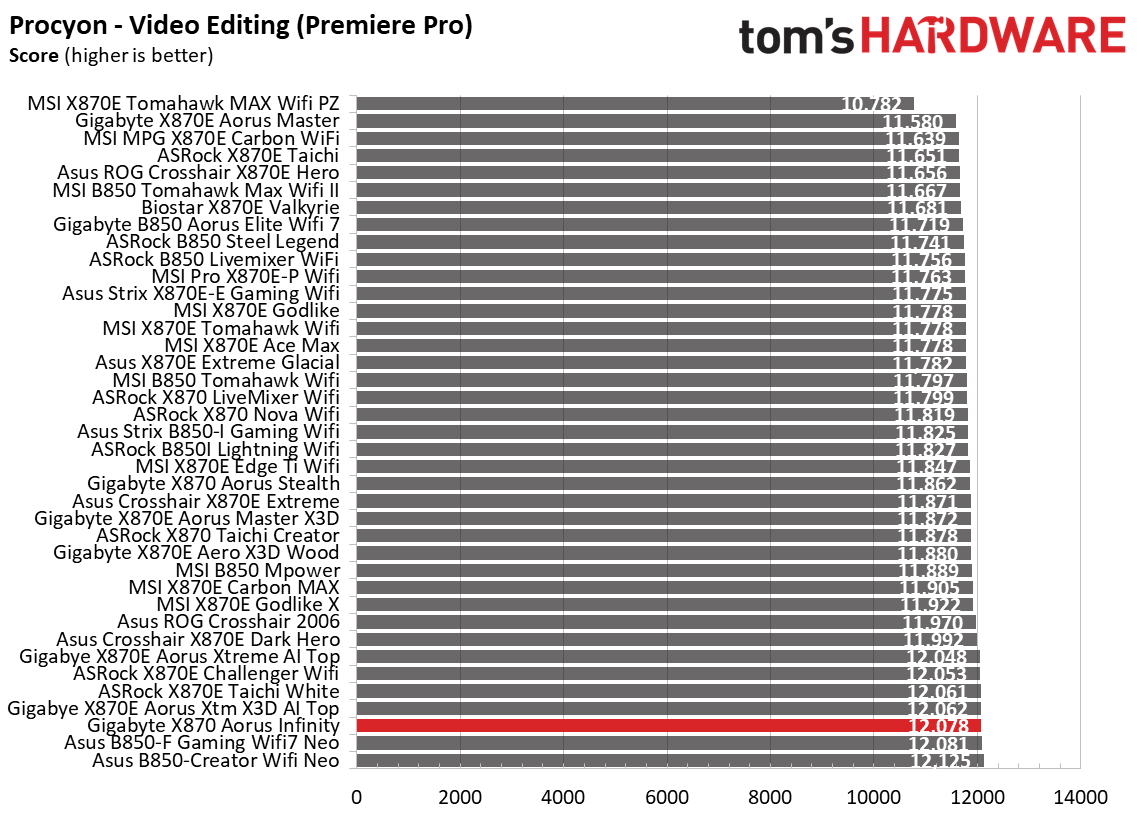
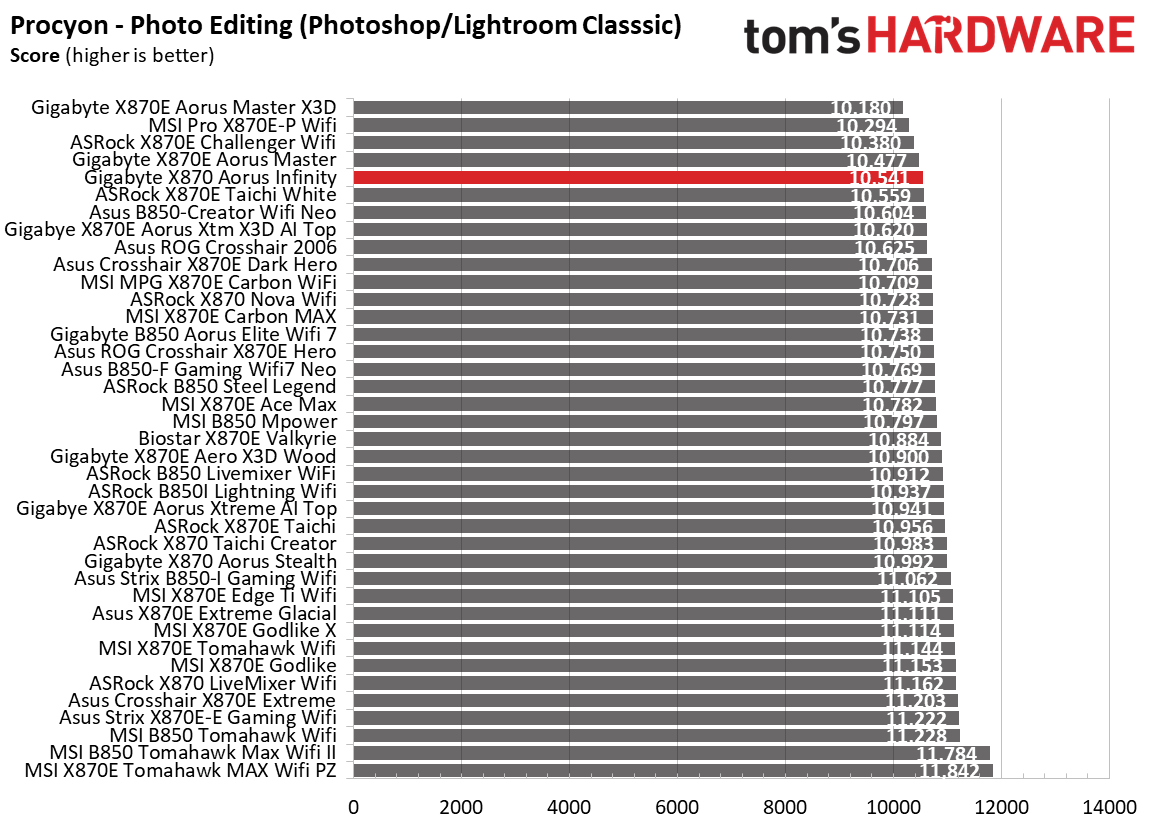
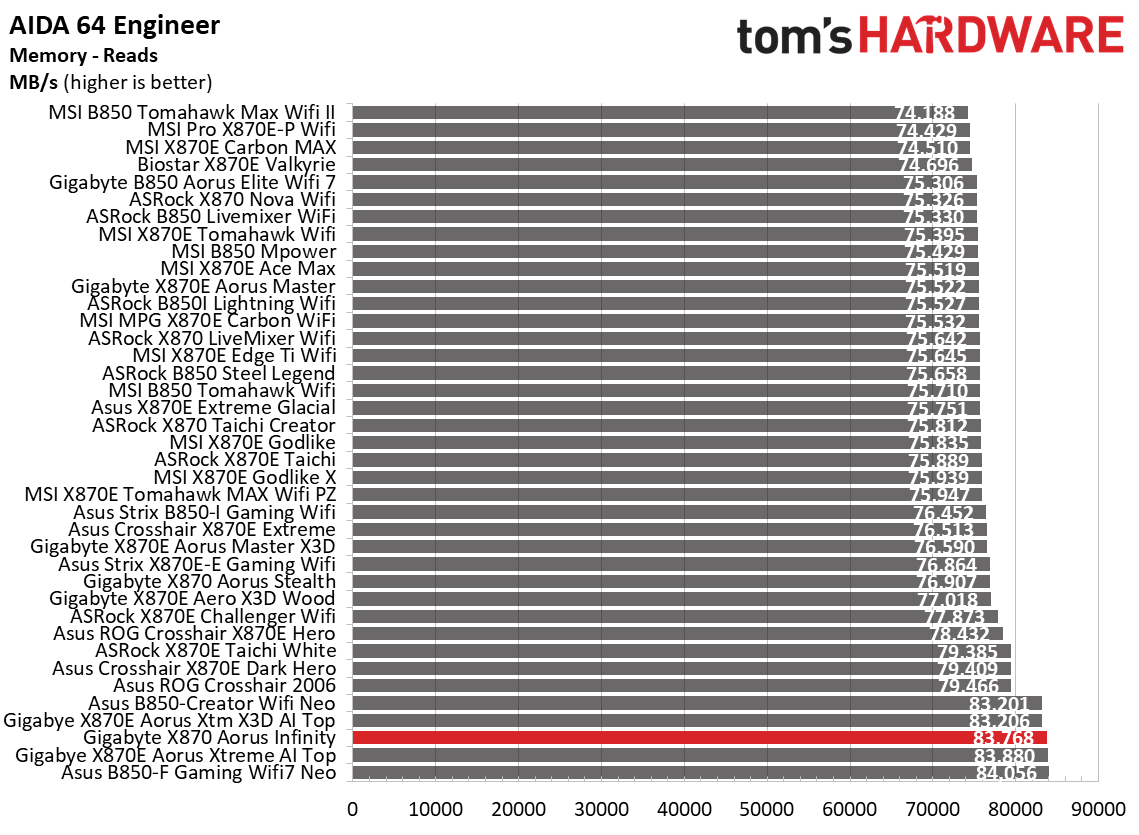
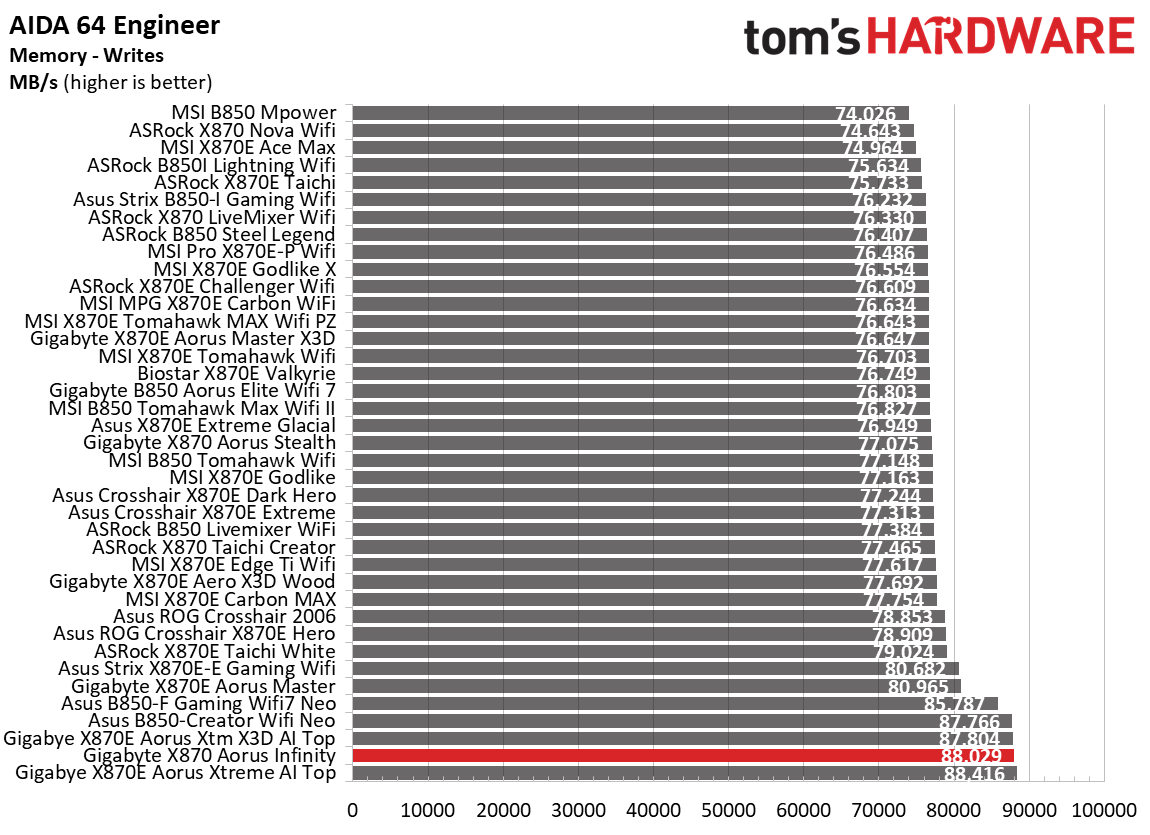
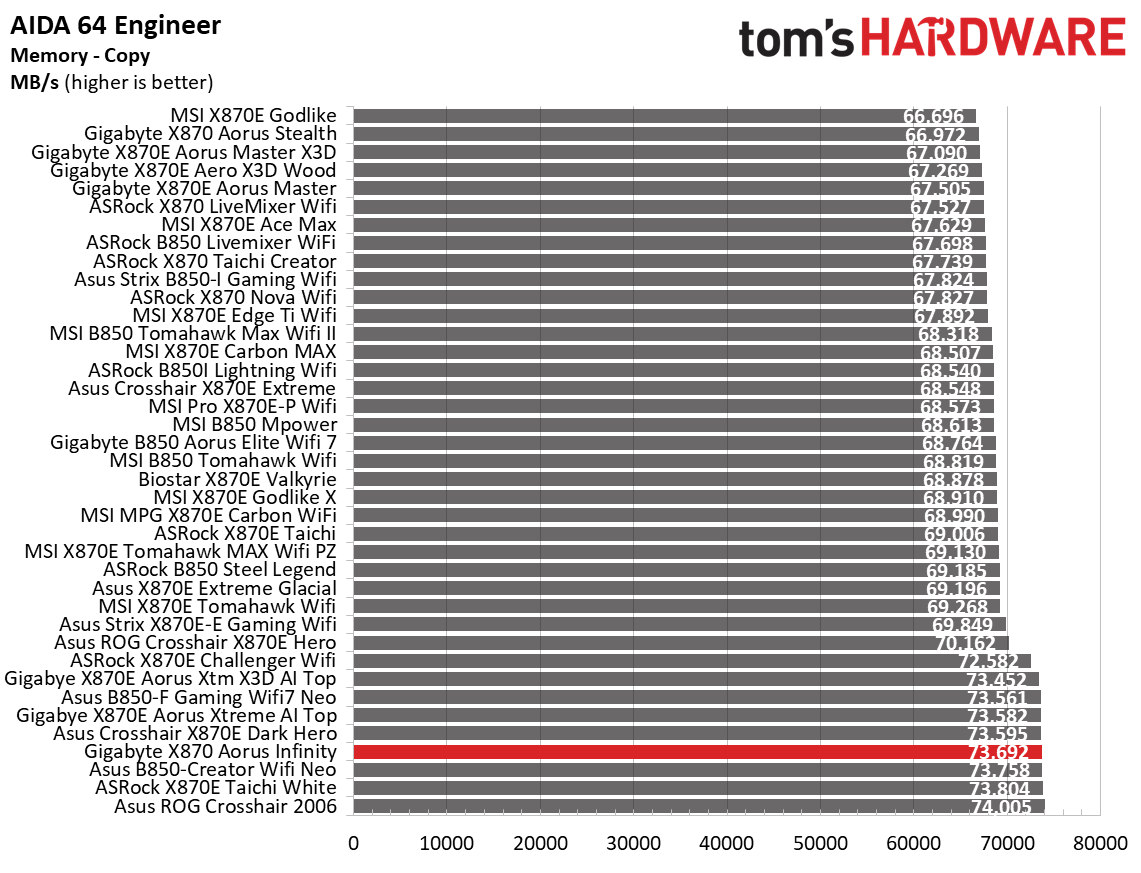
Synthetic BenchmarksSynthetics offer a valuable way to evaluate a board's performance, as identical settings should yield similar results. Turbo boost wattage and advanced memory timings are areas where motherboard manufacturers can still optimize for stability or performance, though, and these settings can impact specific testing scenarios.
 Future
 Future
 Future
 Future
 Future
 Future
 Future
 Future
 Future
 Future
 Future
 Future
 Future
 Future
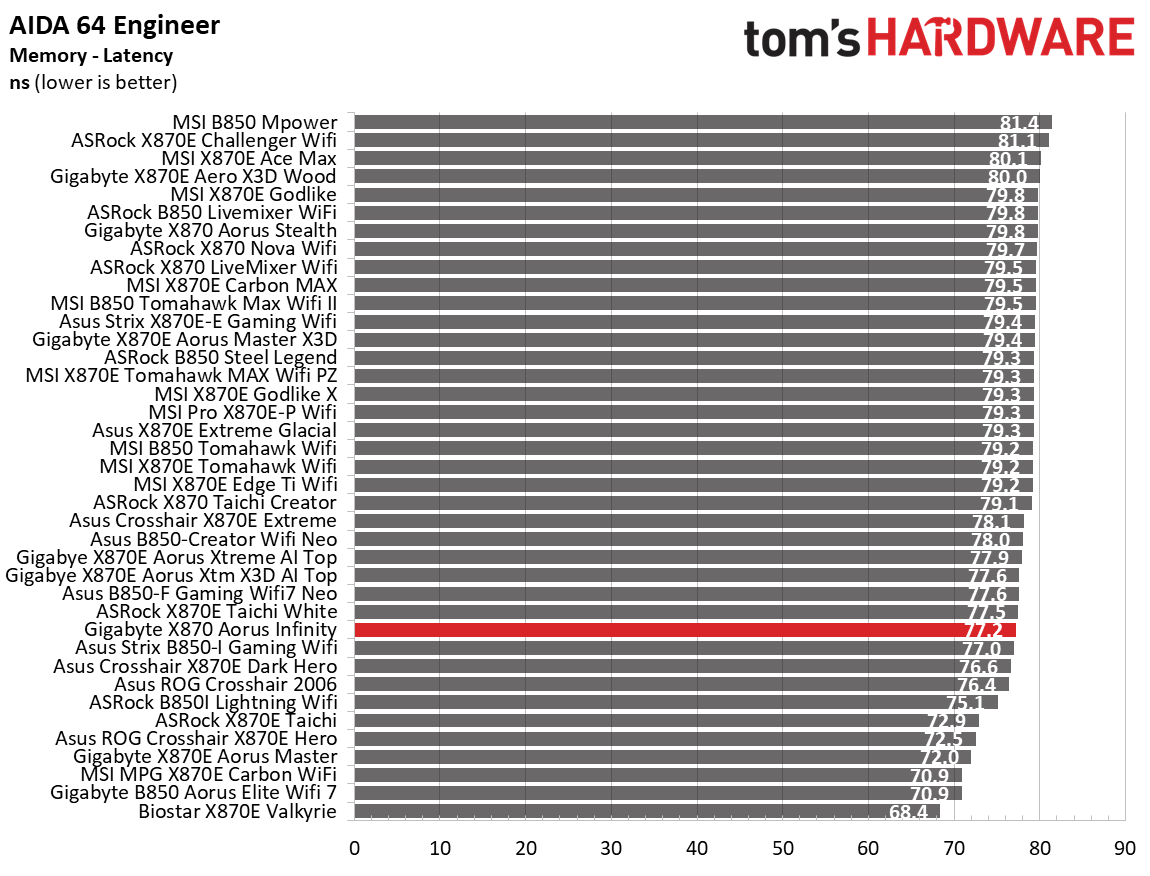
The Aorus Infinity was average to above average in most of these synthetic tests. So far, nothing to worry about.
Timed Applications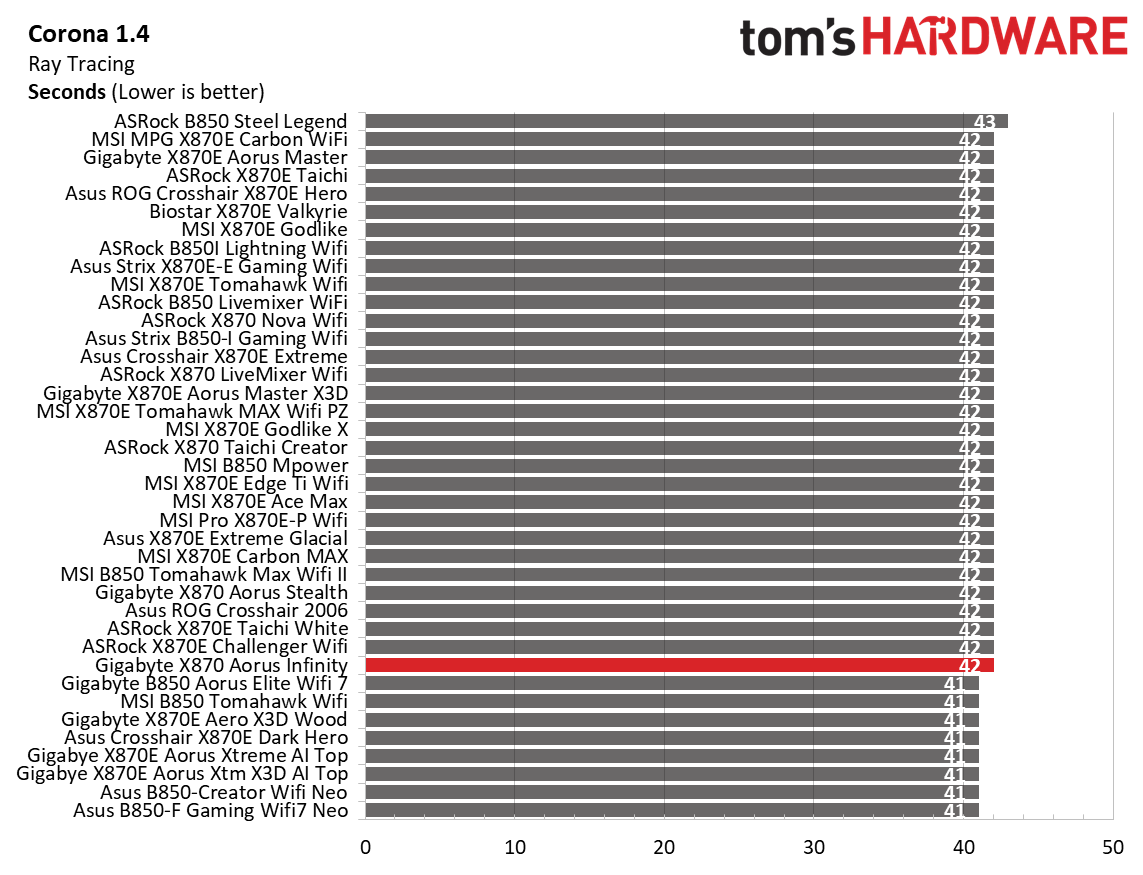 Future
 Future
 Future
 Future
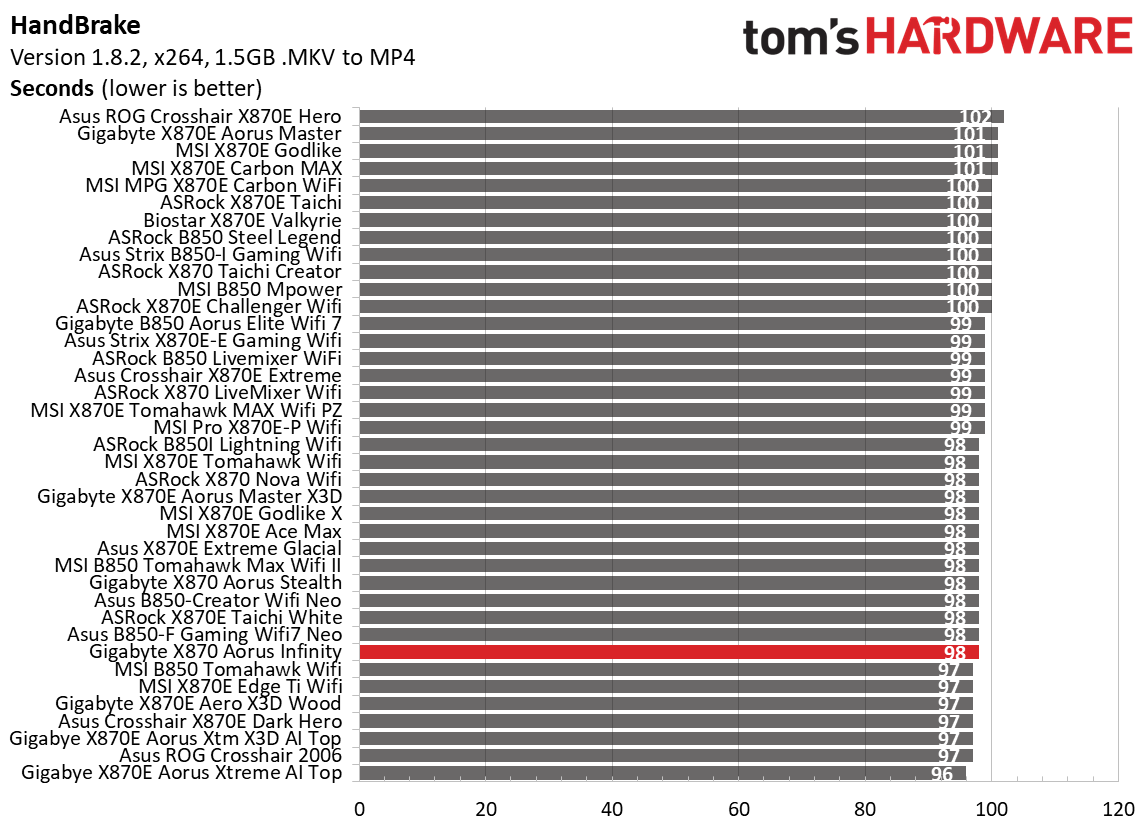
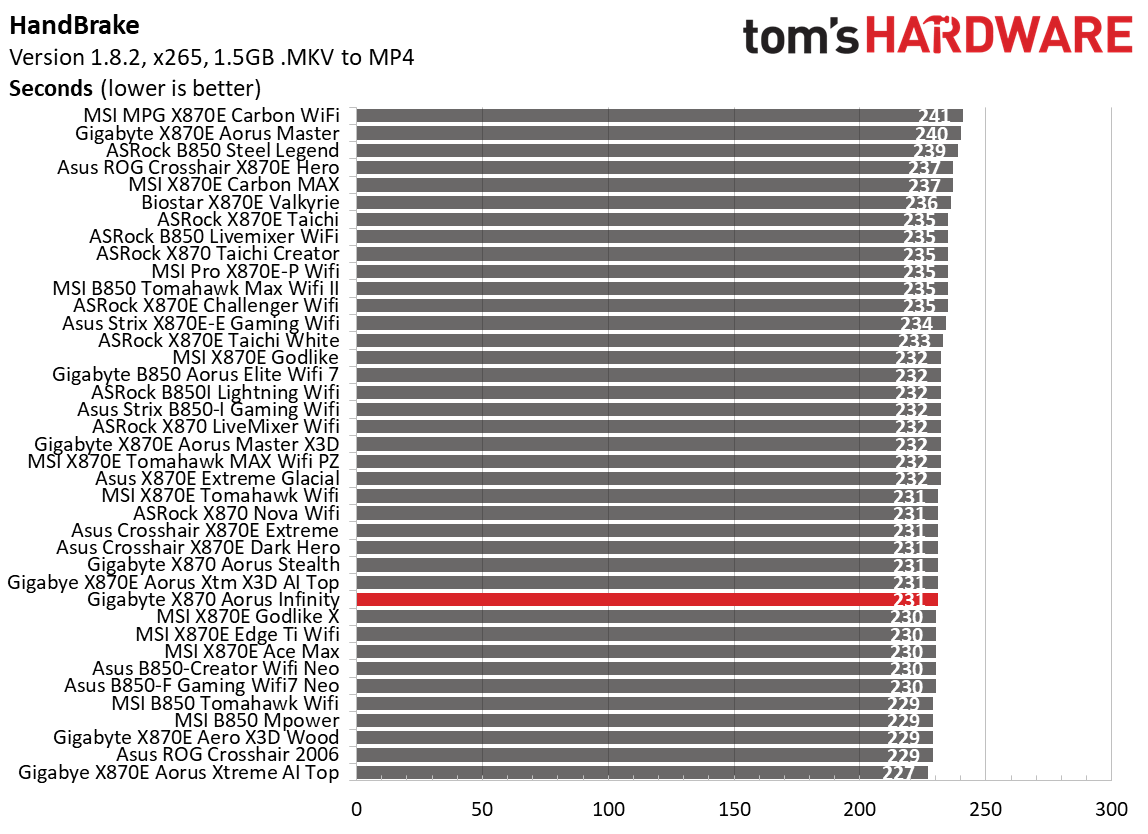
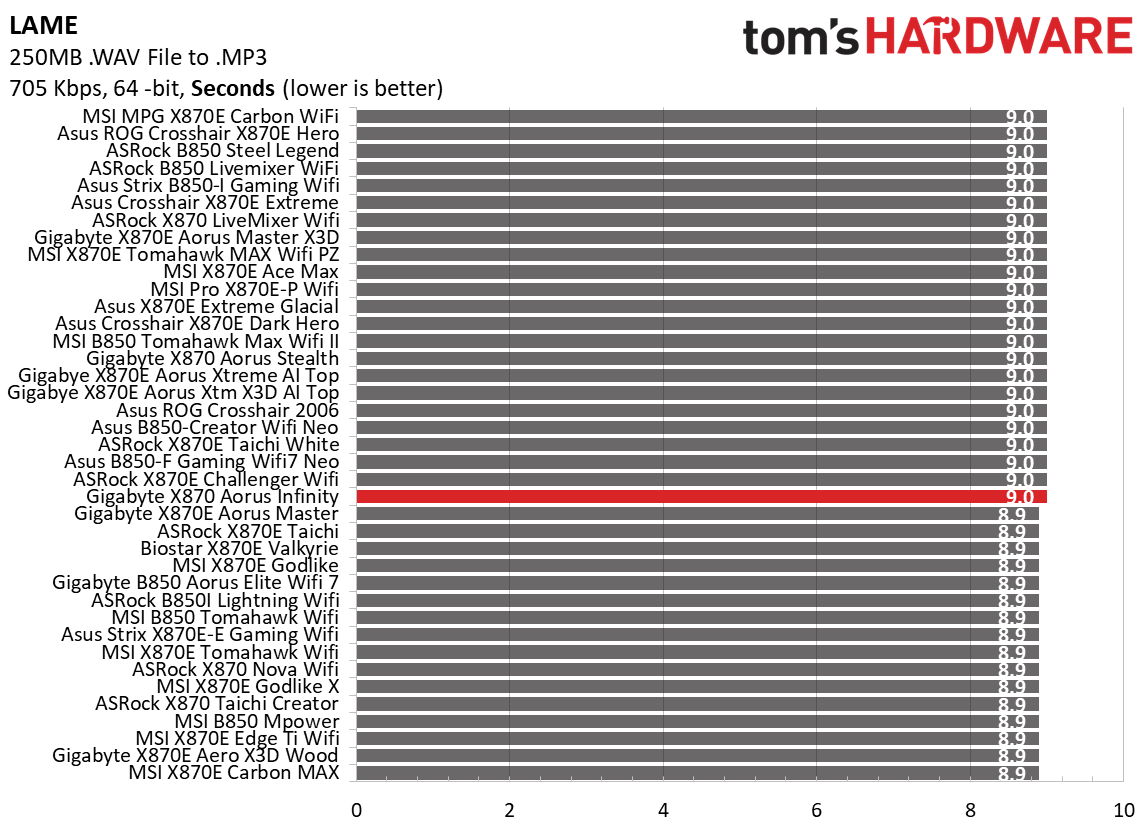
Our timed applications told a similar story. The Aorus board was average in HandBrake, but slightly below average in the Corona and LAME testing. Still, the results aren't far off, and you wouldn't notice unless you were benchmarking.
3D Games and 3DMark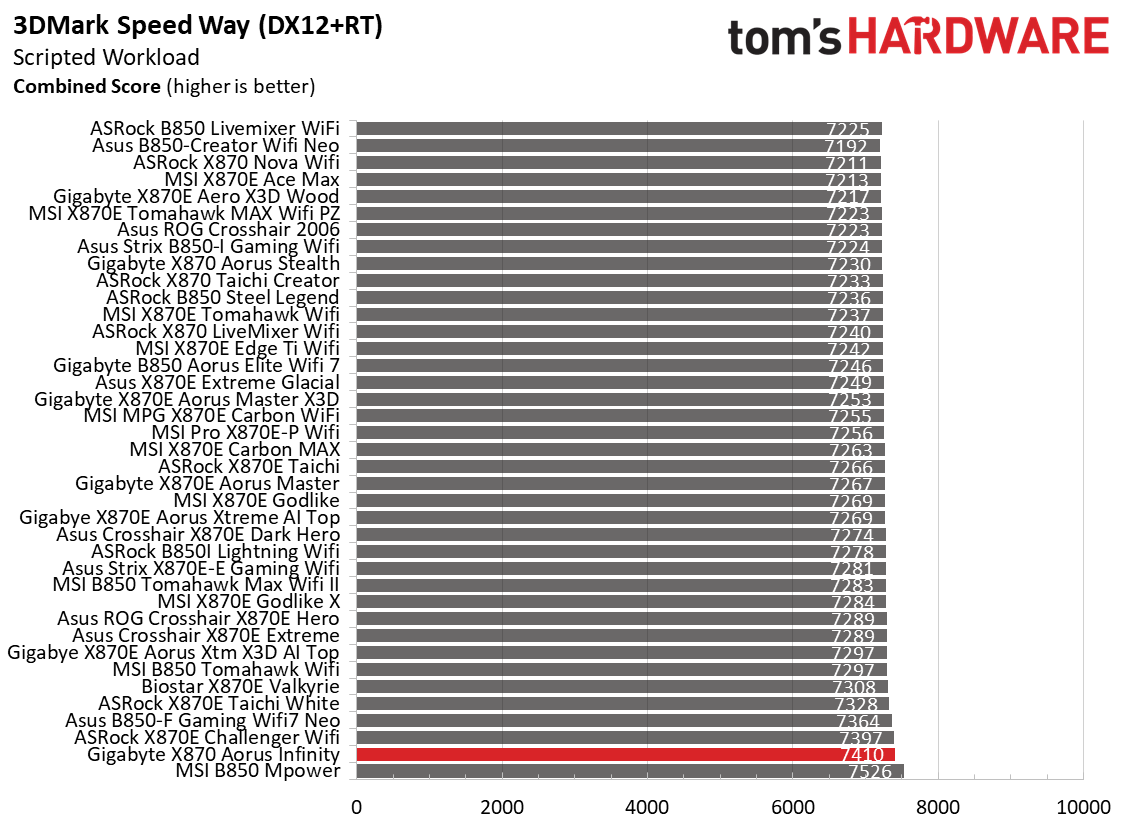 Future
 Future
 Future
 Future
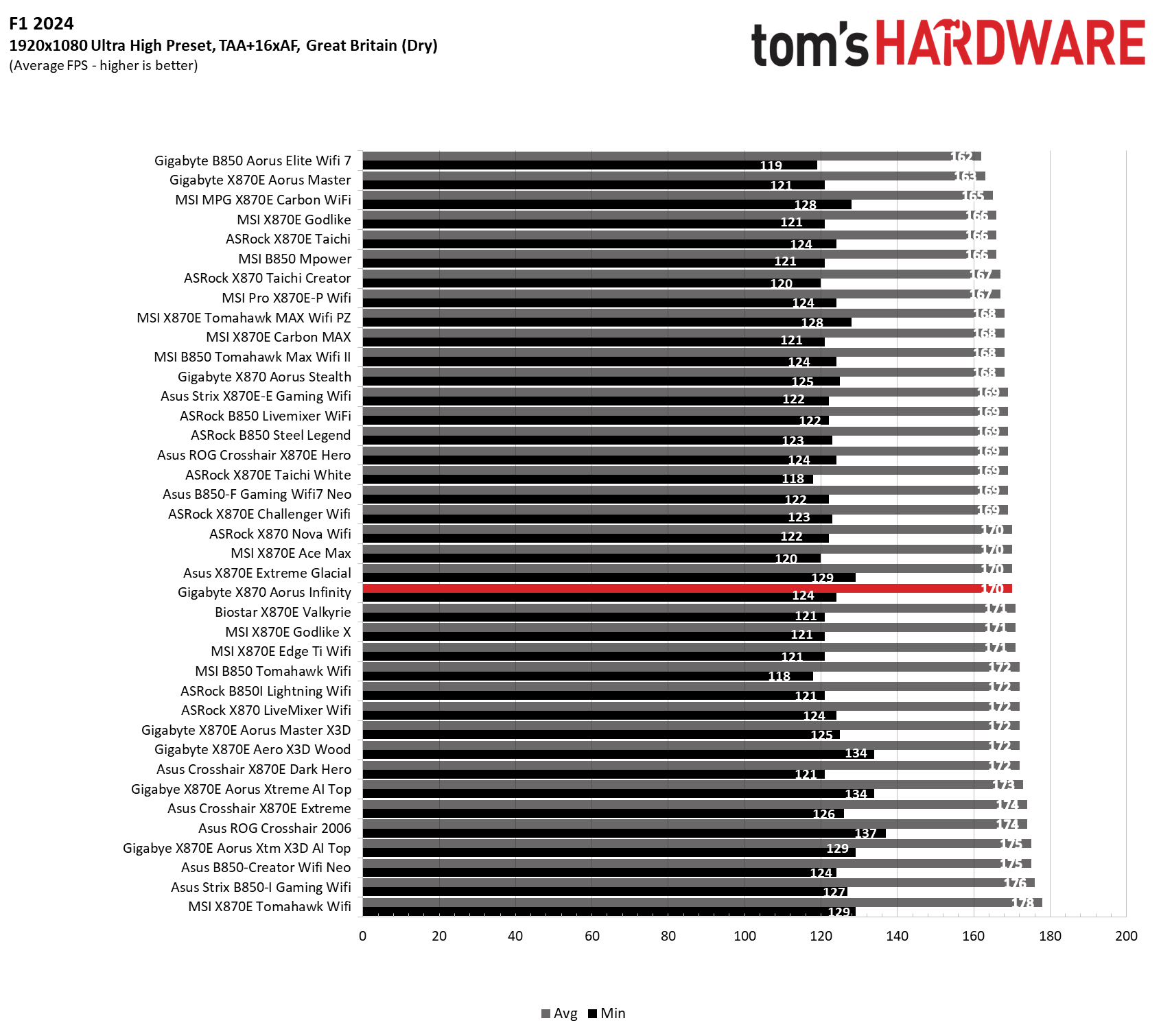
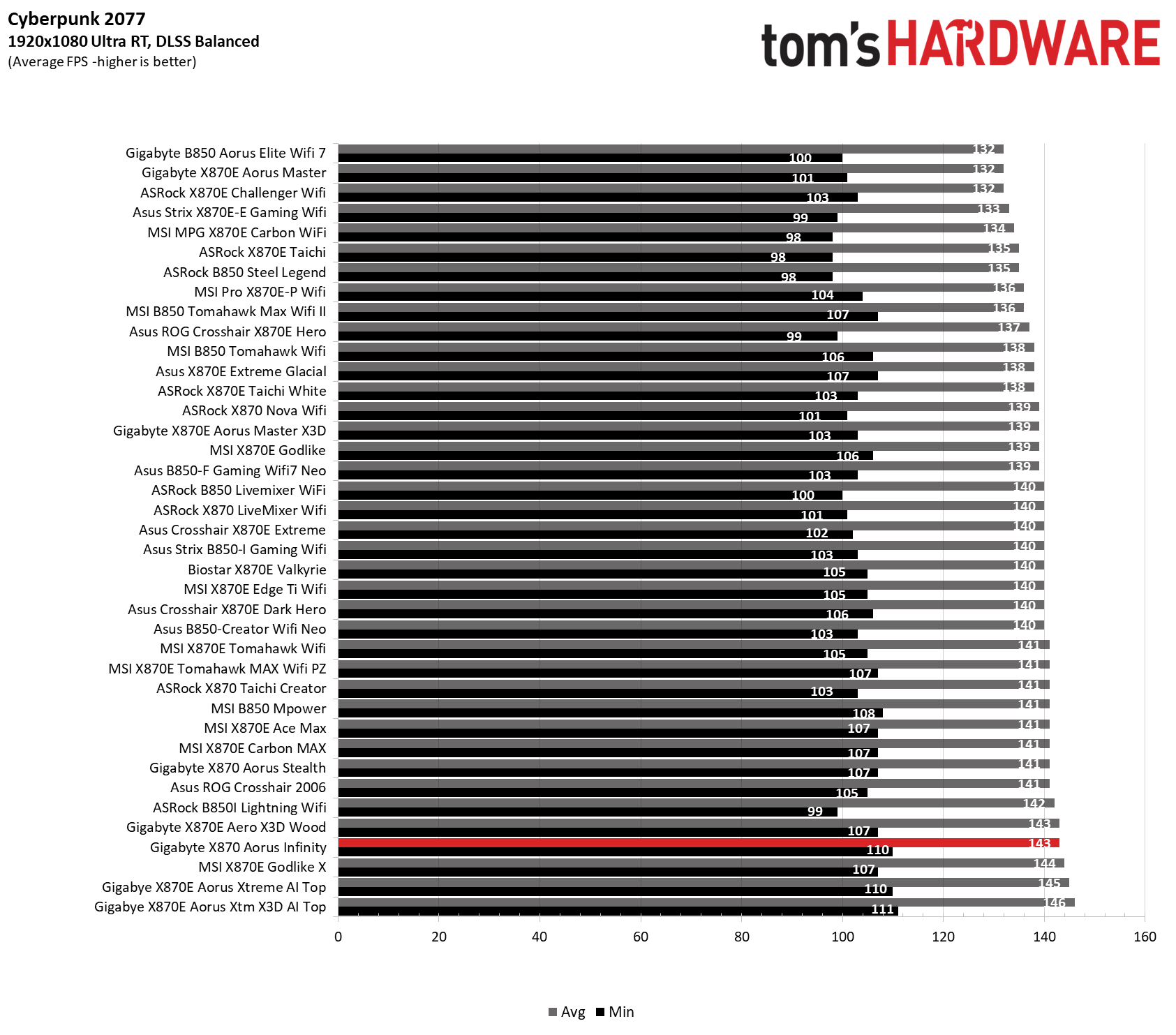
Starting with the launch of Zen 5, we've updated our game tests. We kept the F1 racing game but have upgraded to F1 24. We also dropped Far Cry 6 in favor of an even more popular, better-looking game: Cyberpunk 2077. We run both games at 1920x1080 resolution using the Ultra preset (details listed above). Cyberpunk 2077 uses DLSS, while we left F1 24 on native resolution scaling.
The goal of these settings is to determine whether performance differs at the most commonly used (and CPU/system-bound) resolution, with settings most people use or strive for (Ultra). We expect the difference between boards in these tests to be minor, with most falling within the margin of error. We've also added a minimum FPS setting, which can affect your gameplay and immersion.
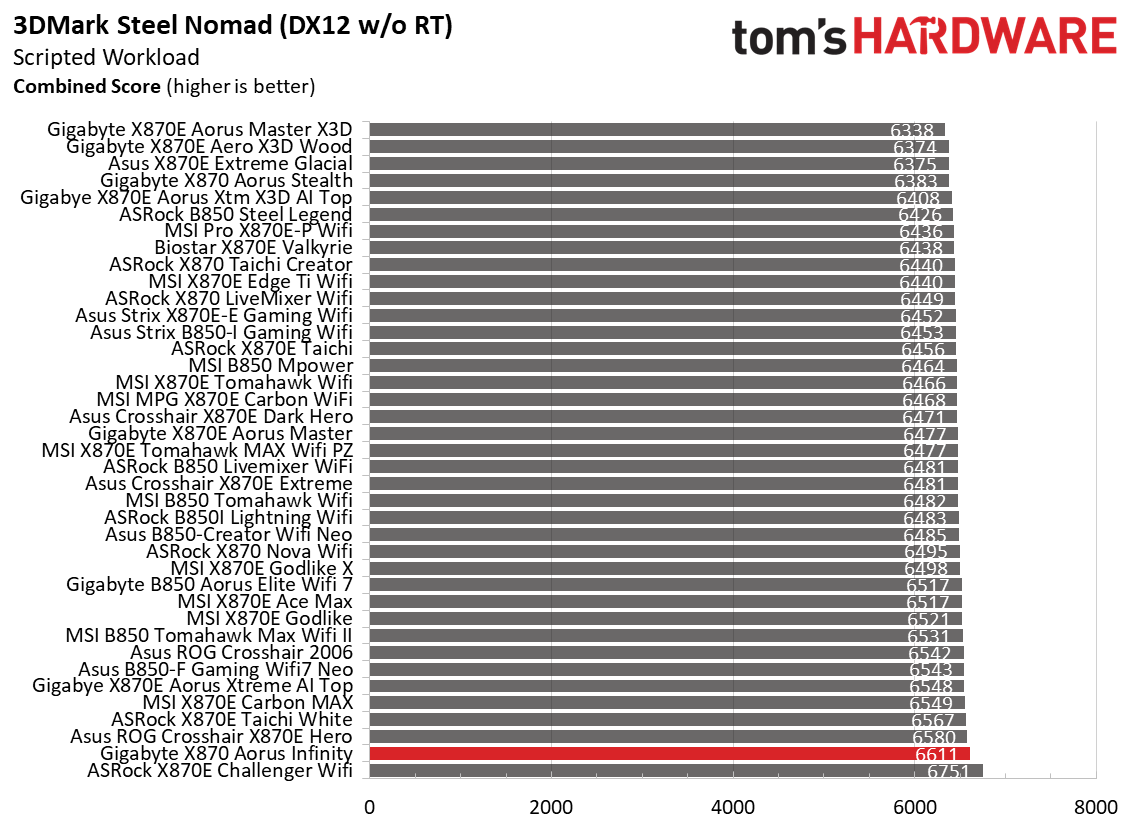
The Infinity did very well in the synthetic 3DMark benchmarks and was average to above average in games.
To summarize, there's nothing to worry about when it comes to performance on this board. Be it gaming, office work, or creative workflows, the Infinity can do it all.
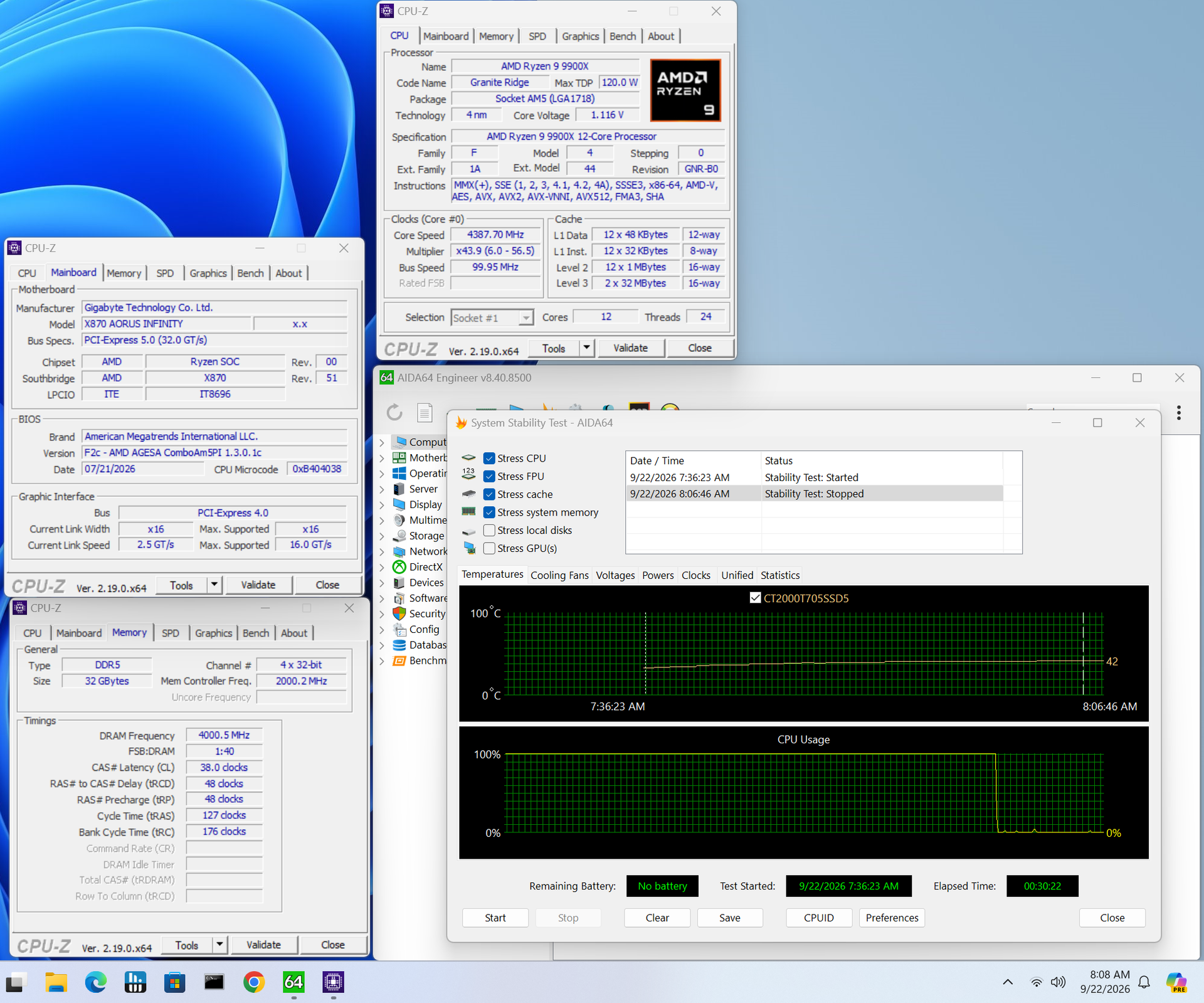
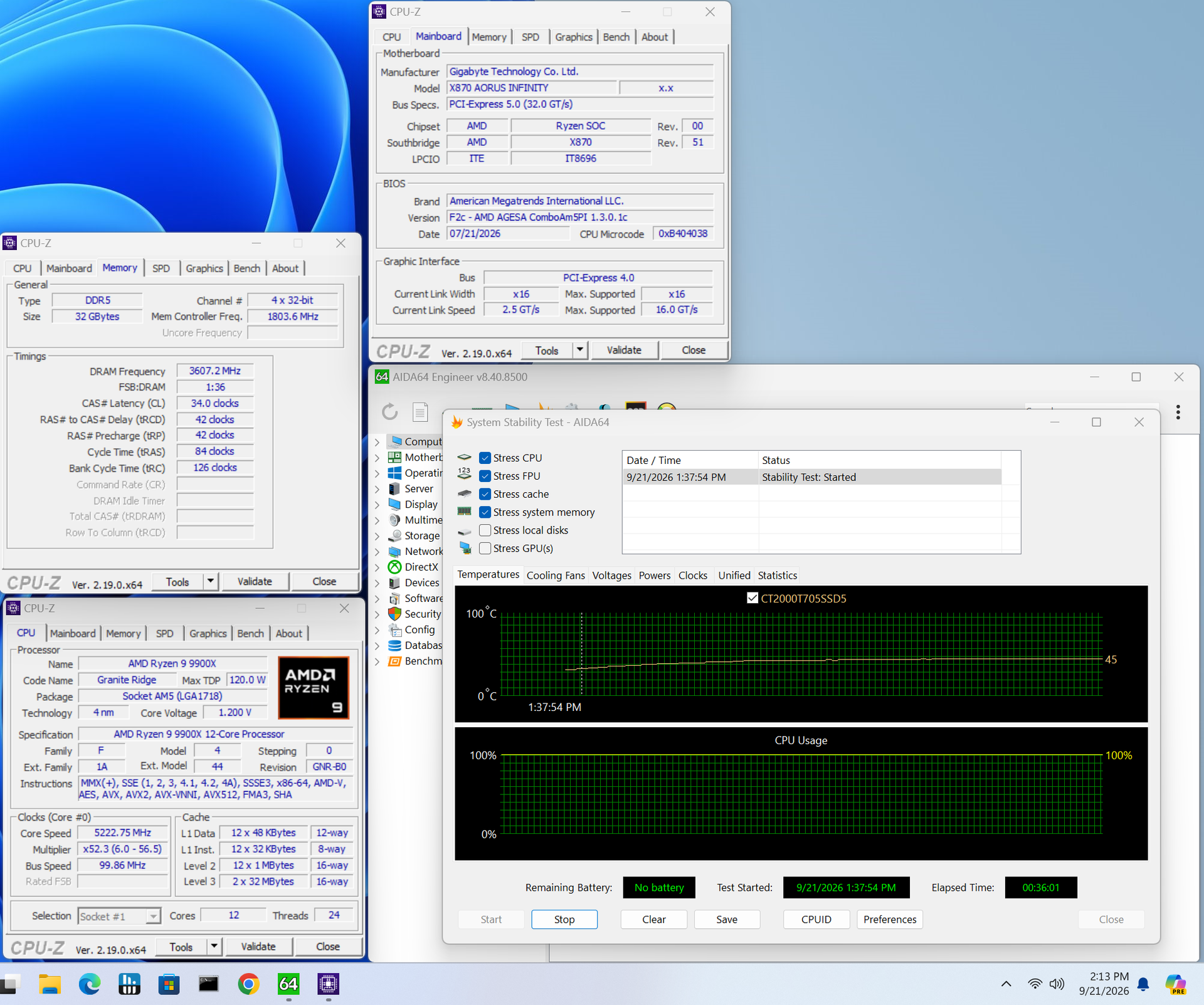
OverclockingOver the past few CPU generations, overclocking headroom has shrunk on both sides of the fence, while out-of-the-box potential has increased. For overclockers, that means less fun. For the average consumer, you're getting the most out of the processor without manual tweaking. Today's motherboards are more robust than ever and easily support power-hungry, flagship-class processors, so we know the hardware can handle them. There are multiple ways to extract even more performance from these processors: enabling a canned PBO setting, manually tweaking the PBO settings, or just going for an all-core overclock. Results will vary and depend on the cooling as well. In other words, your mileage may vary. Given all of the above, we will not overclock the CPU. However, we will test different memory kits to ensure they meet the specifications.
 Future
 Future
For memory testing, everything we tested worked-even our DDR5-8000 kit from Klevv. The Infinity is one of the few boards that allowed those speeds with the Ryzen 9 9900X CPU. In most cases (read: a board with four memory slots), we need to pivot and install the 8600G APU. But since it has only two DRAM slots, the board completed a stress test on our DDR5-8000 kit and is clearly ideal for pushing memory speeds. It also uses Gigabyte's X3D Turbo Mode 2.0 for one-touch performance improvements.
Power Consumption / VRM Temperatures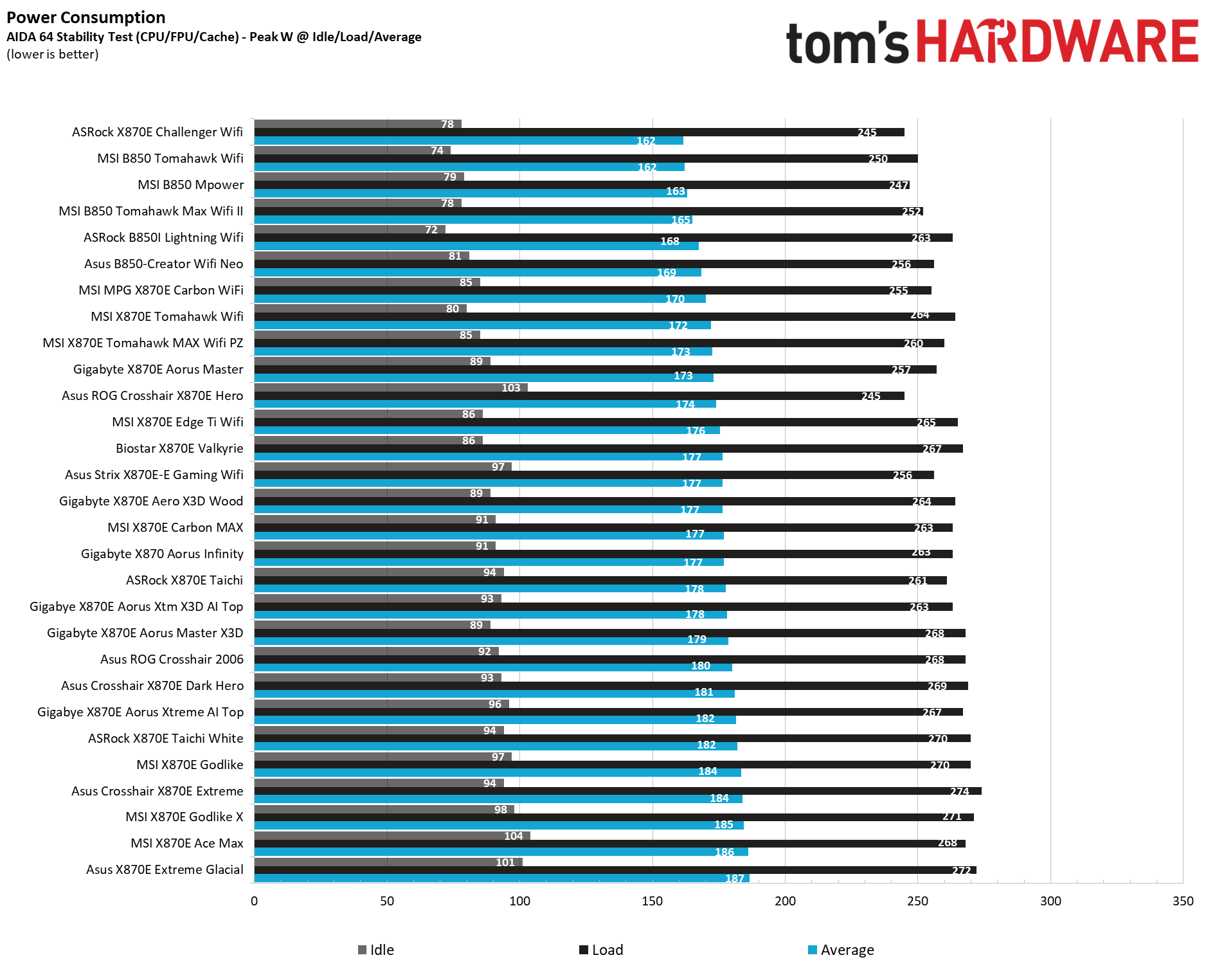
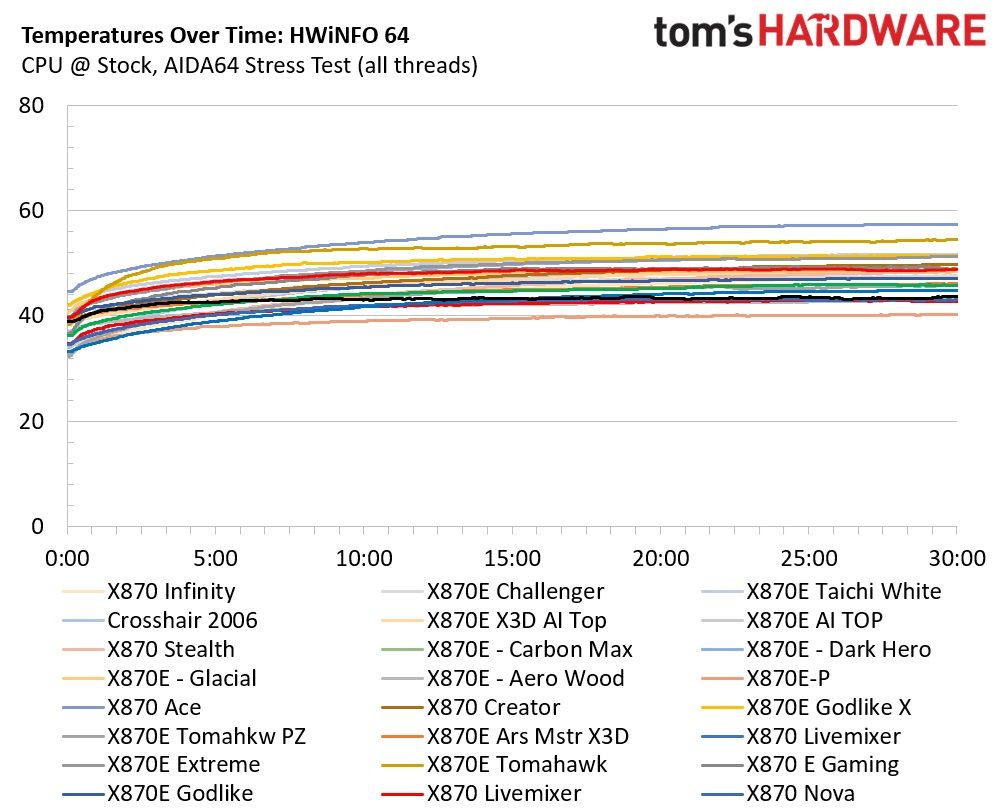
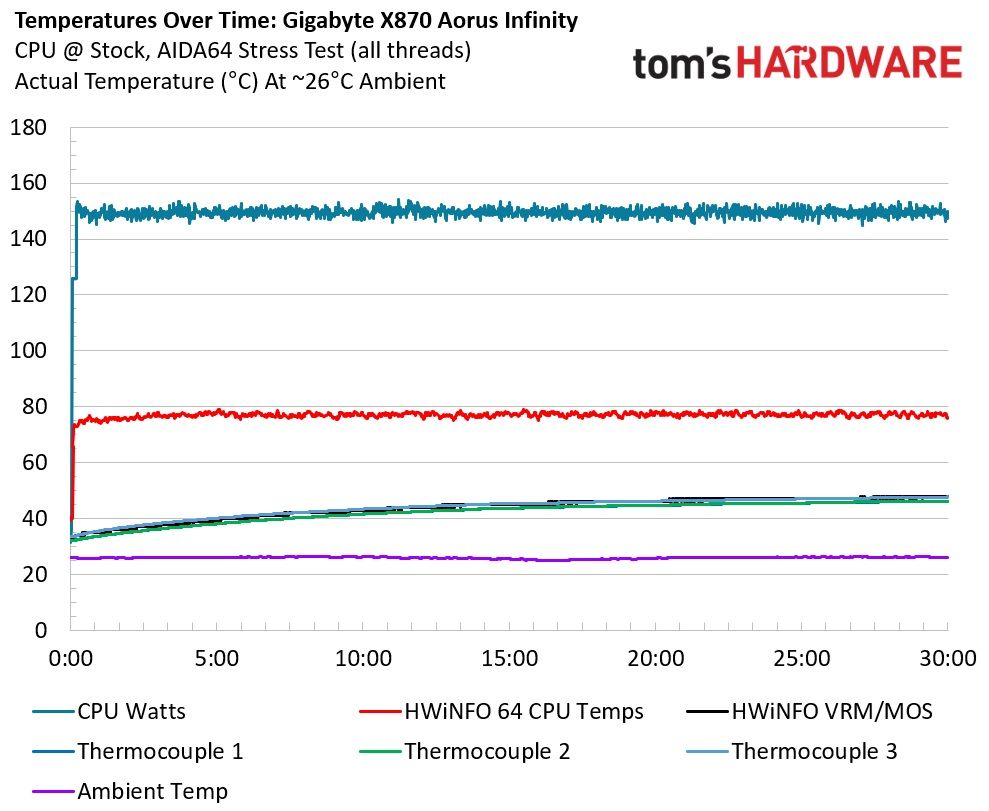
We used AIDA64's System Stability Test with Stress CPU, FPU, cache, and Memory enabled for power testing, using the processor's peak power consumption value. We obtained the wattage reading from the wall using a Kill-A-Watt meter, which captures the entire PC (excluding the monitor). The only variable that changes is the motherboard; all other parts remain the same. Please note that we now use only the stock power-use/VRM temperature charts, as this section aims to ensure the power delivery can handle flagship-class processors.
Stress testing this board with our DDR5-7200 kit showed it using less power than some. At idle, it sat around 91W, above average (though typical for boards of this class), and it peaked at 263W, slightly above average. This averages out to 177W, about 5W higher than the running 172W average among our tested boards.
 Future
 Future
VRM temperatures were very good during our testing, peaking at just over 46 degrees Celsius on our sensor and 48 degrees on the hottest internal sensor. With 110A MOSFETs pushing ~150W loads, it's a solid result with plenty of headroom left for a more powerful processor and, of course, extreme overclocking, what it was designed for.
Bottom Line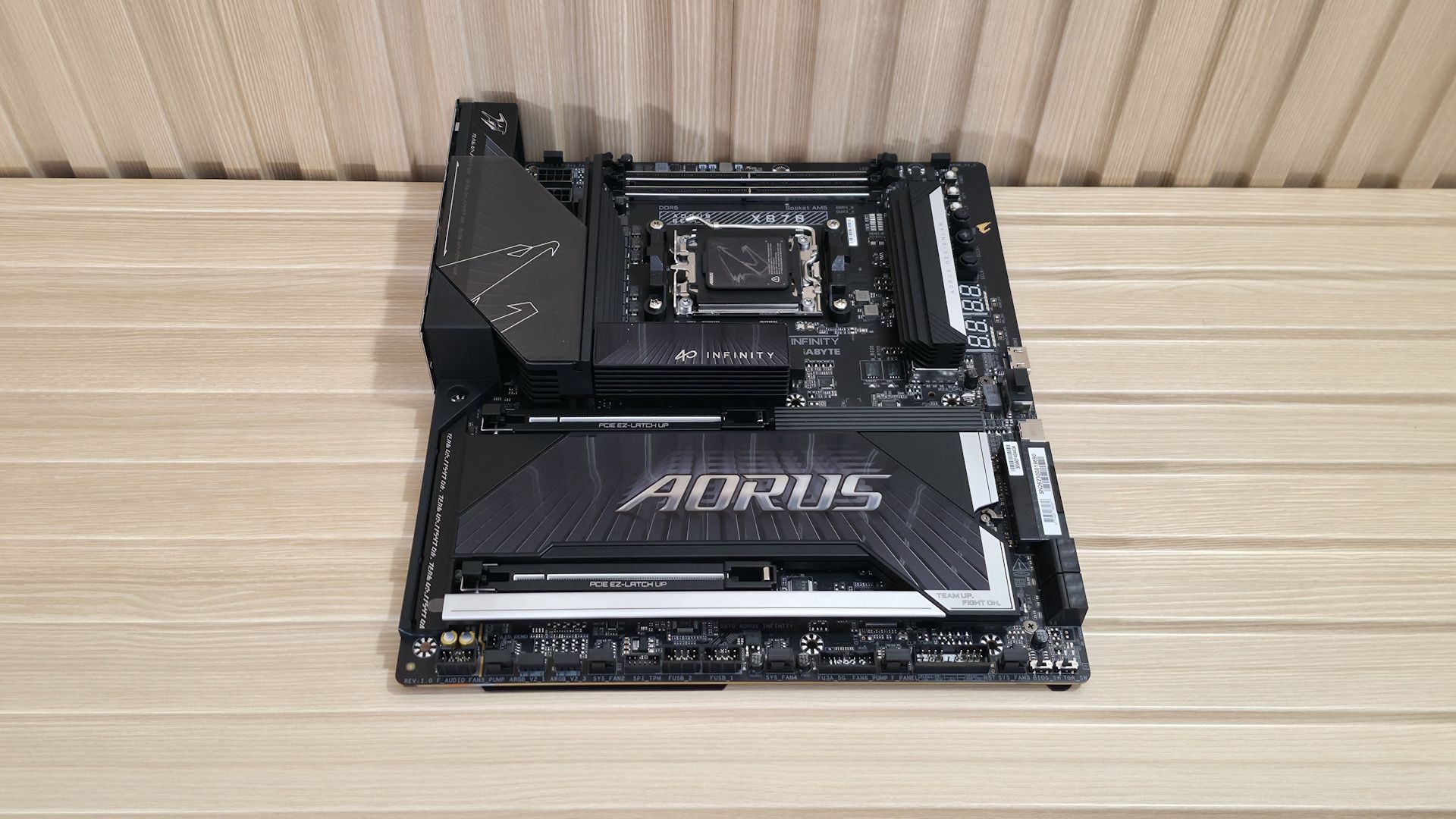
In the end, we do like the Gigabyte X870 Infinity motherboard. While it's meant for extreme overclocking, it does everything well overall. The biggest issue is the price. At $799.99, it's expensive for a motherboard. But this is also a limited-edition 40th-anniversary board. For much less, you can get high-end, flagship-class X870E-based boards... but they lack the extreme overclocking features. Obviously, if you're an extreme overclocker, the price is a bit more palatable than if you were not. But the elephant in the room is the other overclocking board: Asus' ROG Crosshair X870E Apex is only' $597.99 at Newegg and offers similar (but not identical) features.
You can also find Gigabyte's X870E Aorus Master X3D for $589, or MSI's MEG X870E Ace Max motherboard for just over $530, both of which offer more M.2 sockets and better audio solutions. But again, these aren't motherboards focused on extreme overclocking and squeezing every last MHz out of your processor or RAM.
While this is a solid all-around motherboard, the price point feels prohibitive for an X870 board, at least for everyone except the extreme overclocking crowd. Performance is where it should be. VRM temperatures are excellent, and the power delivery has plenty of headroom for any processor, even with extreme cooling. If you're chasing memory records at Hwbot and pushing the limits with LN2, the Infinity has all the tools you need to get the most out of your system. Everyone else can save a couple hundred dollars by looking elsewhere.
MORE: Best Motherboards
MORE: How To Choose A Motherboard
MORE: Best Motherboard Deals
MORE: Best Motherboard Combo Deals
MORE: All Motherboard Content