How to set up a VPN on PlayStation 4
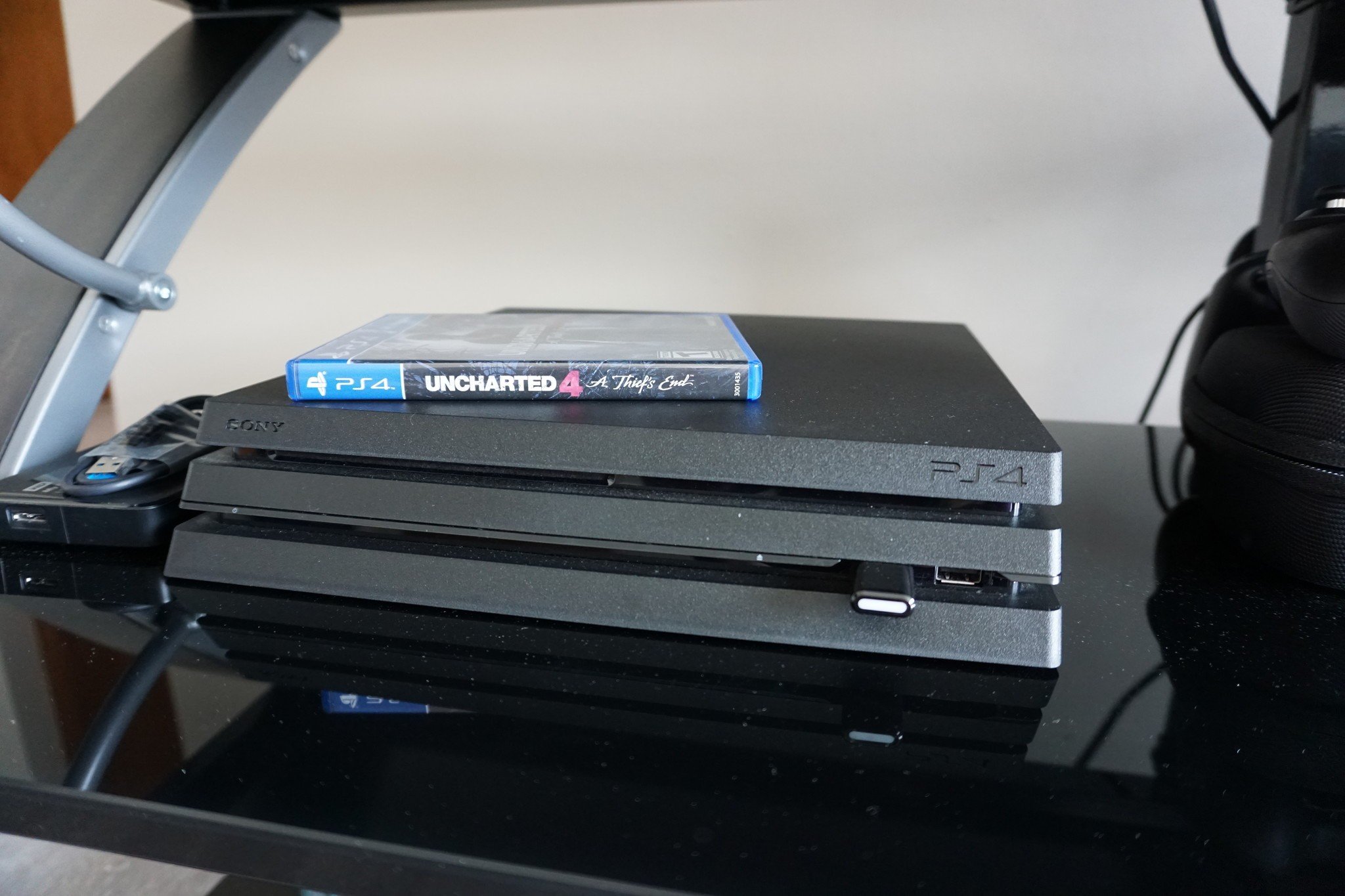
Getting a VPN set up on your PlayStation 4 isn't as hard as you'd think. What matters is buying the right VPN so you know you can trust in its quality. The setup after that is simple, and you'll be able to stream content from other regions in no time. It doesn't work for all region-locked content that check the region of your PSN account, but a lot of content only checks your IP address.
Products used in this guide- Region-locked no more: ExpressVPN (From $7/month at ExpressVPN)
- Wired connection: Cat-6 Ethernet Cable ($8 at Amazon)
- If you don't already have a VPN, sign up for one. We recommend ExpressVPN.
- Set up the VPN on your wireless router. The exact way varies from router to router, so whichever VPN you get should provide specific instructions.
- Alternatively, you can buy a router with a VPN already installed.
- On your PlayStation 4, go to Settings.
- Select Network.
Select Set Up Internet Connection.
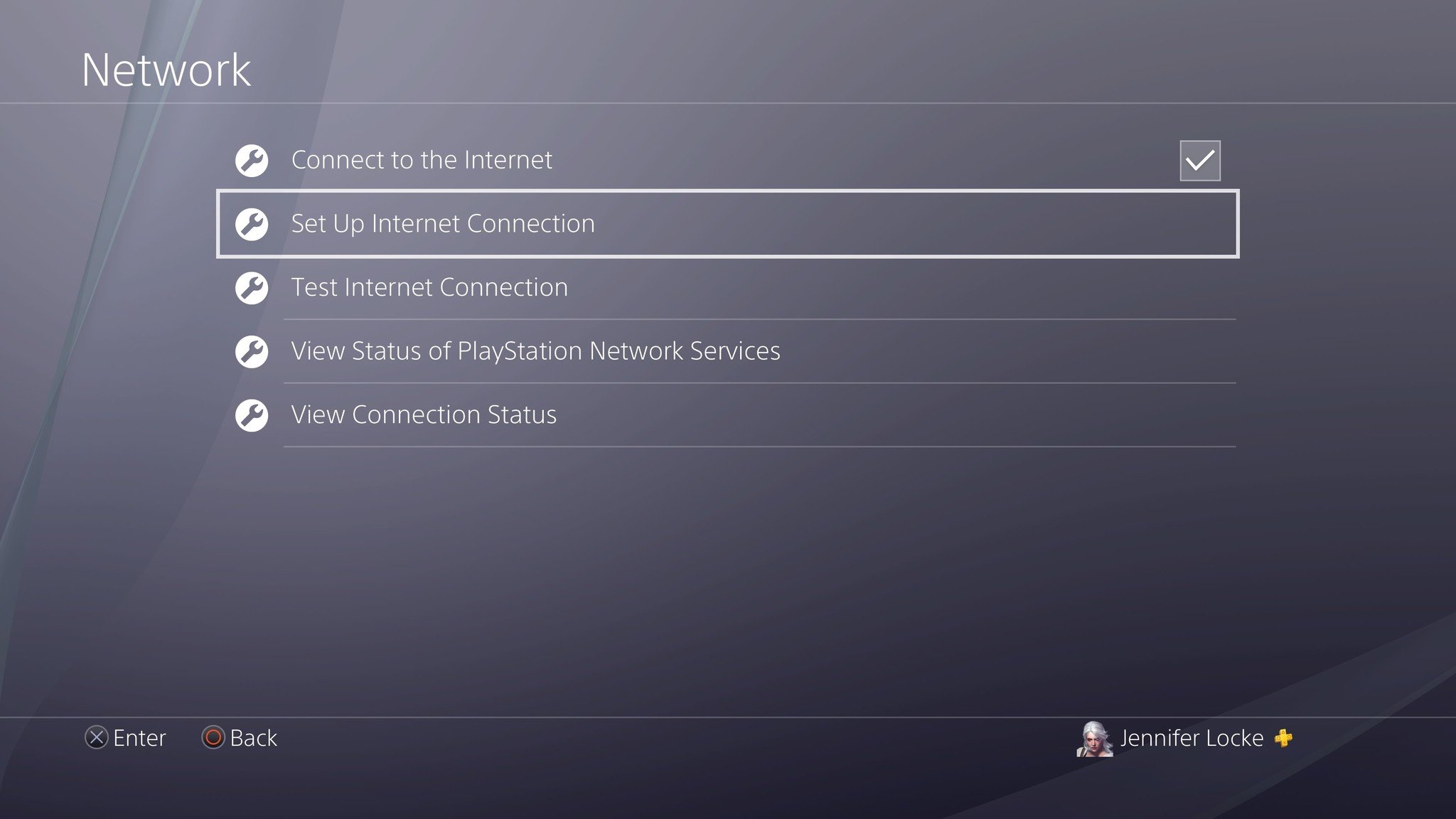
- Choose Use Wi-Fi.
- Select Easy when asked how you'd like to set up the connection.
- If prompted, select Do Not Use a Proxy Server.
- Install the VPN you'd like on your PC.
- Connect your PS4 and PC with an Ethernet cable.
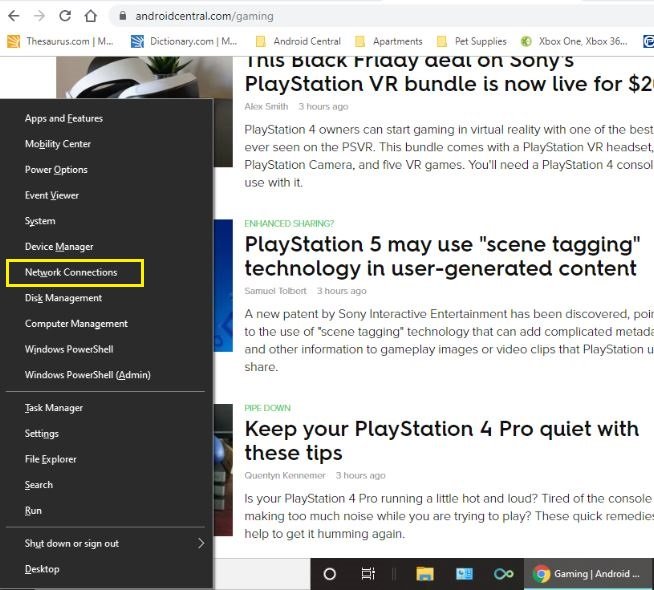
- Press the Windows Key + X to open up the Power User menu on the left hand side of your screen.
Select Network Connection.
Select Change Adapter Options.
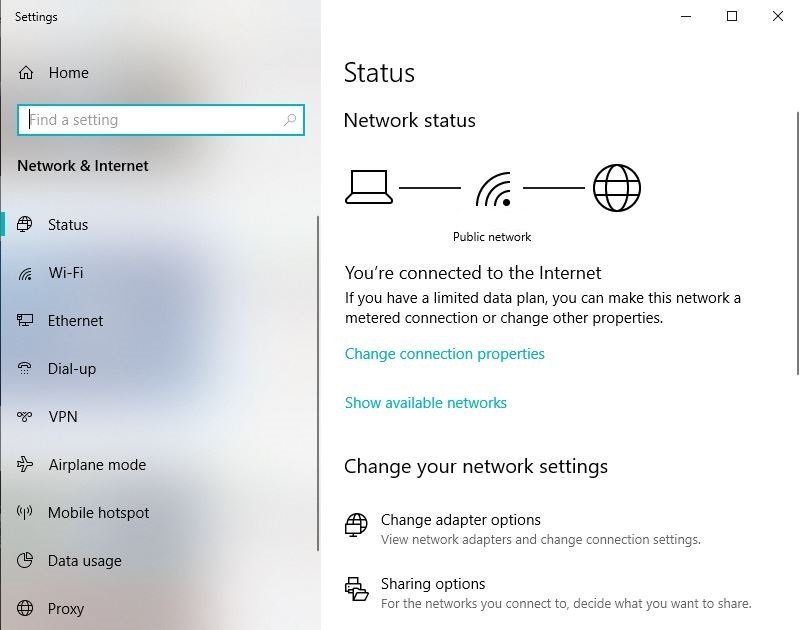
- Right-click on the icon of your VPN that pops up.
Select Properties.
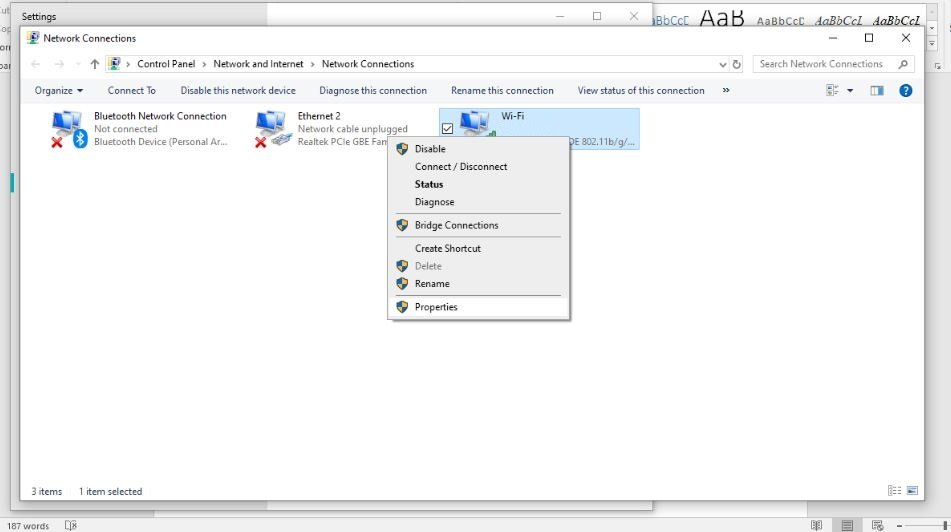
- Click on the Sharing tab.
Check the box that allows other network users to connect through your computer's internet connection.
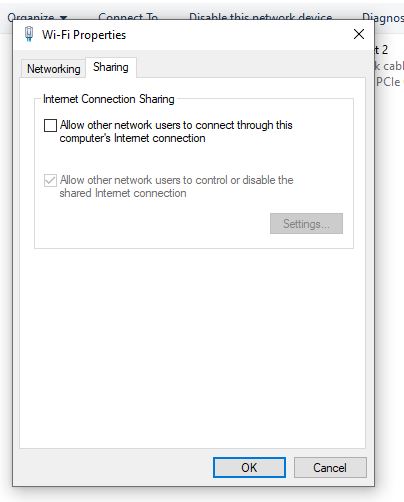
- Hit Ok.
- On your PlayStation 4, go to Settings.
- Select Network.
- Select Set Up Internet Connection.
Choose Use a LAN Cable.
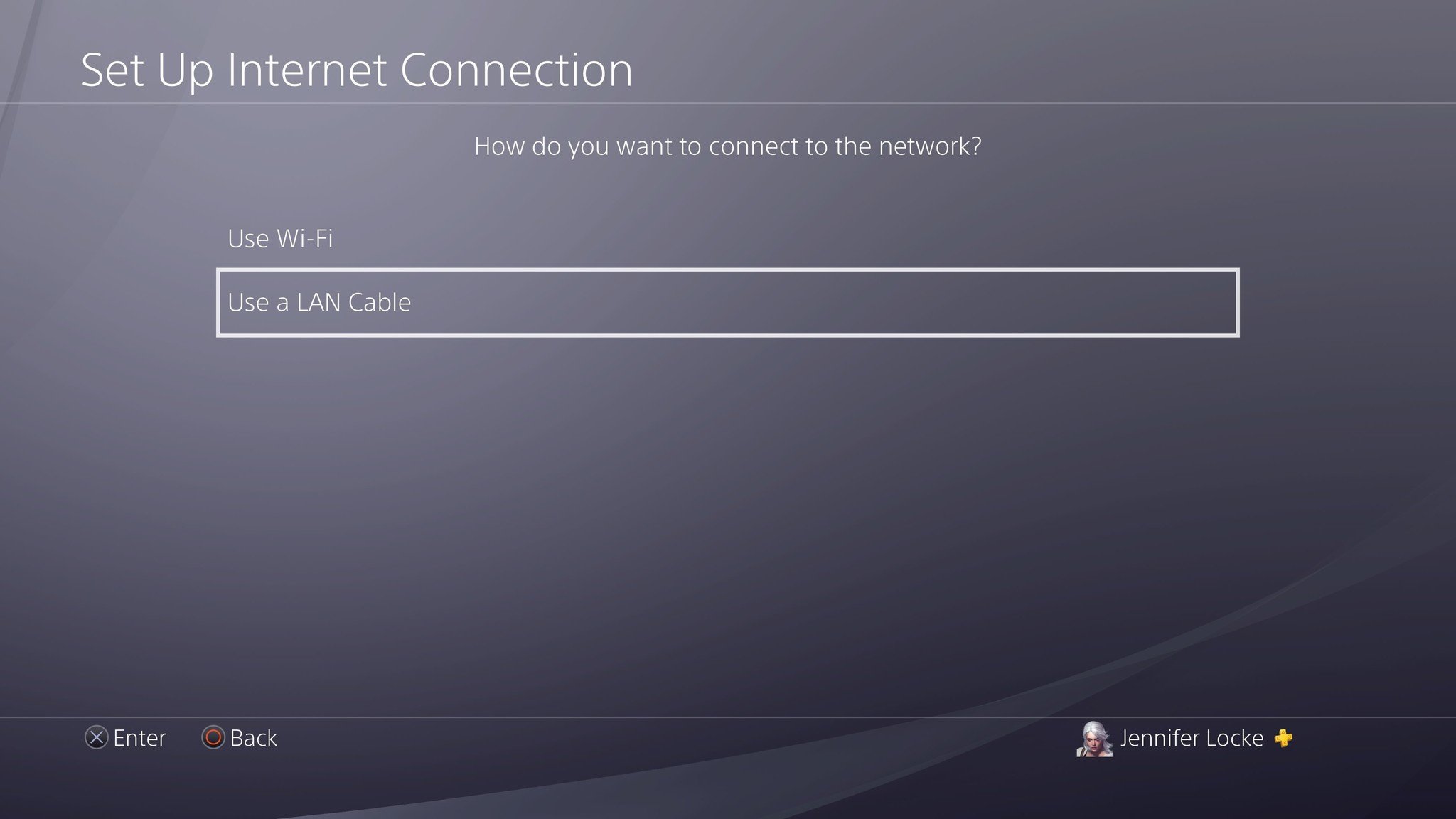
- Select Easy when asked how you'd like to set up the connection.
- If prompted, select Do Not Use a Proxy Server.
Some content on PlayStation 4 is region-locked, and using a VPN is the best way to circumvent this. In order to buy games restricted to a specific region, you'll need to register your PlayStation Network account to that region. This is because the PlayStation Store checks your PSN region when purchasing games, not your IP address.
When choosing a VPN, we'd recommend going for one that you need to pay for. There are free VPN options out there, but they aren't as reliable or trustworthy.
Our top equipment picksAffordable privacyExpressVPN
No.1 VPN leader.
ExpressVPN is one of the most-trusted VPN services out there, bypassing content restrictions around the world to deliver unlimited access video, social media, music, and more. You're paying for high-speed connection, good security, and unparalleled privacy
Plug it inCat-6 Ethernet Cable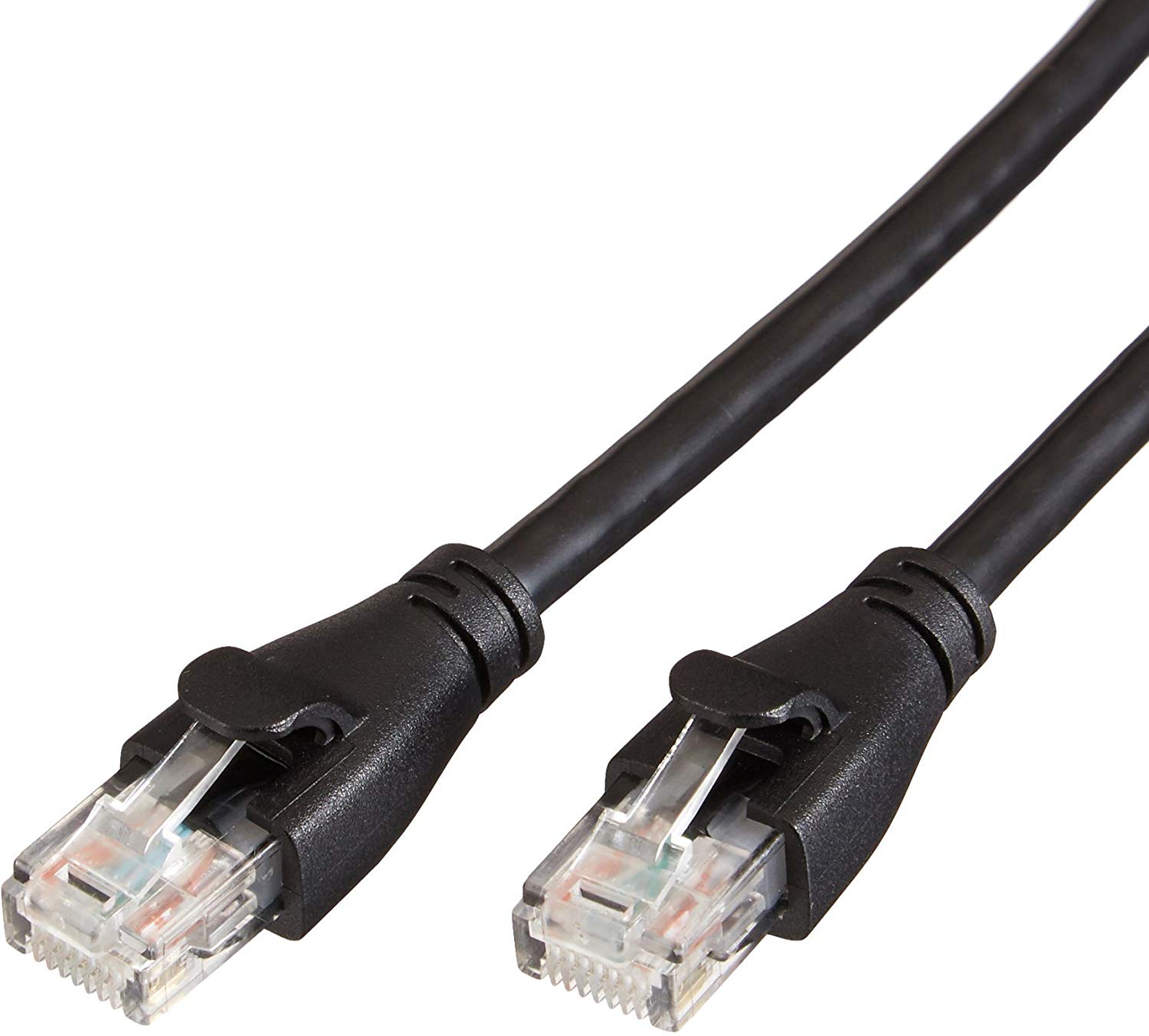
More reliable than Wi-Fi
When setting up a VPN on your computer, you'll need to use an Ethernet cable when you want to get it hooked up on your PS4. Wired connections are better than wireless anyway, so this is only beneficial when you want to stream content or play games online.