Dell XPS 13 (2026) review: the new bar for mainstream Windows laptop excellence
A year after killing off its long-running XPS premium consumer brand, Dell did an about-face at CES early this year, promising new models, including the redesigned XPS 13 we're looking at here. But between Dell's announcement and the XPS 13's launch, Apple stunned the portable PC world with its budget-priced, unquestionably pretty MacBook Neo, at a starting price of $599 (which got bumped up to $699 in June), leaving even Windows die-hards wondering how PC makers were going to compete in the budget and mid-range laptop space.
Dell clearly decided the XPS 13 was its answer to the Neo, giving it a starting price of $699 for the model with 8GB of RAM (comparable to the Neo), or $899 for the 16GB model. Both options sport the same 512GB of SSD storage and an Intel Series 3 Core 5 320 (Wildcat Lake) CPU. We tested both the 8GB and 16GB models, though there is little difference outside of memory capacity.
Design of the Dell XPS 13 (2026)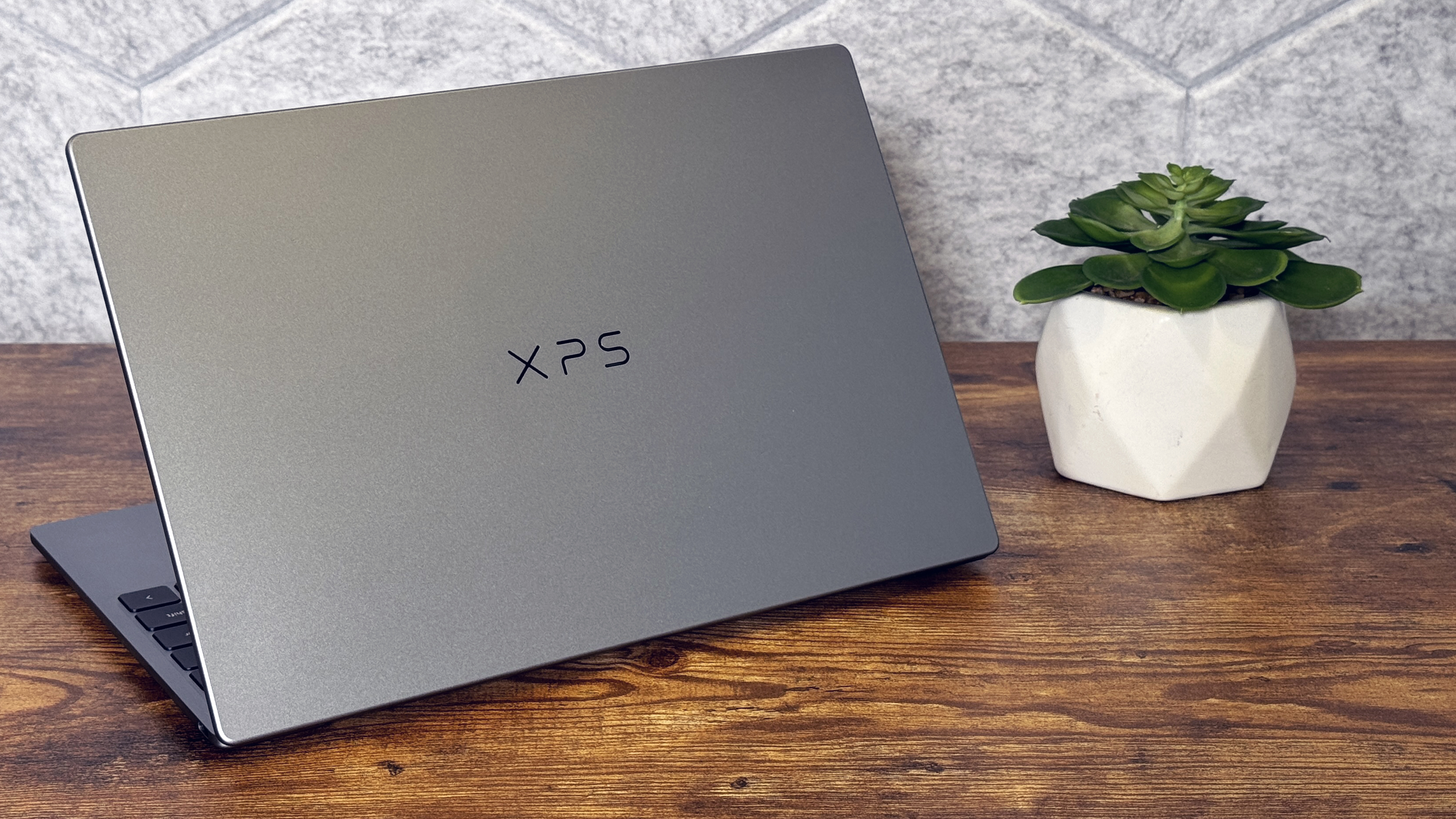
The XPS 13 may lack the design flourishes of previous XPS models (there is no carbon fiber to be found), but if I had to describe the new XPS 13's look in one word, it would be refined." Available in the silver sky" color of our review unit, or a darker gray storm" hue, all the edges are rounded, and the all-aluminum chassis feels premium, with only some slight flex. And I like the understated branding, with a slim, mirrored XPS logo on top and a smaller mirrored Dell logo underneath.
It's a look that generally doesn't stray far from the Apple laptop standard, but the XPS 13 actually feels better in the hands than the MacBook Neo. At 11.69 x 7.9 x 0.5 inches, the Dell's dimensions roughly match the Neo (11.71 x 8.12 x 0.5 inches), but the XPS is a half-pound lighter (2.2 pounds for the Dell versus 2.7 pounds for the Apple), and Dell tapers its edges more, making it feel slimmer. Both are attractive laptops, to be sure, but having held them both side-by-side, I slightly prefer the XPS 13. And considering how much the MacBook Neo wowed the consumer tech world earlier this year, that's an impressive achievement from Dell.
 Tom's Hardware
 Tom's Hardware
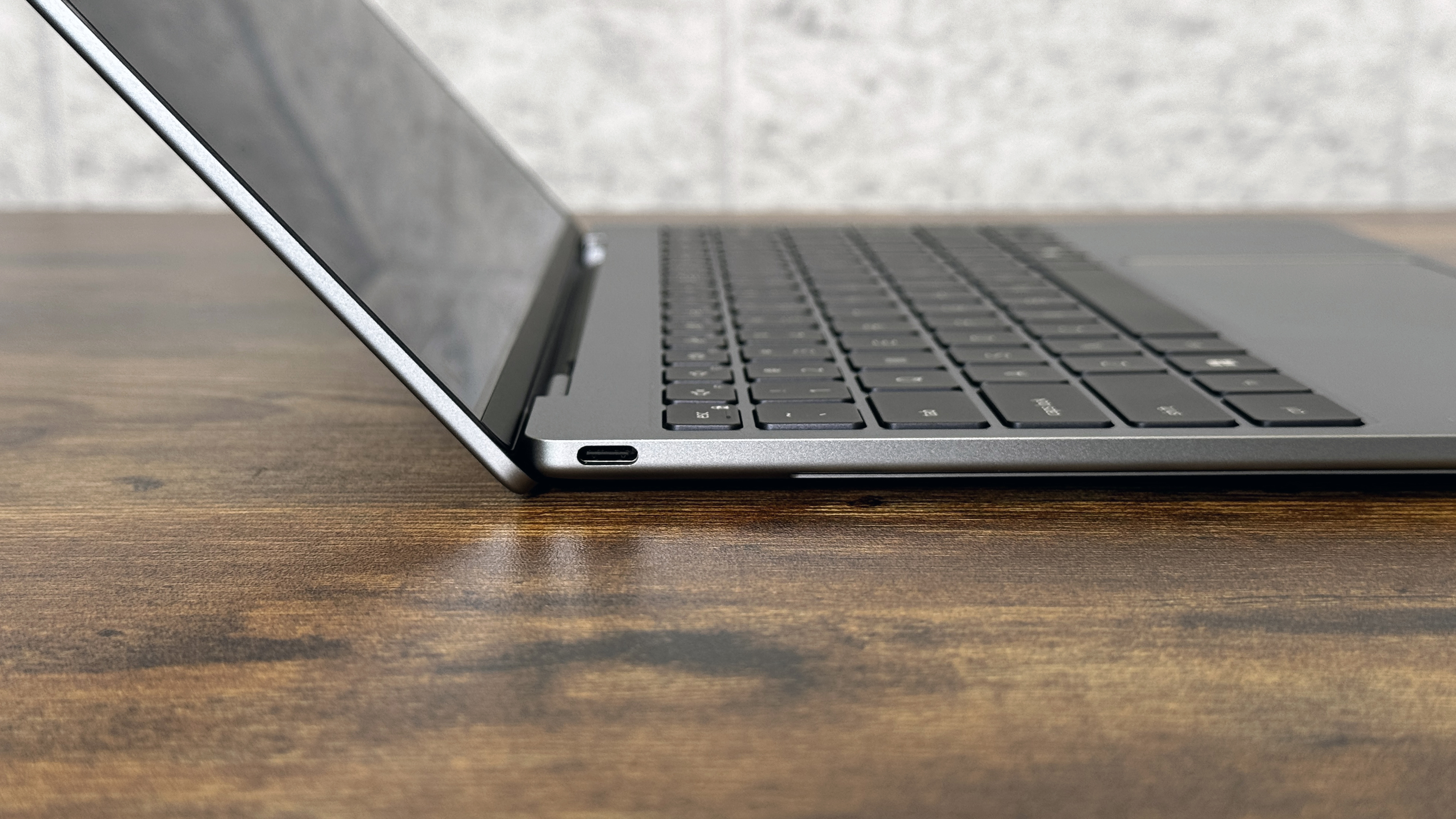
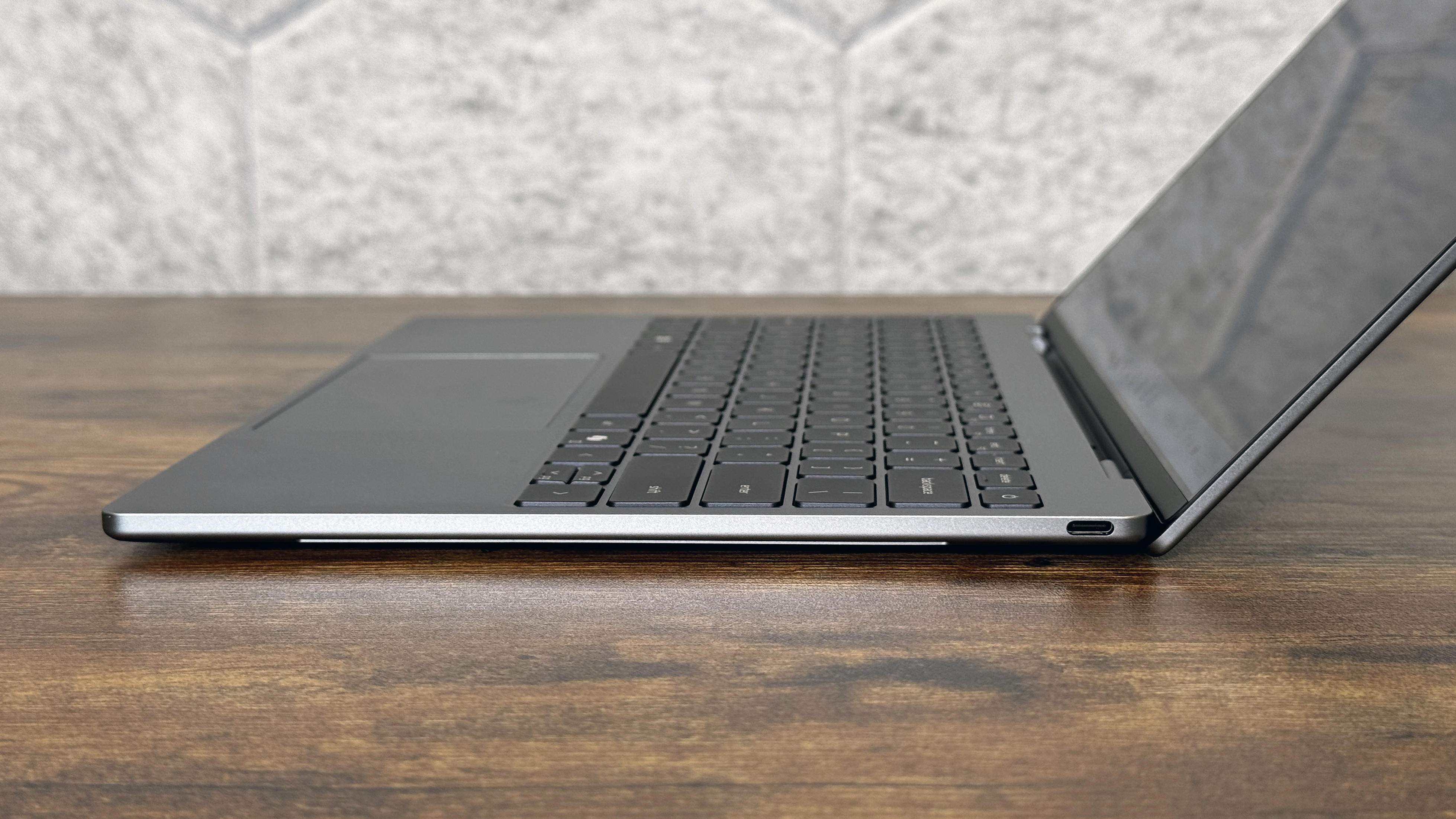
Port selection is relegated to a single USB-C port on either side. But with the XPS 13, both are 10 Gbps ports that support DisplayPort 2.1 and charging, while Apple's competition has one 10 Gbps port and one much slower USB 2.0 port (both are USB-C). Apple does include a headphone jack, which the XPS 13 lacks, and that will be annoying for some. But Dell includes a keyboard backlight while Apple leaves your fingers to fumble around in the dark. Personally, I'd take a backlight over an audio jack any day.
The only thing I don't love about the new XPS 13's design is the somewhat sharp edge of metal at the bottom rear, behind the exhaust vents. Because the laptop is so slim and light, I found myself grabbing it by any and all angles, and this is the one area where it doesn't feel premium or comfortable to hold.
Dell XPS 13 (2026) SpecificationsCPU | Intel Series 3 Core 5 320 |
Graphics | Intel Graphics (2 Xe cores) |
Memory | 8GB or 16GB (single-channel LPDDR5 at 7467 MT/s) |
Storage | 512GB SSD |
Display | 13.4-inch, 2560 x 1600, touch |
Networking | Intel Wi-Fi 7 BE213 2x2, Bluetooth 6.0 |
Ports | 2x USB 3.2 Gen 2 (10 Gbps) |
Camera | 1080p, IR |
Battery | 52 Whr |
Power Adapter | 65W USB-C |
Operating System | Windows 11 Home |
Dimensions (WxDxH) | 11.69 x 7.9 x 0.5 inches |
Weight | 2.2 pounds (1 kg) |
Price (as configured) | $699 (8GB), $899 (16GB) |
We tested both the 8GB and 16GB variants of the XPS 13. Aside from RAM capacity, the two machines share the same Intel Wildcat Lake" Series 3 Core 5 320 CPU, with two Performance cores that can Turbo up to 4.6 GHz and four Efficient cores that can hit 3.4 GHz.
Both systems also make do with 512GB of SSD storage (there are no other capacity options). As we'll get into in our testing, while the performance is roughly similar, our XPS systems had two different drives: one from SK hynix and the other from Kioxia.
As for comparisons, we've included the similarly priced (at least to the 8GB mode) MacBook Neo. And on the Windows side, we've included the Chuwi UniBook, which has a plastic chassis and a lesser Wildcat Lake CPU, as well as Dell's XPS 14 with a more powerful Core Ultra 7 355 CPU and a much higher price of nearly $2,000 as tested.
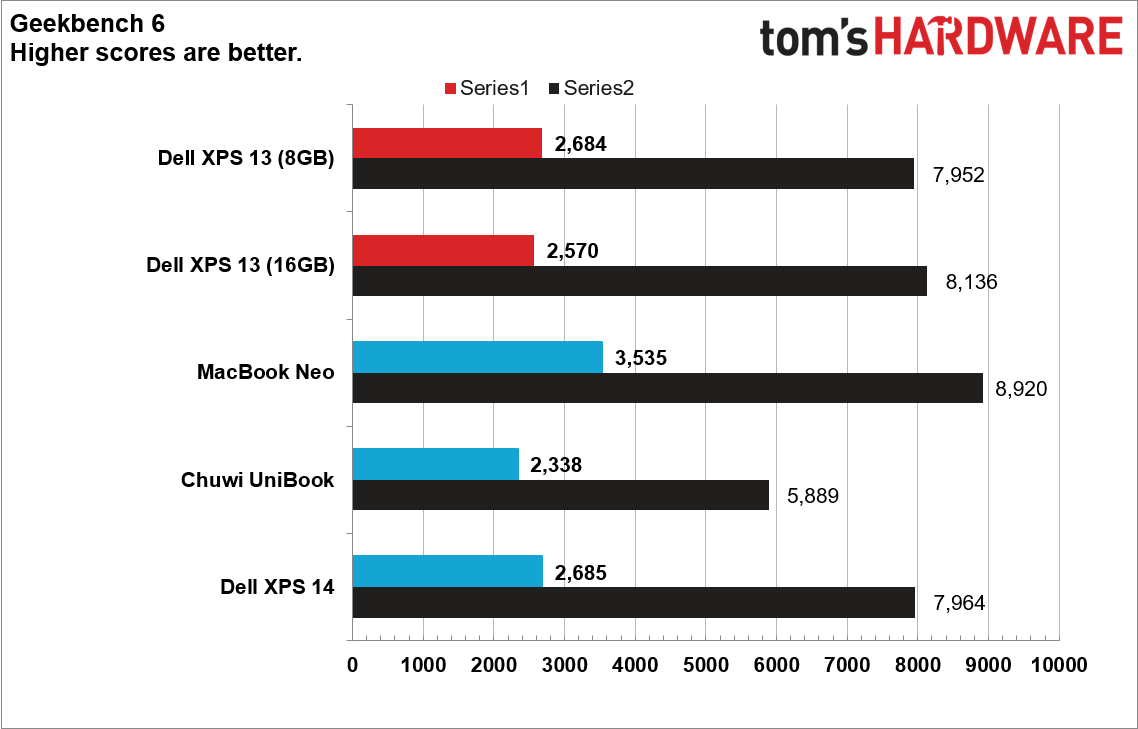
On Geekbench 6, the XPS 13 bested the Chuwi UniBook with its lesser Core 3 304 CPU, but fell behind the MacBook Neo, and by no small amount on the single-core test. The pricier, Panther Lake-powered XPS 14, interestingly, fell right in line with XPS 13 on this test. But as we'll see next, that doesn't mean the two systems perform the same on all tasks.
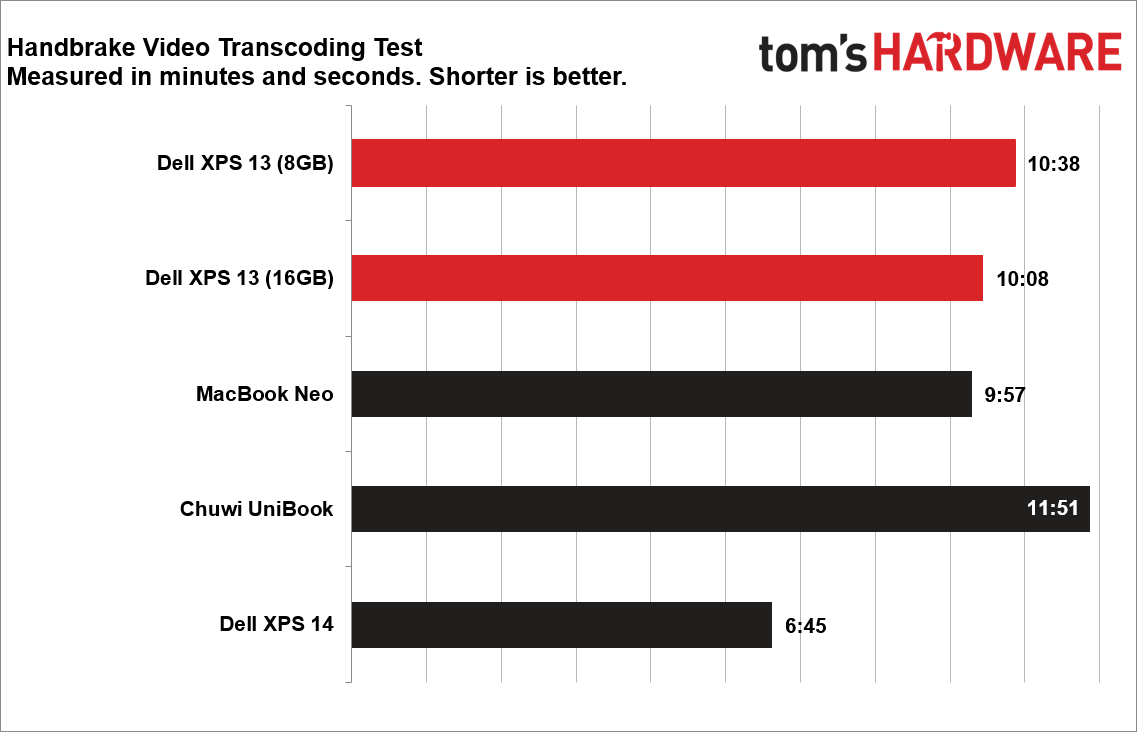
With eight cores and a higher power envelope to work with, the XPS 14 easily led here, converting our 4K test file to 1080p in under seven minutes. This points out the benefits of a higher-powered system for doing compute-intensive tasks like video editing. The XPS 13, particularly the 8GB model, was a bit behind the MacBook Neo, while the Chuwi laptop lagged more than a minute behind everything else.
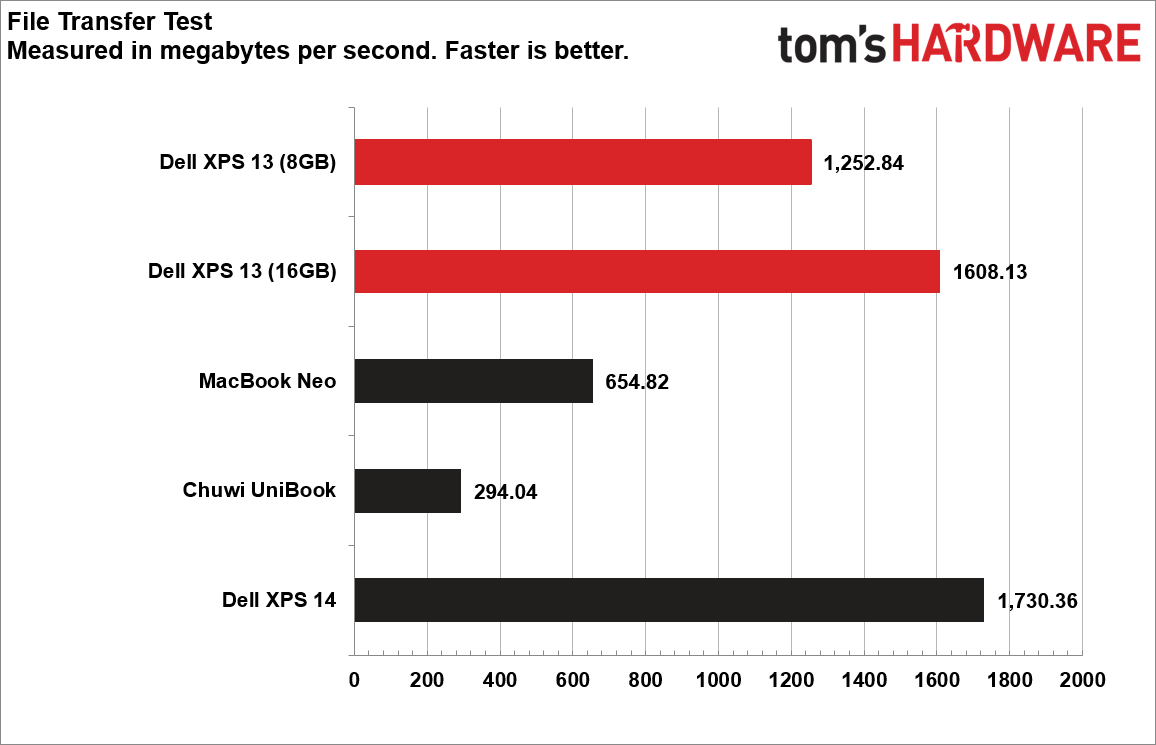
Both versions of the Dell XPS 13 looked good in our 25GB file transfer test, but the 16GB model was significantly faster. Dell, like most laptop makers, doesn't guarantee drive models in specific laptops. But in our two units, the 16GB model had an SK hynix PVC10 SSD, while the 8GB model sported a Kioxia BG7 (both drives are 512GB).
The SK hynix drive was about 350 MB/s faster here, but the MacBook Neo was about half as fast as even the slower XPS 13, and the Chuwi UniBook was half as fast again, not a whole lot faster than a spinning-platter hard drive.
If you're wondering about gaming on the XPS 13, you probably shouldn't, unless you're a fan of retro titles and 2D side-scrollers. The CPU's integrated graphics make do with just two Intel Xe cores.
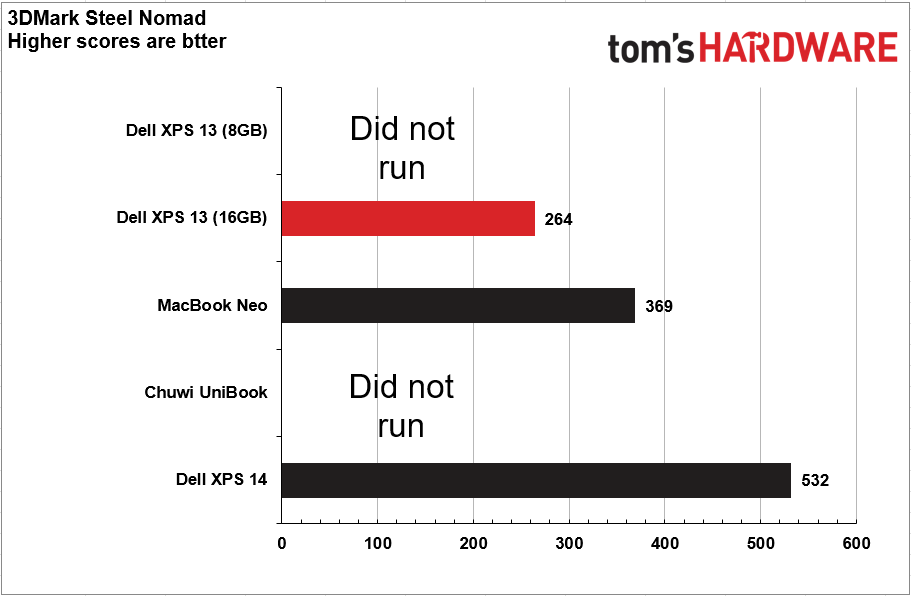
In 3DMark's Steel Nomad, neither the 8GB XPS 13 nor the Chuwi UniBook (which also has 8GB of RAM) would run the test. The MacBook Neo (369) easily edged past the 16GB XPS 13 (369). But the Panther Lake-powered Dell XPS 14 (with twice as many Xe cores) more than doubled the results of its smaller sibling.
To stress test the CPU in laptops, we run 10 loops of Cinebench 2026. The 16GB version of the system started with a score of 1,443, dipped to 1,374, but then ramped up (presumably as the cooking kicked in) to 1701, and then finished the rest of its runs steadily in the high 1600s. During the test, the laptop's Core 5 320 CPU's six cores averaged a clock speed of 3.13 GHz.
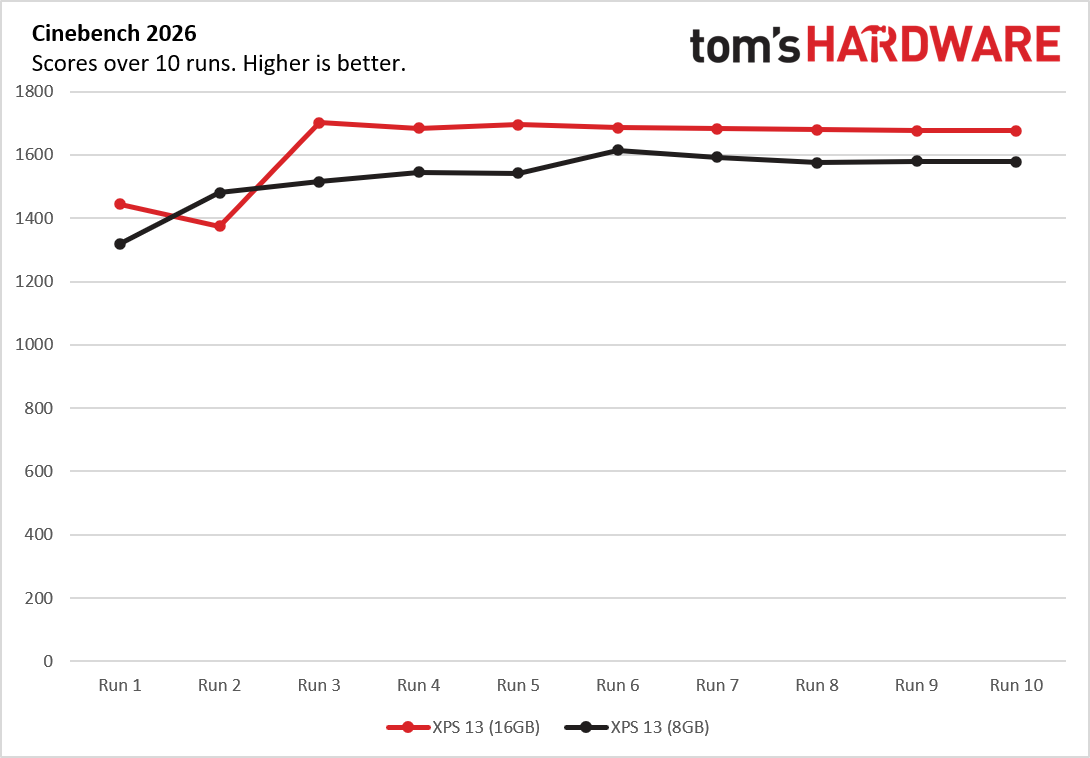
Interestingly, the 8GB model of the XPS 13 (which again has the same CPU) scored slightly lower than the 16GB version on all but the second run. And that's likely down solely to the memory limitation. As the benchmark's developer Maxson explains, running Cinebench 2026 on a system with less than 8.5 GB of RAM will utilize virtual memory, which triggers a significant amount of paging, lowering the achievable performance."
There's little doubt that demanding real-world applications will cause similar performance dips. So even if you think you're good about closing tabs or don't otherwise do a lot of multitasking, you may get better performance out of the 16GB model. And if you regularly do demanding tasks like editing video or any kind of rendering, you should opt for something more powerful. Wildcat Lake laptops and the MacBook Neo are designed for lightweight tasks like Web browsing and basic document creation.
8GB vs 16GBOutside of benchmarks, the biggest question between the 8GB and 16GB configurations is: What is it actually like to use Windows 11 on these systems?
The short answer, unsurprisingly, is that 16GB is better. With 15 identical tabs open in Chrome, the 16GB system just ran smoother. You might have to look closely at the Windows animations to notice, but they were far more fluid with more memory. And more importantly, switching back and forth between tabs was faster on the 16GB version, with the 8GB systems' browser often blinking white before showing a page again.
Chrome (as well as multiple other browsers) does offer a feature to put tabs to sleep while you're not using them. If you're a multitasker in the browser, you'll absolutely want to make sure this is turned on.
For even the most basic tasks, it would behoove Microsoft to make Windows as efficient as possible, because it shouldn't take just a few tabs to start making the experience worse.
Displays on the Dell XPS 13 (2026)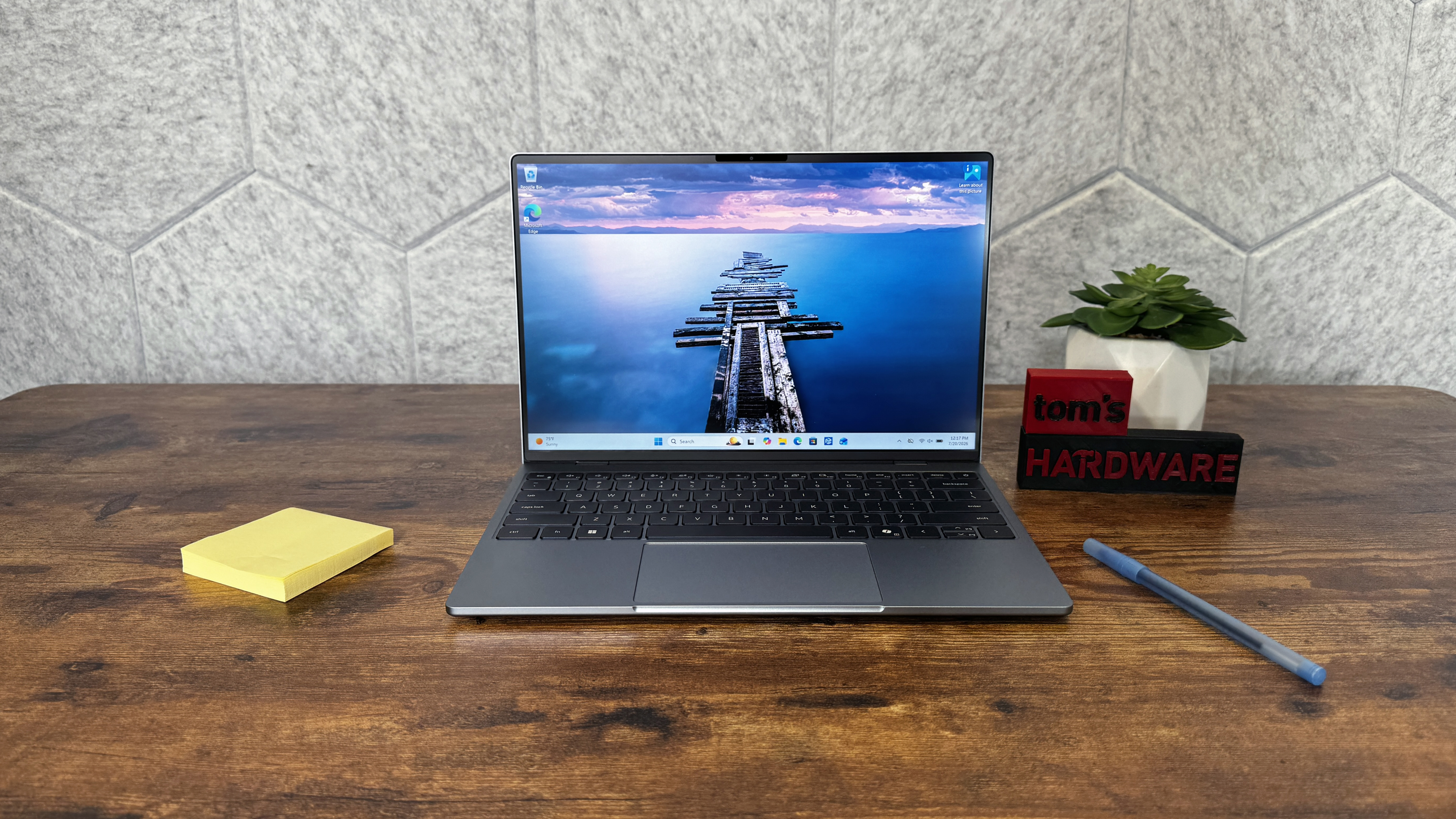
Dell doesn't specify the panel type it uses for the XPS 13, but the 2560 x 1600 touch display generally looks good. And its 30-120 Hz refresh is a nice touch that should help battery life in some scenarios. We did, though, notice an issue with our 16GB review unit. When playing back video, the screen often flickered during bright scenes - but only when running on battery. It went away once the laptop was plugged in, which led me to dig into the display settings, where I noticed the dynamic refresh rate was set to be turned off when on battery. Enabling variable refresh made the flickering go away. Dell told us dynamic research should be told on by default.
There is a separate display wrinkle, though. When placing the 8GB and 16GB models side-by-side, there were some clear differences between the two panels. The 8GB's screen had deeper blacks, but noticeable backlight glow along the edges of the black bars while watching movie trailers. The 16GB model, however, had worse viewing angles. So both screens had their own upsides and drawbacks. Interestingly, as we'll see below, the two panels' measurements are quite similar, but one is made by Sharp, while the other is from LG.
Like the SSDs, Dell told us that it is multi-sourcing panels. "You've seen some variances with individual panels, but each panel should meet the specs set out for XPS 13," a Dell representative told Tom's Hardware.
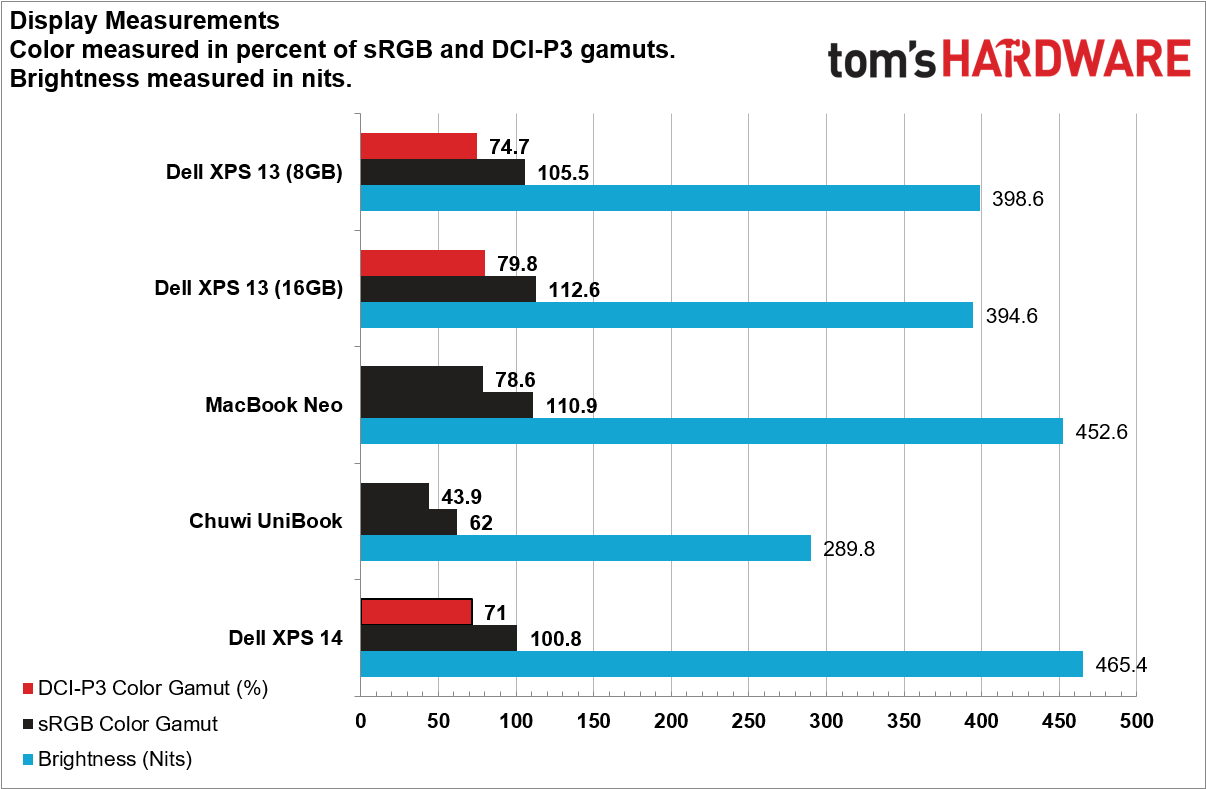
In our testing, the XPS 13's screen delivered over 100% of the sRGB gamut, and roughly 75% of the larger DCI-P3 space.
The MacBook Neo's screen was similarly colorful, but at a measured 452.6 nits, it's a little brighter than the XPS 13's panel, which topped out just below 400 nits. But the XPS panels also include touch, which all MacBooks still lack (at least for now). Both the Dell and the Apple systems deliver great screens for machines in this price range. The Chuwi, while a cheaper laptop, also delivers a screen that's much less colorful and dimmer than the competition.
Keyboard and touchpad on the Dell XPS 13 (2026)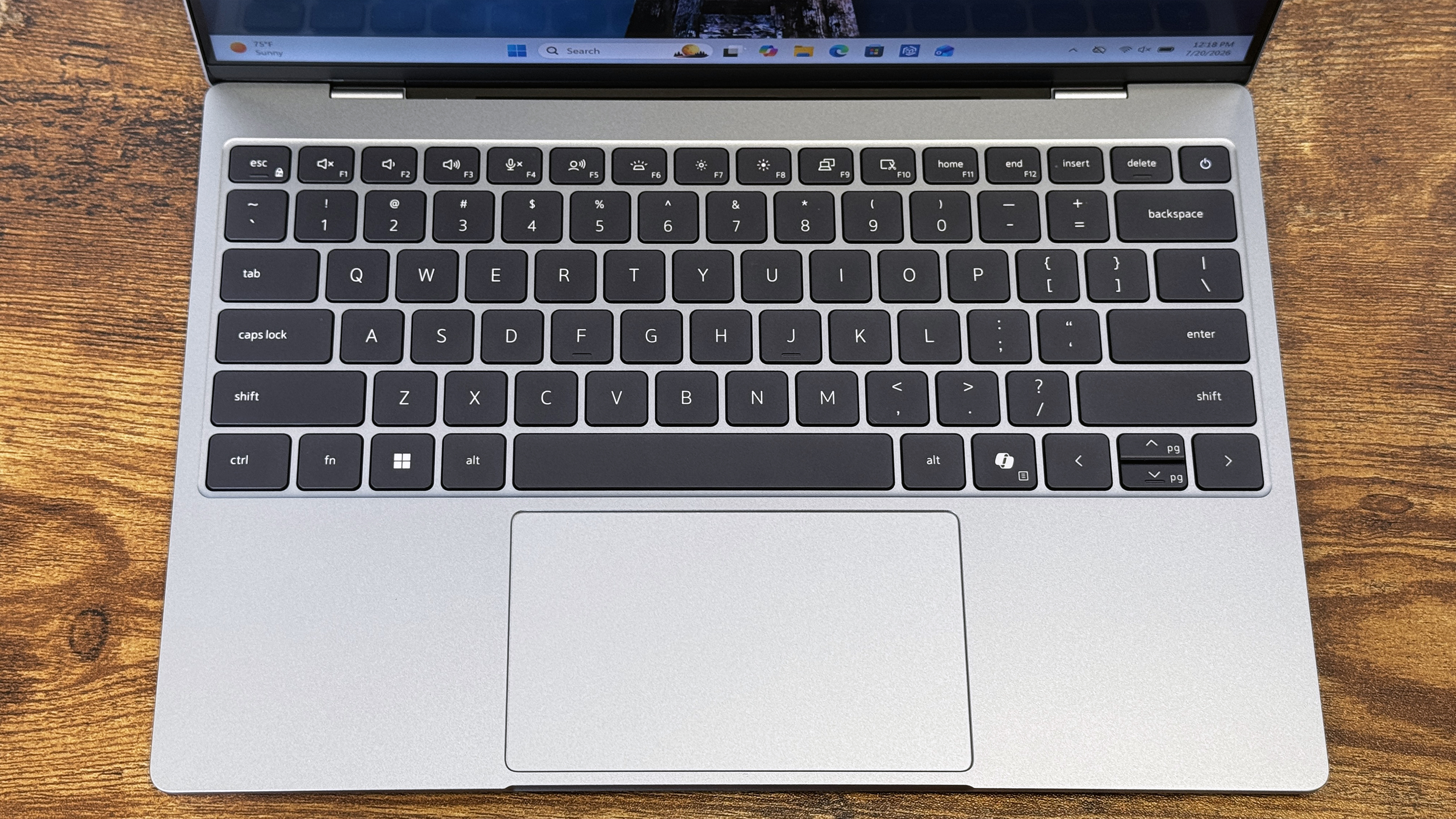
I wouldn't call the XPS 13's chiclet-style keyboard one of its strong suits - key travel is fairly shallow, and the keys feel a little stiff. But the slight travel isn't surprising in a laptop that's half an inch thick, and I feel like I would get used to the slight stiffness fairly quickly. I didn't notice any layout issues that confused my fingers, and I could see myself happily using this keyboard for hours a day without any real complaints.
The chiclet style differs from what Dell offers on the XPS 14 and XPS 16, which has the keys placed next to each other in a "lattice-free" design. While I wish there was a bit more travel on the XPS 13, I personally prefer the more traditional chiclet keys over what the company is doing with its larger XPS options.
The touchpad is fairly roomy for a laptop this small, at over five inches. And it's a physical click pad rather than haptic, but it doesn't feel cheap. It performed well during my testing time, and is otherwise unremarkable. I like that its top is set just slightly recessed below the deck so both my eyes and my fingers always know where it starts and ends, unlike theprevious version of the XPS 13, where its haptic pad was built seamlessly into the wrist area.
That said, the XPS 13's trackpad, as is traditionally the case, only clicks when you press on or near the bottom. The Neo's trackpad is also mechanical, but lets you click wherever your fingers land. I don't particularly find the Neo's trackpad feature a substantial advantage, but if you're used to a haptic touchpad, being able to click anywhere on the pad might feel more familiar.
Audio on the Dell XPS 13 (2026)One thing I wasn't expecting from the XPS 13 was great-sounding speakers. But for a system this slim and a price below $1,000, the quad-speaker setup here left my ears pleasantly surprised. I listened to Portion Control's Brain Scraper Death Dive (Rebuild)," and the 8W of peak output filled my home office with a surprising level of sound, without noticeable distortion, even at 100% volume. There's even some noticeable bass - within reason, mind you. This is a half-inch thick, 2.2-pound laptop. But considering the XPS 13's svelte frame and its starting price, the speakers and tuning are excellent.
Upgradability of the Dell XPS 13 (2026)There are only four tiny Torx screws to remove on the bottom of the XPS 13. But after doing that, getting into the laptop was still quite difficult. Dell recommends prying with your thumbs from the rear center. That didn't work for me no matter how hard I pushed. Eventually, with the help of a plastic pick-style pry tool, I was able to release a few clips near the slim side vents, then work my way around the edges. The clips where Dell recommends starting from near the rear center were the last to release, and some of the most tenacious I have dealt with in several years.
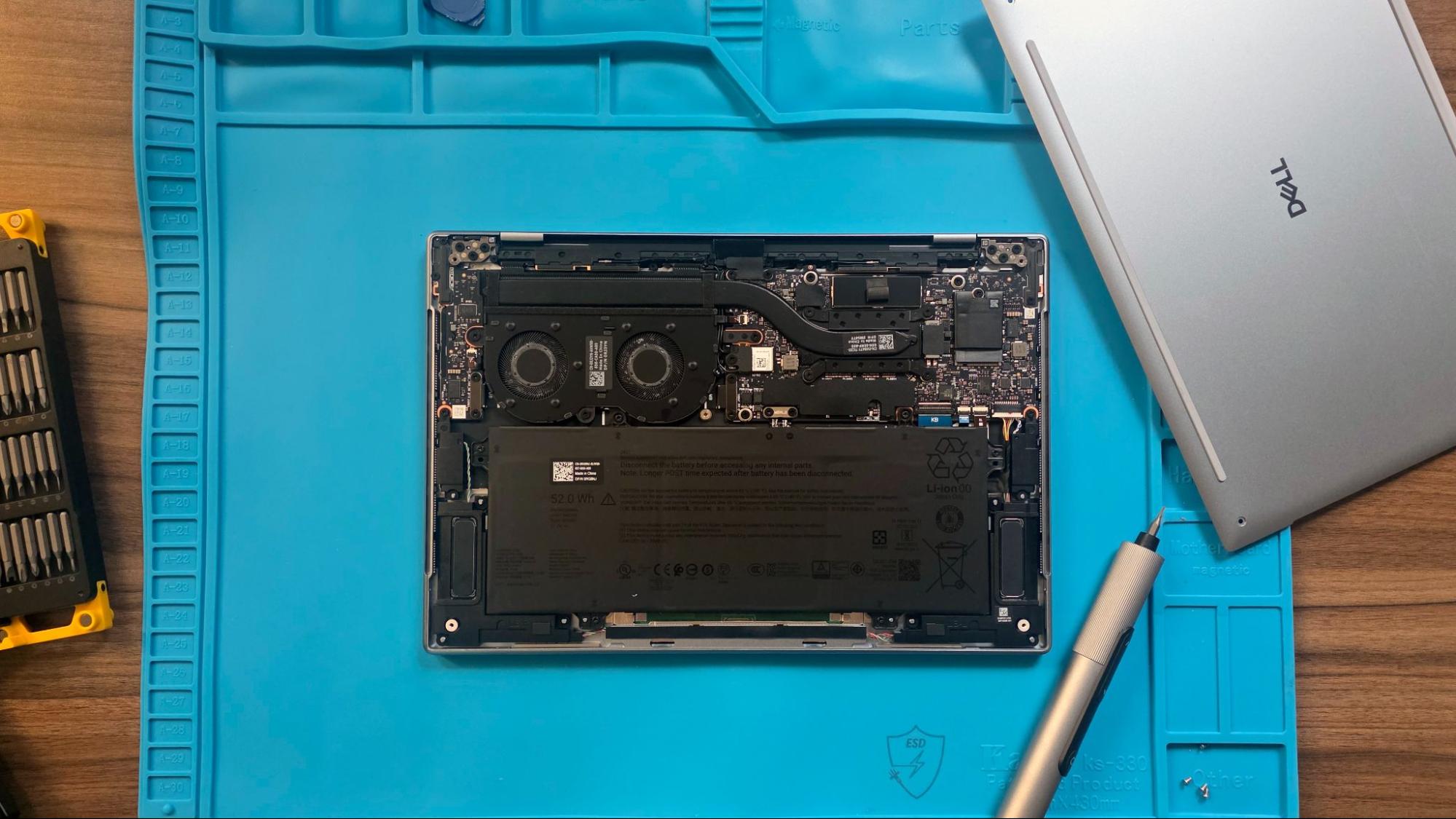
Once finally inside, there isn't much to do except stare into the abyss of the stealth-black interior. Swapping the short 2230 M.2 SSD in the upper-right corner should be pretty easy. And replacing the battery down the road doesn't look too difficult. But that's all you're likely to change in here.
Perhaps most interesting for such a small laptop, Dell has equipped the XPS 13 with a pair of fans. Fan noise was audible as a whir, but I really only noticed it during our lengthy Cinebench 2026 stress test. And honestly, if you're running tasks that tax the CPU for several minutes at a time like this, you should probably opt for something more powerful anyway.
Battery life on the Dell XPS 13 (2026)The XPS 13 did well compared to similar options in our battery test, which consists of web browsing, running OpenGL tests, and streaming videos with the screen at 150 nits while connected to Wi-Fi. Both the 8GB and 16GB models of the XPS 13 easily topped 14 hours, which is roughly an hour to 90 mins more than the MacBook Neo and slightly better than the Chuwi.
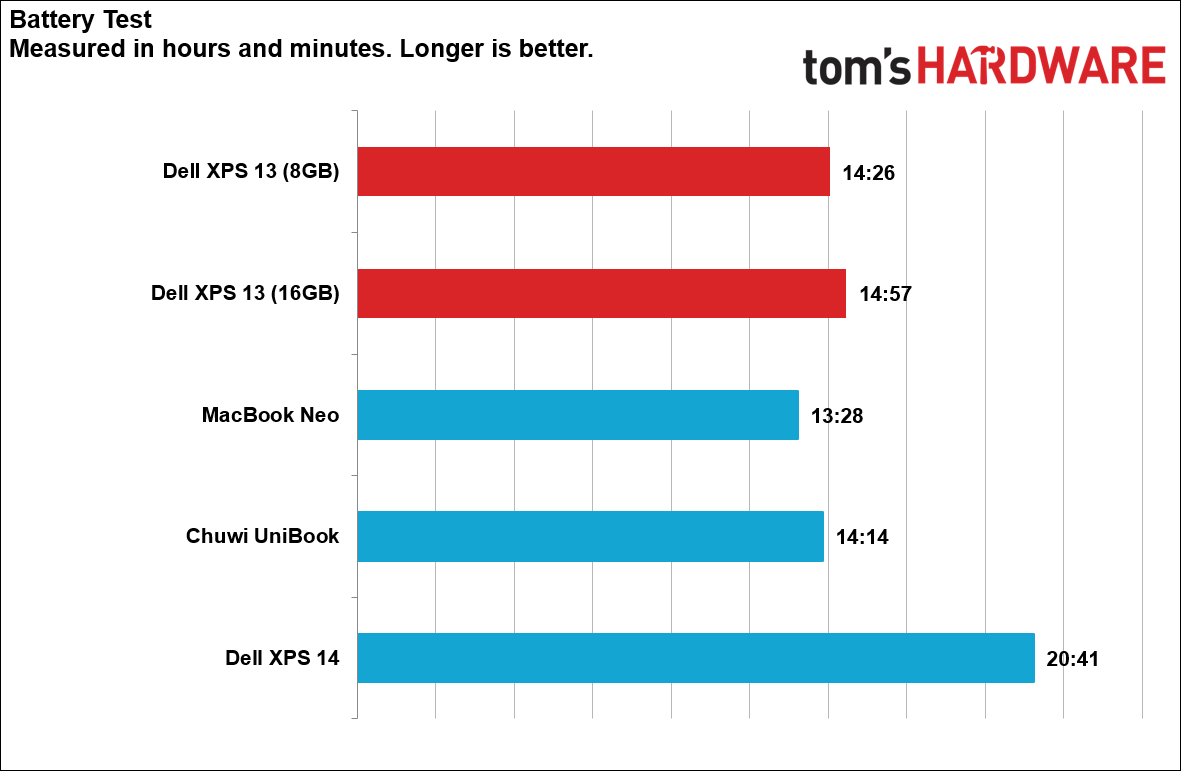
Of particular interest is the half-hour shorter time on the 8GB model. Some of that difference could easily be down to testing variance. But the 8GB version we tested has a Kioxia BG7 SSD, while the 16GB version has an SK Hynix PVC10. Both are DRAMless drives, but the Hynix drive may be more power-efficient during our battery benchmark.
At well over 20 hours, though, it's the XPS 14 that walks away with the competition here, helped by the fact that its screen is a lower resolution (1,920 x 1,200) than most of the competition here. Still, an extra five-plus hours of unplugged productivity is another reason why you might want to pay more for the slightly larger-screened Dell.
A laptop charger worth calling outWe don't typically write much about chargers in laptop reviews, but the one that Dell includes with the XPS 13 is exactly the type that I've been asking laptop makers to shift to for years now. It's a tiny charger with folding prongs that's more typical of the type you might use with a smartphone, and it has a removable cable.
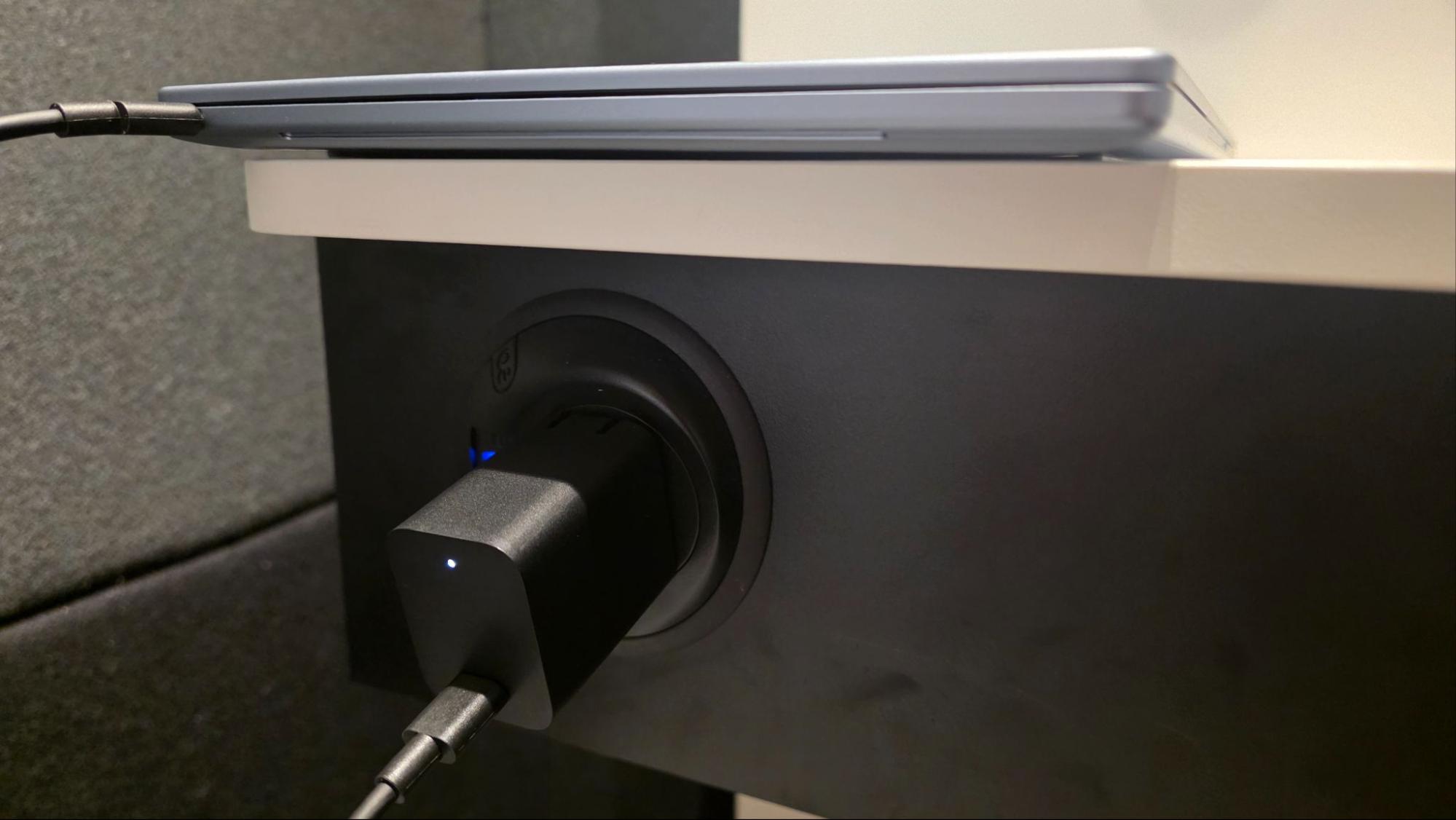
Given that some of the best chargers we've tested can charge laptops and are much smaller than a typical laptop brick, it's nice to finally see a company ship a compact charger with a laptop that is on par in terms of portability with something you can buy yourself for about $25 or less. It would be even nicer if Dell had included a second USB-C port on the power brick so you could charge both your laptop and smartphone at the same time, but I guess I shouldn't expect miracles. Still, I applaud Dell for including a compact charger with the XPS 13 and hope to see similar chargers from competing PC makers soon.
Heat on the Dell XPS 13 (2026)During our 10-loop Cinebench 2026 stress test, the XPS 13's keyboard got warm up near the top row, where we measured the temperature at 104 degrees Fahrenheit, but that was above 4 key, not where fingers typically rest. The touchpad (87 F) and keyboard deck (88.5 F) remained cooler, though. The bottom of the laptop topped out at 108.5 F, toward the back where the CPU lives. Internally, the Core 5 320's cores averaged a toasty 87.49 degrees Celsius, with the pair of P cores occasionally spiking to 100 C (TJMax), indicating there is some thermal throttling.
The high temps here perhaps explain in part why Dell opted to use two fans in the XPS 13. And while there is some light fan noise when the laptop is under heavy CPU stress, the sound isn't sharp or otherwise annoying - at least to my middle-aged ears.
Webcam on the Dell XPS 13 (2026)The webcam on the XPS 13 is only" 1080p, but it delivered enough detail, generally accurate colors, and handled bright light from windows and overhead fixtures pretty well. And unlike some of the XPS models from yesteryear, it also sits in the top center of the bezel, where it belongs.
There is some graininess when viewing things at full screen, but it's far from the worst I've seen. This camera is perfectly capable of handling typical online meetings or classes without making most people want to plug in one of the best webcams instead.
Software on the Dell XPS 13 (2026)Considering its fairly affordable price, I was pleasantly surprised at how clean and pristine the Windows 11 Home OS is on the XPS 13. You get some of the typical Windows cruft, like a shortcut to WhatsApp and LinkedIn. And there are a few Dell apps, like Optimizer (which mostly links to Windows settings and other apps) and the self-explanatory SupportAssistant. But there really isn't anything else here, other than a bookmark in the default Edge browser to go to McAfee's website. It's refreshing to use a new laptop with a Windows install that reminds me of custom-built PCs.
Dell XPS 13 (2026) ConfigurationsDell offers the XPS 13 in two pretty similar configurations. For $699, you get an Intel Series 3 Core 5 320 CPU with a 512GB SSD and 8GB of RAM. For $200 more ($899), you get the same laptop with 16GB of RAM. Somewhat annoyingly, the 16GB model is only offered in the silver sky" colorway, while the 8GB model is available in both sky" and a darker gray storm."
Keeping the SKUs simple is doubtlessly one way that Dell is keeping costs down. And obviously the cost and availability of RAM and storage is tough this year. But it still would be nice to see at least a 1TB option for those who need more room for local files.
Bottom Line
While it's no performance powerhouse, and $200 extra for a doubling of the RAM to a more comfortable 16GB still feels like a lot even in these times of endless AI demand, Dell's redesigned XPS 13 is an excellent budget or mid-range machine (depending on which model you choose). It's light and slim enough that you'll likely hardly notice it in a backpack, and with over 14 hours of battery life in our testing, it lasts longer than the MacBook Neo.
Is it better than the MacBook Neo? In some ways, like the aforementioned battery life, keyboard backlighting, and weight, it is for sure. And for those worried about the limitations of 8GB, you can at least pay extra (again, that's $200 extra) for 16GB with the XPS system. Really, though, the two devices are close enough in terms of performance, build quality, and portability that, if you are considering one or the other, you should probably choose the one with the operating system you prefer.
The fact that Windows has a competitive machine to the disruptive MacBook Neo is a triumph for Dell, for Microsoft's ecosystem, and for those of us (like me) who would just prefer not to get sucked into the Apple hardware orbit - not that Windows 11 doesn't have a big basket full of flaws. Given how expensive everything else is these days (including most flagship premium laptops), it's nice that Dell and Apple are delivering devices that look and feel good, without costing $1,000 or more. I wonder what the other PC makers will offer up to compete in this new $699-$899 premium laptop space.