10 Hacks Every Libby User Should Know
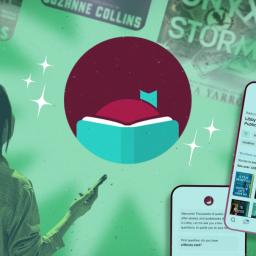
Libby is a service that connects users to their local library systems, giving them access to an enormous catalog of digital content, including e-books, audiobooks, and magazines-for free. If you're a reader (or listener), you'll want to take advantage of these Libby tips and tricks for borrowing, organizing, and maximizing your loans.
Add multiple library cards to see availability across other systemsYou're not limited to one library system on Libby. The platform allows you to connect to multiple libraries, so you can take advantage of larger catalogs in case one library has more titles or a shorter wait times for books you want to read. You still have to be eligible for a library card at every library you connect to, but you could add your city library, your county library, and a school library to your account (or even take advantage of a friend's or family member's card from a different city). Go to Menu > Add Library and search by library name, city, or zip code. Select the library to browse its collection, and follow the prompts to add that library's card if you qualify.
Use airplane mode on your Kindle to extend your loanLibby automatically returns titles as soon as your loans expire, so unlike with physical books, you can't take extra time to finish up. But if you're reading on a Kindle, you may be able to borrow the title and immediately set your device to airplane mode to freeze the loan. While your Kindle is offline, you can return the title via the Libby app so the next person can borrow it. Note that there are reports that this workaround, which is unique to Kindle, may no longer be available on newer devices running the latest software, but Reddit users suggest that changing the date on your Kindle to before the return deadline and/or keeping the expired book open could also help avoid this issue.
Export your reading data to archive or add it to GoodreadsIf you like to track your reading history, you can export a timeline of your activity, which can be saved in a personal spreadsheet or uploaded to Goodreads. Tap Shelf > Timeline > Actions > Export Timeline and choose a format-Table creates a shareable HTML page, while Spreadsheet downloads an editable sheet to your device (JSON is also an option). Exports include information like the title name, author, borrow date, publisher, and ISBN. If syncing to Goodreads, choose Spreadsheet and follow the platform's import instructions.
Create custom tags to organize your reading listsLibby's tag system makes it easy to organize and sort titles across multiple lists, such as annual reading lists, favorites, or TBR (to name a few). Simply go to Tags > Actions > New Tag, add a name and description, and tap Create. When you want to add a title to one of these lists, hit Save on the title's page and select all relevant tags. Tap Tags on the bottom navigation to sort or filter tagged titles.
Set up notifications to get first access to new releasesNot all new releases are immediately available to every library system, but you can get a head start on borrowing with the "Notify Me" smart tag, which will alert you when your library adds titles you've tagged. When you find a title via search that your library doesn't offer, you'll be prompted to create a Notify Me tag. You can also manually create one by following the process for custom tags and selecting Notify Me to turn it into a smart tag. This tag also works for new magazine issues and new content from specific authors or book series. Make sure you have push notifications enabled for Libby.
Pin search filters to see what's available to borrow immediatelyIf you finish one book and want to immediately start another, you can use a search filter to find titles that are available now rather than sorting through wait lists. Then, you can pin that filter so every search-even if other filters are applied-shows you only titles that are ready to borrow. Go to Search and tap the three horizontal lines to open the filter list. Select available now > Show Titles, then press and hold the filter to open the pop-up menu and tap Pin Filter. You can follow the same process with other filters (if you only want to see books and/or audiobooks, for example). Note that subject filters can't be pinned.
Adjust your download settings to manage storage spaceAudiobooks can be storage hogs, and if you're listening to more than one title at a time, you may not want to devote that much of your device's space to those files. Customize how titles are downloaded versus streamed via Menu > Settings > Download Rules, where you can choose whether to automatically download everything, nothing, or only titles under 20 MB as well as enable downloads on wifi only (to avoid mobile data usage).
Revisit your highlights and notes in your reading journey or Read.AmazonIf you like to highlight passages or add notes to books as you read, you can review these annotations for titles borrowed via Libby even after you've returned them. In the Libby app, find the title and tap the cover image, then tap Reading Journey. You can also export these data via Actions > Export Reading Data. If you read the title on a Kindle device, notes and highlights are also saved on Amazon and visible on Goodreads.
Search for skip-the-line books to bypass wait timesPopular titles and new releases often rack up hundreds of holds in a short amount of time, meaning you could be waiting months before a copy is available at your library. Some library systems will designate a few copies of these books as "skip the line," meaning that they can't be reserved or renewed and instead are claimed on a first-come-first-serve basis once returned by the previous user. These titles are marked with a shamrock icon, and if your library offers them, you can find them via Search > Catalog Filters > skip the line.
Use the Suspend feature to stagger overlapping holdsIf you have a long list of holds with varying wait times, you may occasionally have one or more books ready to borrow around the same time. If you're not ready to read a title as soon as it becomes available, you can opt to suspend your hold until you're done with the book you're currently reading or have more time to start something new. This keeps your place in line, so the book will be yours as soon as you un-suspend your hold and the title is returned by the current user. In the app, go to Shelf > Holds > Manage Hold > Suspend Hold, or tap Suspend next to the title if it is ready to borrow.