by Rob Webb from Engadget is a web magazine with obsessive daily coverage of everything new in gadgets and consumer electronics on (#6ZNAV)
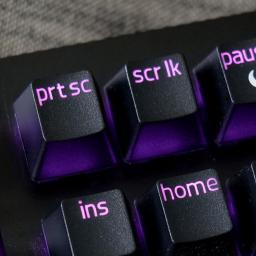
Windows offers several built-in ways to take screenshots. Sure, you can just hit the Prt Scrn button on your keyboard to capture your entire screen, but if you want to screenshot a portion of your screen, a particular window, or you have multiple monitors there are other ways you can use Windows to achieve this. Whether you're using Windows 11 or a recent update to Windows 10, the tools remain largely consistent and reliable.This guide walks you through the most useful native screenshot methods, including the Snipping Tool, keyboard shortcuts and clipboard techniques, as well as popular third-party apps for more advanced needs. For more cross-platform tips, you can also check out Engadget's guide on how to take a screenshot on any device.How to use the Snipping Tool for easy screenshotsThe Snipping Tool is the most versatile built-in screenshot option in Windows. It lets you capture specific regions, open windows or the entire screen and includes basic annotation tools. It's available by default on Windows 11 devices, though Windows 10 users can still access the Snipping Tool, despite it being replaced by Snip & Sketch.