by Rob Webb from Engadget is a web magazine with obsessive daily coverage of everything new in gadgets and consumer electronics on (#71BAY)
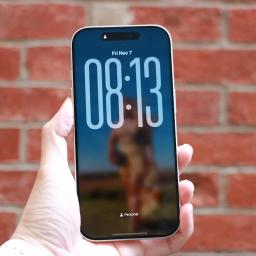
Apple has continued its trend of giving users more creative freedom over how their iPhones look and feel, and one of the most striking new customization options in iOS 26 is the ability to stretch the clock on your lock screen. The feature, part of Apple's refreshed design language for iPhone software, allows the time to expand across more of the screen, giving it a bold, modern appearance. Whether you prefer the minimalist look of small numerals or the dramatic impact of an oversized clock, iOS 26 makes it easy to adjust your lock screen style to suit your taste.This new resizing option is officially referred to as adaptive time," and it transforms what used to be a static lock-screen element into something that feels more fluid and responsive. By dragging a simple on-screen handle, you can expand or shrink the size of the time display, creating a distinctive visual effect that gives your lock screen a fresh new personality.How to stretch your lock-screen clockTo access the stretch option, start by waking your iPhone and remaining on the lock screen. Instead of unlocking the device, press and hold anywhere on the display to enter customization mode. This brings up a carousel of your saved lock screens, allowing you to edit the one that's currently active. Tap Customize," then choose the Lock Screen" option to enter the editor.Once the editing screen appears, tap directly on the clock. This will bring up the familiar font and color panel introduced in earlier versions of iOS. To make the stretch feature available, the first font option (the default and leftmost style) must be selected. It should also be set to use the Arabic Western script. After confirming these settings, tap the clock again to close the font panel.If the wallpaper supports the feature, a small circular drag handle will appear in the lower-right corner of the clock. Touch and hold this handle, then drag it downward to stretch the clock. The digits will expand in real time as you move your finger. When you're happy with the size, release the handle. To save your changes, tap Done" in the top-right corner of the screen. Exiting customization mode will reveal your new, enlarged clock on the lock screen.If the stretch feature doesn't appear, the issue is usually related to the font or wallpaper. Some wallpapers, particularly those with subjects that fill the upper portion of the frame, limit how much the clock can expand. If the image leaves little open space, iOS hides the handle to prevent the time from overlapping key parts of the photo. Switching to a simpler or more spacious wallpaper usually resolves this.Understanding the stretched clock featureIn previous versions of iOS, the lock-screen clock was fixed in place. Regardless of the wallpaper used, its size and position remained the same. iOS 26 changes that by introducing a resize handle that appears on the bottom-right corner of the clock once the screen is in edit mode. When this handle is dragged downward, the digits expand, allowing the time to stretch dramatically toward the center of the screen. The feature works in both directions, meaning the clock can also be shrunk back to its previous size if the stretched look is too much for you.The stretched clock effect works best with the new Liquid Glass interface design Apple introduced in iOS 26. This approach blends the clock's font with the background, creating a subtle depth effect where the time appears to hover over the wallpaper. However, the resizing tool is not available on every setup. It only works when specific conditions are met, including the use of the default clock font and the standard Arabic Western script. If any other font or script is selected, the stretch handle will not appear.Cherlynn Low for EngadgetTroubleshooting and limitationsThe stretch function in iOS 26 is a visual adjustment, not a full-scale redesign of the lock screen, and there are a few limitations to be aware of. It works only with the default clock font, and changing the typeface or script will remove the resize option entirely. Users who rely on different numeral styles or custom fonts won't see the handle appear. Similarly, widgets can interfere with resizing if they occupy too much space beneath the clock. Removing them temporarily can make it easier to adjust the clock size.Some users have reported that the stretch handle disappears after software updates or when certain Focus modes are active. However, restarting your iPhone or disabling those modes typically restores it. As this is a relatively new feature, Apple may still be refining how it behaves across different iPhone models and lock-screen setups.The visual impact of the stretched clock depends largely on your wallpaper. Minimal backgrounds with clean space at the top allow the time to expand without cluttering the screen. Complex or busy images tend to reduce the effect, as the clock will automatically adjust its transparency and positioning to stay readable. The stretched design looks particularly polished on wallpapers that match Apple's new Liquid Glass aesthetic, where colors subtly blend through the numerals for a semi-transparent glow.Making the most of your stretched clockWhile the stretch feature is primarily cosmetic, it contributes to the broader trend of personalization across iOS. Apple's lock-screen customization tools now include options for widgets, depth-aware wallpapers, color filters and dynamic animations, giving users more control than ever over their device's appearance. The stretched clock fits naturally into this toolkit, offering an easy way to change the entire mood of your lock screen in seconds.For users who prefer a bold, modern design, the larger clock size provides immediate impact and better visibility. Those who favor a more minimalist layout can keep it subtle by dragging the handle upward to restore the smaller, classic look. Whatever your preference, the process is reversible and quick, meaning you can experiment freely without losing your original layout.Apple's focus with iOS 26 is clearly on personalization and polish. The stretched clock may seem like a small detail, but it captures the overall philosophy behind this update, blending design flexibility with simple, intuitive gestures. With just a few taps and a short drag, your iPhone's lock screen can transform into something uniquely yours, whether that's a subtle enhancement or a bold statement across the display.This article originally appeared on Engadget at https://www.engadget.com/mobile/smartphones/how-to-stretch-the-clock-on-your-lock-screen-in-ios-26-130032926.html?src=rss