from Engadget is a web magazine with obsessive daily coverage of everything new in gadgets and consumer electronics on (#71C08)
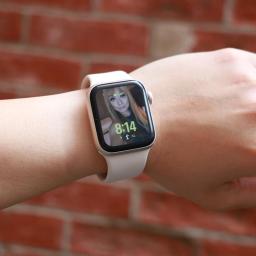
I started my review of the Apple Watch Series 11 talking about how everyone uses smartwatches differently. And based on your needs, the right Apple Watch might not be the one with the most features.The Apple Watch SE series has long been the option for parents to buy for their kids or other dependents, or people who are dipping their toe into the world of smartwatches. But with the introduction of an always-on-display (AOD), on-device Siri and faster charging, the Apple Watch SE 3 has shed most of its limitations and may well be good enough for most people. Throw in an onboard temperature sensor, support for 5G, media playback and gestures like double tap and wrist flick, and the latest Watch SE is not only a serious upgrade over its predecessor but also a compelling option for pretty much anyone.I used the SE 3 for a few weeks to see if it's good enough to replace the Apple Watch Series 11 I regularly wear, and, setting aside some small caveats, the short answer is yes.What's new in the Apple Watch SE 3?The most important upgrades in this generation of the entry-level smartwatch are the arrival of the always-on-display, faster charging speeds and on-device Siri. That latter addition allowed me to ask the assistant to start workouts, reply to messages or check the weather without having to deal with the tiny buttons on the cramped screen. You'll also be able to dismiss notifications and alarms with a flick of your wrist, or use the double tap gesture to navigate the smart stack and select or confirm items onscreen.Older models of the Watch SE would not only require a connection to your iPhone to work with Siri, but those requests would also be a lot slower since the system would need to wait for the phone to deliver the answer. I also loathed how long it took for earlier Apple Watches to charge, and in my testing the Watch SE 3's speed comes closer to more recent models like the Series 7 and newer. It still took noticeably more time to recharge than the Series 11, but it's not slow enough to be a dealbreaker. You'll just need to establish some sort of charging routine that allows at least a few hours for the Watch SE 3 to get back to 100 percent.An always-on-display is something I missed when I tested the Watch SE 2, because I'm the sort of gym fiend that likes to be able to quickly glance at my wrist while pumping some pushups and see exactly what my heart rate is. Without AOD, you'd need to raise your wrist or wake the screen somehow to see your stats, which is annoying if you're in the middle of a workout or are lugging heavy weights around. The Watch SE 3 delivered basically the same experience as the Series 11 when I wore both to my resistance and HIIT (high intensity interval training) sessions, though the latter's larger display did make it easier to read my stats.Speaking of the screen, the Watch SE 3 hasn't gotten any brighter, with its peak of 1,000 nits being the same as the SE 2's. But the latest SE can get as dim as 2 nits, which is very close to the Series 11's 1 nit. You may wonder why this is worth noting, but trust me - your retinas will be grateful when you accidentally raise your wrist or get a notification in the middle of the night or are in a darkened theater. Older smartwatches were pretty disruptive in cinemas since their screens were bright enough to scorch any eyeballs that were accustomed to low-light environments. The Apple Watch Series 11 and Apple Watch SE 3 side by side on the same forearm. Cherlynn Low for Engadget Another screen-related update that isn't immediately obvious is the Ion-X glass on the SE 3, which Apple says is four times more crack-resistant than the SE 2. I haven't put this claim to the test, but the hardier material should help keep your smartwatch safe from more mishaps.I should also point out that the Watch SE 3 uses the same S10 processor as the Series 11, which has a four-core neural engine that should help speed up Siri and Apple Intelligence tasks. In general, I found the SE 3 snappy and responsive, and mostly as fast as the Series 11. Previous Watch SE models tended to be a bit sluggish, so it's nice to see the SE 3 get this particular bump.The impact of most of the other improvements to the SE 3 depend on how you use a smartwatch. The new 5G support, for example, would be helpful if you get a cellular model and want to leave your phone behind while you run errands or go on walks. The wrist temperature sensor is mostly there to help with predicting cycles, so if you don't ovulate it is unlikely to be useful to you right now. Sleep apnea notifications don't affect non-sufferers, though they're a nice feature to have. And finally, though I appreciate the ability to play songs of media through the watch's onboard speaker, I rarely find myself wanting to do so.It might be worth noting that the SE 3 comes in one fewer color option than the SE 2. You can only choose between starlight (a warm light gray) or midnight (black), as the silver version is not available in the latest generation.Apple Watch Series 11 vs the Watch SE 3The main thing I wanted to determine when reviewing the Watch SE 3 was whether it's good enough to replace the Series 11. Like I said earlier, the short answer is yes, but it depends on how you use these devices. I don't wear smartwatches to bed, and as a result my Watch SE 3 still has plenty of power left in the morning when I need it, so I'm a lot less affected by its relatively slower charging speeds. If you use your Apple Watch all the time, you might find something that recharges faster a lot more suitable - the Series 10 or 11 are both better on that front. The Apple Watch Series 11 and Apple Watch SE 3 side by side on the same forearm, with the same photo watch face on their screens. Cherlynn Low for Engadget The Series 11's larger screen and smaller bezels makes it a lot nicer to look at, though since the SE 3 also runs watchOS 26, I was able to use the same watch faces for both. Aesthetically, I didn't find the two to be very far apart in terms of appearances, and if you're not familiar with the latest Apple Watches like I am, you might not find the bezels as unsightly as I did. And though the SE 3 uses a flat OLED compared to the Series 11's wide-angle OLED, I never really had an issue reading it, regardless of the position.Thanks to their electrical heart rate sensors, the Series 11 and Series 10 support Apple's newer health-centric features like hypertension alerts, as well as apps for ECG and blood oxygen readings. The SE 3's optical sensor is older and doesn't have those capabilities, but you'll still get notifications for irregular rhythms, low cardio fitness, as well as high and low heart rate notifications. Those were more than enough for me, and though I occasionally run an ECG reading on my Series 11, it's not something I'd miss (especially if a $150 difference in price were in the balance).I'm also not a big swimmer or underwater enthusiast, so the SE 3's lack of a depth gauge and water temperature sensor don't bother me. All three watches I've mentioned in this section are water resistant to 50 meters, and that's more than enough for my needs. If you want your watch to help with your underwater activities, it's probably worth splurging on the Series 10 or 11.The pricier watches are also certified IP6x for dust resistance, meaning they should offer a bit more peace of mind for those who work on beaches or on job sites, for example. I've not yet encountered a smartwatch that stopped working due to dust ingress, regardless of whether it was rated, so the SE 3 not having this certification doesn't bother me either.One thing that the most discerning tech fans might call out is the fact that the SE 3 doesn't have the same ultra wideband (UWB) chip that the Series 10 and 11 do. This enables the greater precision in Find My that allows you to locate your iPhone or wearable down to the number of feet. But you'll still get basic Find My support on the Watch SE 3, and honestly all I really did with this was to use my watch to ring my phone so I could confirm it was with me without having to dig through all the pockets in my gigantic purse. Still, if you use this Find My interface a lot, it's worth considering when getting your next Apple Watch.Finally, if you're a fan of the titanium finish or multiple color options in Apple's more-premium lineup, only the Series 10 and 11 come in the silver and rose gold colors for the aluminum case. The Series 11 is also available in Space Gray in aluminum, as well as Slate, Gold and Natural hues for the titanium finish. Again, the SE 3 is only available in two colors.Using the Apple Watch SE 3 as a Series 11 wearerI'm the sort of person who straps on my smartwatch when I head out and removes it when I get home. When I'm outside, I expect my Apple Watch to track my steps and activity, automatically detect and log extended walks, tell me when someone's calling or texting and keep tabs on my workouts. For all those situations, the SE 3 was more than adequate. Occasionally I noticed it was a bit slower than the Series 11 at recognizing when I was done working out and suggesting I end the session, but not at a frequency that was concerning.The SE 3 was also as capable as the Series 11 when it came to acting as a remote viewfinder for my iPhone's camera, and Siri was satisfyingly responsive at launching my workouts or telling me about the weather. I also enjoyed having the double tap and wrist flick gestures at my disposal, and honestly kind of liked the watch's smaller size.But I did miss the Series 11's brighter screen and smaller bezels. I also prefer the Series 11 for its ability to recharge more quickly, as well as its slightly longer-lasting battery. Both still were able to make it through an entire day before needing a charge, but the Series 11 generally did more in the background in that amount of time.In the end, it wasn't the features like blood oxygen readings or hypertension notifications that I wanted back. It boiled down to physical components like a brighter display or bigger battery and more durable case that I wanted around for peace of mind.Wrap-upIs peace of mind worth a $150 premium? In this economy, it's hard to say. On one hand, it's possible a $399 Apple Watch will outlast the $249 SE 3, mostly due to its harder materials, making it a more astute investment in the long run. But for those who currently have tight budgets and need to replace aging or broken smartwatches, the SE 3 is the way to go.