by Ian Carlos Campbell from Engadget is a web magazine with obsessive daily coverage of everything new in gadgets and consumer electronics on (#71X1C)
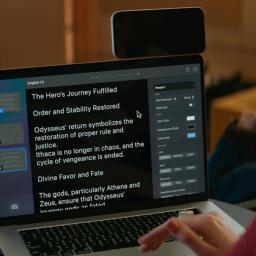
One of the iPhone's many accessibility features is something Apple calls "Magnifier," which uses the smartphone's cameras to magnify and identify objects in the world around you. For Global Accessibility Awareness Day in May this year, Apple brought Magnifier to the Mac, opening up even more places the assistive tool can be used, like classroom or work environments where you might already have a MacBook pulled out.Magnifier requires macOS 26 Tahoe and can work with a built-in webcam, a connected third-party camera or an iPhone via Apple's Continuity feature. Provided your MacBook can run Apple's latest software update, it's a natural fit for zooming in on a whiteboard at the back of a large lecture hall or getting a closer look at documents on a desk in front of you. You can use the app to both capture an individual image you want to refer to later, or to analyze text in a live video feed. But where to begin? Here's how to set up and use Magnifier on your Mac.How to use Magnifier to identify and display textA MacBook using Magnifier and a connected iPhone to identify and format text from a book.AppleMagnifier's most powerful feature uses the MacBook's machine learning capabilities to identify, display and format text that your camera captures. This works with text your camera can see in the room around you, and things it captures via macOS' Desk View feature. For example, to view documents on your desk: